Create LP Express labels for multiple Hostinger Ecommerce orders by exporting the orders as one CSV file and importing it in the LP Express self-service panel. The CSV file includes each order’s receiver name, phone number, and parcel locker, so you don’t copy them into LP Express order by order. One import adds every shipment to your LP Express cart.
Export Hostinger Ecommerce orders as an LP Express CSV file
Export the orders you want to ship from the Orders page of the Store Manager using Export CSV for LP Express.
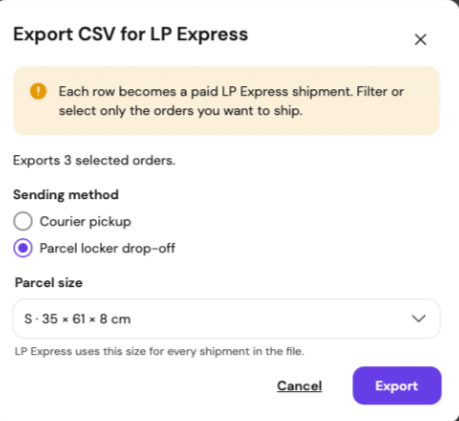
Each exported order becomes a paid LP Express shipment. Select or filter only the orders you want to ship before exporting.
- In the Store Manager, go to Orders.
- Select the orders to ship, or filter the list to show only those orders.
- Click Export → Export CSV for LP Express.

- Under Sending method, select Courier pickup or Parcel locker drop-off.
- Under Parcel size, select the size of your parcels.
- Click Export to download the CSV file.
NOTES
- LP Express uses the selected parcel size for every shipment in the CSV file.
- Orders shipped to a parcel locker include the locker the customer picked at checkout.
- Exports of more than 100 orders are split into several CSV files, since LP Express imports up to 100 shipments per file.
Import the CSV file in the LP Express self-service panel
Import the exported CSV file on the Cart page of the LP Express self-service panel to add all shipments at once.
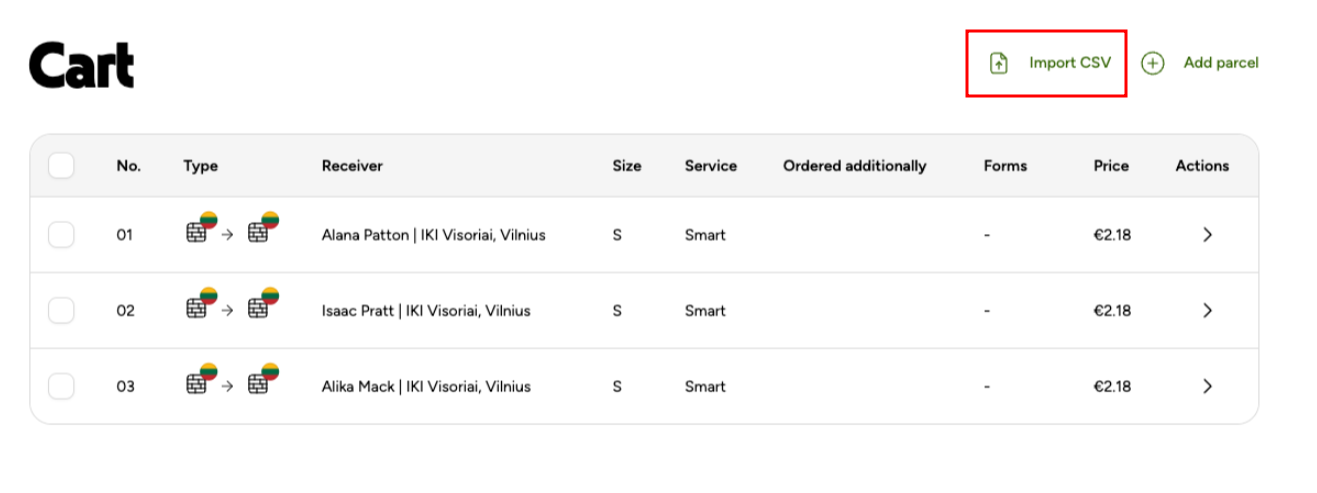
- On the Cart page of the LP Express self-service panel, click Import CSV and select the downloaded file.
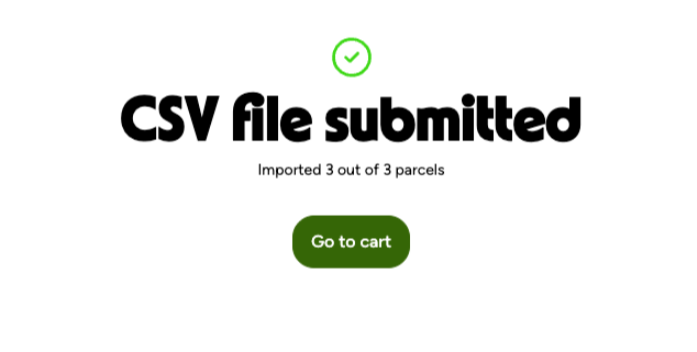
- When the CSV file submitted message shows how many parcels were imported, click Go to cart.
The LP Express cart lists each shipment with its receiver, parcel size, and service.
Your orders are now in LP Express as shipments, ready for labels without manual data entry.