Hostinger CDN caches copies of your website’s files on servers close to your visitors and serves them without contacting your hosting server. Static files are cached automatically, HTML pages are cached only when your website asks for it, and requests that belong to a logged-in visitor or a shopping cart are never served from the cache. Knowing these rules explains why a change appears immediately in one place and later in another.
What Hostinger CDN caches
|
Content |
Cached at the CDN edge |
Default duration |
|
Static files: images, CSS, JavaScript, fonts, downloads |
Yes |
Up to 2 hours, or the time set by your website’s cache headers |
|
Optimized images (WebP, resized) |
Yes |
Up to 30 minutes by default on web hosting, or the time set by the original image’s cache headers |
|
HTML pages on web hosting (WordPress, PHP, Node.js) |
Only when marked cacheable by your website |
The time your website or caching plugin specifies |
|
Website Builder and Horizons websites |
Yes, the whole website |
Up to 7 days; refreshed when you publish |
|
Redirects (301, 302) and not-found (404) responses |
Yes, briefly |
301 up to 2 hours; 302 up to 20 minutes; 404 a few seconds for pages and a few minutes for files |
|
Pages for logged-in visitors, carts, and checkouts |
No |
— |
|
Error responses (5xx) |
No |
Never stored; a copy cached earlier may be served instead while your website returns errors |
Static files are cached with a default lifetime of two hours when your website sends no Cache-Control or Expires header. The Content Delivery Network (CDN) follows the header when it does — s-maxage applies to the CDN, max-age to both the CDN and browsers. See Advanced CDN header management at Hostinger for the directives.
Because redirects are cached too, a redirect you have already corrected can keep being served from the edge for up to two hours. Flush the CDN cache after changing redirects.
How HTML pages are cached on web hosting
Hostinger CDN fetches HTML pages from your hosting server on every request by default and reports them as DYNAMIC in the x-hcdn-cache-status header. Two things make the CDN cache a page.
The LiteSpeed Cache plugin caches the page for the plugin’s public cache lifetime (the plugin default is 7 days, max-age=604800) when it marks a page as publicly cacheable, and Hostinger CDN usually clears its cached pages when the plugin purges. Lowering Default Public Cache TTL in the plugin applies to pages cached afterwards; flush the CDN cache to apply it to pages already cached.
Cache headers from your application are cached for that time when a response carries Cache-Control: public with a max-age or s-maxage value. Cache-Control: private, no-store, or no-cache keeps the page out of the CDN cache.
Requests carrying a WordPress login cookie or a WooCommerce cart or session cookie bypass the cache entirely, so logged-in users, customers with items in the cart, and the checkout always receive fresh pages from your server.
NOTES
- A long
max-agealso instructs browsers to keep the page. Visitors who see an old version after a flush usually have the page in their browser cache — a hard refresh (Ctrl+Shift+R, Cmd+Shift+R on Mac) confirms it. - Responses with
x-hcdn-cache-status: HITalso carry anAgeheader with the number of seconds since the CDN stored the copy.
How to read the cache status
Every response delivered by Hostinger CDN includes the x-hcdn-cache-status header.
|
Status |
Meaning |
|
HIT |
Served from the CDN cache |
|
MISS |
Fetched from your website and stored for the next request |
|
EXPIRED |
The cached copy expired; fetched again and stored |
|
REVALIDATED |
Your website confirmed the cached copy is still current |
|
DYNAMIC |
Not cacheable; fetched from your website |
|
BYPASS |
Cache skipped, for example in Development mode or for a logged-in visitor |
|
STALE |
A cached copy served because your website was unavailable or returned an error |
|
UPDATING |
A cached copy served while the CDN refreshes it from your website in the background |
The first request for a page or file after a flush shows MISS or DYNAMIC even when the response was stored — repeat the request and check for HIT before concluding that something is not cached.
How to refresh cached content
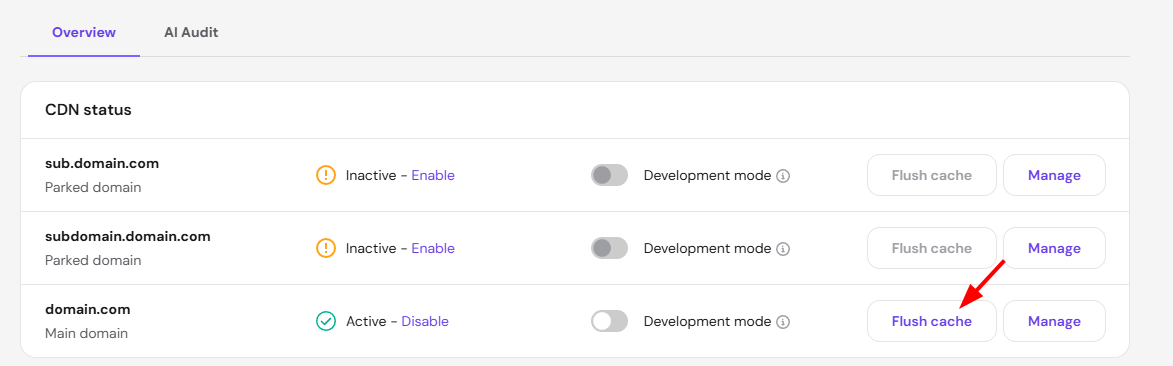
- Flush cache in Hostinger dashboard → Websites → Dashboard → Performance → CDN invalidates the cached copies of the whole website within seconds. Individual URLs cannot be flushed separately.

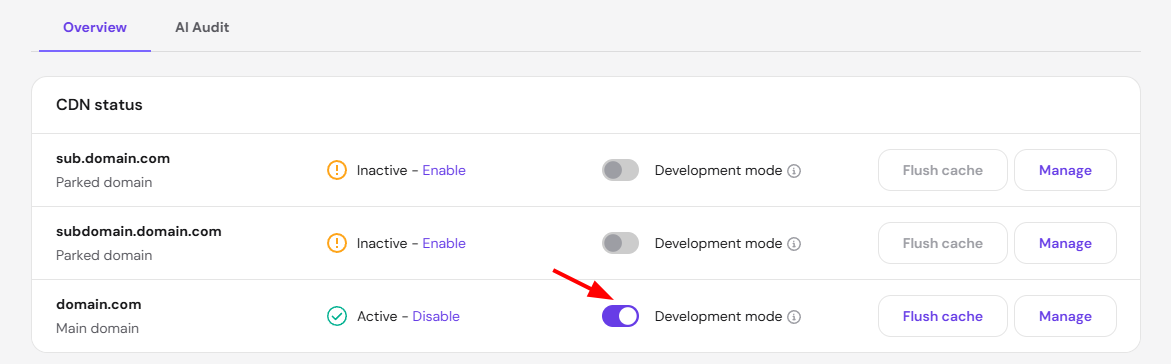
- Development mode makes the CDN fetch every request from your website while you edit. Disable it afterwards.

- Purging in the LiteSpeed Cache plugin usually clears the pages Hostinger CDN cached as well: the CDN acts on the plugin’s purge signal when it arrives on an uncached response, which is the case for purges triggered from the WordPress admin. Flush the CDN cache if a change still does not appear — that is the reliable step.
- Change the file name or add a version parameter (
style.css?v=2) when you deploy new static files, so visitors’ browsers fetch the new copy as well. - Follow Hostinger CDN: How to clear the cache for the step-by-step flush procedure and the other cache layers on your hosting plan.
Hostinger AI Builder websites
Websites built with Hostinger AI Builder are cached completely, including HTML, for up to 7 days, and the cache is refreshed automatically when you publish changes. No caching settings are needed or available for these websites.
With static files cached by default, HTML cached on your terms, and personal pages always fresh, Hostinger CDN speeds up delivery without serving stale or private content.