Hostinger AI Builder includes a native logo marquee section that displays your logos scrolling continuously across the page, without requiring custom code or third-party embeds.
Add a logo marquee section
To open the Add section panel and add other section types, see Hostinger AI Builder: How to generate pages and sections in manual mode.
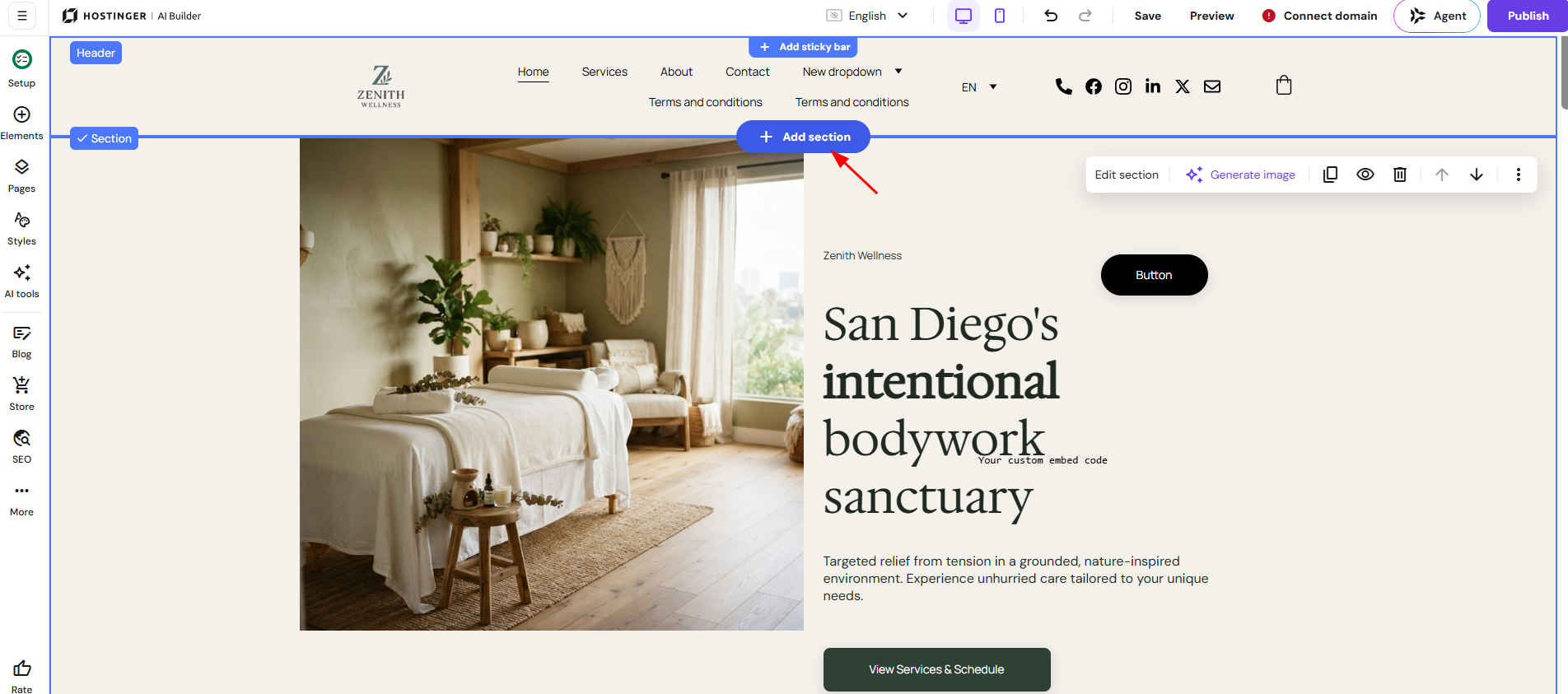
- Click Add section at the point on the page where you want the logo marquee to appear.
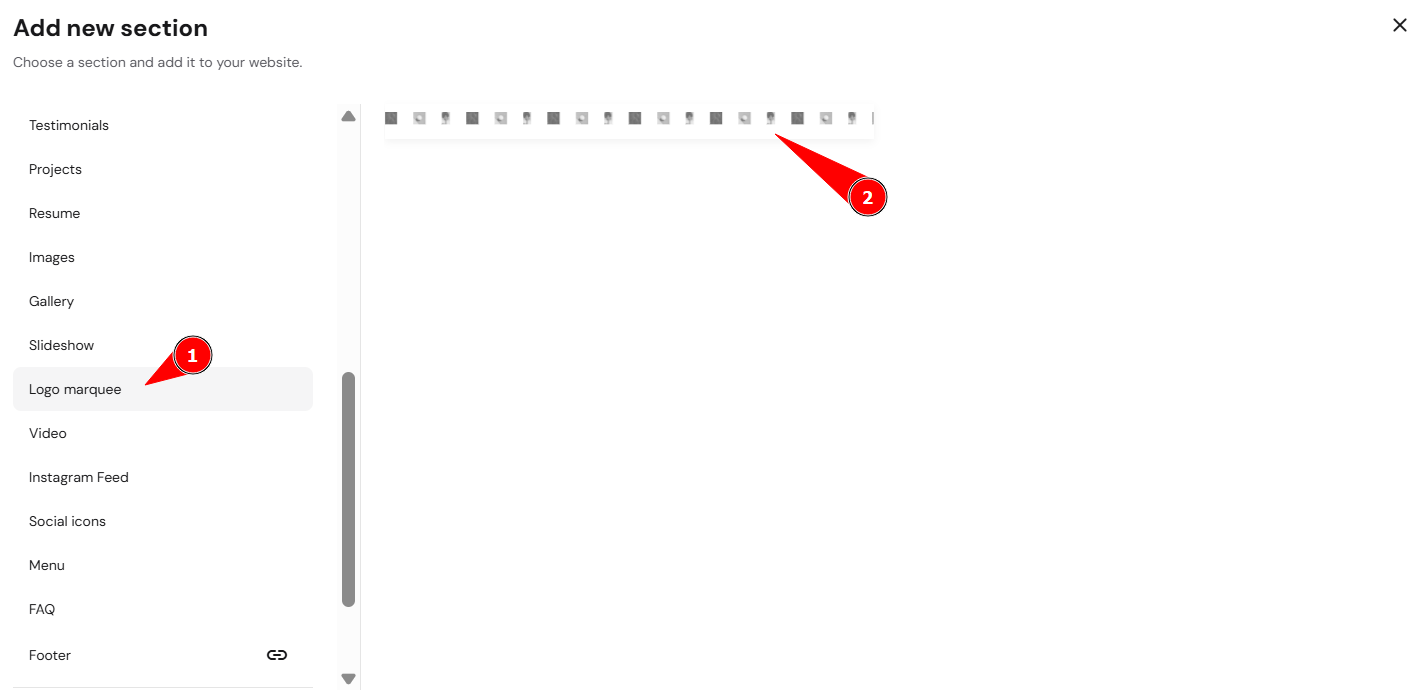
- Select Logo marquee from the section list.
Edit the logo marquee section
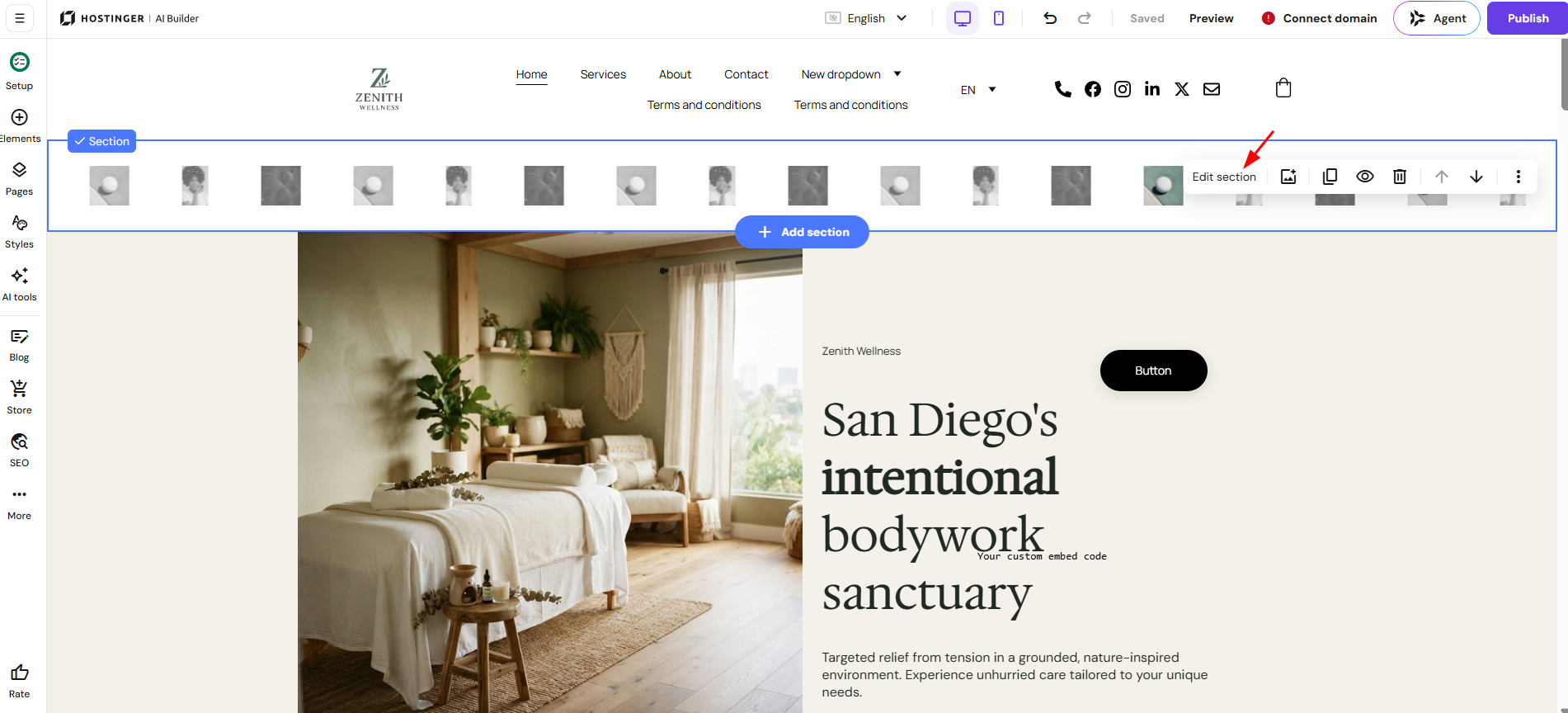
Click Edit section to open the Logo marquee settings panel.
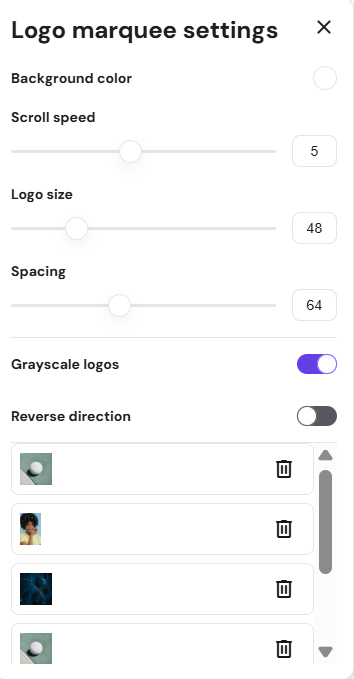
- Set the Background color for the logo marquee section.
- Set the Scroll speed to control how fast the logos scroll.
- Set the Logo size and Spacing between logos.
- Turn on Grayscale logos if you want the logos displayed in grayscale instead of their original colors.
- Turn on Reverse direction if you want the logos to scroll in the opposite direction.
- Add, remove, or reorder the logos displayed in the marquee using the logo list in the settings panel.
Your logo marquee section now displays your logos scrolling continuously across the page, making it suitable for showcasing brand partners, clients, or featured press mentions.
NOTE
- The logo marquee section is a native Hostinger AI Builder feature and doesn’t require custom code or third-party embeds.