Legitimate requests blocked by Hostinger CDN with a 403 status code, such as contact forms, login pages, REST API (Application Programming Interface) calls, or payment provider callbacks, are usually resolved by adjusting the security level and reviewing traffic blocking rules. The security filtering inspects requests for attack patterns, and complex form or API payloads can occasionally be flagged as suspicious.
Before you start
- Collect the exact URL and method of the failing request, for example
`POST https://domain.tld/wp-json/example`. - Requests commonly affected include
`admin-ajax.php`calls,`/wp-json/`REST API endpoints, page builder AJAX requests, and webhook callbacks from external services.
Identify the blocked request on your website
- Open the page where the action fails in a browser.
- Open the browser developer tools (F12) and select the Network tab.
- Repeat the failing action, for example submitting the form.
- Click the request shown in red and note the status code, the URL, and the
`x-hcdn-request-id`response header value.
A 403 status on a request that works with the CDN disabled indicates the CDN security filtering blocked it. External services, such as payment gateways, report failed webhook deliveries in their own dashboards — note the timestamps of the failed deliveries.
Lower the Hostinger CDN security level
Higher security levels inspect requests more strictly. Lowering the level reduces false positives while keeping basic protection:
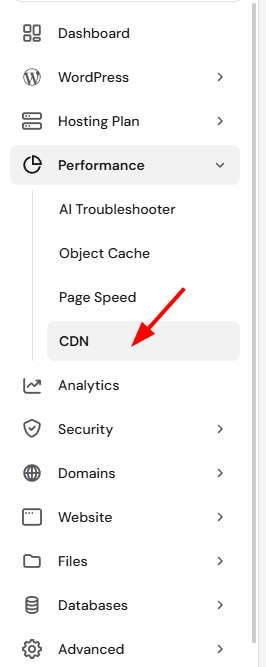
- Go to Hostinger dashboard → Websites → Dashboard → Performance → CDN.
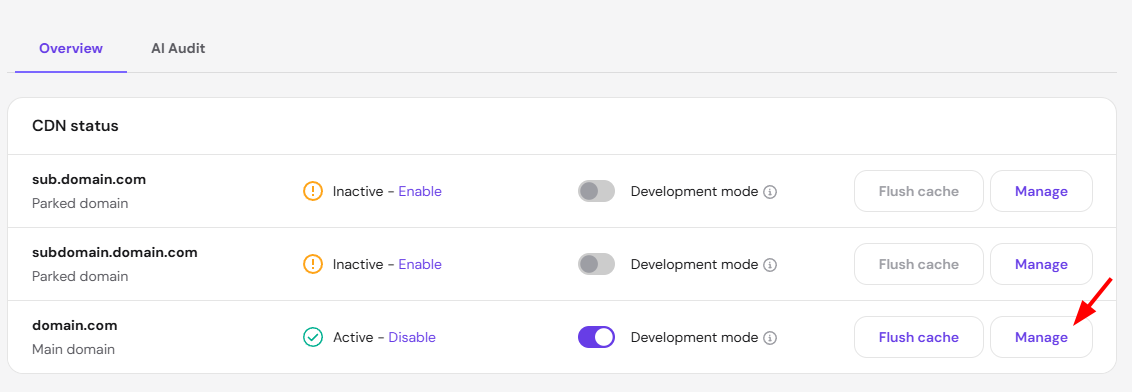
- Click Manage.
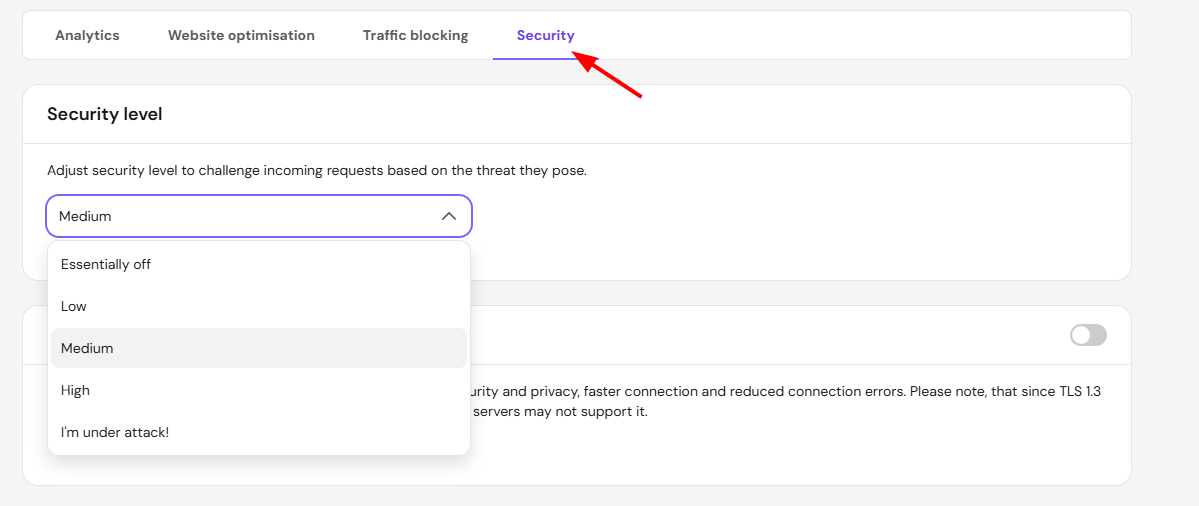
- Open the Security tab.
- Select a lower option such as Medium or Low in the Security level dropdown.
- Wait one minute, then repeat the failing action.
Test after each level change and stop at the highest level that no longer blocks the legitimate request.
NOTE
- Keep the security level as high as your website tolerates. The lowest levels effectively disable request inspection and reduce protection against attacks.
Review Hostinger CDN traffic blocking rules
Blocking rules also apply to automated services that your website depends on:
- In the CDN dashboard, open the Traffic blocking tab.
- Review country blocking rules. A blocked country also blocks services calling your website from that country, such as payment callbacks from a provider based there.
- Review IP blocking rules and remove entries that cover your own services, offices, or monitoring tools.
Test with Hostinger CDN temporarily disabled
Disabling the CDN confirms whether the block comes from its security filtering:
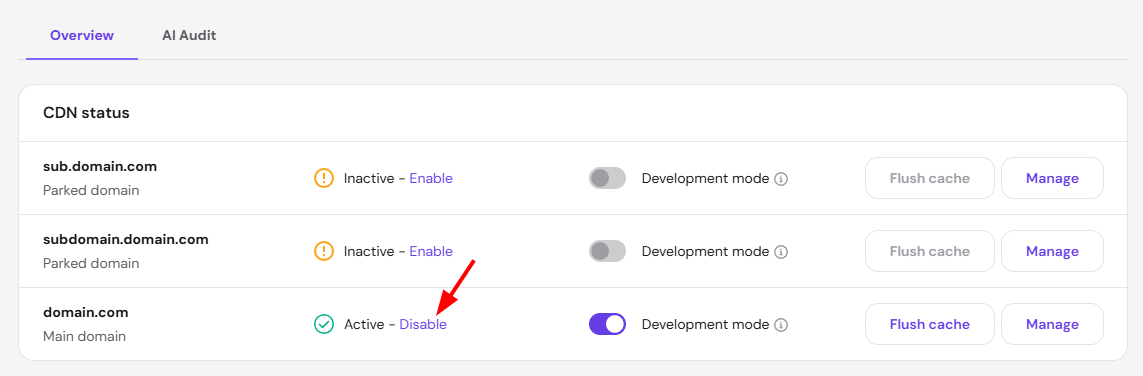
- Go to Performance → CDN and click Disable.
- Wait a few minutes, then repeat the failing action.
- Re-enable Hostinger CDN after the test.
If the request works with the CDN disabled but keeps failing with it enabled at a lowered security level, the specific endpoint or the calling service needs an exception.
When to contact Hostinger support about blocked requests
Allowlisting a specific external service or endpoint cannot be done from Hostinger dashboard. Contact Hostinger support and include the failing URL and method, the `x-hcdn-request-id` value, the timestamp, and the IP addresses of the external service if the provider publishes them. This information lets the team identify the triggered rule and add a precise exception.
Once the security level fits your website and blocking rules exclude your own services, forms, logins, APIs, and payment callbacks flow through Hostinger CDN without interruptions.