Set access rights for files and folders in Hostinger with CHMOD (change mode) permissions, either in File Manager or through an FTP client. Permissions control read, write, and execute rights for the owner, the group, and everyone else, and the defaults are 644 for files and 755 for folders.
How to set permissions in the File Manager
Open Websites → Dashboard, search for File Manager on the sidebar and click on it:
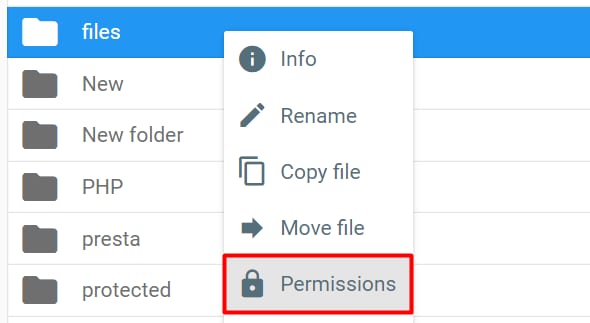
Right-click on the file or folder you want to set permissions for and choose Permissions:
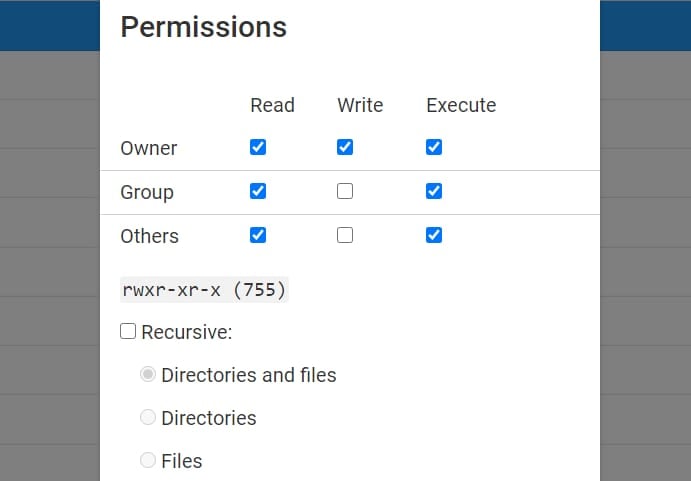
You will be able to choose the needed permissions by checkboxes – and see their numeric value below. You can also set the same permissions for the content inside folders (make permissions recursive):
How to set permissions via FTP
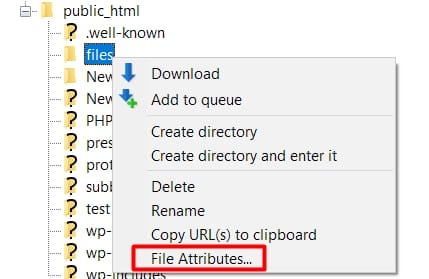
If you have already connected to your website files using an FTP client such as FileZilla, all you need to do to set permissions is right-click on the file or folder you want to set permissions for and choose File Attributes (or File Permissions, the name can be different based on your FTP Client’s version):
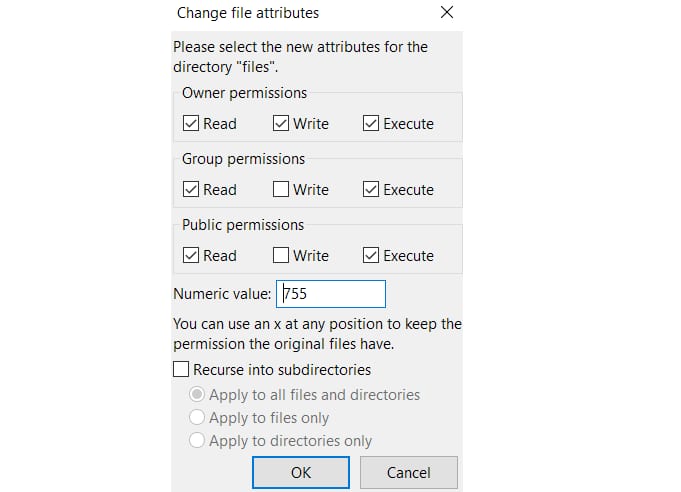
In the opened window, choose the needed permissions with checkboxes or set them with a number. You can also make them recursive.
What are the default permissions?
The default permissions are as follows:
|
Permission type |
Files |
Folders |
|
Owner |
Read, Write |
Read, Write, Execute |
|
Group |
Read |
Read, Execute |
|
Others |
Read |
Read, Execute |
|
Permission in number |
644 |
755 |
Your files and folders now use the access rights you set, and you can return to the default values at any time.
NOTE
-
You can always set all your files and folders’ permissions to default with the Fix File Ownership feature