Set up remote MySQL access in Hostinger to let remote hosts connect to and manage your databases.
Before you start
- If you don’t have a database yet, see how to create MySQL database and how to manage MySQL databases in Hostinger.
Allow a remote connection
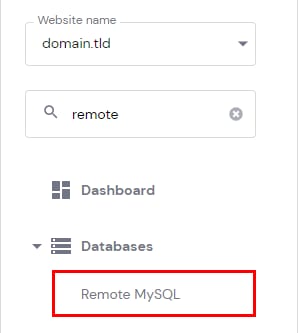
To set it up, first, you need to allow the desired remote IP to connect to your database. This can be done by accessing Websites → Dashboard, searching for Remote MySQL on the left sidebar, and clicking on it:
In the newly opened window, you will be able to create the new connection by filling in the details:
-
IP (IPv4 or IPv6) – the IP address from which the remote connection will be initiated
-
Any Host – click this checkbox to allow the connection from any IP. This will add a % symbol in the IP field
-
Database – select the database which will be remotely accessed
When all is good to go, click on Create:
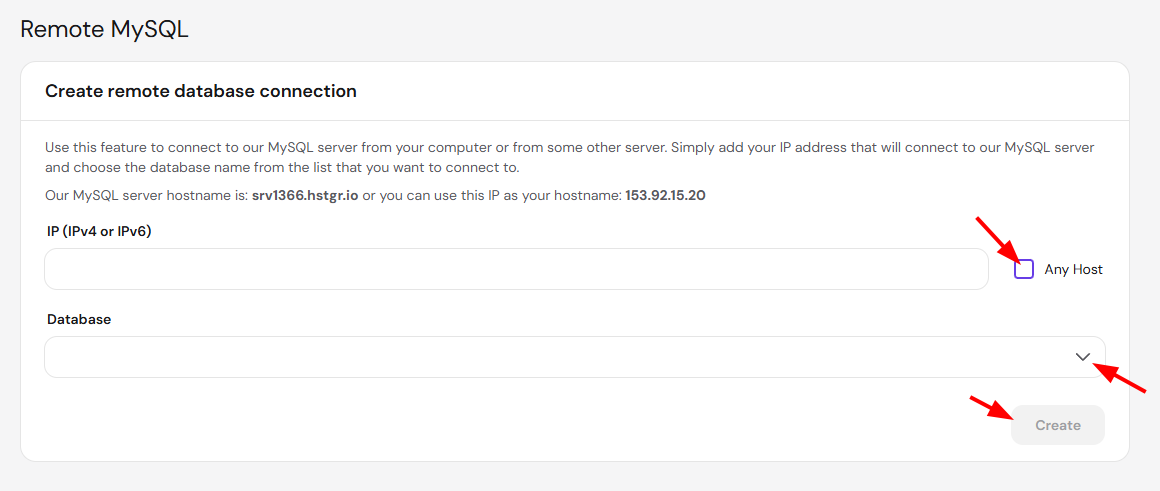
You can find the MySQL server hostname on top of the Create remote database connection section:

The default port for remote connections is 3306.
If you need to connect to a Microsoft SQL Server database instead of MySQL, see how to connect to the Microsoft SQL Server ODBC at Hostinger.
Manage remote access
After the remote access is created, you will be able to remove it if needed on the Remote MySQL section:

That’s it! Now you know how to set up and manage remote access to your databases.