Create a symlink at Hostinger to add a shortcut to an existing file or folder on your hosting plan. A symlink (symbolic link) points to the original file, so you can reach files stored in different locations without copying them. You create symlinks with the ln -s command over SSH, then open them like any other file in File Manager.
For an overview of other supported file transfer and server access options, see which file transfer and server access options are supported at Hostinger.
Before you start
- Symlink functionality is disabled by default on Web and Cloud hosting plans. To enable it, follow how to enable disabled PHP functions first.
- Agency plans do not support symlinks.
- On VPS, symlink functionality is enabled by default, and you can follow the same steps.
Create a symlink at Hostinger
- Open a terminal for your hosting plan. You can use the terminal in Hostinger File Manager, or connect via SSH connection with PuTTY, PenguiNet, or any other SSH client.
- Go to the folder where you want to create the symlink. The terminal in File Manager opens in your website’s folder, so to create the symlink next to your website files, run:
cd public_html - Run the following command:
ln -s original_file.php symlink_file.php
Replace original_file.php with the path of the file you want to create the shortcut for, and symlink_file.php with the name of the symlink. A relative path is resolved from the folder where you create the symlink, so use the full path if the original file is in another folder.
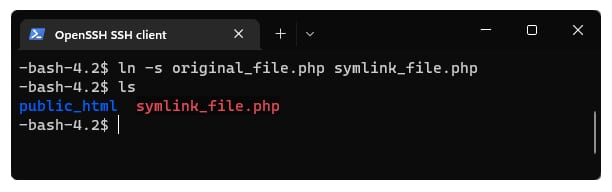
- Check the symlink with
ls -l symlink_file.php. The output shows where the symlink points, for examplesymlink_file.php -> original_file.php. If the original file doesn’t exist at that path, the symlink is still created but doesn’t open. - Open File Manager and go to the folder where you created the symlink. Click the symlink to open the original file.
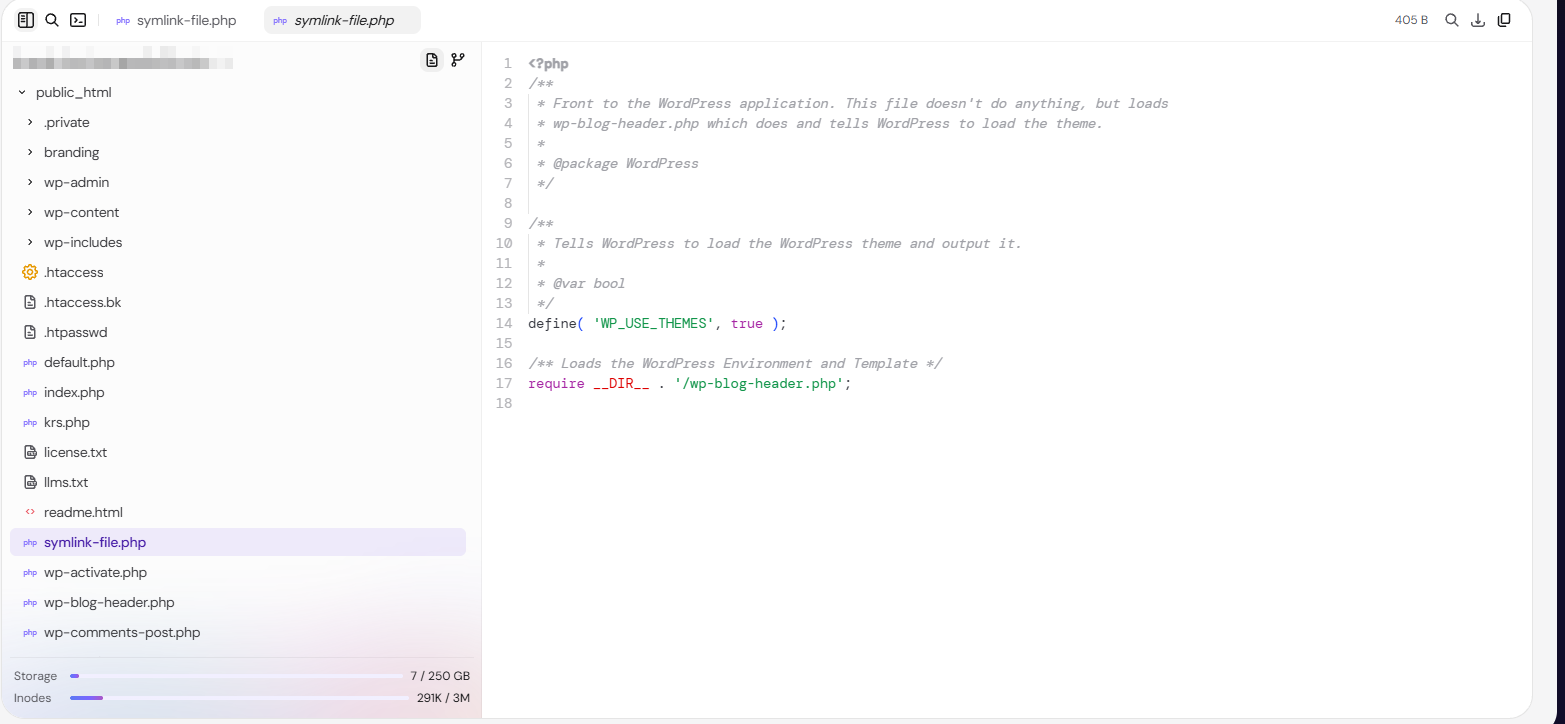
Your symlink is now ready to use as a shortcut to the original file.
NOTE
-
You can find all you need to know about symlinks in this tutorial: How to Create Linux Symlinks
-
If File Manager shows This file was moved or deleted when you open a symlink, the original file isn’t at the path the symlink points to. Remove the symlink with
rm symlink_file.phpand create it again with the correct path.