Download backups on cPanel at Hostinger from JetBackup 5, which creates automatic backups of your cPanel files and databases. Select a backup date under Home directory to download your files, and under Databases to download a database.
Step 1 – Downloading files
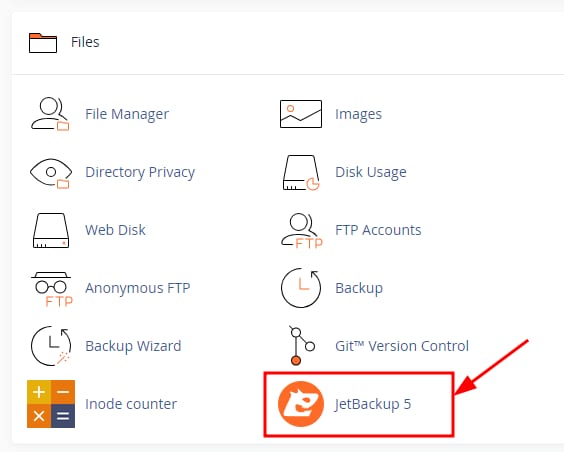
Login to your cPanel and select JetBackup 5:
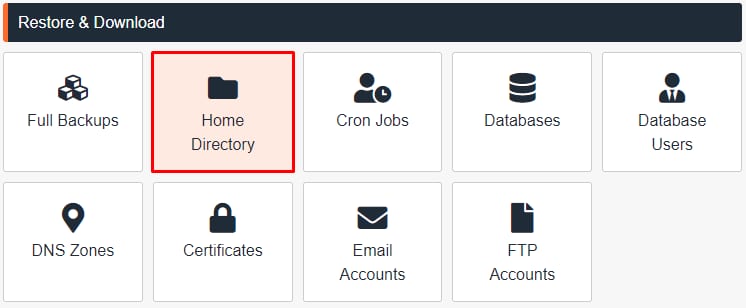
Next, select Home directory:
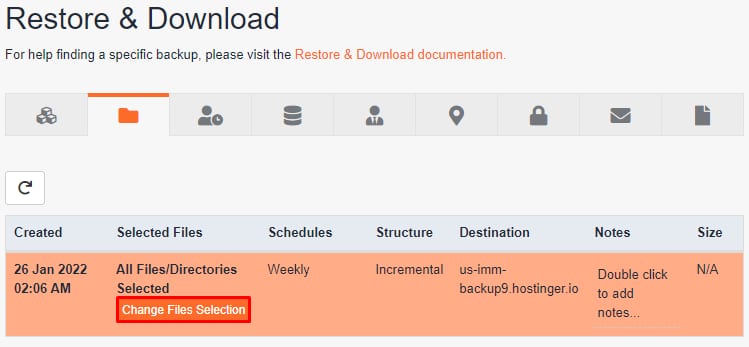
From there, select the date of Backup that you want to download and click on Change Files Selection:
Select all the files that you wish to download and click on Download:

Step 2 – Downloading your database
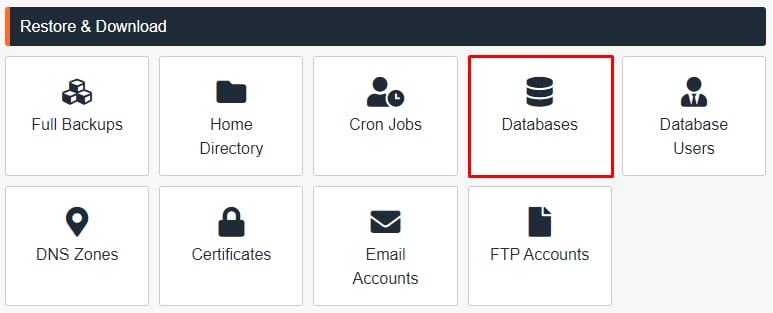
Access your cPanel, click on JetBackup 5, and select Databases:
Once there, select the desired database by clicking on Choose Other Backup:
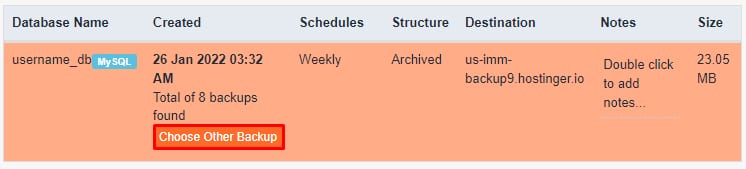
Once it’s good to go, click on Download:

NOTES
- If the amount of storage used in your cPanel plan is larger than 10 GB, new backups will not be generated automatically. In that case, manually back up your website using the File Manager or FTP, or create a full backup in cPanel.
- To move your website from cPanel to a Hostinger web or cloud hosting plan, see How to migrate a website from cPanel to Hostinger.