Copy files or folders using SSH at Hostinger with the cp command, after connecting to your hosting plan and opening the folder that contains them. The cp command can copy a file, copy and rename it, copy it to another directory, or copy a whole folder.
Copying files and folders is possible using the file manager:
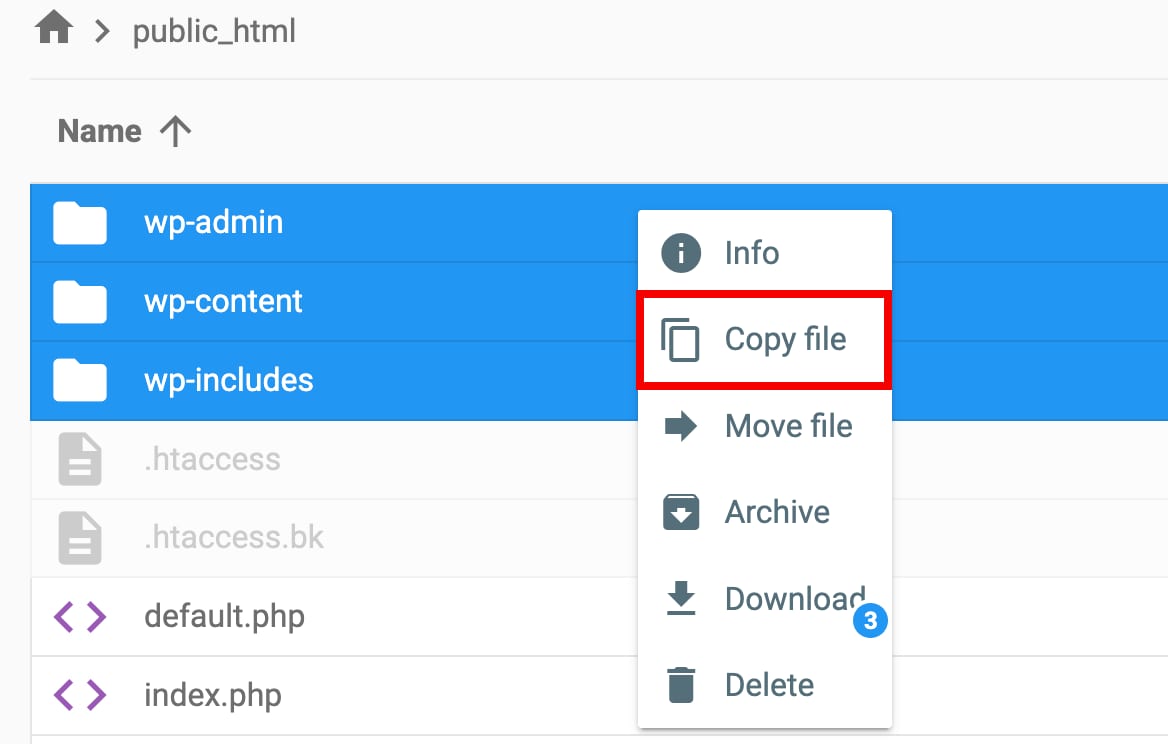
If you would like to copy files and folders with SSH, follow these steps.
Step 1 – Connect to SSH
First, enable SSH access and connect to your account using SSH. Open the directory, where the files and folders, which you want to copy, are located. For that:
-
Run
lscommand-
If you see the needed files and folders, then you can go to Step 2
-
If the needed content is in a subdirectory, reach it by running the below command where
path/to/filesis the actual path to your files:
-
cd path/to/filesFor example, if your files are located in public_html/new/version1, then the command should be cd new/version1.
Step 2 – Copy the files
You only need one command to copy files or folders, just chose the option the most suitable for you:
-
Make a copy of the file:
cp filename-
Make a copy and rename the copied file:
cp filename.php newfilename.php-
Move the copied file to a separate directory:
cp filename.php destination_directory/-
Copy the whole folder and rename it:
cp -R foldername/ newfoldername/-
Copy the files to another directory and replace the existing ones:
cp -f filename.php destination_directory/Your files and folders are now copied to the location you set. For other commands, such as listing, moving, or deleting files, see Common SSH commands at Hostinger.