Domain contact profiles are templates that store your personal or business information—such as name, address, email, and phone number—to simplify domain management. These profiles allow you to quickly apply contact details to new registrations, transfers, or existing domains without manual data entry.
Before you start
- You must have an active Hostinger account.
- You can create a contact profile prior to purchasing any domain.
Managing Hostinger domain contact profiles
You can create multiple profiles for different purposes, such as personal or business use, to ensure your domain portfolio remains organized.
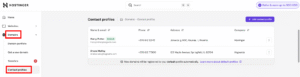
- Log in to your Hostinger account and navigate to the Domains section.

- From the left sidebar, select Contact profiles.
- To create a new template, click Add contact profile and enter the required contact details.
- To update existing information, locate the specific profile and select Edit.
NOTE
- A contact profile is automatically created when you register or transfer your first domain.
Setting a default contact profile
A default contact profile is your primary template used to automatically fill in forms during domain actions.
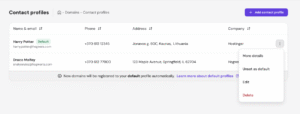
- Go to the Domains → Contact profiles page.

- Find the profile you wish to use as your primary template and click on the three dots

- Select the option to Set as default
Choosing a contact profile during a Hostinger domain purchase
When purchasing a single domain via Hostinger dashboard, you can select which contact profile to use directly during the checkout flow instead of relying on the default one:
- Open the domain purchase modal in your Hostinger dashboard.
- Locate the domain ownership step during the checkout flow.
- Choose an existing contact profile from the list or create a new one.
- If any required details are missing from the selected profile, follow the prompts on the additional details screen to complete them.
Confirm the purchase. The domain registers instantly using the contact details from your selected profile.
Conclusion
By using Hostinger domain contact profiles, you can maintain consistent ownership information across all your domains while streamlining the registration process. You can update these details at any time to keep your domain portfolio current.