Uninstall a Lifetime SSL certificate in Hostinger from the SSL page of your website’s dashboard, for example to reinstall a failed or stuck certificate or to install a custom SSL. After uninstalling, your website loads only over HTTP until you install a new SSL.
To temporarily disable HTTPS and make your website accessible via HTTP, you can unforce HTTPS instead.
Before you start
- Lifetime SSL certificates can only be uninstalled from websites created with PHP/HTML, WordPress, or other file-based CMS.
- For Hostinger AI Builder websites, Lifetime SSL certificates are managed automatically in the background.
- Uninstalling custom SSL is not available for Hostinger AI Builder websites.
How to uninstall a Lifetime SSL certificate
- Go to Hostinger dashboard → Websites
- Click Dashboard next to the website.
- On the sidebar, select Security → SSL.
- Locate the SSL for the domain or subdomain you wish to remove, click on the options button (⋮), and select Uninstall:
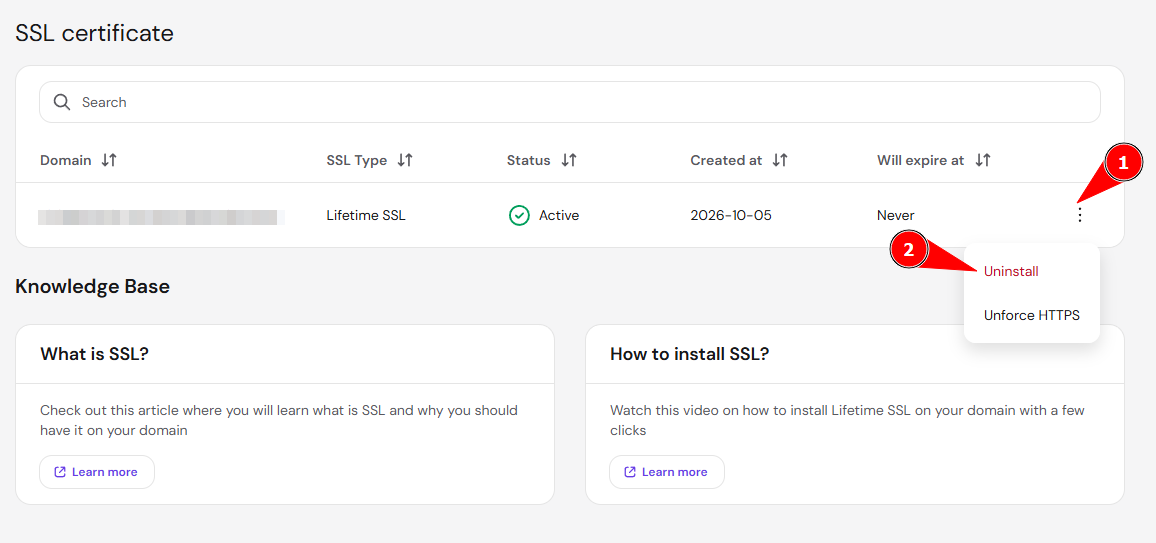
After uninstalling, your domain will appear on the list to install a new SSL, and your website will only be accessible via HTTP, for example http://domain.tld.
With the Lifetime SSL removed, you can install a custom SSL on the domain or install a new Lifetime SSL.
NOTES
-
After uninstalling the SSL, attempting to open the website using HTTPS (e.g.
https://domain.tld) will result in an error, and the website will not be displayed. - To keep the SSL installed but load your website over HTTP, unforce HTTPS instead of uninstalling it.