Check the number of inodes and disk usage per directory in Hostinger with the Calculate directory sizes option in File Manager, or with SSH commands on Premium and higher web hosting plans. Inodes represent the number of files and folders in your hosting plan, and every hosting plan has a fixed storage and inode limit.
Checking the used disk space and the number of inodes per directory
There are two options to quickly identify the used disk space and the number of inodes per each folder (directory) in your hosting plan: using the file manager or SSH.
Via the File Manager
To check the number of inodes and disk usage per folder in the file manager:
-
Navigate to the Websites section
-
Click on Dashboard next to the website in question
-
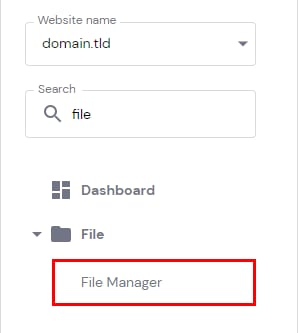
Search for File Manager on the sidebar and click on it:
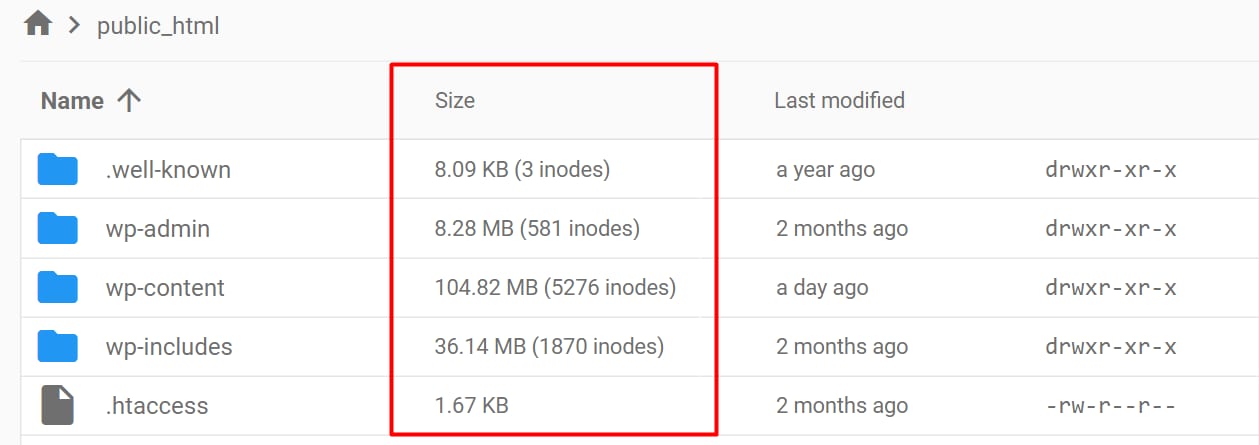
Open the folder the usage of which you wish to check (for example, public_html), and click on Calculate directory sizes in the top right corner:

In the Size column, you’ll be presented with the size of each folder or file and the number of inodes within each folder:
Alternatively, to see the number of inodes of a single directory, right-click on it, and select Info:
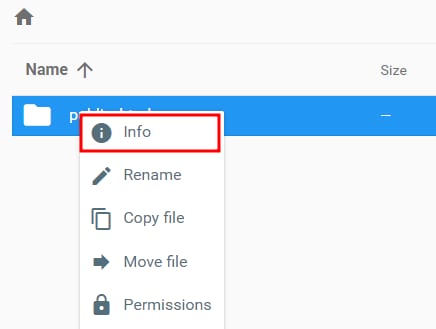
In the pop-up, click on Show next to Size, and you’ll be presented with the size of the folder and the number of inodes within.
Via SSH
If you have a Premium Web hosting plan or above, you may also check the number of inodes and disk usage per folder via SSH:
- Connect to your hosting plan via SSH.
- Make sure you are in the correct directory (for example, public_html). To do this, run the command
ls. If you’re in a different directory, uselsandcdcommands one by one. Learn more: Basic SSH Commands That You Should Know About
For most sites, the path will look like this:
cd domains
cd domain.tld
cd public_htmlMake sure to replace domain.tld with your actual domain name. - Once you’re in the correct directory, run these commands below.
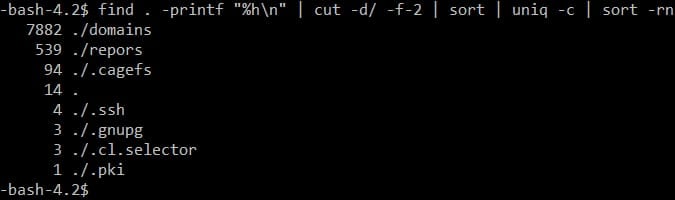
To check the number of inodes (list sorted in descending order):
find . -printf "%hn" | cut -d/ -f-2 | sort | uniq -c | sort -rn
The result will look similar to this:
To check disk usage (list sorted in descending order):
du -shc * | sort -rhThe result will look similar to this:
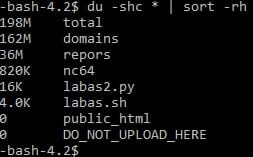
Your inode count and disk usage per directory are now visible, so you can find the folders using the most resources. To check inode usage for your whole hosting plan, see How to check resource usage in Hostinger. If the inode count doesn’t drop after you delete files, see Why does the number of inodes stay the same after removing files or folders in Hostinger.