CAPTCHA is a test that helps identify whether a website visitor is human or a bot by showing presenting a challenge or running an automatic background check.
When migrating a WordPress website to Hostinger from another provider, CAPTCHA must be disabled on the admin login page (https://domain.tld/wp-admin) so our dedicated team can access your website files and database.
For websites built with WordPress, a popular option is Google’s reCAPTCHA. Here is how to disable it according to the method you have used to enable it:
Disable plugin-based CAPTCHA
If you enabled CAPTCHA using the Google plugin, follow these steps:
-
Log in to your WordPress dashboard
-
Click on Settings → Advanced Google re-CAPTCHA
-
Select the CAPTCHA setting to Disabled on the dropdown list:
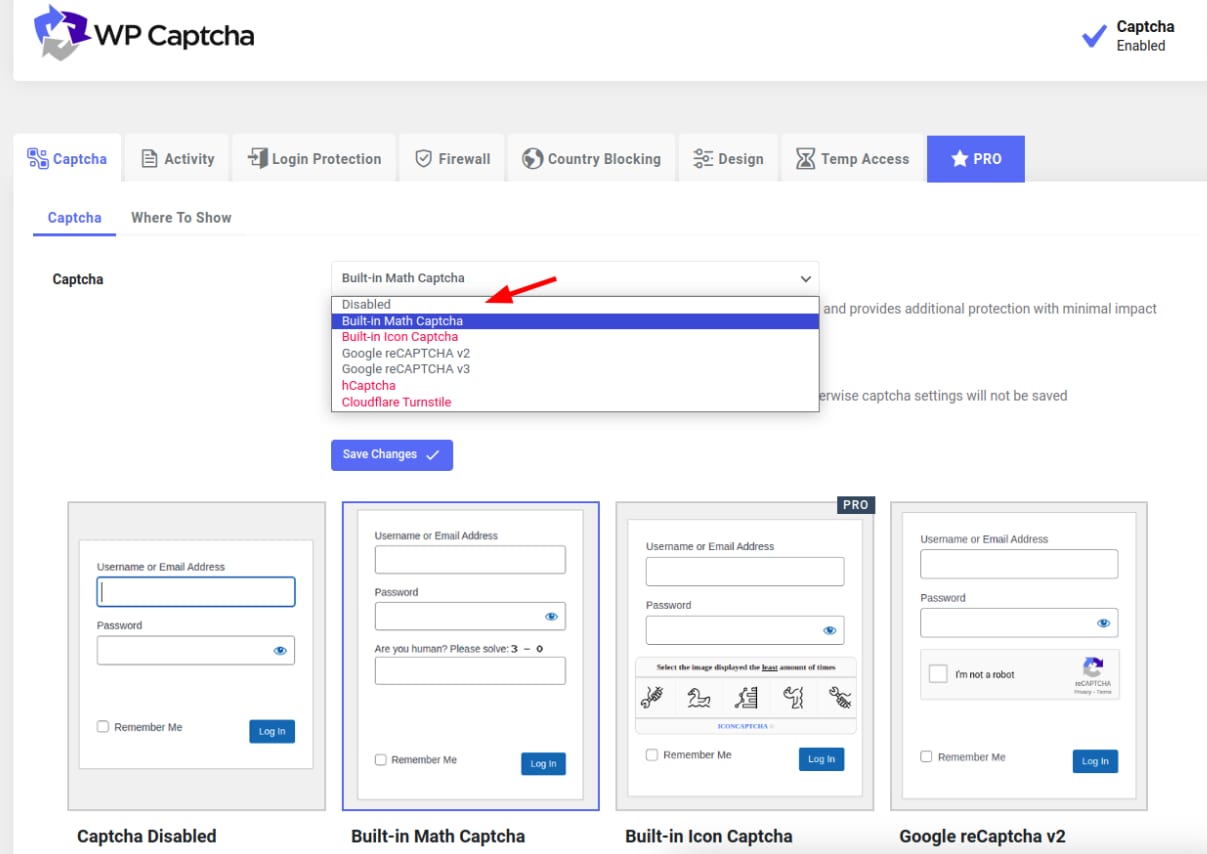
-
Save the changes
-
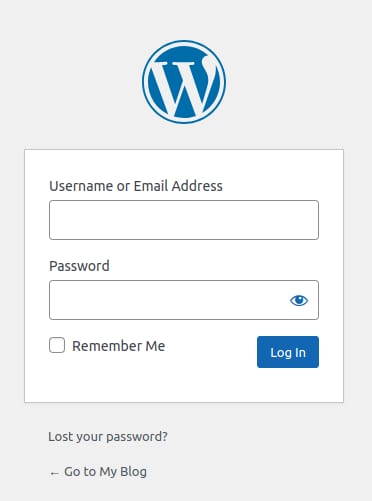
Clear your browser cache or use an incognito window to open your WordPress admin login page to ensure the CAPTCHA has been disabled. It should look similar to this:
Disable script-based CAPTCHA
Alternatively, if you have set up CAPTCHA by adding a script on the WordPress theme file, follow these steps to remove it:
-
Open the File Manager on your WordPress website’s current hosting platform
-
Navigate to the following path:
/wp-content/themes/theme_name -
Locate the function.php file and open it in edit mode
-
Remove the CAPTCHA portion of the code. It may differ depending on where the CAPTCHA is displayed. For example, a code that shows on the WordPress login page will look similar to this:
// Call the Google reCAPTCHA verification API on the login form page function login_style() { wp_register_script('login-recaptcha', 'https://www.google.com/recaptcha/api.js', false, NULL); wp_enqueue_script('login-recaptcha'); } add_action('login_enqueue_scripts', 'login_style'); // Add Google CAPTCHA on login form page function add_recaptcha_on_login_page() { echo '<div class="g-recaptcha brochure__form__captcha" // Replace the placeholder with your site key data-sitekey="INSERT_YOUR_SITE_KEY_HERE"></div>'; } add_action('login_form','add_recaptcha_on_login_page'); -
Save the changes after removing the CAPTCHA code
-
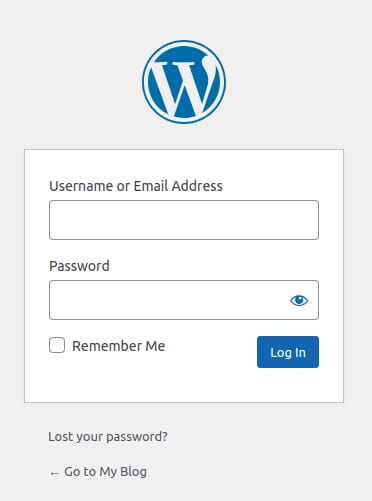
Clear your browser cache or use an incognito window to open your WordPress admin login page to ensure the CAPTCHA has been disabled. It should look similar to this:
Once CAPTCHA is disabled, you can proceed with your migration request using your WordPress login details. If you encounter issues submitting the request, see how to fix common errors when creating a migration request.