Take a screenshot in Google Chrome using the Lightshot extension — useful, for example, when contacting Hostinger Support, since sharing a screenshot often helps our team resolve your issue faster.
Take a screenshot with Lightshot
You can easily take a screenshot on Google Chrome using the Lightshot extension.
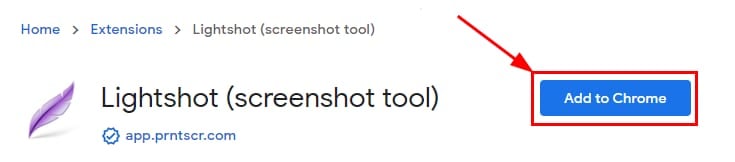
In Google Chrome, open the following link: Lightshot – Chrome Web Store and click Add to Chrome:
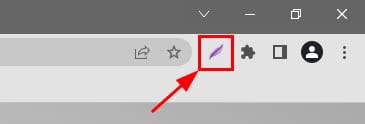
Now click on the LightShot icon:
Select the area you want to capture, then choose the preferred option:

-
Creates a link that you can use to upload the desired image.
-
Copies the image to the clipboard that you can paste wherever you need.
-
Saves the image as a file on your local device.
With Lightshot installed, capturing and sharing a screenshot — whether for our support team or anything else — takes just a few clicks.
Additional resources