In this article, you’ll learn how the blog post reading time is calculated in Hostinger AI Builder manual mode and how you can hide it.
Calculating blog post reading time
Hostinger AI Builder manual mode follows the example of Medium.com and calculates the read time as follows.
Read time is based on the average reading speed of an adult, which is roughly 265 words per minute. We take the total word count of an article and translate it into minutes, with an adjustment made for images:
-
the 1st image adds 12 s
-
the 2nd image +11 s
-
the 3rd image +10 s, etc. up to the 10th image
-
any images after the 10th one are counted as +3 s
Learn more:
Hiding blog post reading time
Blog post reading time can’t be edited, but you may completely hide it, as explained below.
Hiding the read time for a particular blog post
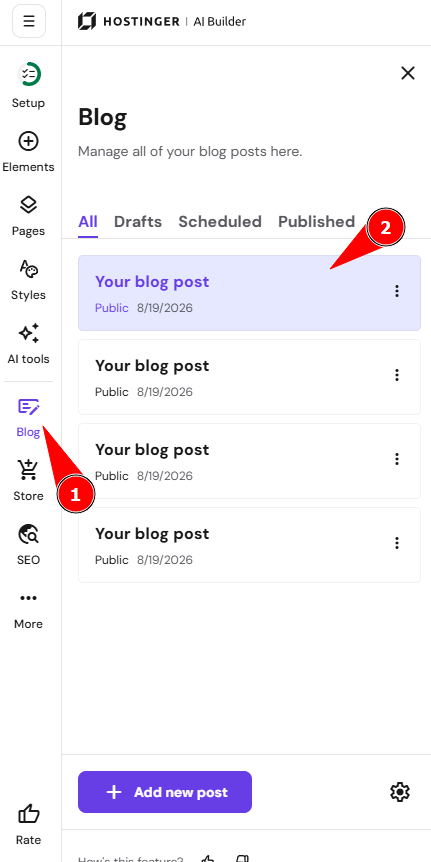
- Open the blog management panel on the left
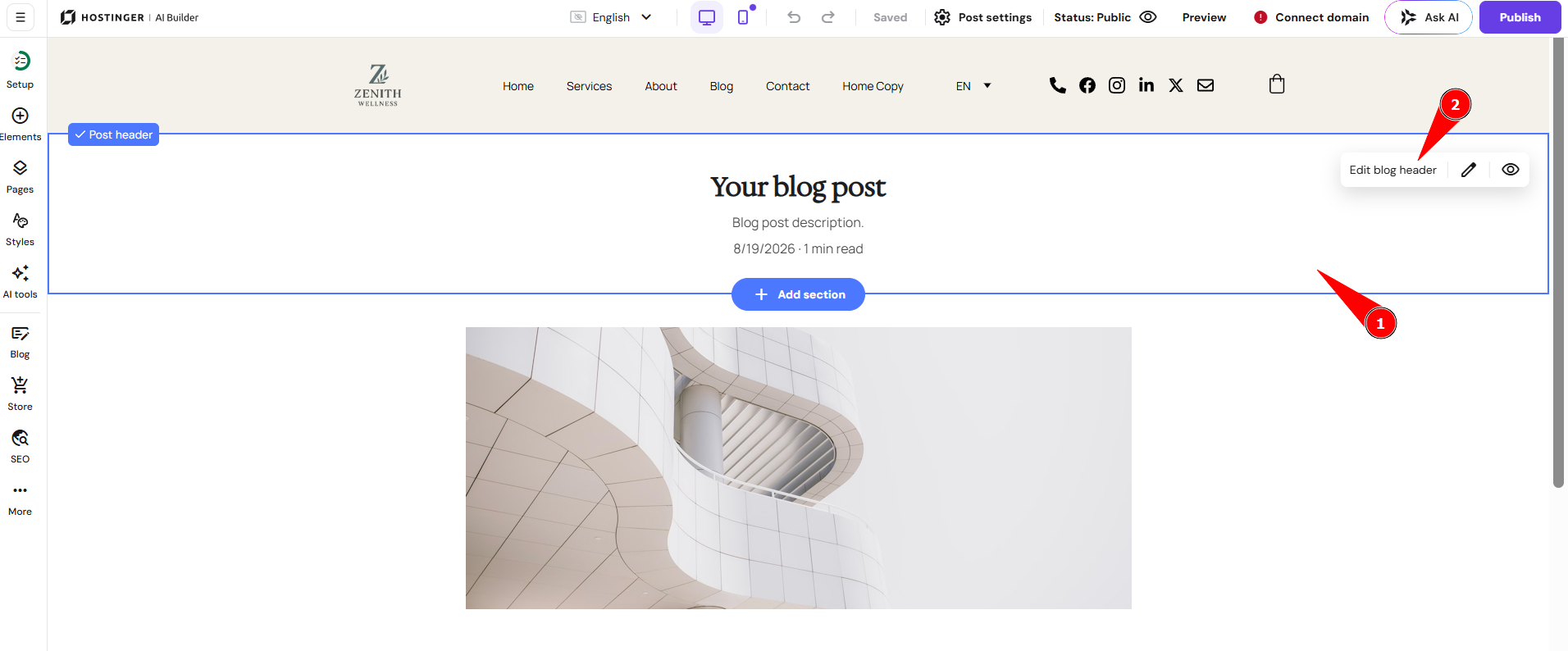
- Click on the blog post in question to open its editor:

- Click on the Edit blog header section

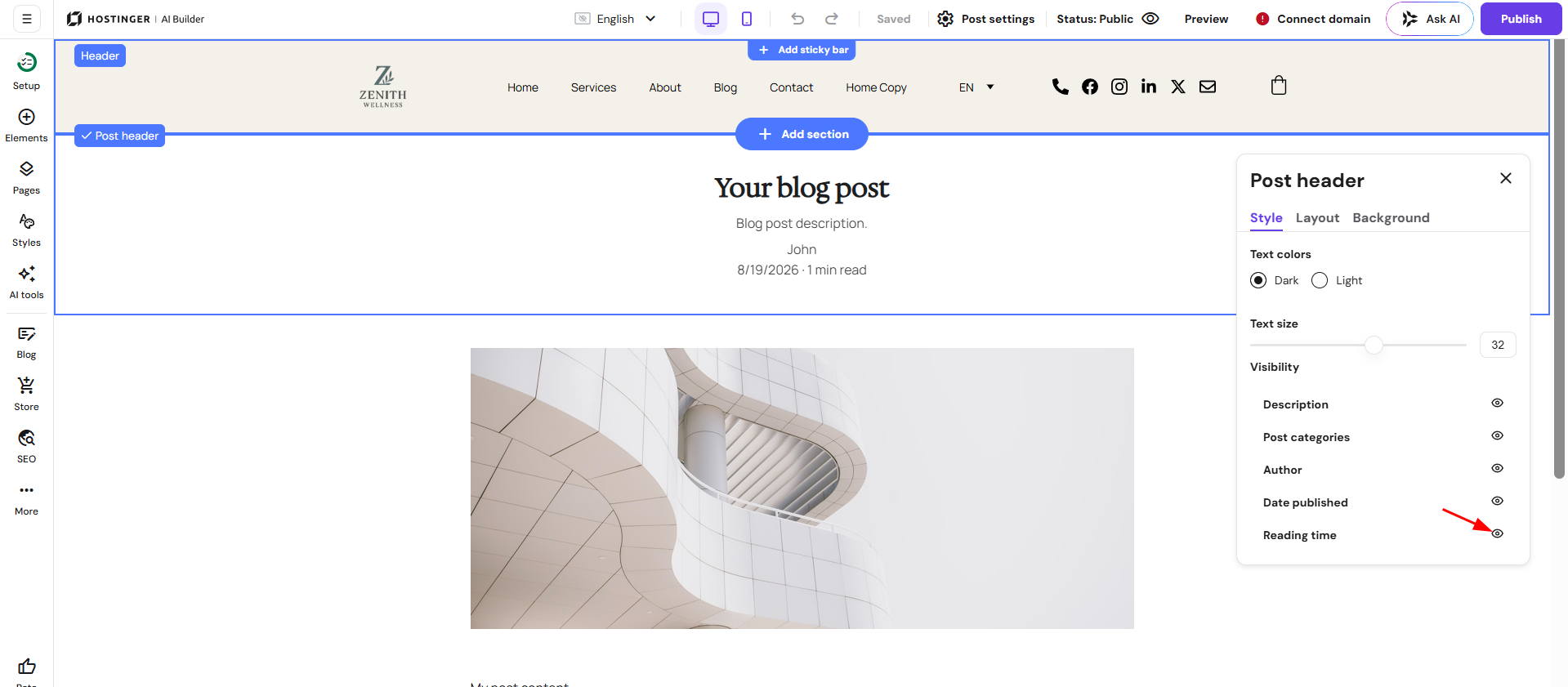
- Open its Style settings, and hide the Reading time:

Hiding the read time for all blog posts at once
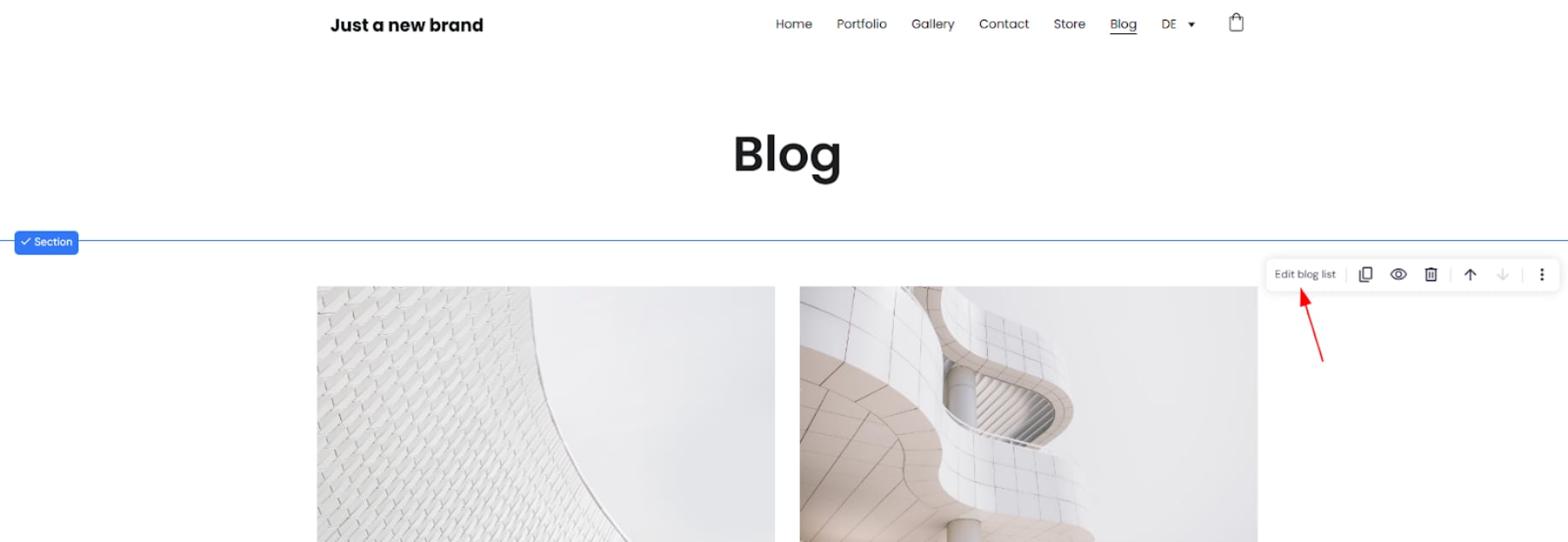
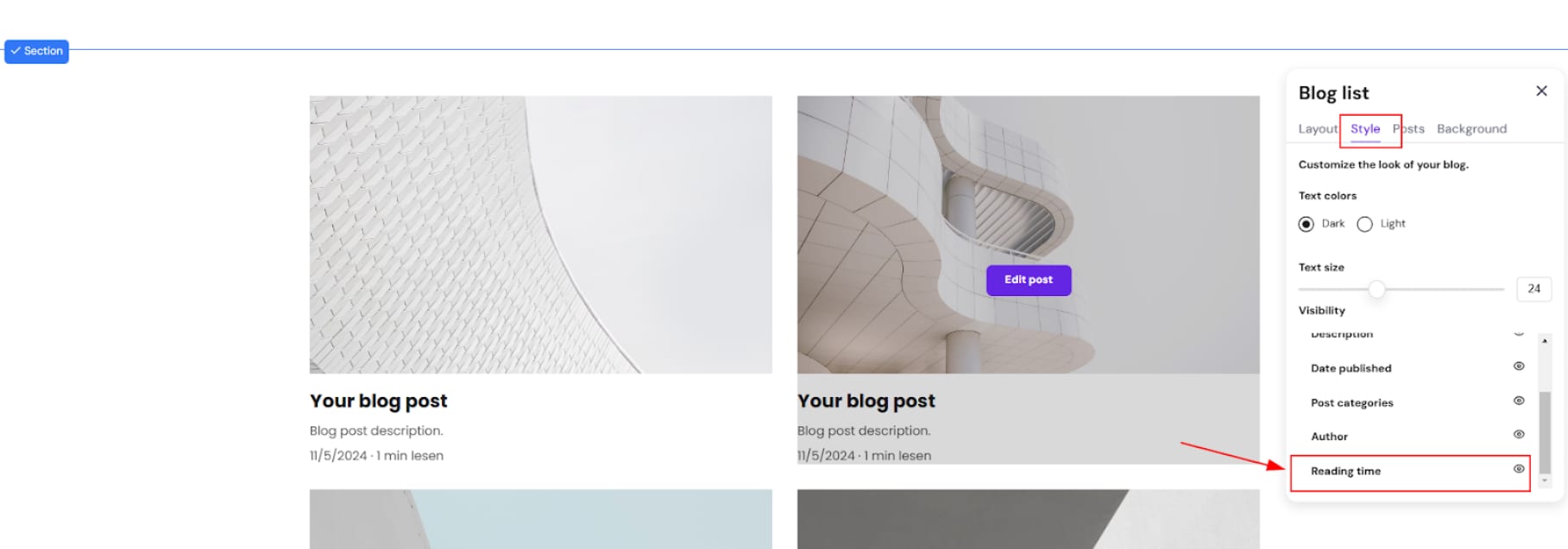
- Find the blog section and open its settings:

- In the Style tab, hide the Reading time:

And that’s it! Your blog posts now display reading time according to your chosen visibility setting.