Change the proportions of product images in your Hostinger AI Builder manual mode online store from the product section settings.
Change the image ratio
- Click on a product section.
- Select Edit section.
- Then, expand the Layout tab.
- Select the preferred image ratio:
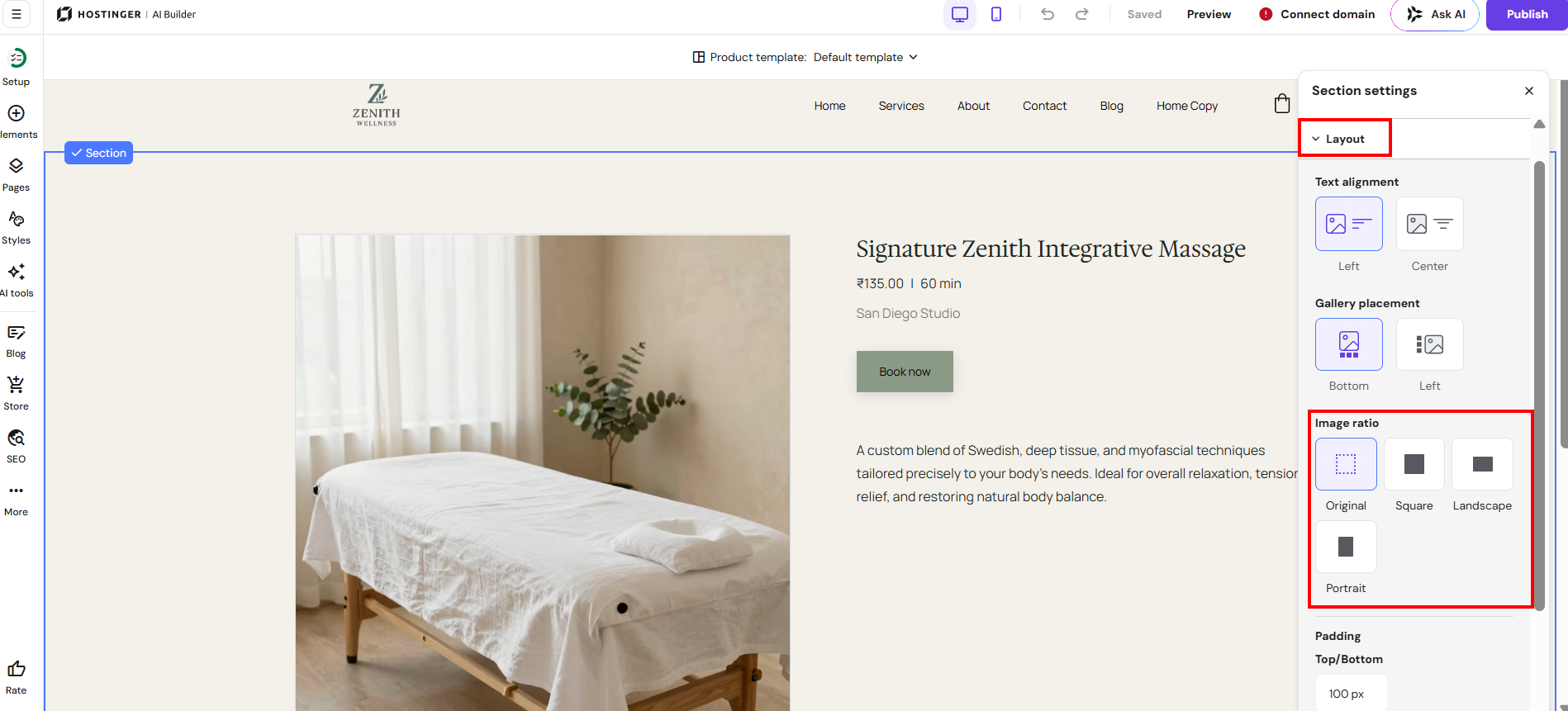
There are few main options for image ratio:
- Original shows images in their existing proportions, without cropping.
- Square displays images in a 1:1 ratio. Selecting this option also lets you adjust the image border radius to round the image corners, or make the product image fully round.
- Landscape displays images in a wider, horizontal ratio, suited to images with more width than height.
- Portrait displays images in a taller, vertical ratio, suited to images with more height than width.
Recommended product image dimensions:
-
600×600 PX might result in slightly worse quality on tablets
-
900×900 PX suitable for all screen sizes
And that’s it! Your product images now display with your chosen proportions.