Export your Hostinger AI Builder manual mode website’s content to a WordPress site.
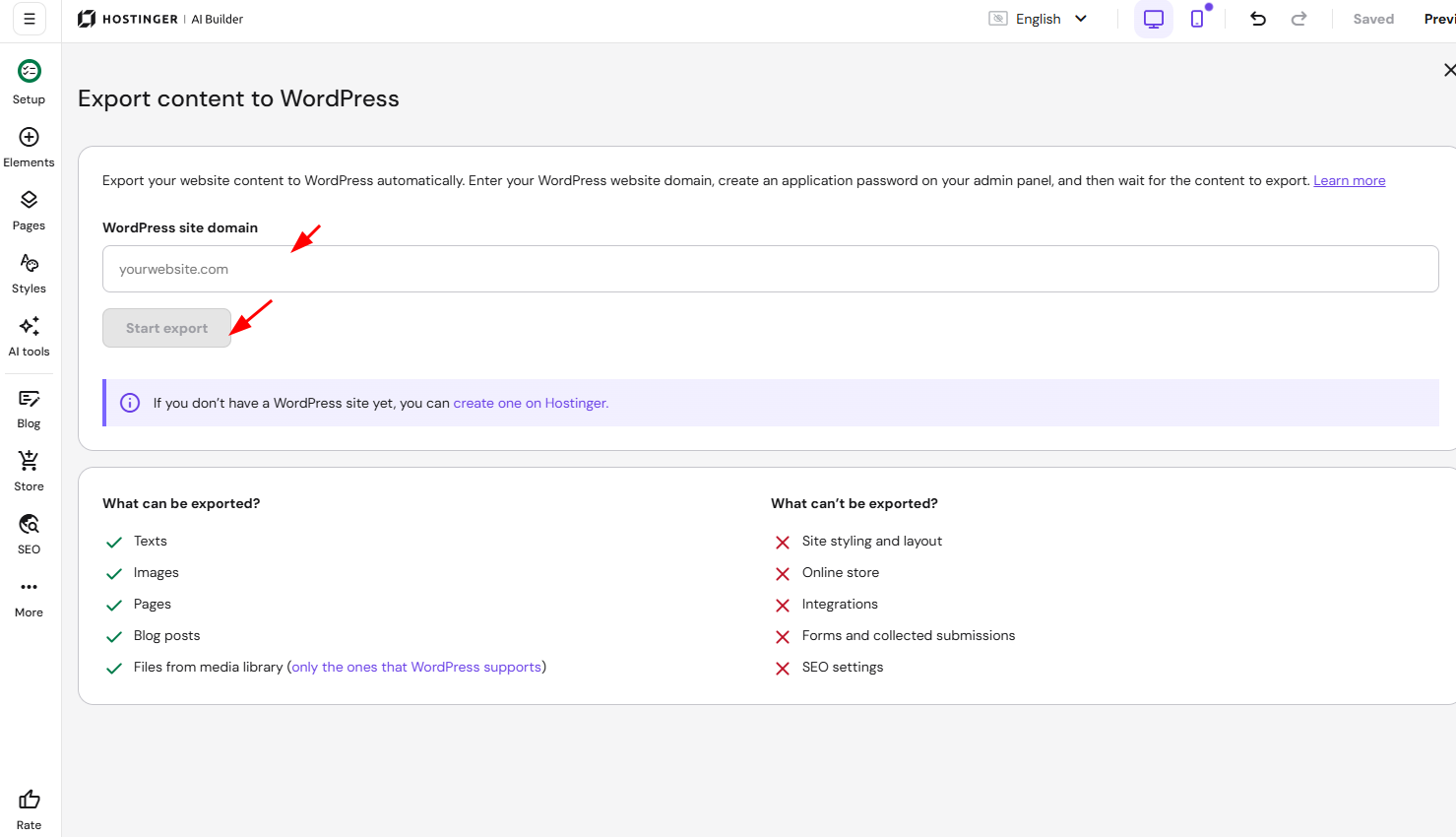
- Not everything can be exported. For example, you can’t export website styles and layout, online store, integrations, forms, collected submissions, or SEO settings.
- You can export regular pages, texts, images, and other files. Find out more about the file types supported by WordPress
- If you’re moving to a platform other than WordPress, see How to move your Hostinger AI Builder manual mode content to another platform instead.
- For a broader comparison of ways to move from Hostinger AI Builder manual mode to WordPress or another CMS, see How to switch from Hostinger AI Builder manual mode to WordPress or another content management system.
Before you begin
Make sure you already have a WordPress website setup. If not, you can set one up at Hostinger by following this guide: How to add a WordPress website. The WordPress version must be 6.5 or higher, and the domain name must be propagated.
Customize WordPress settings
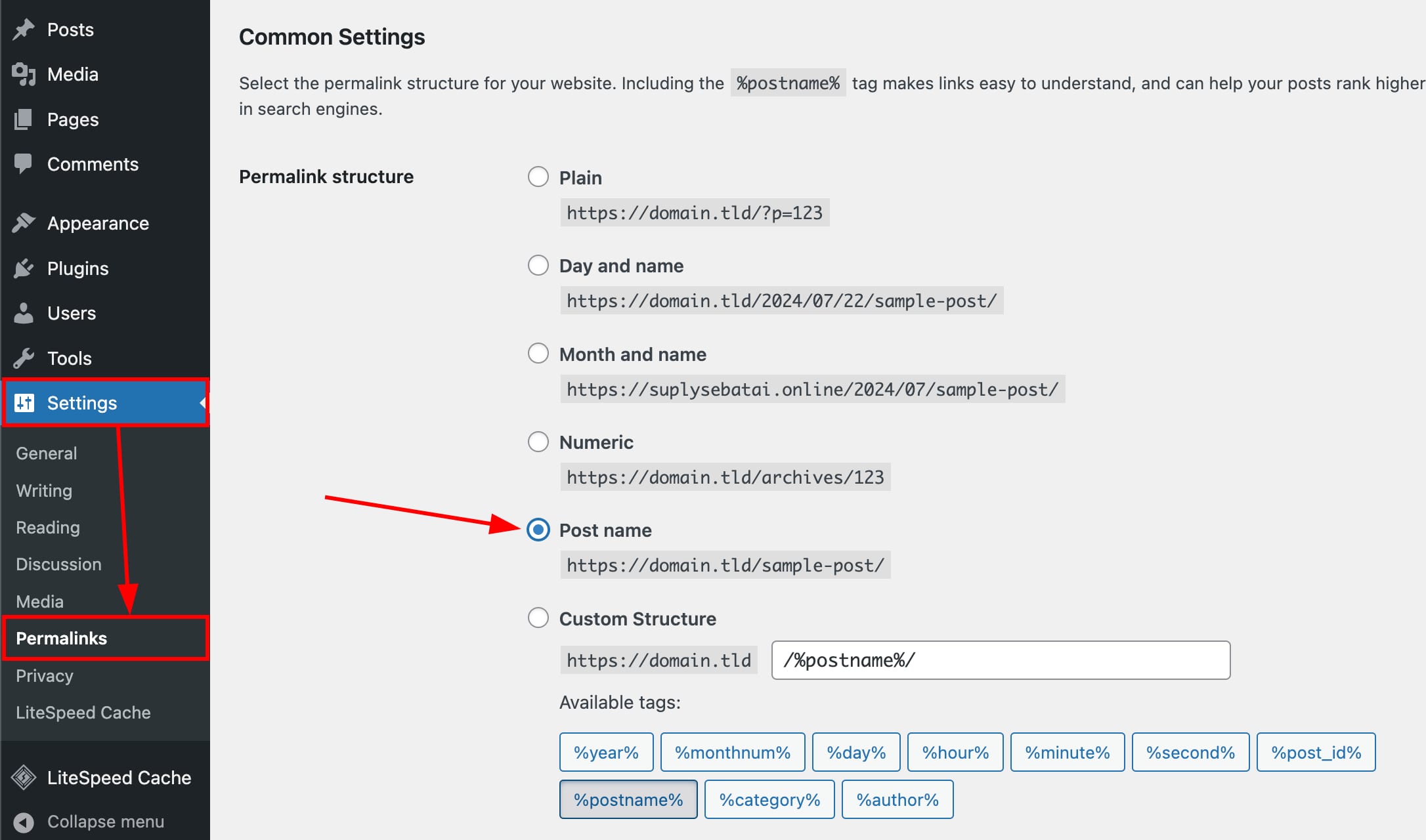
Reset your WordPress website’s permalinks structure to post name:
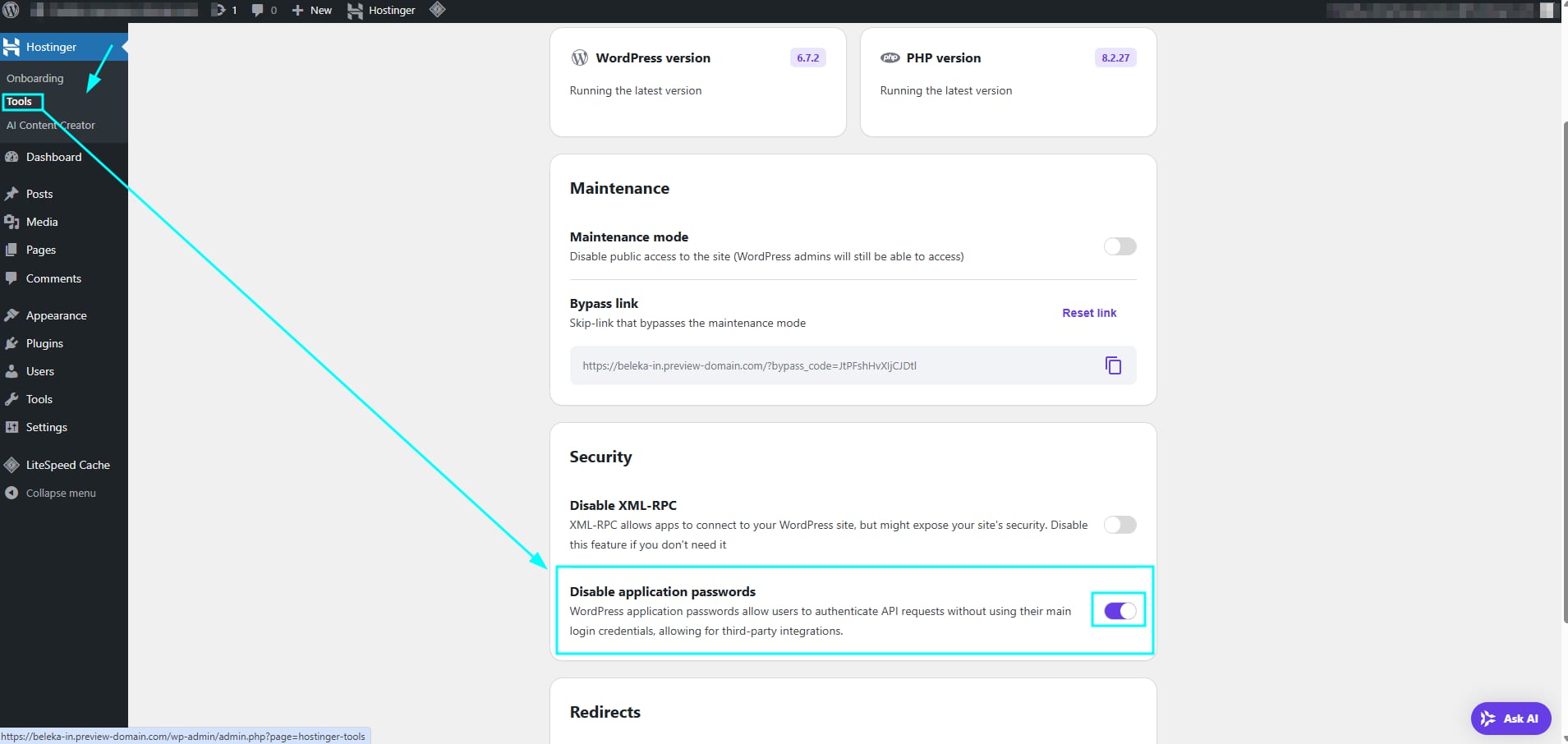
Access your tools section and check the “Disable application passwords” box:
Make sure you disable your plugins as below:
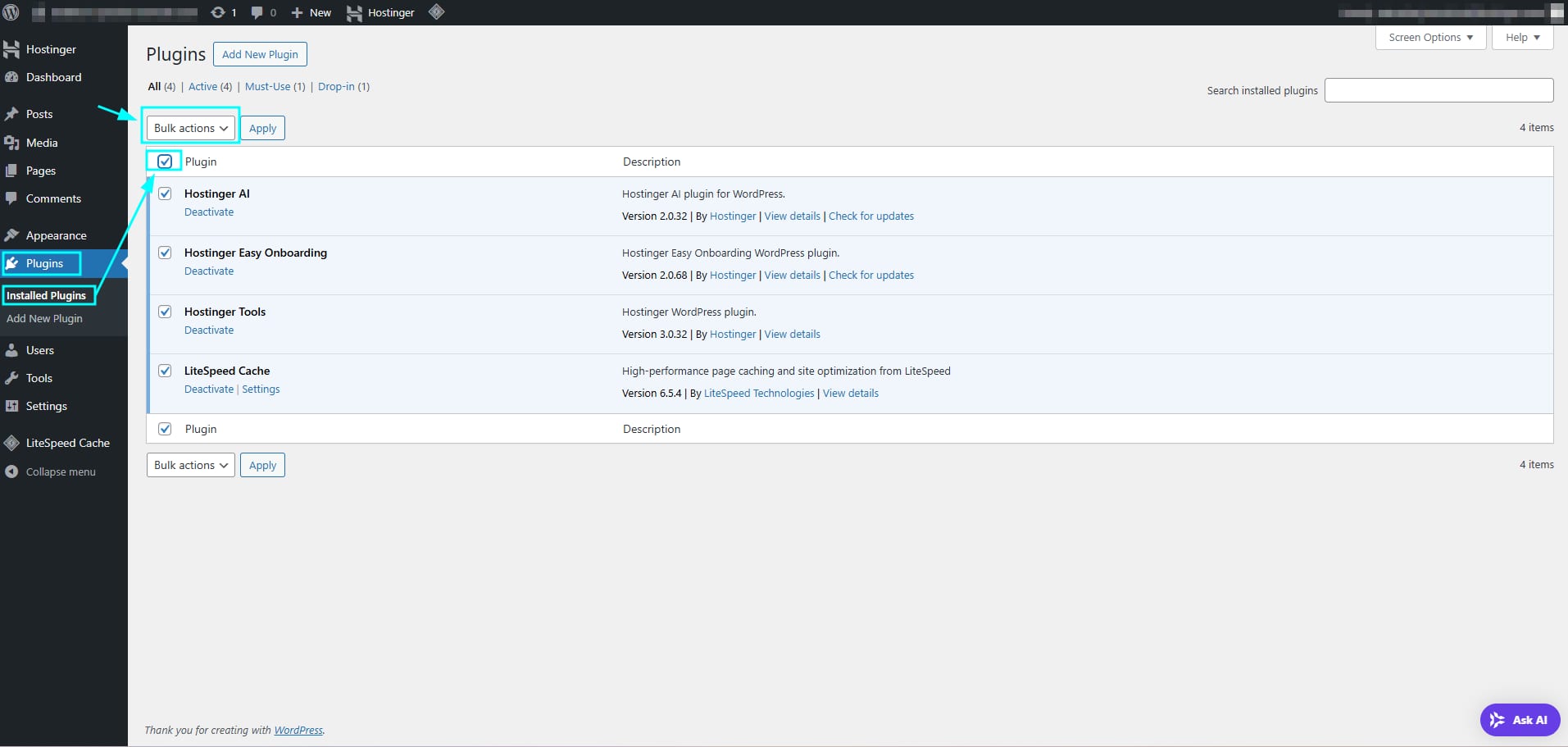
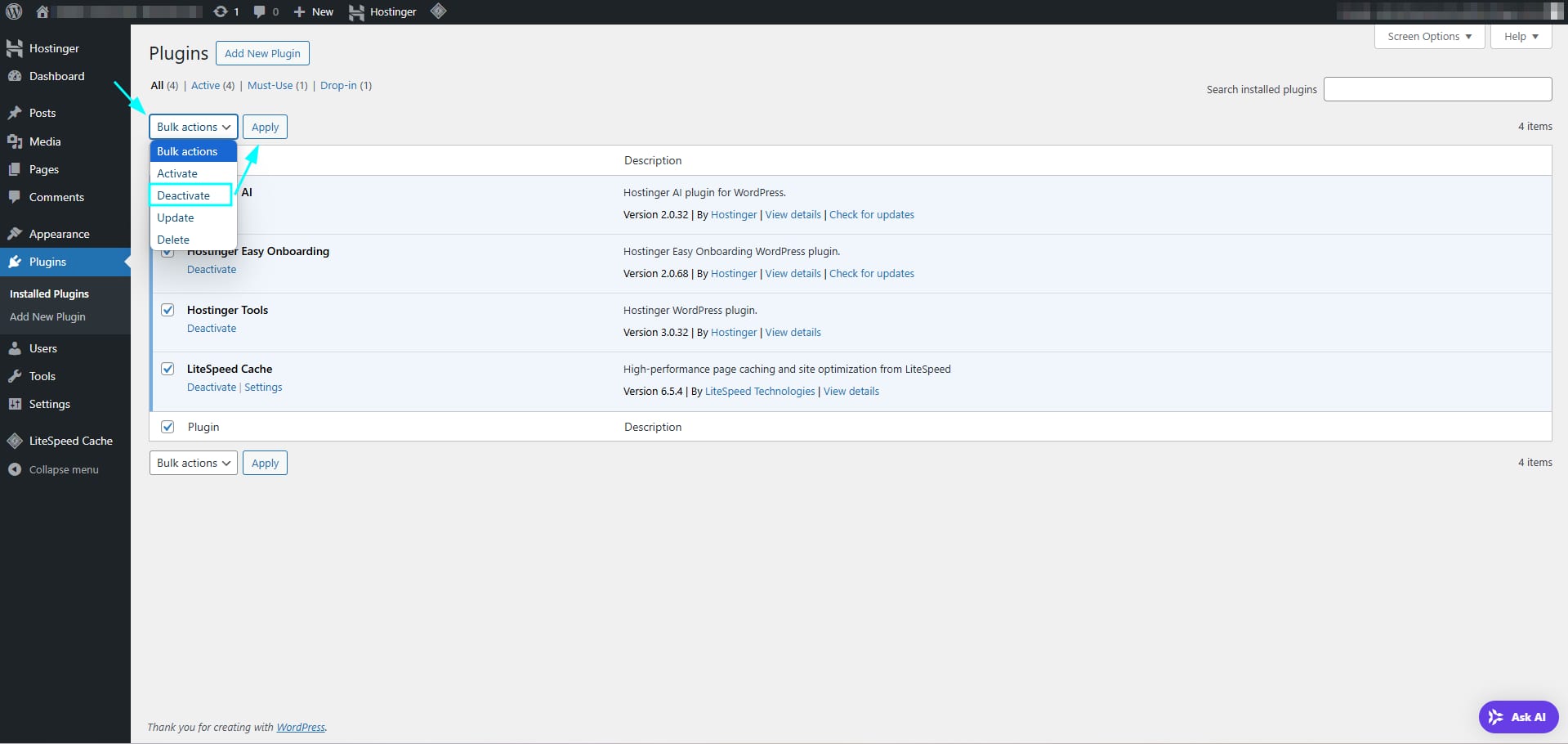
Select all the plugins, click on “Bulk Actions”, select “Deactivate,” and click on Apply:
Once the above is done, you can proceed with exporting the content from Hostinger AI Builder.
Export content
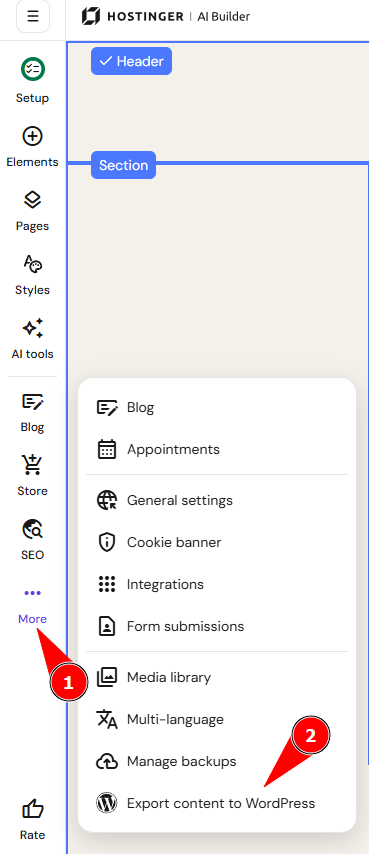
- In the builder’s editor, click on the ellipsis (⋯) button on the sidebar to open settings
- Select Export content to WordPress:

- Insert the destination domain name that’s already linked to your WordPress website and click on Start export:

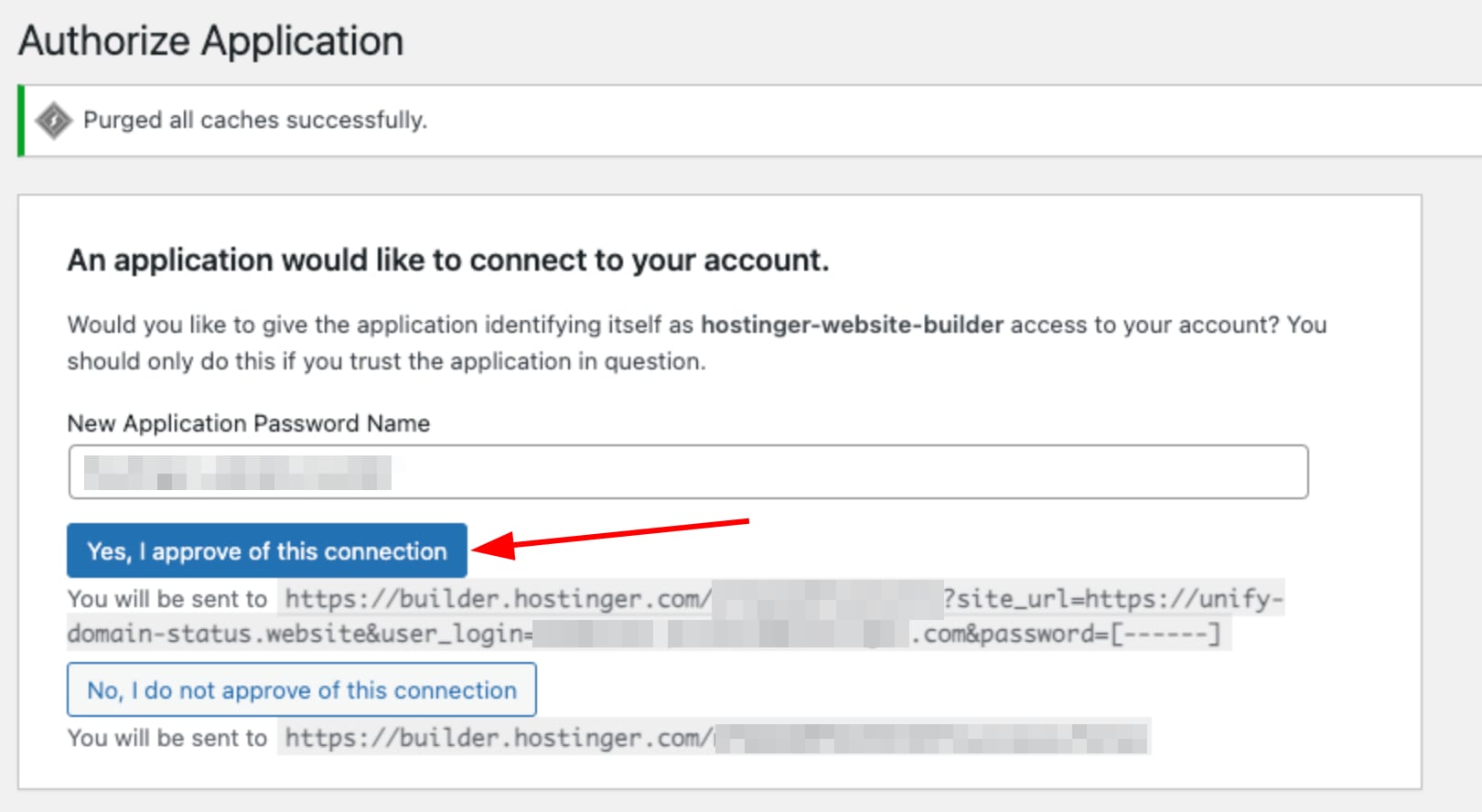
- You’ll be redirected to the WordPress admin panel, where you must create a new application password. This password will be used only for the content export application. Once that’s done, click on Yes, I approve of this connection:

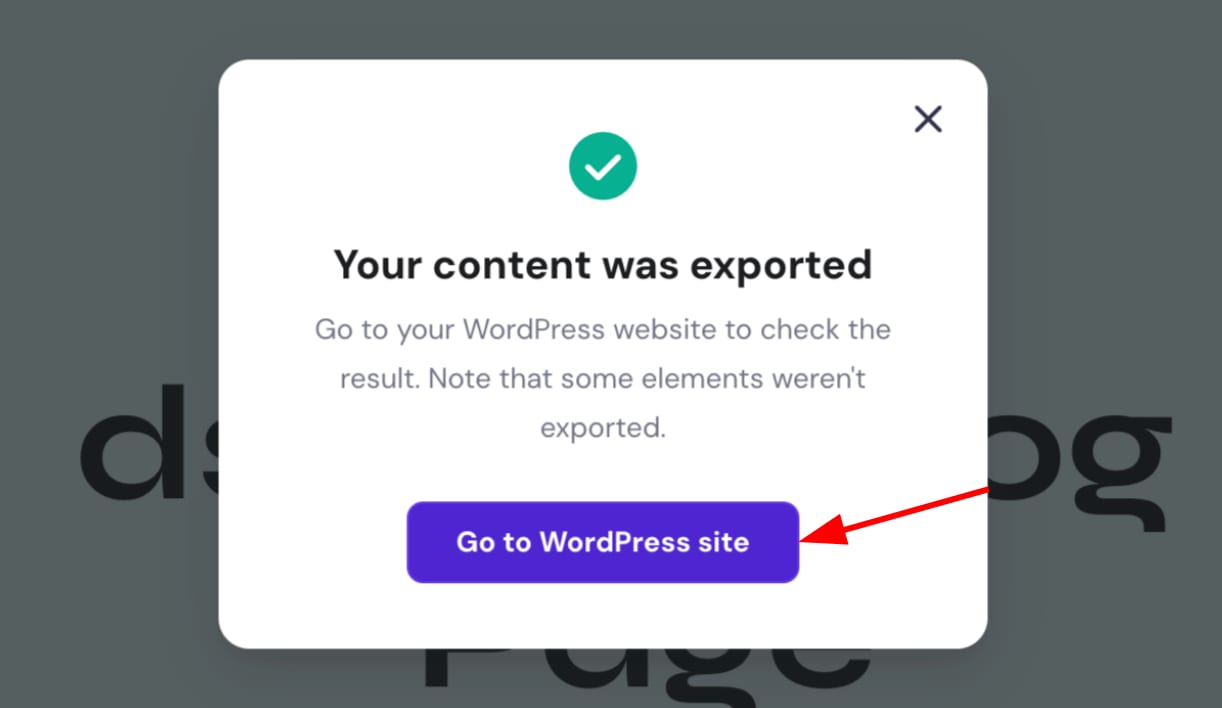
- Once the export is completed, click on Go to WordPress site:

Finally, due to security reasons, it’s recommended that you revoke the application password.
Failed exports
The export might fail due to the application password feature, which is required for the export process, and is disabled on the WordPress site you are trying to export the Builder website to. This usually results in the following error: The selected WordPress does not have application passwords enabled. Activate them first to continue with the export.
You can enable this by going to your WordPress website’s admin dashboard, clicking on Hostinger Tools plugin and following as per the image below:
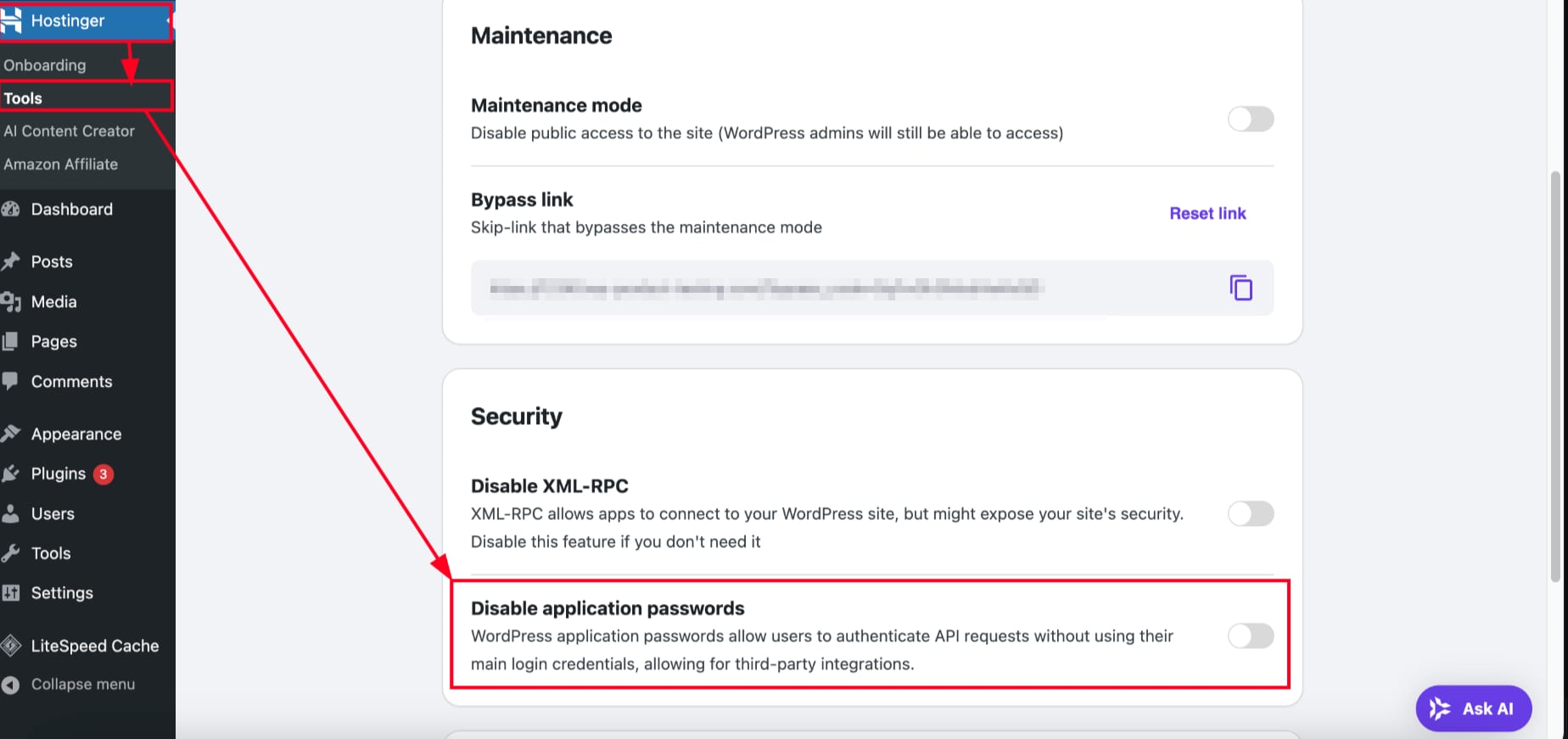
Once application passwords are enabled, you can restart the export process from the AI Builder editor. Your Hostinger AI Builder manual mode content is now available on your WordPress site, ready for further editing and publishing.