Show or hide the publication date of your blog posts in Hostinger AI Builder manual mode, either for a single post or for all posts within a blog section at once.
To edit the publication date, take a look here: How to Schedule a Blog Post.
Show or hide the date on a single post
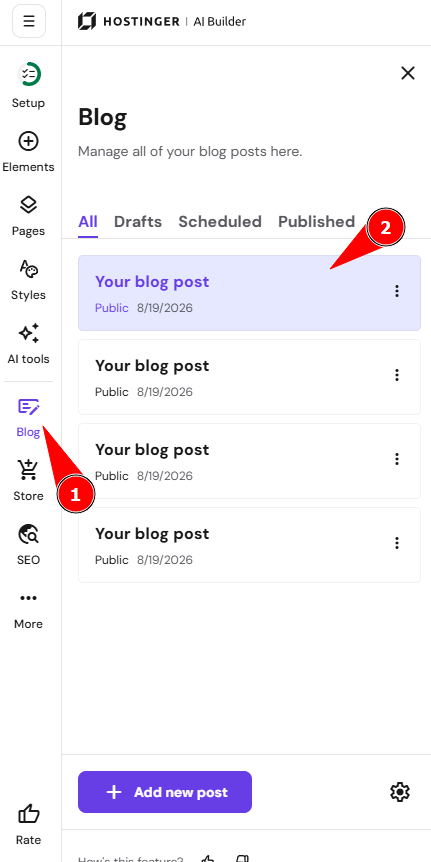
- Within the editor, open the blog management panel on the left. Find the blog post in question and click on it:

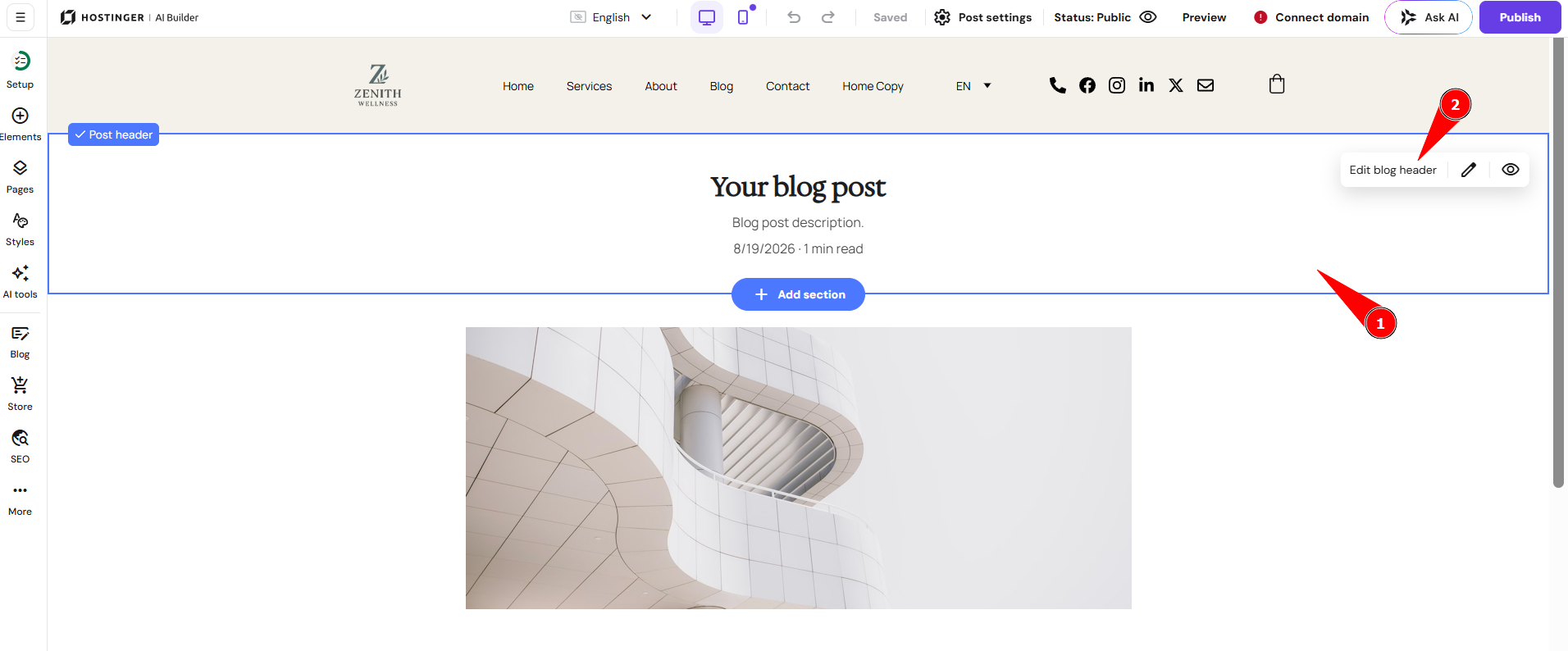
- Click on the blog post’s header section and click Edit blog header:

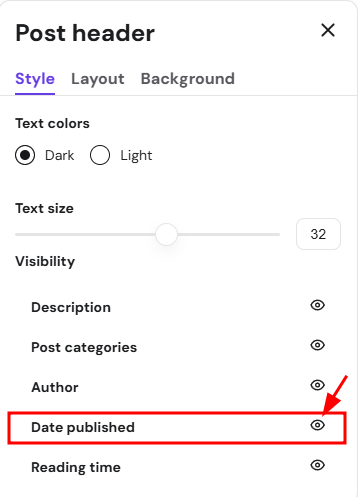
- In the Style tab, show or hide the Date published by clicking on the eye icon:

- Finally, update your website.
Show or hide the date on all posts in a section
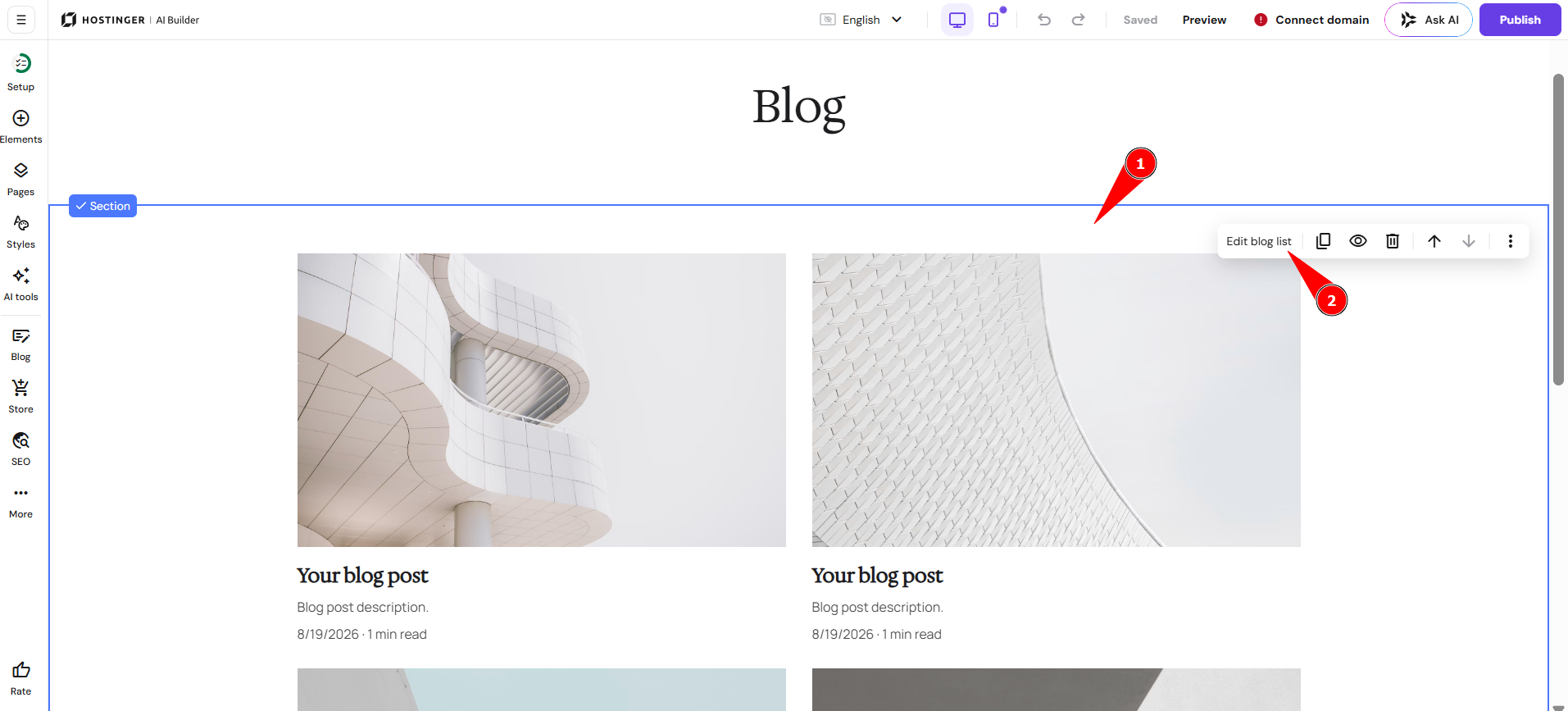
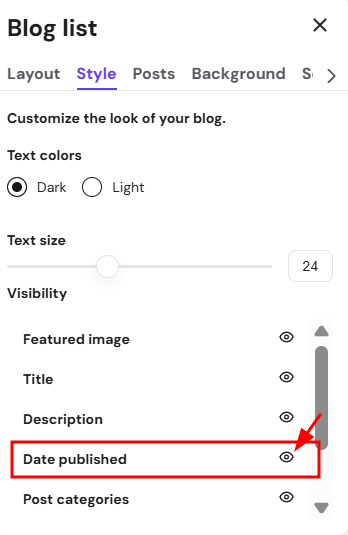
- Within the editor, find the blog section, click on it, and click Edit blog list:

- In the Style tab, show or hide the Date published by clicking on the eye icon:

- Finally, update your website.
Your blog posts now display the publication date as configured.