Configure your blog settings in Hostinger AI Builder manual mode, covering blog post settings, header settings, and section settings.
Blog post settings
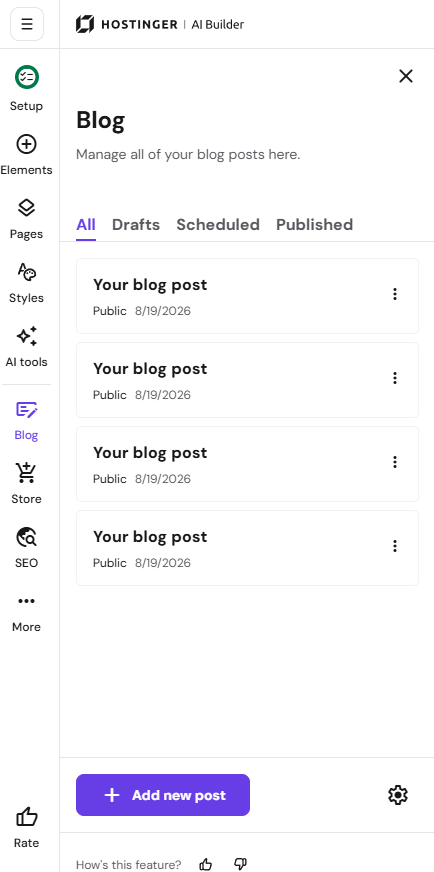
- Within the builder, expand the Blog management panel on the left.
- Then, click on any blog post to open its editor:

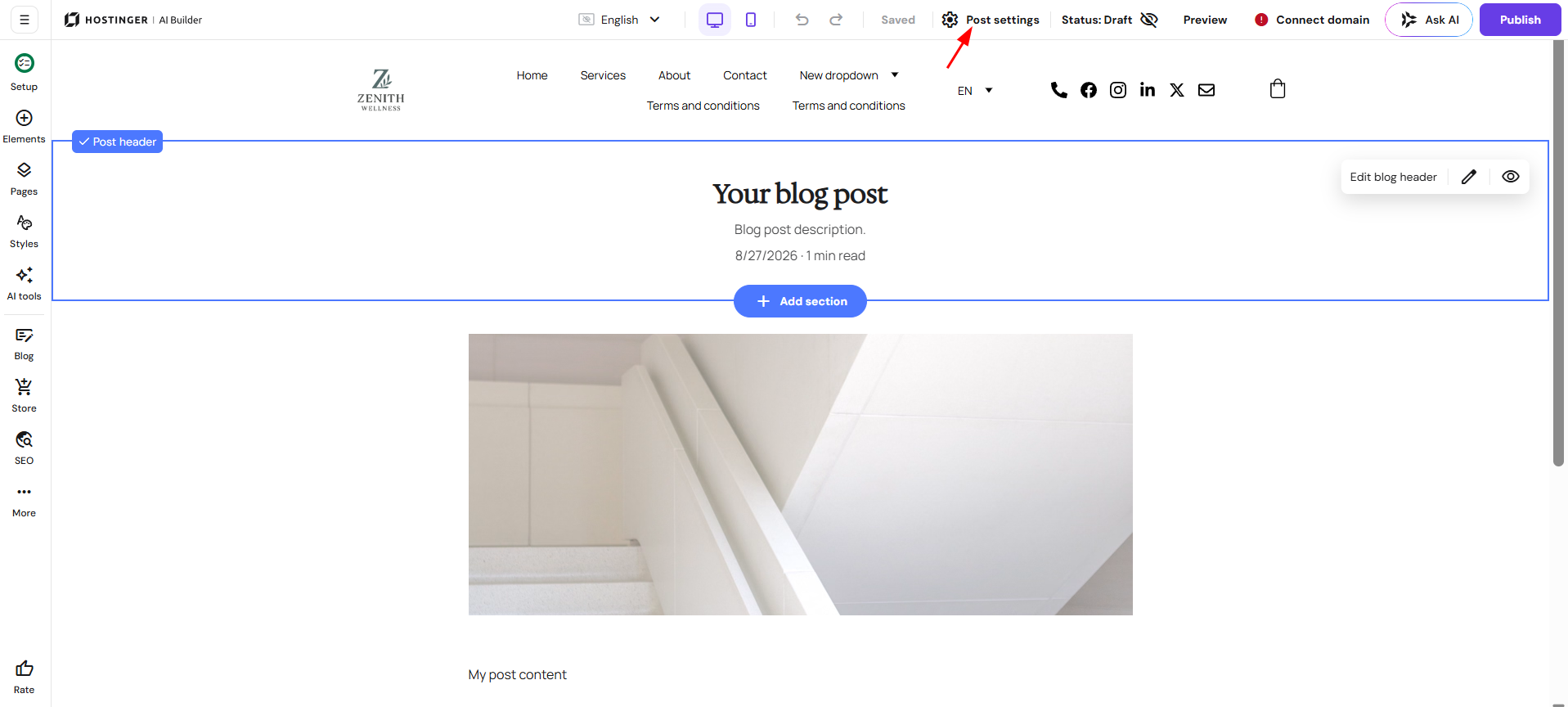
- Look for the Post settings in the top toolbar:

There are three tabs for blog post settings:
|
General |
Featured image |
Categories |
|
Here, you can edit the following attributes of a blog post:
You can also schedule the blog post here |
Change the cover image of your article |
Assign your blog post to one or more categories |
Blog post header settings
To open the blog post header settings, click on the post header section and then select Edit blog header:
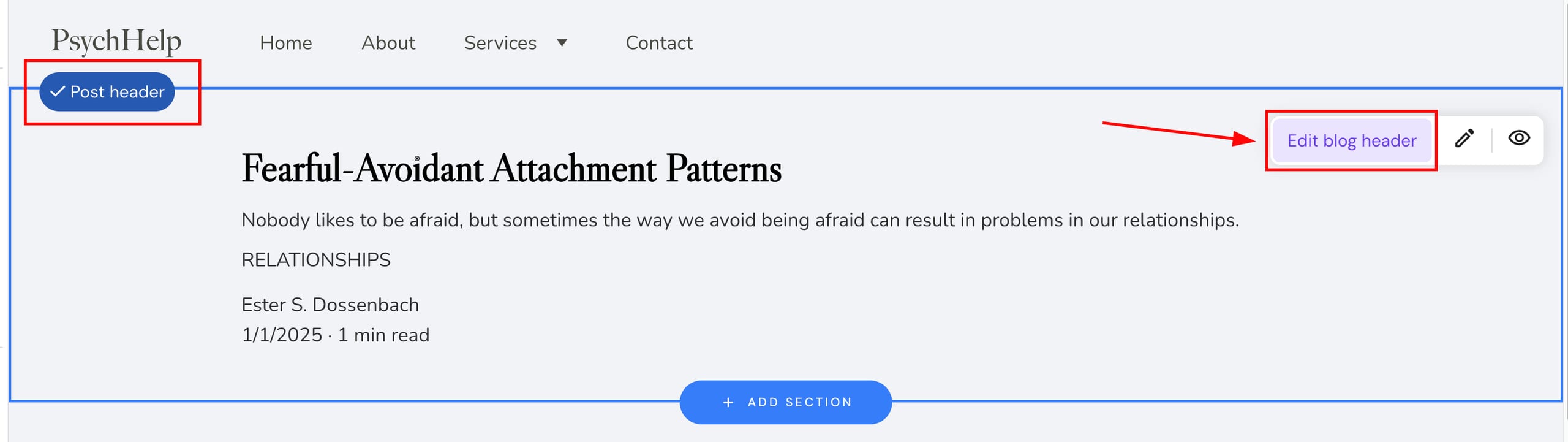
There are three tabs of post header settings:
|
Style |
Layout |
Background |
|
|
|
NOTE
-
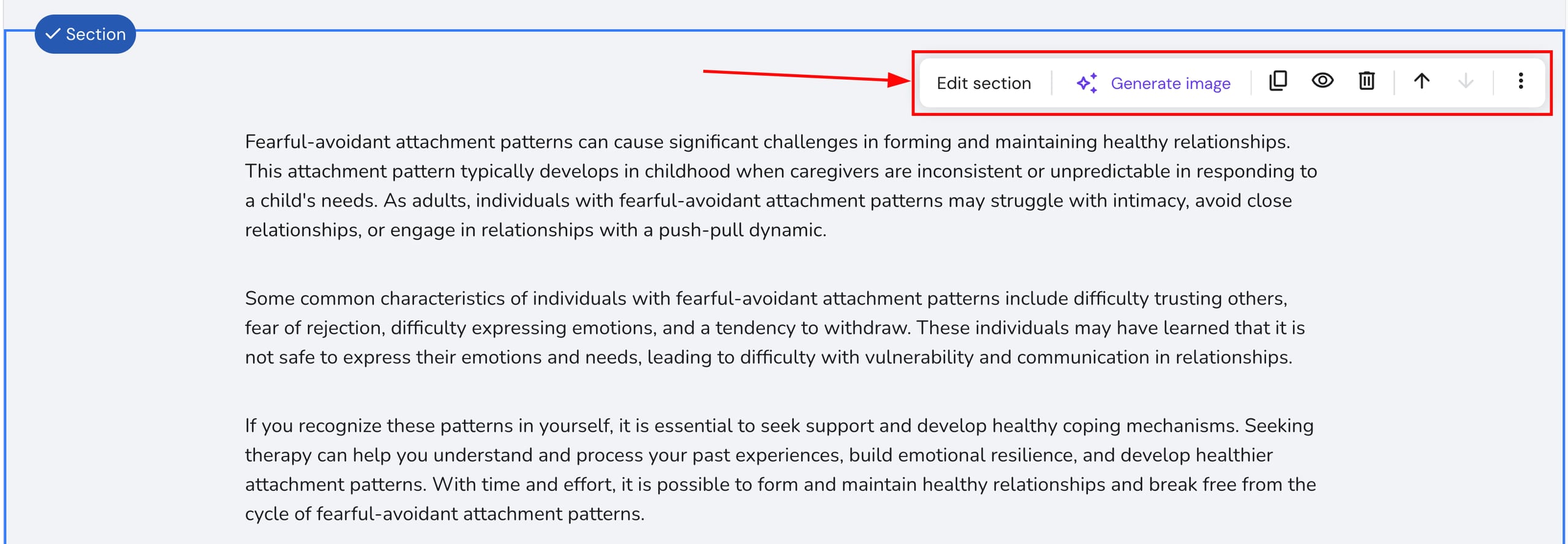
Other blog post sections (below the header) also have individual settings and allow changing the background, creating an anchor, duplicating the section, and moving it up or down:

Blog Section Settings
Blog sections display multiple blog posts on your website. Click on any blog section to reveal its settings menu:
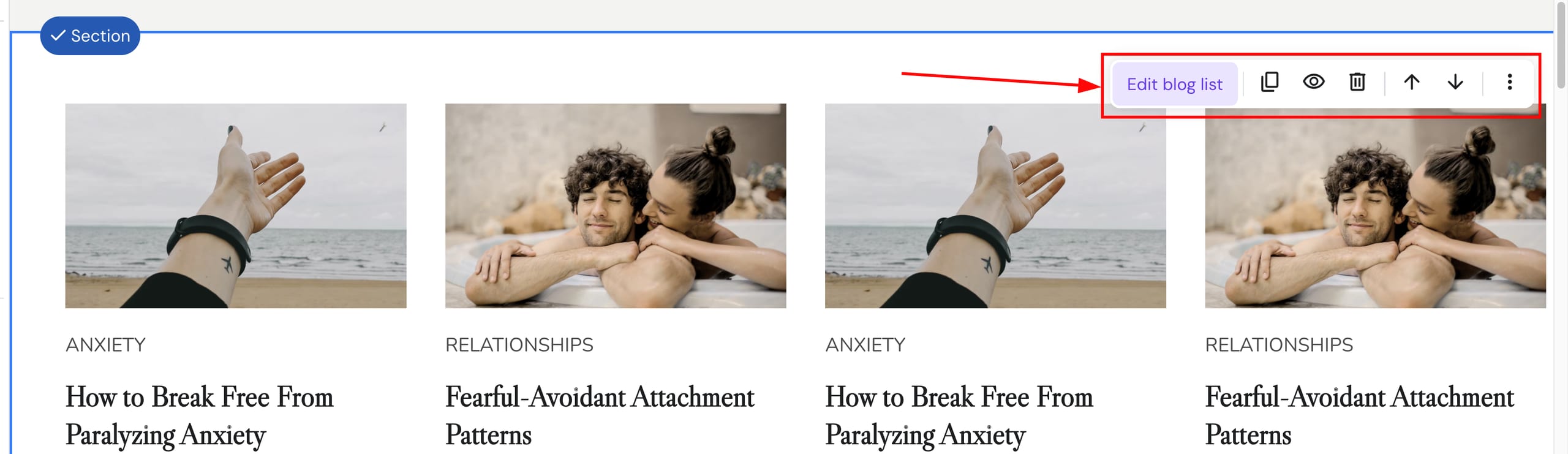
Click on Edit blog list to find more settings:
|
Layout |
|
|
Style |
|
|
Posts |
|
|
Background |
|
|
Search |
|
Your blog is now configured across posts, headers, and sections, ready to display content the way you want.