Preview your Hostinger AI Builder manual mode website at any time, whether it’s published or still a draft, to check layout, content, and responsiveness before publishing changes.
Preview your website
-
Open your website editor.
-
Click Preview in the top right corner.

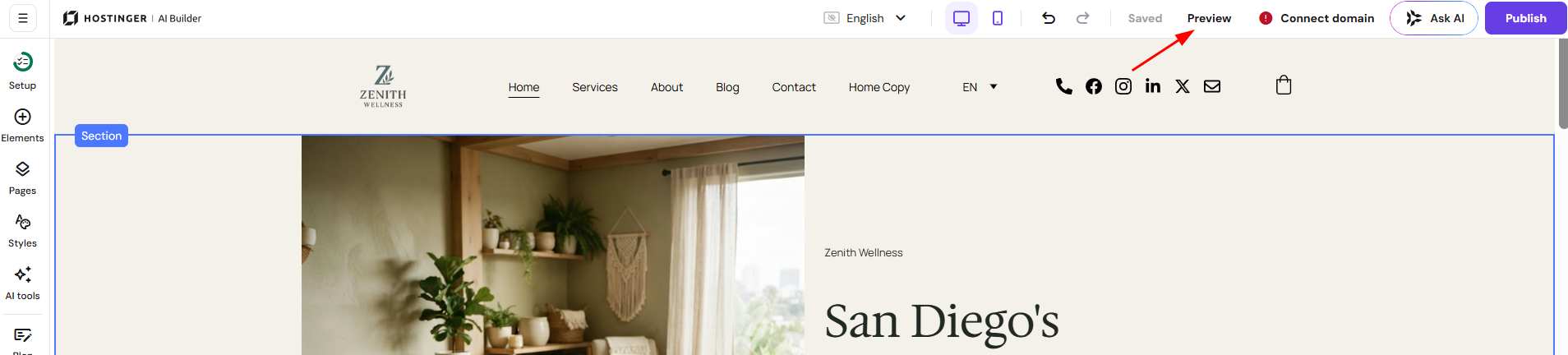
The preview shows how visitors will view your website.
When entering preview mode, you may see a notification explaining that website functions are limited there. This reminder appears occasionally to clarify that some features can only be fully tested after publishing.
Preview the mobile version
To check how your site looks on mobile devices:
-
In the editor, switch to Mobile mode by clicking on the phone icon in the top right corner.

-
Click Preview if needed.

This allows you to review the mobile layout and adjust elements for smaller screens.
Exit preview mode
To return to editing, click Back in the top left corner.

You can enter and exit preview mode as often as needed while building your website.
Use preview mode to review your layout and content, and publish when you are ready to fully test all functionality.