Connect Google Tag Manager (GTM) to a Hostinger AI Builder manual mode website using only your GTM container ID (GTM-XXXXXXX). For tracking scripts to work properly, make sure that a cookie banner is enabled on your website.
For tracking scripts to work properly, make sure that a cookie banner is enabled on your website
Connecting Google Tag Manager to your website
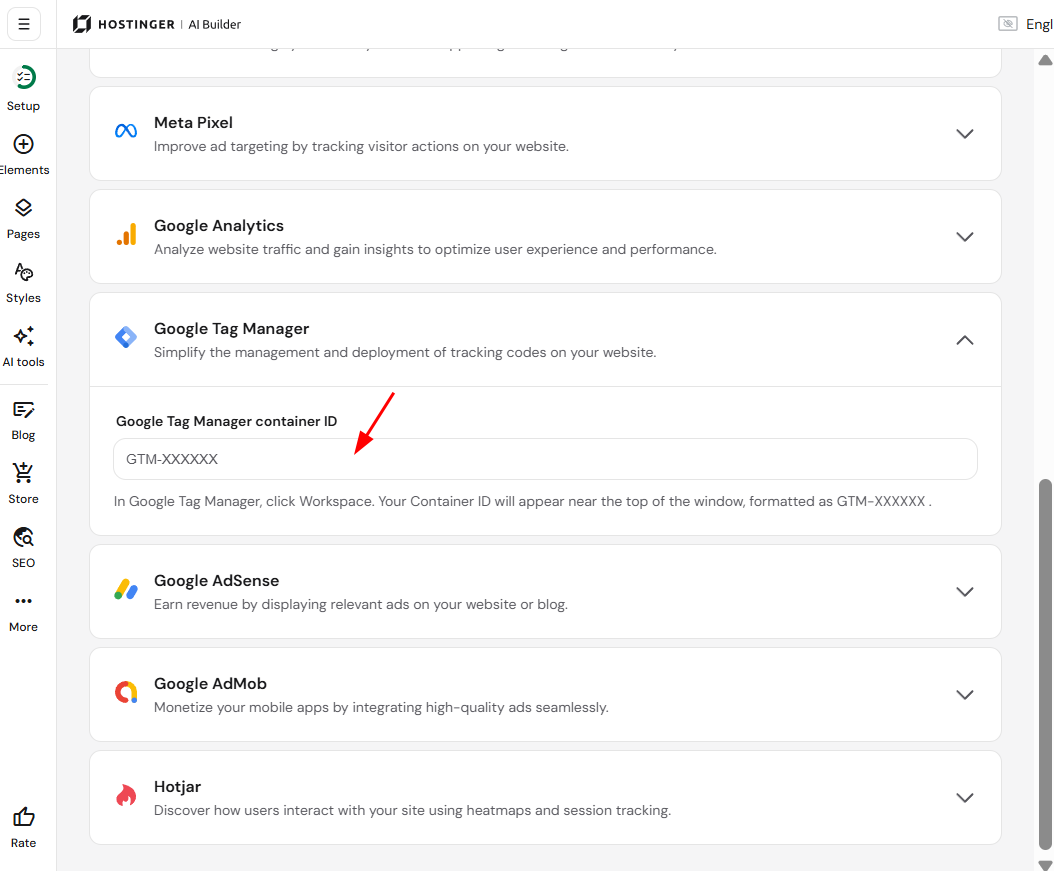
- Within the builder, access the integrations settings.
- Find the Google Tag Manager field.
- Insert your GTM container ID there:

- Save the changes and update your website.
Finding the container ID
- Log in to your Google Tag Manager account.
- You’ll see the Container ID, which consists of
GTM-and some letters or numbers – that’s the ID you need to paste in your website’s integrations settings:
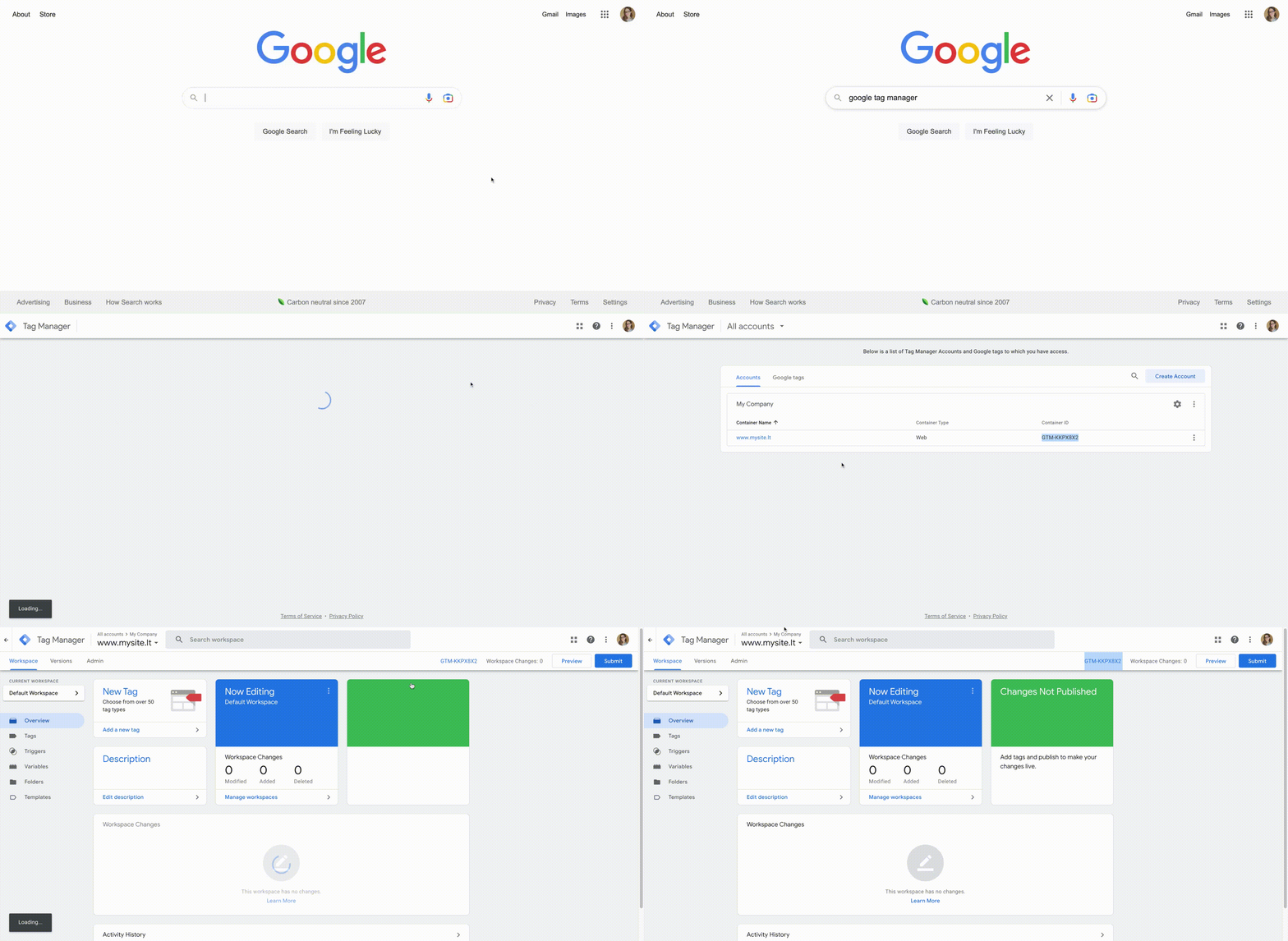
If you struggle to find the container ID, refer to this Tag Manager Help article.