To migrate emails from Gmail to Hostinger Email, turn on IMAP if you use Google Workspace, generate a Google app password, and then start an import with the Email Import tool using imap.gmail.com as the mail server.
Step 1 – Prerequisites
To properly migrate email accounts from Gmail, take care of the following points:
-
Make sure IMAP is turned on in your Google Admin console account – applicable for Google Workspace email accounts only
-
Make sure the 2FA authentication is enabled for your Google account, as it’s a must for app passwords to work
-
Generate an app password for the account; it would look something like this:
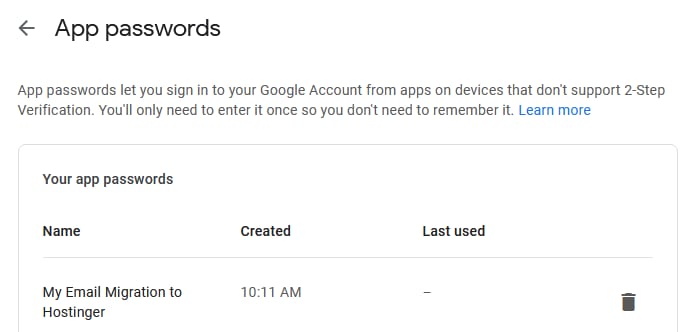
Make sure to save the app password – it’s only shown once! If you missed it, delete it and generate a new one.
Step 2 – Gather details
To successfully migrate your accounts to us, gather these details from Gmail:
-
Source email account – your email account address
-
Source email password – the generated app password
-
Mail Server (IMAP) name – for Gmail, it’s imap.gmail.com
Step 3 – Initiate migration
Finally, once the above steps are taken care of, access the Email Import tool and initiate the migration. To complete the switch, follow the remaining steps in How to migrate email services to Hostinger Email, such as updating your DNS records.