Sometimes, a malware infection or an accidental system file deletion can deem your VPS unusable. In case restoring a backup is not an option, you can access your VPS using Emergency mode as a last resort option to retrieve your data from a corrupted or broken VPS (note: Emergency mode will not help retrieve backups in an expired VPS plan).
NOTE
- Emergency mode will not help retrieve backups from an expired VPS plan.
Enable emergency mode
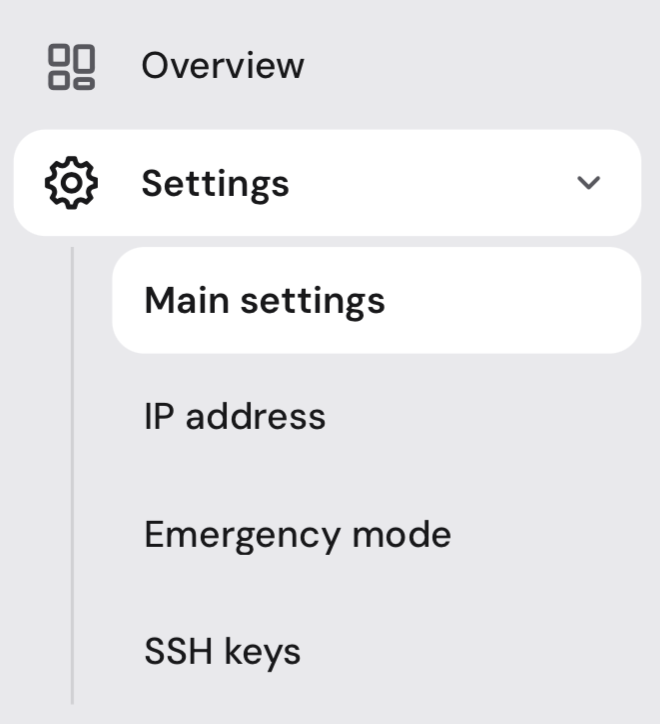
To enable it, navigate to the VPS section of your Hostinger dashboard and click on Manage next to your chosen server. Next, open the Settings page:
Once there, go to the Emergency mode tab and enable Emergency mode toggle:
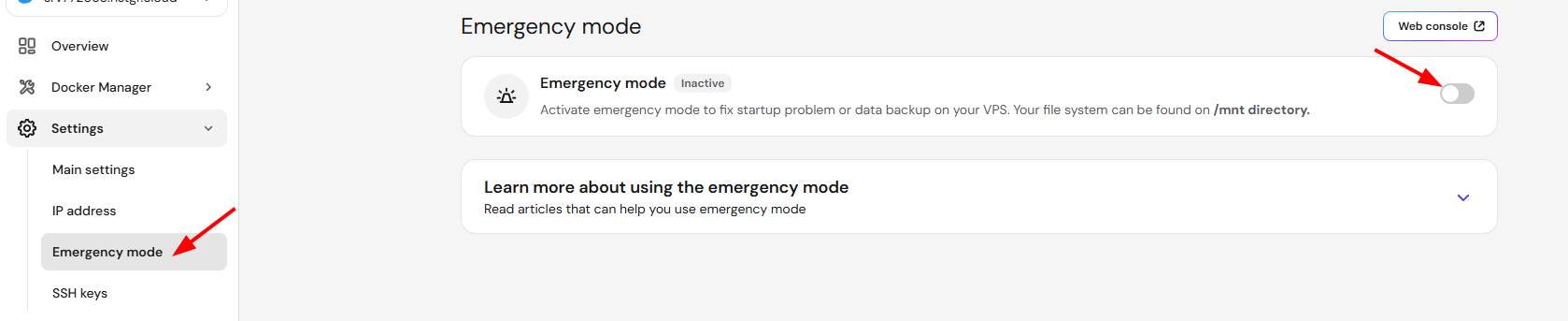
Wait a few minutes for the emergency mode to fully activate. Once enabled, you will be able to access your server files under the /mnt directory either through FileZilla or a web-based file manager with the access provided. See VPS Emergency Mode: where to find files at Hostinger for details.
Emergency mode will stay active for up to 24 hours.
NOTES
- In case you also have databases, refer to this guide: How to Recover MySQL Databases From MySQL Data Files in VPS.
- If you need to change the apparent root on your disk, see VPS Emergency Mode: how to change apparent root on your disk at Hostinger.