Generate SSH keys and add them to Hostinger dashboard to log in to your hosting plan over SSH without entering a password. Generate a key pair with PuTTY on Windows or the terminal on macOS and Linux, then add the public key in the SSH access section of your website’s dashboard.
Before you start
- SSH access is available on Premium or higher hosting plans.
- Enable SSH access for your hosting plan before adding an SSH key.
Step 1 — Generate the keys
Depending on your system, there are these ways to generate SSH keys:
-
Windows — for Windows, you can use SSH clients such as PuTTY; refer to steps 1-3 in this tutorial: How to Generate SSH Keys on PuTTY.
-
Unix-based systems (e.g., macOS or Ubuntu) — you can generate SSH keys straight from the terminal; refer to step 1 in this tutorial: How to Set Up SSH Keys.
Step 2 — Add keys to Hostinger dashboard
Once you have your keys generated, all you need to do is open the Public key (usually id_rsa.pub) with any text editor and copy all of its contents.
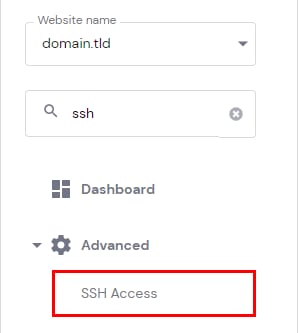
Then go to the Websites section in your Hostinger account, click on Dashboard next to your site, search for SSH access on the sidebar, and click on it:
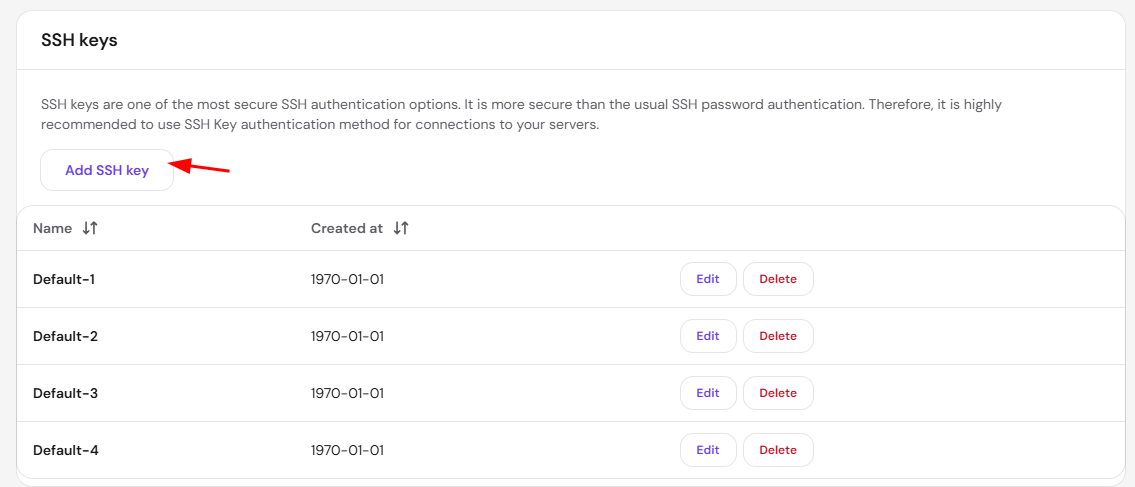
Scroll down and click on Add SSH key:
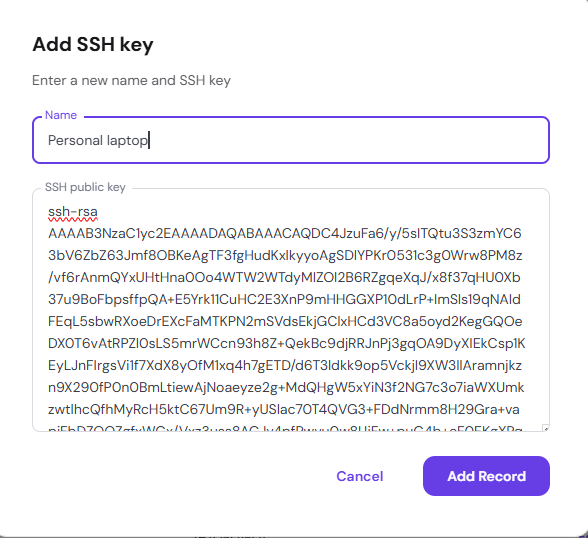
Insert the name by which your SSH key will be saved, the public key itself, and click on Add record:
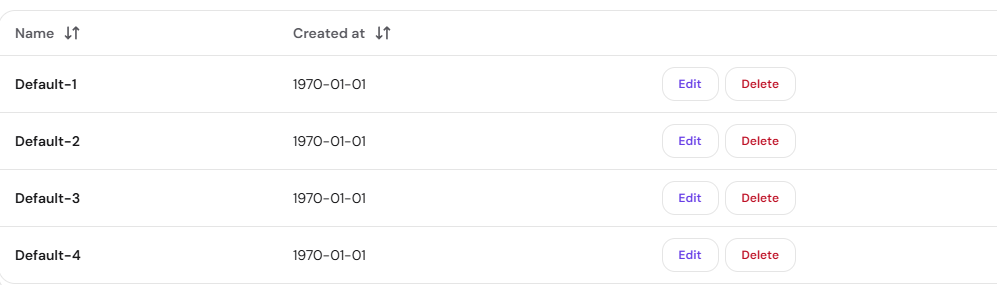
All the added SSH keys will be displayed on the same page, from where you can edit or delete them:
Only the Public key has to be added to Hostinger dashboard. Never share your Private key with anyone. Your Private key should be kept on your local device only.
Your SSH key is now added, so you can log in to your server over SSH without a password.