For security reasons, you must be the owner of any domain you intend to use at Hostinger. Additionally, a domain can only be connected to one website hosted at Hostinger at a time.
If you have a domain registered in one Hostinger account and want to connect it to a website hosted under a different account, you’ll need to verify domain ownership by adding a TXT record to the DNS zone.
Step 1 – Obtain the verification record
-
Go to the Websites list on Hostinger dashboard and click on Add website.
-
Enter the domain name you want to use. If the domain is registered under another Hostinger account, you’ll get a notification indicating this. Select the domain and click Next.
-
You’ll find the details of the domain verification:
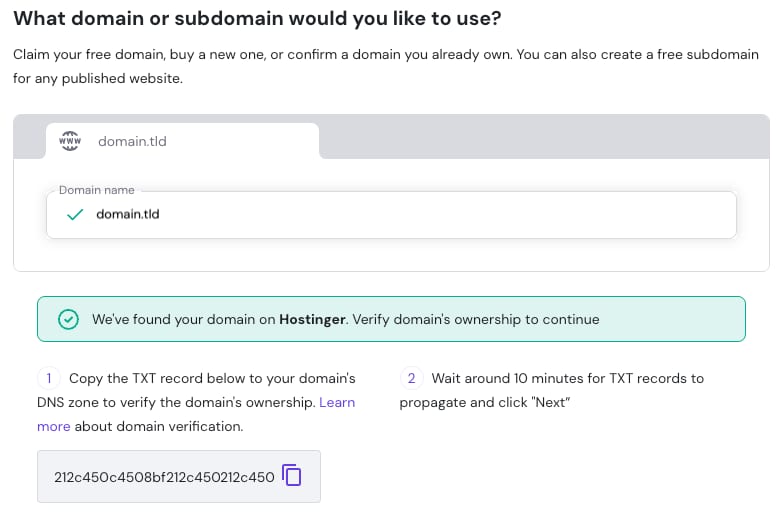
-
Click the copy button next to the TXT value to copy it—you’ll need this for the next step.
Step 2 – Add the TXT record
Navigate to your domain’s DNS zone:
-
If your domain points to Hostinger by nameservers, log in to the Hostinger account where the domain is registered. Then open the domain’s DNS Zone, as described in How to manage DNS records at Hostinger. Add the TXT record there, not in the account where you are adding the website.
-
If your domain is pointing elsewhere via nameservers (NS records): Access the platform where the DNS zone is managed.
Once there, create a new TXT record using the following parameters:
|
Name (Host) |
TXT value |
TTL |
|
@ |
The value that you copied on a previous step |
900 |
After adding the TXT record, wait up to 24 hours for the changes to fully propagate. Then, return to the Websites page on Hostinger dashboard and add the website to your hosting plan—the verification step will no longer be required.
NOTE
- This guide applies to domains registered at Hostinger. If your domain is registered at another registrar and you see the Already used at Hostinger message, see How to resolve the “Already used at Hostinger” message for a domain.