Upload a backup archive of your website to cPanel using File Manager. If you don’t have a backup yet, see how to create a full backup in cPanel at Hostinger first.
Upload your backup
You can upload your backup to your cPanel hosting by logging into your cPanel and selecting Files → File Manager:
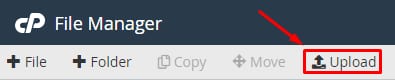
Next, click on Upload at the top-right corner of the File Manager window:
Drag and drop your file, or click on Select File to choose the file you would like to upload:
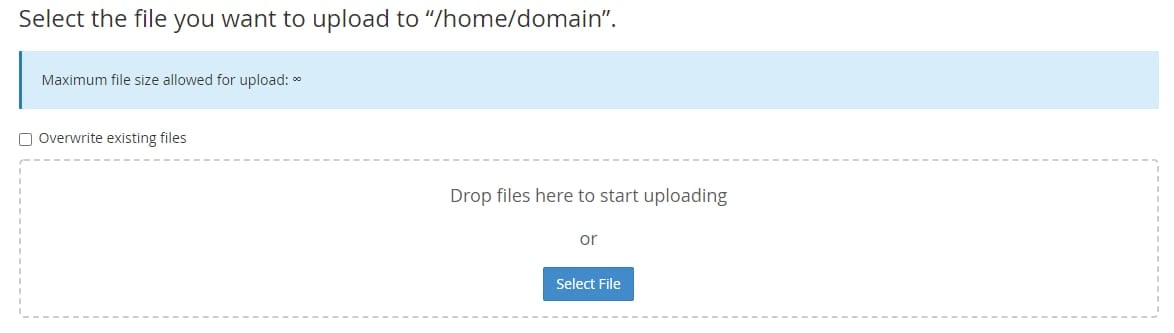
To replace current files of the same name in your hosting with the upload, check the box to overwrite any existing files.
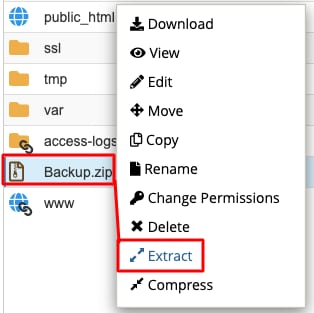
Once the file has been successfully uploaded, right-click on it and select Extract:
Then, select the path where to extract the files. For example, if it’s a backup of your website files, select the public_html directory, and click Extract file(s):
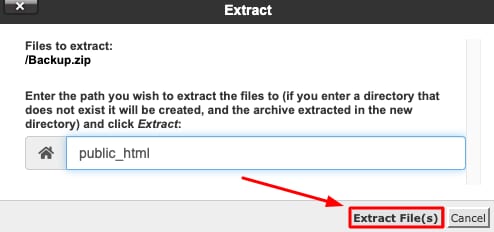
After a few minutes, your files will be extracted to the selected location.
NOTE
-
The maximum allowed size for uploading a file using File Manager is 512Mb. For larger files, you can use an FTP client