Setting up WordPress with Auto Installer on your domain or subdomain is a quick and easy process. It will take only a few minutes for you to have a running WordPress site.
Before you start
Before heading to the WordPress installation, make sure that:
-
-
Your domain is pointing to Hostinger.
-
The domain is added to your hosting plan.
-
-
If you’re installing WordPress on a subdomain, ensure the subdomain is created.
- Check what applications can be automatically installed at Hostinger for other CMS and applications you can build using Auto Installer.
Follow along with this step-by-step video guide:
Step 1 – Open Auto Installer
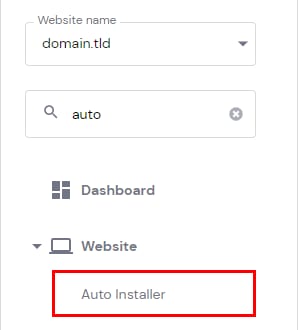
On your panel, go to Websites → Dashboard → Website → Auto Installer in the left sidebar, and click on it.
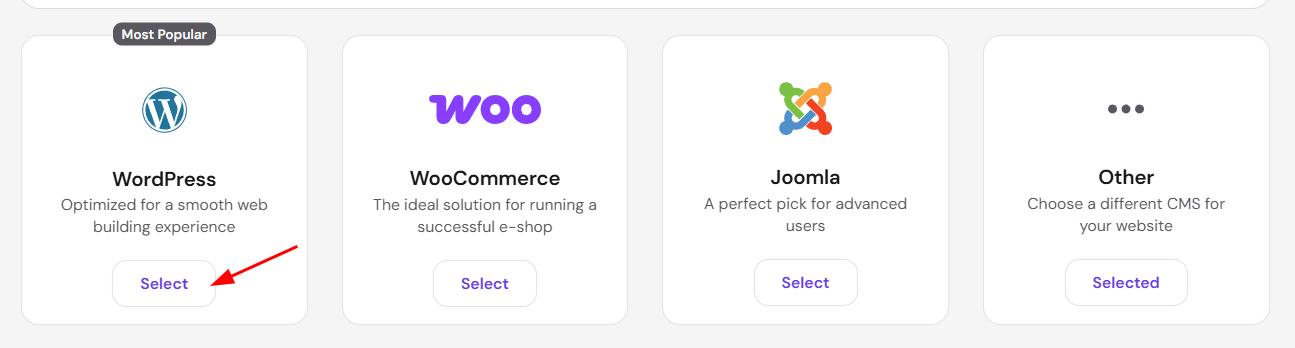
Once there, select WordPress.
Step 2 – Insert the installation details
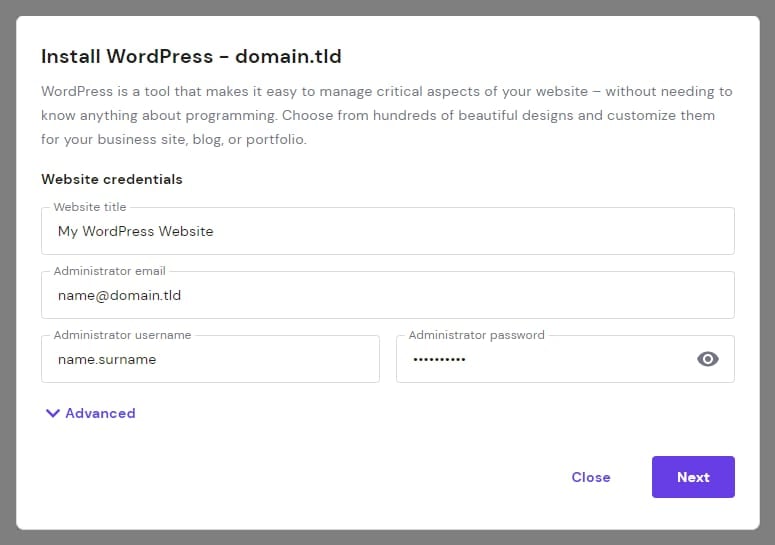
Fill in all the required details.
-
Website title – the name for your website.
-
Administrator email – the email for the admin user.
-
Administrator username – the admin username. It’s strongly recommended to use a unique username.
-
Administrator password – create a strong password for your WordPress admin account.
Custom settings
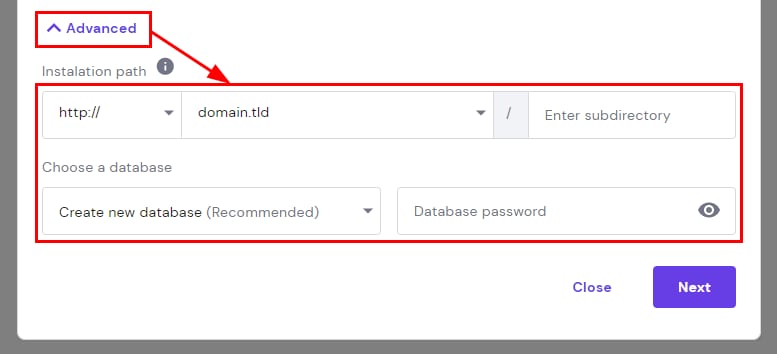
In case you want to specify a different subdirectory for your WordPress installation (for example, domain.tld/blog), or use an existing database, expand the Advanced section and fill in the information:
Install WordPress on a subdomain
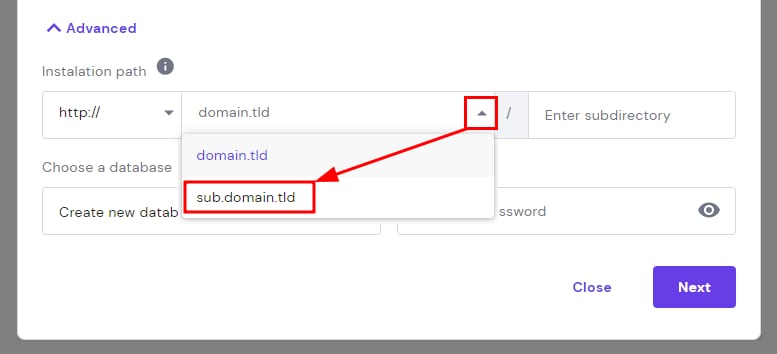
To install WordPress on a subdomain, expand the Advanced section. Next, click on the arrow and select the desired subdomain:
Step 3 – Select version details
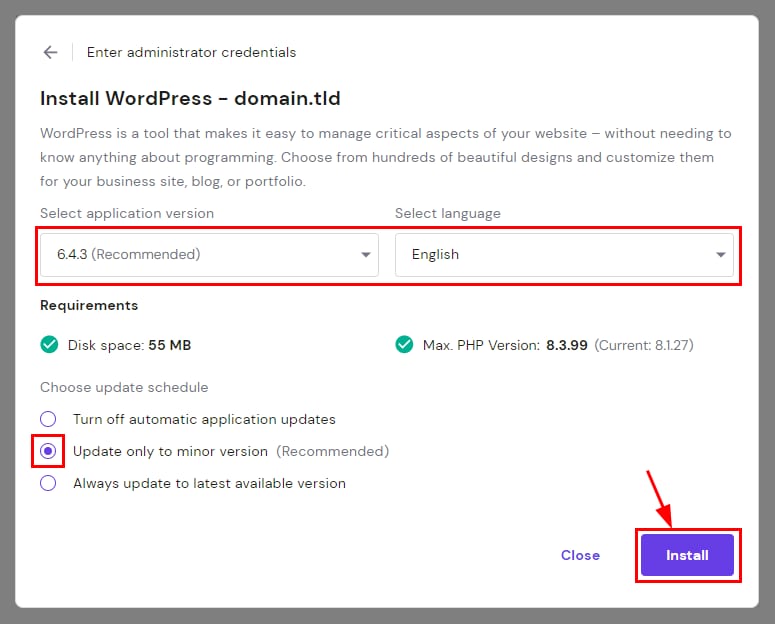
Once that’s done, click on Next to select the opions regarding the WordPress core version:
-
Application version – it’s recommended to choose the latest version
-
Language – the language of the WordPress administration interface
-
Update schedule – it’s recommended to update to minor version
Click on the Install button and after a few minutes, the installation will be completed. To check the result, clear the browser cache and visit your website.
Manage your WordPress installation
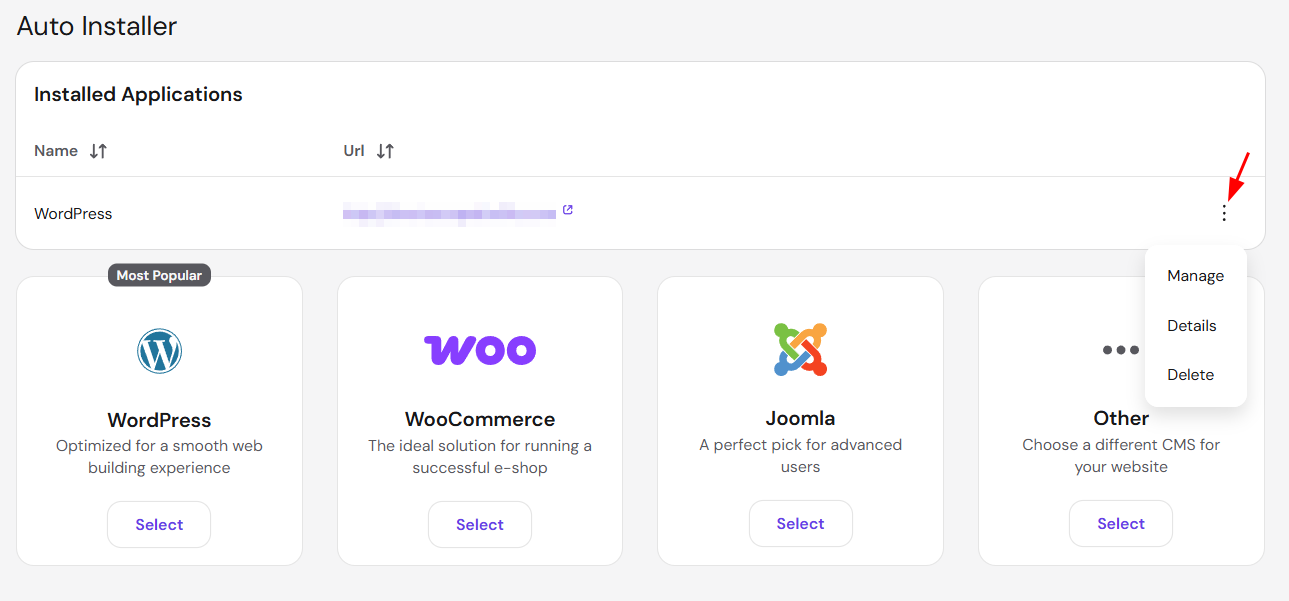
To manage the installation, click on the ⋮ button in the Auto Installer page to find the following options:
-
Access the WordPress Overview page
-
Check the details of your website – URL, database name, admin username, and email
-
Delete your WordPress installation