Change the WordPress upload limitation at Hostinger to increase the maximum file size for media, themes, and plugins.
Increase the upload limit via functions.php
By default, WordPress sets a limit on the file size for uploading to the media gallery as well as for the installation of themes or plugins. Frequently, this limit is lower than that of your hosting account, so if you need to increase it, this guide is for you!
Edit the functions.php file that is located in your theme folder via File Manager. The full path would be as follows:
/domain.tld/public_html/wp-content/themes/themename/functions.phpReplacing domain.tld with your domain and themename with the name of your current WordPress theme:
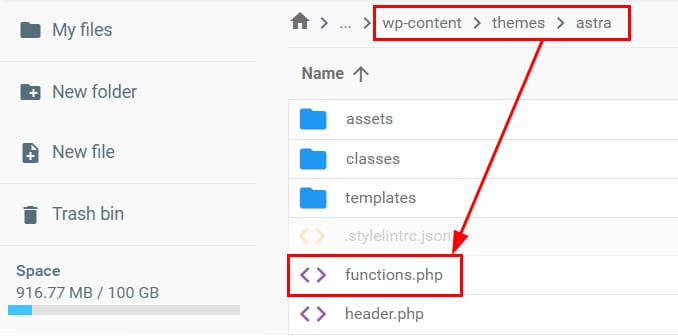
Then, add the following lines of code at the bottom of the file and save the changes:
@ini_set( 'upload_max_size' , '128M' );
@ini_set( 'upload_max_filesize' , '128M' );
@ini_set( 'post_max_size', '64M');
@ini_set( 'max_execution_time', '300' );
NOTES
- As an alternative, you can increase the value using the .htaccess file instead
- You can also relate this to your site’s PHP memory limit, since large uploads may also require sufficient memory to process.
Limits and upgrades
You can only set values for these parameters equal to or lower than your hosting limit. If you set a larger value, your hosting plan’s maximum value will be applied. If you need to increase your hosting limit, you can upgrade your plan.
If you have access to the php.ini file, such as in VPS plans, you can increase the value by following this tutorial: How to Increase the Maximum File Upload Size in WordPress