Force HTTPS on WordPress websites at Hostinger when your WordPress site fails to load over HTTPS, or looks distorted when accessed over HTTPS. Install an SSL certificate, update the WordPress Address and Site Address URLs to HTTPS, and fix any mixed content.
Step 1 — Install an SSL
If you have a Web or Cloud hosting plan, Lifetime SSL is automatically installed on all your websites, and HTTPS is forced by default. Alternatively, you can use a custom SSL.
If you have a VPS, make sure to install an SSL for your website according to your operating system instructions before proceeding to the next step.
Step 2 — Update the WordPress URL
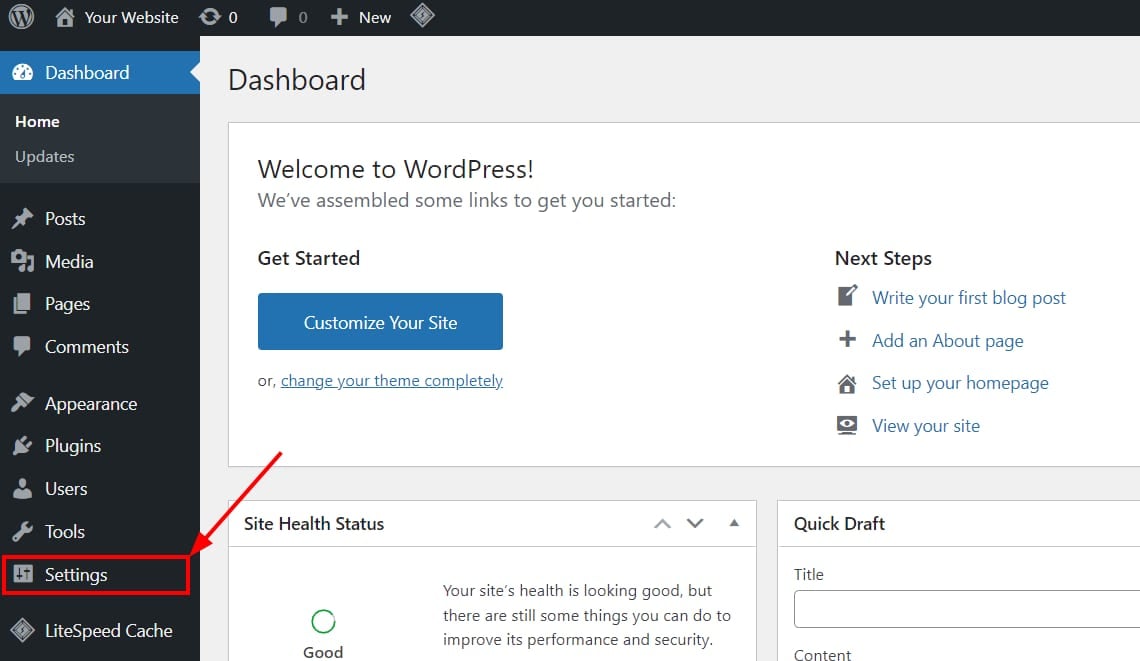
Log in to your WordPress admin area and click on Settings in the left menu:
Next, update URLs from HTTP to HTTPS in the WordPress Address (URL) and Site Address (URL) fields:
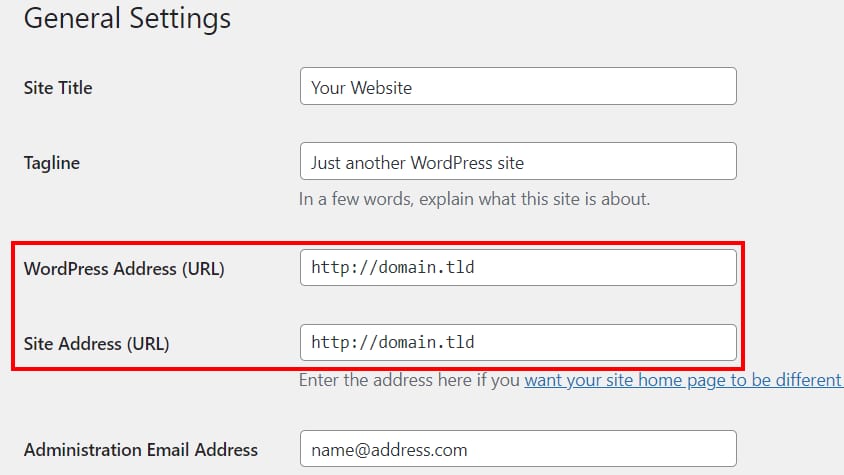
Scroll down and save the changes: your website will load now with HTTPS.
Step 3 (Optional) — Check for mixed content
If your website design appears “broken” after updating the URLs to HTTPS, follow this guide: How to Fix the Mixed Content Error on WordPress.
Your WordPress website now loads securely over HTTPS for all visitors.