Chatwoot is an open-source customer engagement platform that enables businesses to manage conversations across multiple communication channels — including website live chat, email, Facebook, WhatsApp, and more — from a single unified inbox. It offers features like real-time messaging, automation, canned responses, team collaboration tools, and analytics, making it ideal for support and sales teams. Chatwoot is designed to be self-hosted or cloud-deployed, giving organizations full control over their data and customization.
With Hostinger’s Ubuntu 24.04 64bit with Chatwoot VPS template, setting up Chatwoot is streamlined, as it comes pre-installed.
This guide will help you get started with Chatwoot on your VPS.
Getting started
-
Open a web browser and visit
http://[your-VPS-hostname]. Make sure to replace[your-VPS-hostname]with the actual hostname of your VPS. -
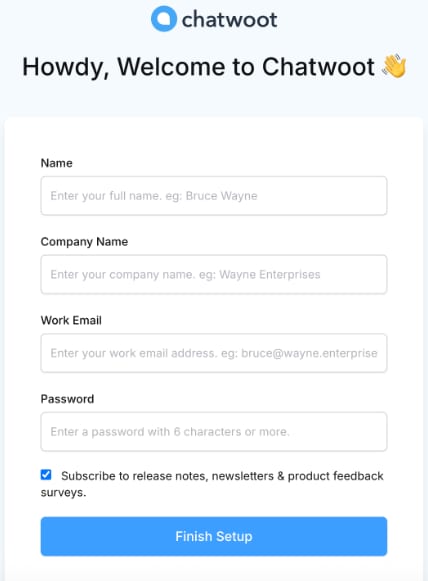
Fill in your details and click Finish Setup
-
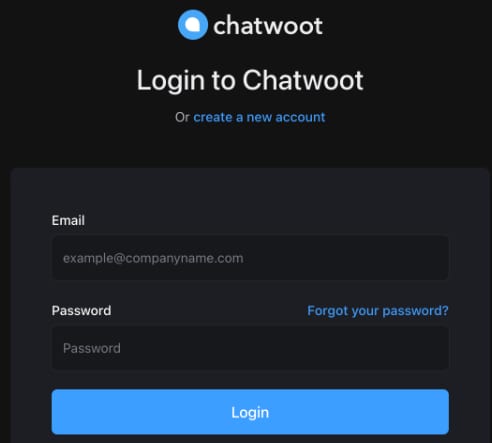
After finishing the setup, you will be redirected to the login page. Enter your credentials to proceed.
-
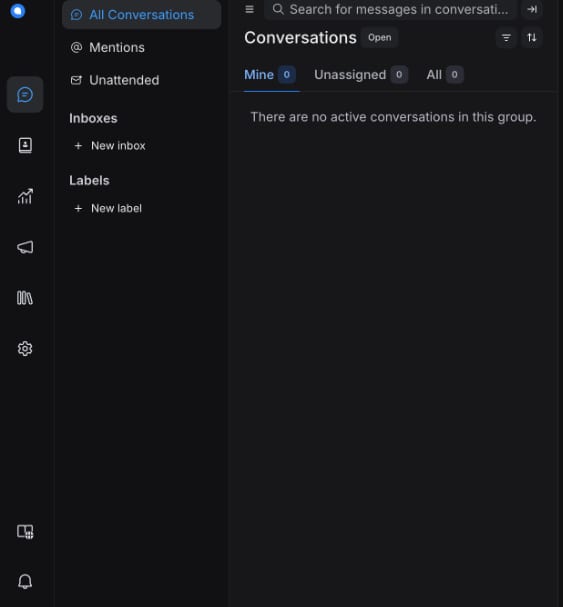
After logging in, you will be presented with the Chatwoot dashboard:
To learn more about Chatwoot capabilities and configuration – refer to the Chatwoot User Guide.
To learn more about .env variables, that Chatwoot supports – refer to the environment variables guide. You can find those by logging in the VPS – for example
ssh root@<your-vps-ip> Or use a web terminal directly from Hostinger dashboard. Then navigate to:
cd /root/chatwootWhere you will find the docker-compose and .env files. Edit the .env file with your favorite text-editor and recreate the containers, for example:
nano .env

docker compose down
docker compose up -d
For more detailed information and troubleshooting, refer to the Chatwoot documentation