If you received an email about temporary updates in our Online Store due to some of our platform’s features, make sure to address the required action to rotate your payment tokens for Paysera payments.
Generate a new Paysera password
In order to rotate your payment tokens, all you need to do is to update your Paysera password inside your Hostinger AI Builder Store. To update your Paysera project password, follow these steps:
- Log in to your Paysera account.
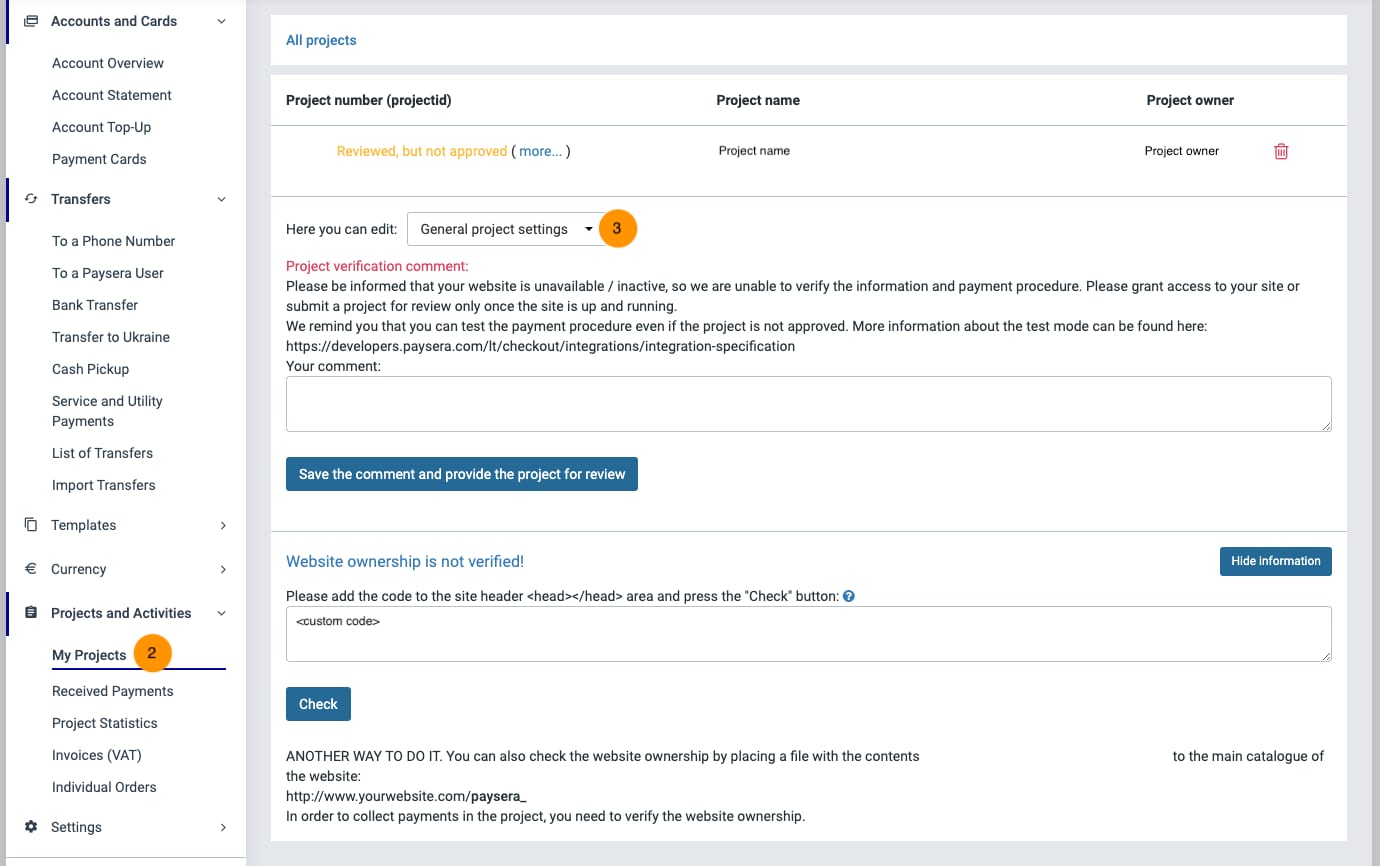
- Go to My projects.
- Select to edit General project settings:
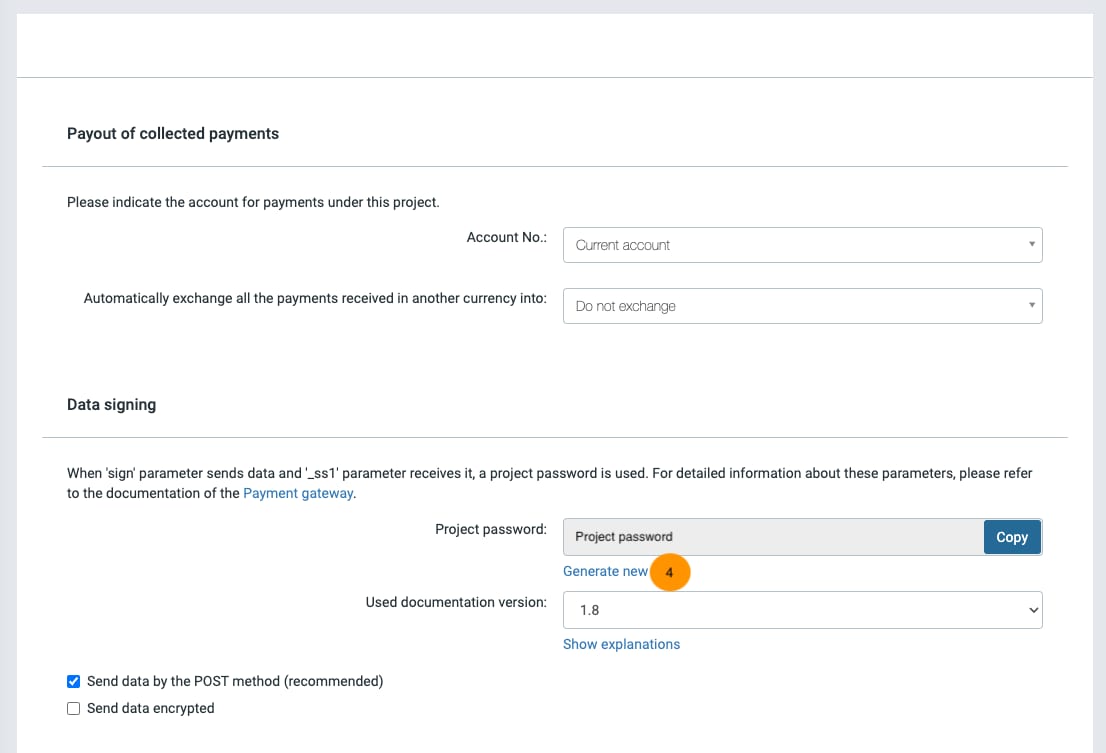
- Click Generate new next to Project password field to create a new password. Then, Copy the new password.
- Paste the new password to your Paysera settings in Hostinger AI Builder:
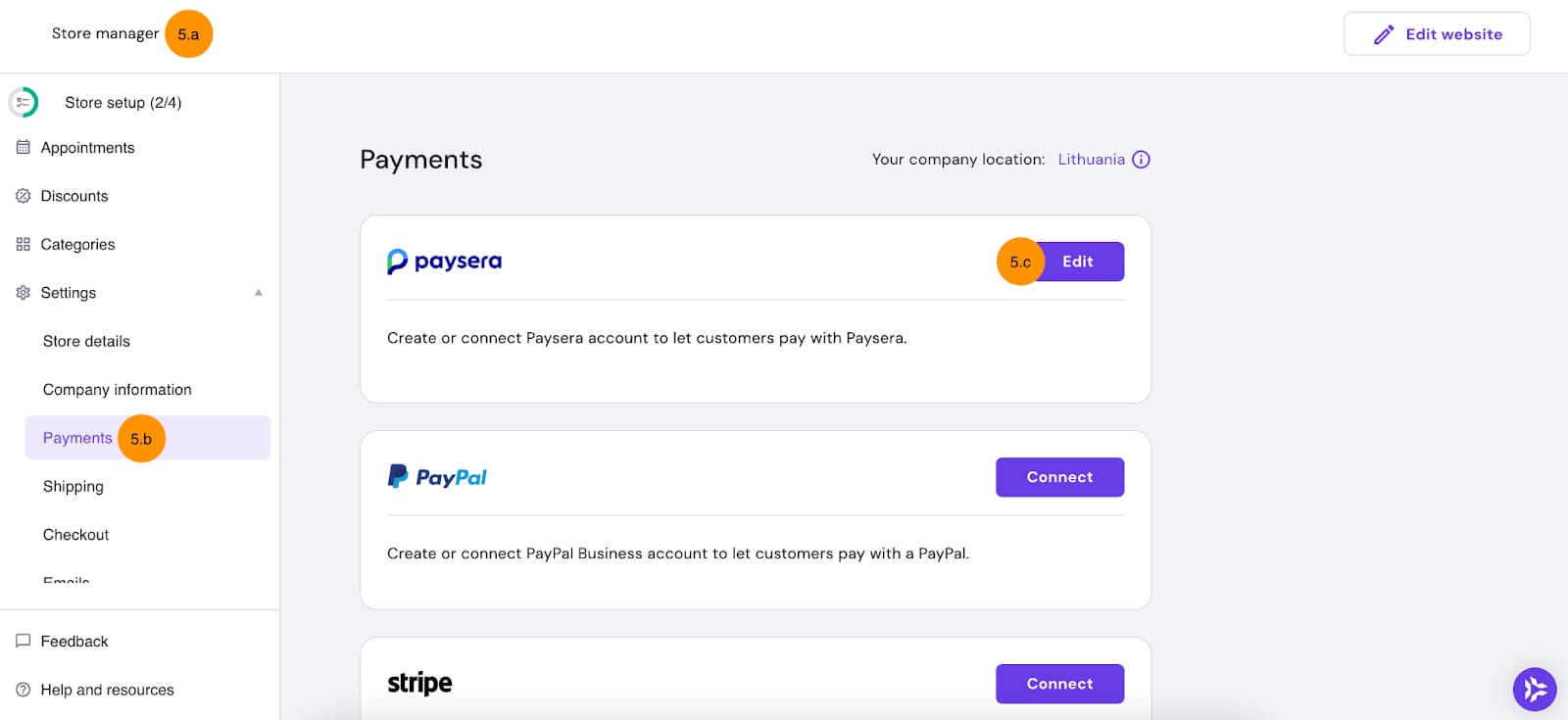
- Go to Store Manager inside Hostinger AI Builder.
- Select Payments in the Online Store Settings.
- Find Paysera and click on Edit:
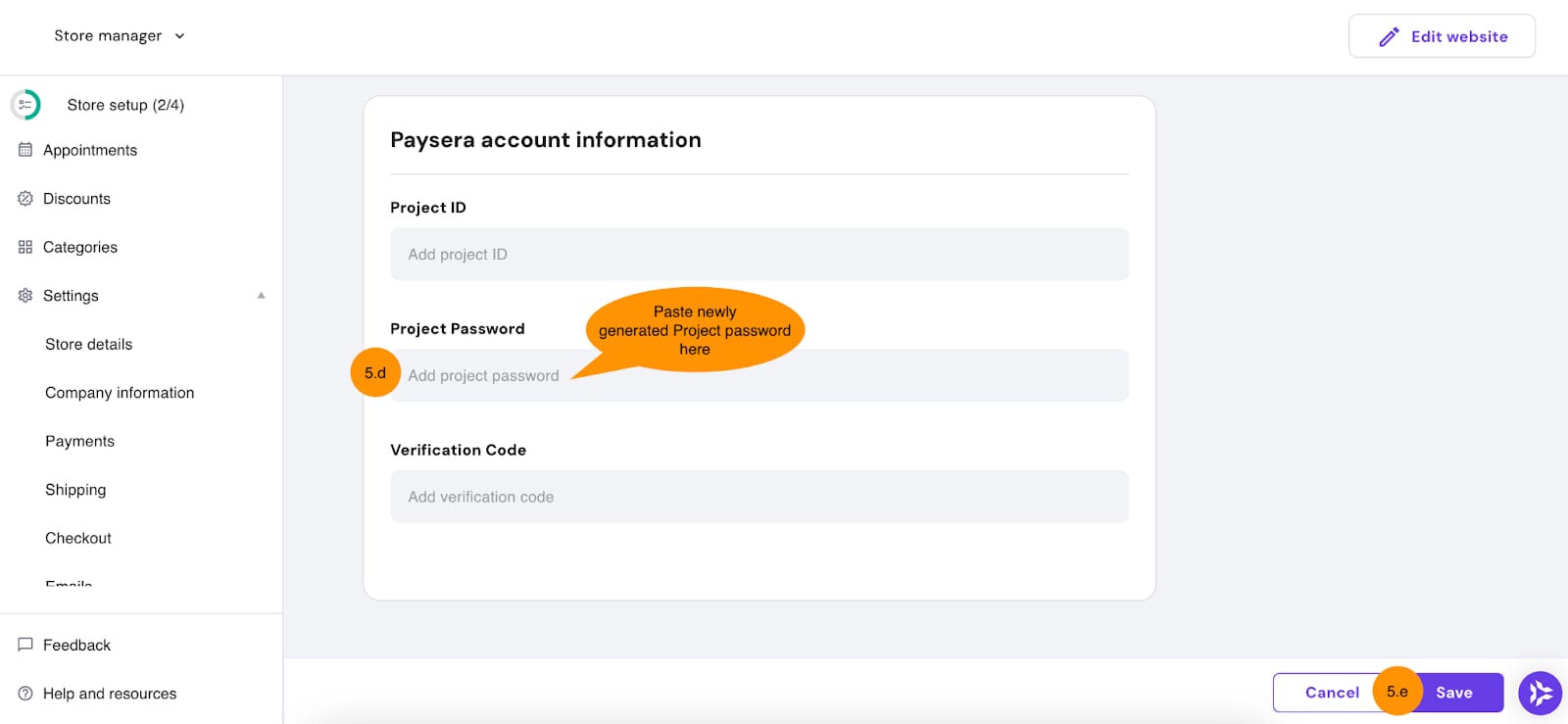
- Paste your new password to the Project Password field.
- Click on Save changes:
- Finally, inside your Hostinger AI Builder, publish your website.
And that’s it! Now your rotated your payment tokens for Paysera and are up to date with our most recent updates regarding the Online Store.