The “Unable to Export” error in the All-in-One WP Migration plugin stops a WordPress website export before you can migrate it to Hostinger. There are five common causes: insufficient disk space, a low PHP memory limit, a small maximum upload size, short timeout settings, and server resource limits.
Common causes of the “Unable to Export” error
Insufficient disk space
When there isn’t enough disk space to store the website’s backup file, the plugin is unable to complete the export.
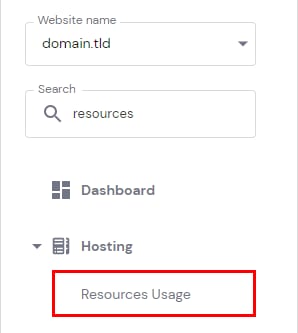
You can check the disk usage by navigating to Websites → Manage site, search for Resources Usage on the left sidebar and click on it:
You will find the charts for disk usage in GB and inodes in inode count:
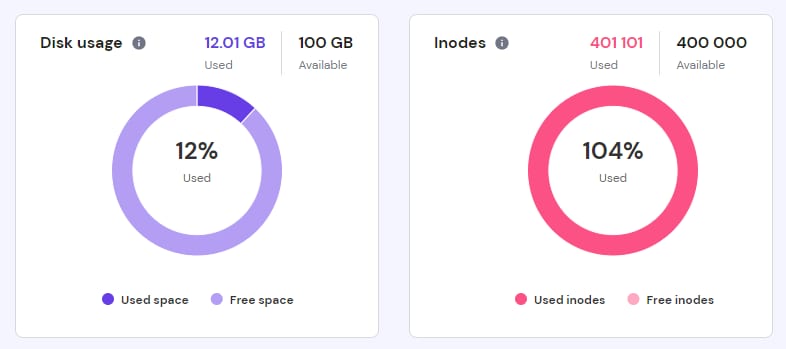
To resolve this, you may need to delete unnecessary files to free up space or temporarily increase the available disk space from your previous hosting provider. Please refer to this guide to help you further!
Memory limit restrictions
Exporting a WordPress site can require significant memory. If the PHP memory limit is too low, the process may fail. You can increase the memory limit by modifying the hosting settings or updating the wp-config.php file.
Maximum file upload size
Large websites may exceed the maximum file upload size set in the PHP configuration. If this happens, you can increase the file upload limit in the hosting control panel of your previous hosting provider or by editing the php.ini or .htaccess file. You can add this script in .htaccess:
php_value upload_max_filesize 1024M
php_value post_max_size 1024M
Timeout settings
PHP scripts have a maximum execution time, and if the export process takes too long, it will be terminated. Increasing the execution time in the php.ini or .htaccess file can help resolve this issue. You can add this script in .htaccess:
php_value max_execution_time 600
php_value max_input_time 600
Server resource limitations
Shared hosting environments often have limited CPU or RAM resources. If these limits are exceeded during export, the process may fail. You can contact your hosting provider to check for resource limitations or consider upgrading your hosting plan. See What to do if your hosting plan limits are reached in Hostinger to help you further!
Once you fix the cause, the All-in-One WP Migration plugin completes the export, and you can continue migrating your WordPress website. If the export still fails, another plugin or theme may be conflicting with it, so follow How to fix WordPress plugins or theme errors at Hostinger and check your website’s error logs.