n8n Nod is an open-source personal AI agent from n8n Labs that completes tasks across apps and websites. Give it a goal, and Nod works out the steps, uses connected services or its own browser, and takes actions to complete the job.
Nod handles tasks that require information or actions from multiple places. To prepare you for a meeting, for example, it checks your calendar, reads relevant emails, researches the company online, and compiles the information into a briefing.
Nod is a standalone application from n8n Labs, separate from the n8n workflow automation platform. You run it on your own computer or host it on a server.
Local deployment ties Nod’s availability to your computer, while an always-on server keeps it running around the clock for scheduled tasks and monitoring.
Nod is currently a research preview, so its features, interface, and technical requirements are still evolving.
How does n8n Nod work?
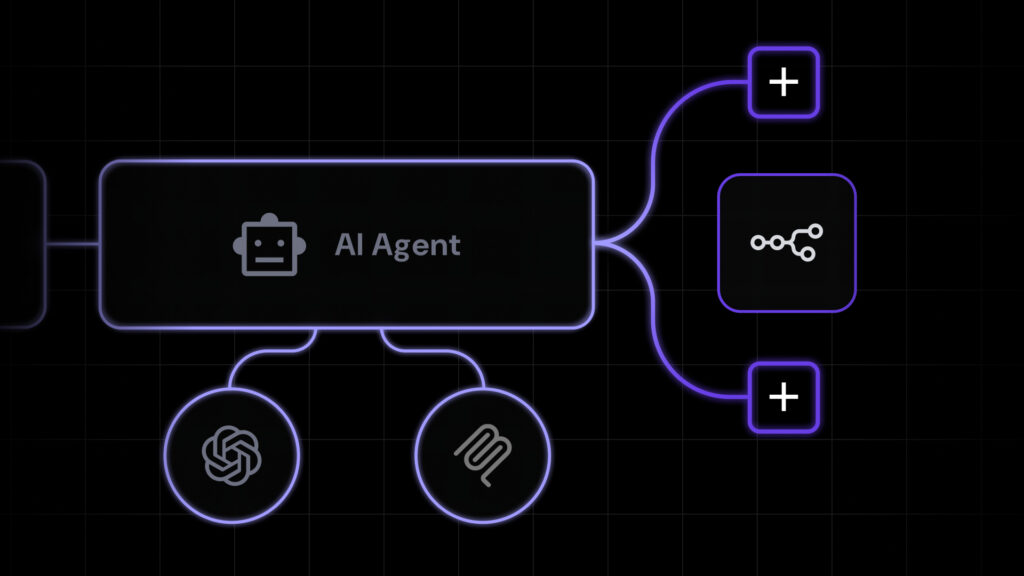
n8n Nod takes a task you describe in natural language, plans the steps, and uses its tools to complete the work. The AI model you connect handles the reasoning, while Nod provides the browser, workspace, and access to connected apps needed to carry out the plan.
Say you ask Nod to follow up on an overdue invoice. It locates the invoice, verifies the relevant customer information, reviews prior correspondence, and drafts a follow-up email based on its findings.
Before sending the email, Nod checks whether the action is already covered by your instructions or permissions. When it isn’t, Nod pauses the task and asks you to approve the action. Once approved, it picks up where it left off and completes the task.

Nod follows the same pattern as how autonomous AI agents make decisions and complete tasks, working through five stages:
- Task intake. Nod receives your request and identifies the goal.
- Planning. The connected AI model determines the necessary steps and selects the appropriate tools.
- Tool use. Connected apps and the browser provide access to the information and actions required for the task.
- Permission checks. Nod reads information and prepares drafts without asking by default. For actions that send, submit, delete, or change data, its Trust system checks whether your instructions or saved rules authorize them. Nod asks for approval when they don’t have it. Payments require separate approval.
- Task completion. After working through the remaining steps, Nod returns the result to you.
Key features of n8n Nod
Nod combines browser and app automation with schedules, memory, model choice, and self-hosting. These features determine what Nod can do on your behalf, how much context it remembers, when tasks run, and where the agent operates.
App integrations
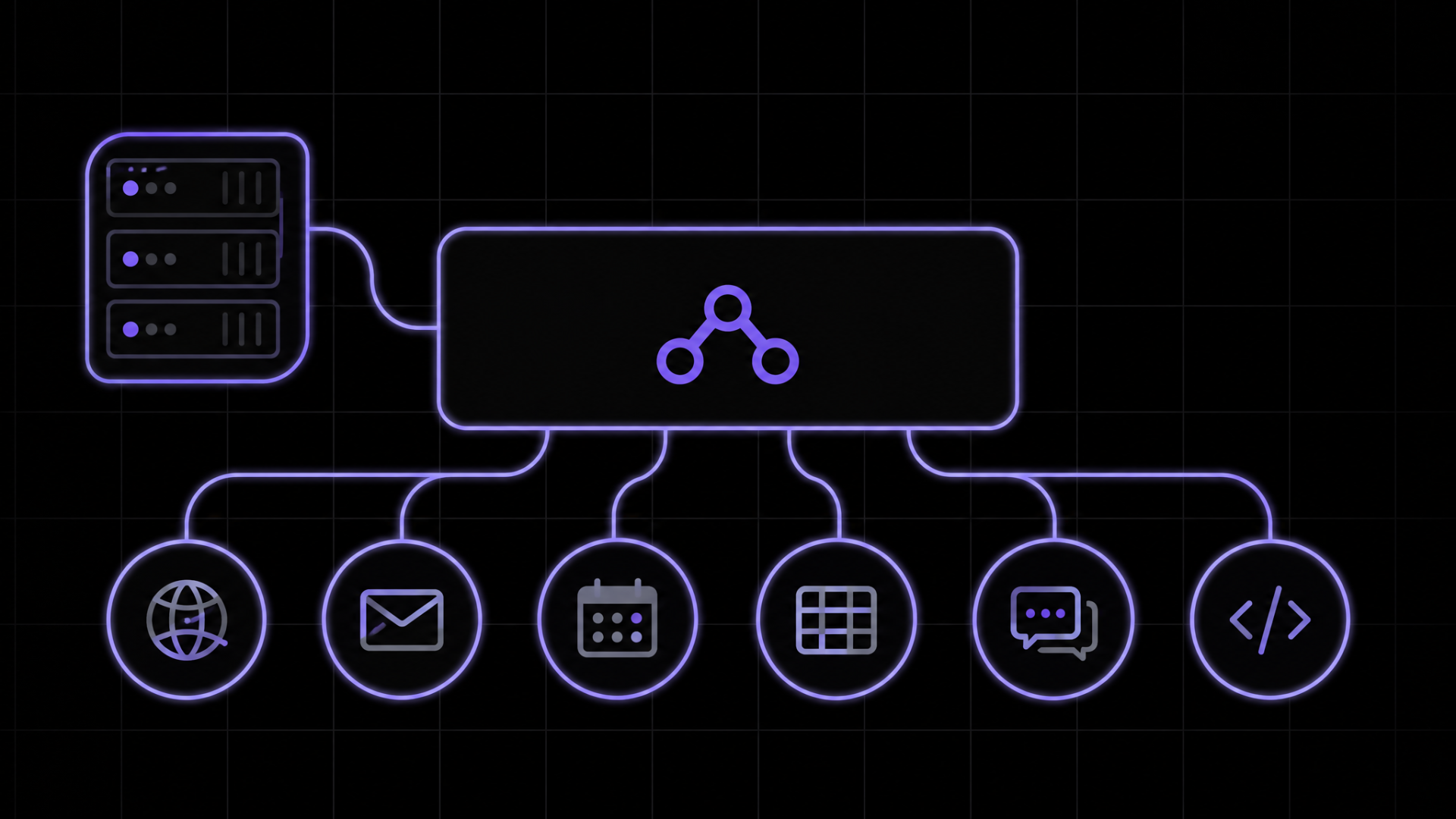
Nod connects to apps such as Gmail, Google Calendar, Slack, Notion, and Linear. Once you connect an app, Nod accesses the information and actions that the integration makes available.
A Gmail connection, for example, enables Nod to search, read, draft, and send emails. A Google Calendar connection gives it access to calendar events. Nod uses these connections while completing a task, so information retrieved from one app can inform what it does in another.
Nod also integrates with Telegram and WhatsApp as communication channels, letting you chat with the same Nod assistant on your phone.
Browser automation
Nod has its own browser for completing tasks on websites. It opens pages, follows links, searches the web, fills in forms, and downloads files without requiring a direct integration with the website.
The browser handles work that takes place on the web, including retrieving documents from online portals, gathering information from multiple pages, and entering information into web forms.
It also works alongside Nod’s app integrations. For an invoice request received in Gmail, Nod follows the link to the billing website, downloads the invoice, and attaches it to a draft reply. The task moves from Gmail to the website and back without requiring a separate instruction for each step.
Scheduled tasks
Nod runs tasks at a specific time or on a recurring schedule. You can schedule a weekday inbox summary, a weekly project report, or regular checks for new information.
A local installation runs scheduled tasks only while Nod is running and your computer is awake. Nod runs a missed task once when it’s available again, skipping any extra missed runs of a recurring schedule. A self-hosted server keeps schedules running while your computer is unavailable, provided the server stays online and connected.
Memory
Nod saves useful information from your conversations and brings it into future tasks when relevant. You can explicitly ask Nod to remember something, while its memory system also reviews recent messages in the background and saves details it identifies as useful for later conversations.
Nod keeps track of how reliable each memory is. A detail mentioned once starts with lower certainty, while information you repeat or confirm becomes more established. You can review, edit, confirm, archive, or remove saved information in Settings → Memory.

By default, Nod doesn’t save sensitive details about your health, religion, politics, sexuality, gender identity, ethnicity, immigration status, or criminal history. It only saves this information if you explicitly ask it to, or if you enable Include sensitive details in Settings → Memory.

Nod also saves learned skills after tasks that involve several steps or require a workaround. A learned skill records the procedure, problems Nod encountered, and what to check the next time it handles the same type of task.
Approval controls
Nod checks actions in connected apps and its browser against the instructions and permissions you have already given. Actions covered by those permissions proceed without additional confirmation. When an action falls outside them, Nod pauses and asks for your approval.
Nod also lets you set lasting approval rules directly in chat. Tell it which actions always require your approval or which ones it may perform without asking, and Nod follows those rules in future tasks until you change or remove them.
Nod uses an AI model to judge whether an action matches your instructions. The server verifies the source of permission, but the model can still misinterpret your request. Treat the approval controls as an additional safeguard, not a guarantee.
Model flexibility
Nod doesn’t tie you to a single AI model or provider. You choose the model that handles your conversations and tasks, with support for services such as OpenAI, Anthropic, Google Gemini, and OpenRouter, plus 20+ other providers, including Amazon Bedrock, Google Vertex AI, and Azure OpenAI.
Scheduled tasks and other work can use different models, so you aren’t locked into one model for everything Nod does.
Nod also connects to models running on your own computer or server. Running local language models with Ollama, for example, gives you a local alternative to hosted AI services.
Hosted AI models bill you per use. For example, connecting Nod with an OpenAI API key uses OpenAI API billing, which is separate from a ChatGPT subscription. Nod also lets you sign in with a ChatGPT Plus or Pro account instead of an API key.
Nod sets a $200 monthly spending limit by default and pauses a task if model spending exceeds $5 since your last message. You can change both limits in Nod’s spending settings.
Flexible deployment
Nod runs as a local assistant on your computer or as a self-hosted assistant on a server you manage.
A local assistant keeps its conversations, files, model connections, and connected accounts on that computer. A self-hosted assistant keeps them on the server, where you access the same Nod setup through the web or desktop app.
Nod currently has no supported backup or restore process for local assistants. Losing the computer that runs Nod means losing the assistant's conversations, workspace files, and saved settings stored only on that machine.
What can you use n8n Nod for?
You can use Nod to research information, manage email, work with files and websites, monitor updates, and run recurring tasks across your connected apps.

Common use cases include:
- Meeting preparation. Ask Nod to prepare a briefing, and it pulls together relevant calendar details, emails, documents, and web information.
- Update monitoring. Nod checks websites or connected apps on a schedule for changes you specify. For example, you can ask Nod to check a supplier’s pricing page every Monday at 9am and send you a Telegram message when a price changes.
- Email management. Nod searches for messages that need attention, reviews the conversation, and prepares replies based on the available context.
- Administrative work. Nod handles retrieving invoices, completing online forms, and organizing account information, tasks that often involve several small steps across apps and websites. It gathers the required details from connected services and uses its browser for the web-based parts.
- Recurring reports. Nod pulls the latest details from your connected sources and brings them together in a daily summary, weekly project report, or another format you request.
- Document collection. Nod finds and downloads documents such as invoices, receipts, and reports from websites and connected accounts, then reads, organizes, or extracts information from them based on your task.
What makes n8n Nod different from other AI agents?
Compared with n8n, OpenClaw, and Hermes Agent, Nod is more focused on executing personal tasks across your apps and websites.
n8n is built around repeatable agentic workflows and configurable agents, OpenClaw provides an extensible self-hosted assistant across multiple channels, and Hermes Agent handles broader autonomous work while building memory and reusable skills.
Here’s how the four tools compare in how you assign work, interact with apps and websites, and run the agent.
Nod | n8n | OpenClaw | Hermes Agent | |
How you assign work | Describe the result you want in an ongoing conversation | Design a workflow or configure an agent with instructions and tools | Send requests through its interface or connected messaging channels | Assign tasks through the desktop app, CLI, or connected messaging platforms |
Browser and app access | Uses its own browser alongside connected apps | Uses integrations, workflow nodes, APIs, and agent tools | Works through browser control, tools, plugins, and connected services | Uses browser automation, built-in tools, plugins, and MCP connections |
Memory | Saves useful information from conversations for future tasks | Agents store and retrieve context through configured memory | Maintains persistent memory in workspace files | Builds persistent memory and reusable skills from previous work |
Scheduling | Runs one-time and recurring tasks | Runs workflows and agents on configured triggers or schedules | Supports scheduled and recurring jobs | Runs scheduled tasks through its cron system |
Deployment | Runs as a local assistant or on a self-hosted server | Available through n8n Cloud or self-hosting | Runs on your own computer or server | Runs locally, on a server, or in supported remote environments |
Best fit | Managing personal work across email, calendars, documents, and websites from one assistant | Building repeatable business processes with defined triggers, steps, integrations, and AI agents | Running a self-hosted assistant through messaging apps and other channels across your devices | Research, coding, data analysis, and other multi-step work where the agent needs to use tools and carry knowledge from previous tasks into new ones |
n8n Nod vs. n8n
Nod is a personal AI agent that completes tasks you give it in chat, whereas n8n is an automation platform for building workflows and AI agents.
An n8n workflow connects a trigger to a series of actions. You choose the services involved, set the conditions and logic, and determine what happens at each step. Once activated, n8n runs that workflow whenever its trigger fires.
Nod doesn’t require you to define those steps. You give it the outcome, and it decides which tools to use and what actions to take as it works through the task.
Nod also connects to an existing n8n instance, which gives the assistant access to your n8n workflows. You then describe the automation you want in Nod, and it creates the workflow in n8n, including the nodes, connections, and configuration needed to run it.
For existing workflows, Nod reads their setup and execution data to make changes, test them, or investigate failed runs.

The workflow itself stays in n8n. Once it is ready and active, n8n runs it according to its configured triggers and logic, without requiring Nod to start each execution.
n8n runs either through n8n Cloud or on your own infrastructure. For the self-hosted option, setting up n8n on your own server keeps the n8n instance and its workflows on infrastructure you manage.
n8n Nod vs. OpenClaw
Nod is a ready-made assistant with its own browser, workspace, and approval system, whereas OpenClaw is a framework you configure around a central service called the Gateway. The Gateway keeps the assistant running and connects it to channels such as WhatsApp, Telegram, Slack, and Discord.
Nod is closer to hiring an assistant who arrives ready to work. OpenClaw is more like setting up the office first, choosing how your assistant communicates, which tools it has, and what it has access to.
Nod already has its own browser, workspace, memory, scheduling, and approval system. Once you connect your apps, Nod uses these tools as it works through the tasks you give it.
Before taking a sensitive action, it checks your request and saved approval rules to determine whether it needs your confirmation.
OpenClaw’s approach to personal AI automation gives you more control over the agent’s environment. You choose the channels it connects to and extend its capabilities with tools, plugins, and browser access.
Long-term memory is stored in files in the agent’s workspace, where you can inspect and edit it directly. Permission policies control which tools and commands the agent is allowed to use.
OpenClaw runs scheduled jobs through its Gateway. In Nod, you describe when a task should run, and it creates the schedule for you.
n8n Nod vs. Hermes Agent
Nod and Hermes Agent both remember prior work and learn reusable skills, but Hermes places greater emphasis on building an agent that becomes more capable through continued use.

Nod saves useful information from your conversations and records procedures it learns while completing certain multi-step tasks. When a later task calls for the same procedure, Nod reuses what it learned as it works across your apps, browser, and workspace.
Hermes takes this further by making persistent memory and reusable skills central to how Hermes Agent handles autonomous tasks.
It stores knowledge about you, your projects, and its working environment, then creates and improves skills from successful approaches. Those skills become procedures Hermes draws on when similar work appears again.
Is n8n Nod safe to use?
Nod has built-in security protections, but it isn’t risk-free.
Its Trust system and credential protections reduce the risk of unauthorized actions, but they can’t eliminate it.
One of the main risks is indirect prompt injection, where malicious instructions reach Nod through content it reads while completing a legitimate task.
Say you ask Nod to research a supplier before a meeting. The supplier’s website contains a hidden instruction telling AI agents to retrieve information from a connected email account and send it to an external address.
You never asked Nod to do that, and the attacker didn’t need your password or access to the machine running Nod. The instruction reached the agent through content it was expected to process.
How far an attack can go depends partly on the access Nod has. The injected instruction can’t use the email account or send messages when Nod has no access to them. Limiting connected accounts and permissions therefore reduces what a successful attack could access, change, or send.
Nod adds another safeguard through its Trust system. Before sending confidential information to an unknown address, Nod checks whether the action is consistent with your original request. Sending private information isn’t necessary to research a supplier, so Nod is designed to stop and ask for your approval.
Credentials receive separate protection. Nod stores saved logins in its Vault and uses them to sign in through its browser without exposing the password to the AI model. A malicious instruction therefore can’t simply persuade the model to reveal a password it never receives.

Neither protection is absolute. Nod uses an AI model to judge whether an action falls within your instructions, and its documentation warns that the model can make mistakes.
To reduce the risk:
- Limit account access. Connect only the accounts Nod needs and grant the minimum permissions required for its tasks.
- Require approval for sensitive actions. Keep approval requirements for actions that expose information, send messages, modify or delete data, change account settings, or spend money.
- Secure the hosting environment. Protect the computer or server running Nod, since unauthorized access could also expose your assistant and its connected services.
What are the limitations of n8n Nod?
Nod’s main limitations come from its research-preview status, reliance on AI models, usage costs, computing requirements, and availability when running locally.
- Nod is still a research preview. Its features, interfaces, and data formats can change as development continues. Avoid relying on the current release for work that requires a stable setup with no room for disruption.
- AI errors can carry through a task. Nod relies on the connected model to interpret your request, plan the work, and make decisions along the way. An early wrong decision in a multi-step task can steer later steps in the wrong direction, so review results before using them to make decisions, send communications, or change important data.
- Model usage adds a separate bill. Nod itself doesn’t charge for model usage, but model providers bill separately when you connect their APIs. Recurring schedules generate new model requests each time they run, and longer, more complex tasks consume more tokens.
- Nod needs more computing power than a typical app. Nod runs its Linux workspace, Chromium browser, and database in separate containers, so concurrent and browser-heavy tasks need more CPU and RAM.
- Local schedules depend on your computer. A local assistant runs scheduled and background work only while Nod is running and the computer is awake. A task due while the computer is asleep or Nod is stopped runs after the assistant becomes available again, delaying the work that needs to happen at a specific time.
Should you run n8n Nod locally or on a VPS?
Run Nod locally if you’re testing the agent, experimenting with integrations, or using it for occasional tasks that don’t need to run at a specific time. For scheduled automations, continuous monitoring, and recurring work, run Nod on a VPS so the agent stays available independently of your computer.
Nod keeps working while your computer is offline because of how virtual private servers work: the VPS provides its own CPU, memory, and storage on a remote server. Scheduled tasks and monitoring can therefore continue without keeping your computer turned on.
Compare the practical differences side by side before making your final decision:
Local computer | VPS | |
Availability | Depends on the computer being on and awake | Runs independently of your personal computer |
Scheduled tasks | Wait when the computer or Nod is unavailable | Continue while the VPS and Nod are running |
Monitoring | Limited by how long your computer remains available | Suitable for continuous monitoring |
Resources | Shares your computer’s CPU and memory | Uses the resources allocated to the VPS |
Best fit | Testing and occasional tasks | Scheduled, recurring, and browser-heavy workloads |
How to run n8n Nod on a Hostinger VPS
Run n8n Nod on a Hostinger VPS using its preconfigured Nod template. Hostinger Nod VPS hosting sets up the application environment, so you don’t need to install Nod or manually configure its containers.
To get started, follow these nine steps:
- In the Hostinger dashboard, go to VPS and find VPS hosting. Click Set up VPS to start configuring a new server.
- Open the Applications tab, search for Nod, and select the Nod template.

- Create a panel password to secure access to the VPS. You can also add an SSH key, but this is optional and isn’t required to deploy Nod through the template.
- Choose your VPS plan. KVM 2 (2 vCPU cores, 8 GB of RAM) is the minimum starting point. We recommend KVM 4 (4 vCPU cores, 16 GB of RAM) for scheduled automations, concurrent tasks, and browser-heavy workloads. For this test, we chose KVM 4.
- Complete the purchase and wait for Hostinger to deploy the VPS.
- Once deployment finishes, click the Manage App button to open it. Your browser opens the Nod deployment at its HTTPS hstgr.cloud address.

- Sign in with admin and the panel password you created during VPS setup.
- On the Nod welcome screen, click Get started.
- Complete Nod’s onboarding.
When Nod asks you to choose an AI provider, connect a model. The assistant can’t start working without one.
Hostinger AI Router provides access to supported AI models through one API key and a shared Hostinger credit balance, so you don’t need to create separate API keys and billing accounts with each model provider.
To connect AI Router to Nod:
- Open a new Hostinger dashboard tab and go to AI Router.

- Open API keys and click Add API key. Give the key a name, create it, and store it somewhere secure. Anyone with the key can spend your credits.
- Return to Nod and select Your own server from the list of AI providers. Nod uses this option to connect to services that provide an OpenAI-compatible API, including Hostinger AI Router.
- Enter https://router.hostinger.com/v1 as the Server address and paste your Hostinger AI Router key into the API key field.
- Click Connect. Nod retrieves the models available through AI Router.
- Choose a model and wait for Nod to verify the connection.

- Once the model passes the check, click Continue.
With the setup complete, we tested whether Nod would actually run a task at a specific time from the VPS. We asked it to research the latest n8n Nod news from official sources at 4:20 pm and summarize the three most important updates.
There was no separate scheduling interface to configure. Nod understood the time in the request, created a one-time run for 4:20 pm (16:20), confirmed the timezone, and saved the task. It also added the task to Scheduled, where we could review or change it before the run.

At 4:20 pm, Nod automatically started the task, researched the requested sources, and posted the finished summary directly in the chat. We didn’t need to return to Nod and start the task ourselves.

We also tested Nod’s approval controls with a connected Gmail account. First, we told Nod to always stop and show a separate approval prompt before sending an email, even when the original request already tells it to send one.
We then asked Nod to send a test email. It prepared the message but stopped before sending it and displayed the recipient, subject, and message in an approval card. Nothing left the account until we chose Send.

The test shows how approval rules add a checkpoint before sensitive actions. You define the rule in chat, and Nod applies it when a matching action comes up.
This article is a localized version of What is n8n Nod? Features, use cases, and setup, originally published in English.
All of the tutorial content on this website is subject to Hostinger's rigorous editorial standards and values.

Ksenija is passionate about exploring how AI is changing the digital world. Her work focuses on AI, agentic systems, AI search, and the technologies shaping how people interact with the web. She enjoys digging into new developments, understanding how they work, and making them easier to navigate. When she’s not writing or editing, you’ll find her on the local basketball court or at home enjoying a crime story. Follow her on LinkedIn.