How to secure WordPress for AI automation
Mar 10, 2026
/
By Ksenija
/
7 min Read

To secure WordPress for AI automation, you need to protect the APIs, user accounts, plugins, and automated workflows that allow AI tools to operate your site.
AI integrations, such as OpenClaw connections, n8n workflows, and AI-powered plugins, can publish content, update data, trigger webhooks, and run background tasks without manual intervention. While that level of automation improves efficiency, it also allows external systems to interact directly with your WordPress REST API, database, and user roles.
If those connections are not properly secured, a compromised credential or a vulnerable plugin can trigger large-scale changes in a short time.
Securing WordPress in this context requires more than basic hardening. In addition to protecting logins and keeping plugins updated, you must control API access, monitor automated activity, restrict permissions, and safeguard data in transit.
1. Keep WordPress core, themes, and plugins updated
Updates close known security gaps and maintain compatibility between WordPress and AI automation tools such as OpenClaw integrations, n8n workflows, and AI-driven plugins.
Because these systems rely on the WordPress REST API, database access, and background processes, any outdated component can become an entry point for attackers.
AI automation increases the impact of vulnerabilities simply because many automation tools interact directly with publishing workflows, API endpoints, user data, and system configurations.
If a compromised plugin has access to those components, attackers may manipulate content, extract sensitive data, or disrupt automated processes. In this context, even a single outdated extension can act like an open window in an otherwise secure system.
Keeping your installation updated helps you secure WordPress by:
- Patching publicly disclosed vulnerabilities before they are exploited
- Preventing conflicts between WordPress core and AI-related plugins
- Reducing the exposure of API endpoints used in automation
- Improving overall system stability under automated workloads
Make updates part of your routine maintenance. Review available updates, remove unused extensions, update WordPress regularly, and test major changes in a staging environment when possible.
2. Use strong authentication and user access controls
When AI automation connects to WordPress through user credentials or API access, authentication and access control protect your site from unauthorized changes to content, settings, and automated workflows.
Start by setting strong passwords for all user accounts, especially those of administrators and users managing automation features. Avoid reusing passwords across services, and generate long, unique credentials.
For REST API integrations, create application passwords instead of sharing primary login credentials. That way, you can revoke access without locking yourself out of your own account.
Enable two-factor authentication for WordPress administrators and anyone managing AI workflows. Even if a password is compromised, 2FA blocks unauthorized access to dashboards and automation settings.
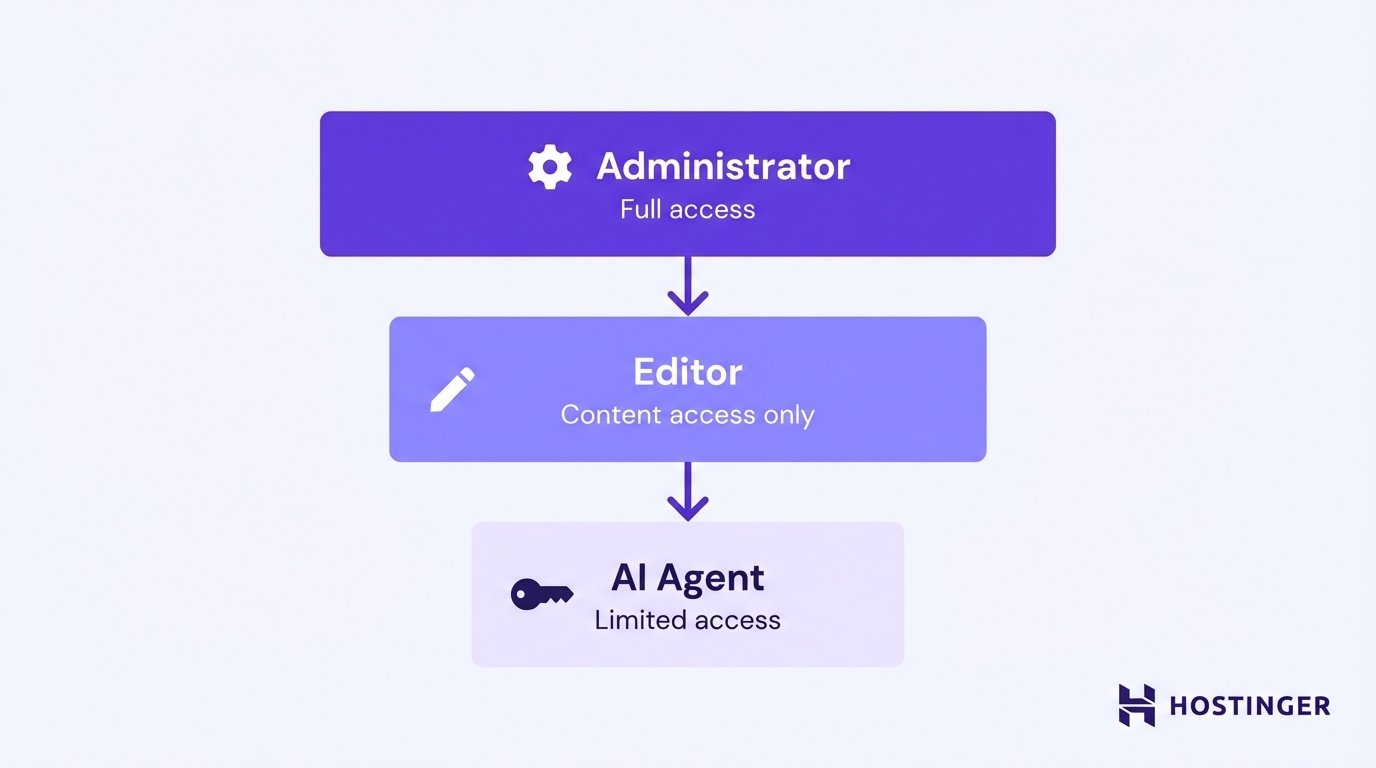
Access control is equally important, as permissions define the blast radius of a mistake. Not every user connected to automation tools needs full administrative privileges.
For example, if an AI agent connects through a dedicated account, assign it the Editor role so it can publish or edit content without changing site-wide settings.
Follow the principle of least privilege for WordPress user roles by:
- Assigning only the capabilities required for the task
- Using the Editor role instead of Administrator when full site control is unnecessary
- Restricting access to plugin settings and theme configuration
- Not granting database or file access unless required
Finally, monitor user activity. Enable logging to track logins, role changes, API usage, and modifications to AI-related settings. Regularly review activity logs for unusual login locations, repeated failed attempts, or unexpected content changes.
Pro Tip
Use a separate WordPress account for each AI integration. If you connect n8n, OpenClaw, or another tool through one shared account, it becomes harder to trace activity and revoke access safely. Separate accounts give you clearer logs and cleaner control.
3. Secure API endpoints used by AI automation
AI automation tools exchange data with WordPress via API endpoints, which are specific URLs that allow external systems to send or request information from your site.
Unlike a regular webpage designed for visitors, an API endpoint is built for system-to-system communication. These connection points must be protected against unauthorized access and misuse.
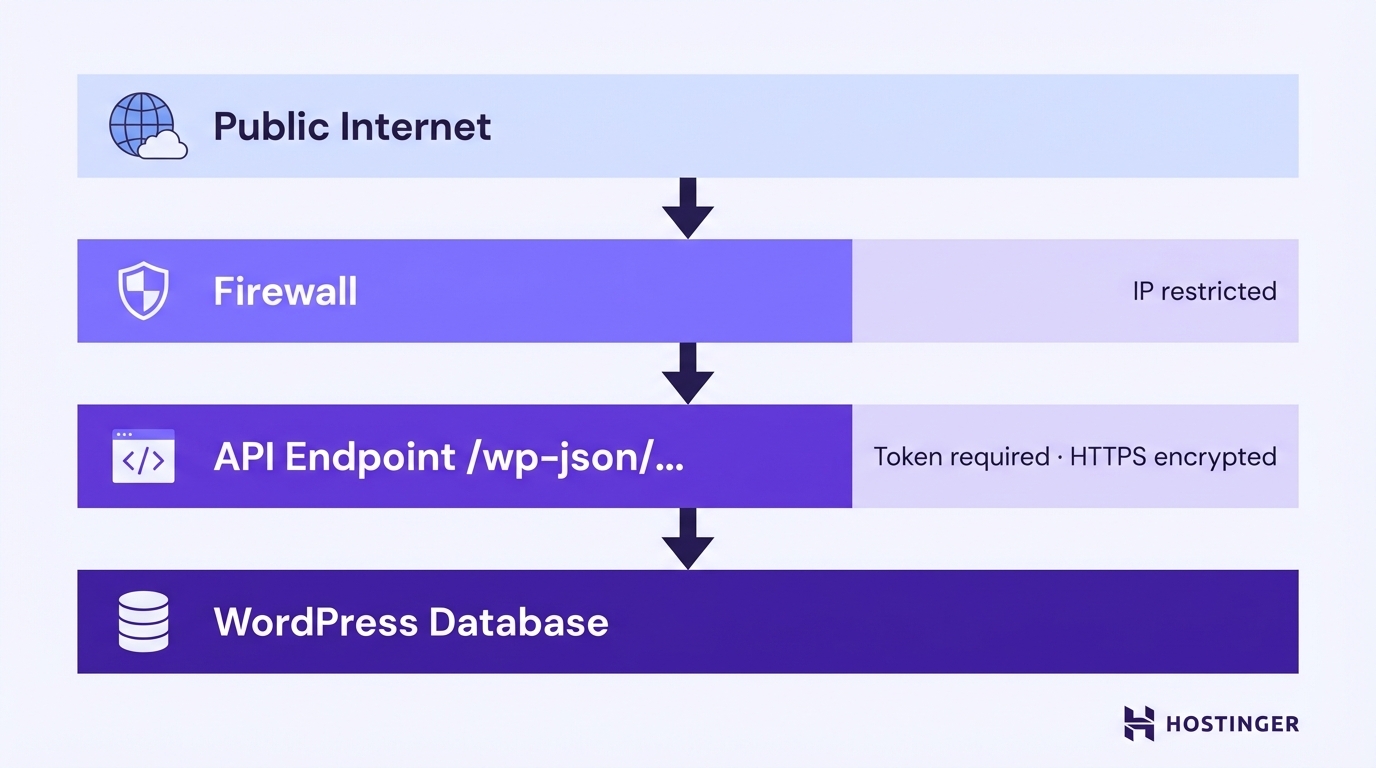
Many AI integrations use the WordPress REST API to publish content, retrieve data, trigger workflows, or automatically update settings. If these access points are left exposed, attackers may attempt to manipulate automated actions, extract sensitive information, or overload the system with malicious requests.
Start by enforcing strong authentication. Token-based authentication or secure API keys ensure that only approved systems can access your endpoints. Avoid relying on publicly accessible endpoints without verification mechanisms.
Restrict access wherever possible by allowing only trusted servers, such as your automation provider or internal systems, to interact with the API. This approach, known as IP whitelisting, reduces the risk of external abuse.
Always enforce HTTPS. The SSL/TLS encryption protects data exchanged between WordPress and external AI tools, preventing interception of credentials, tokens, or sensitive payloads during transmission.
4. Implement SSL/TLS certificates sitewide
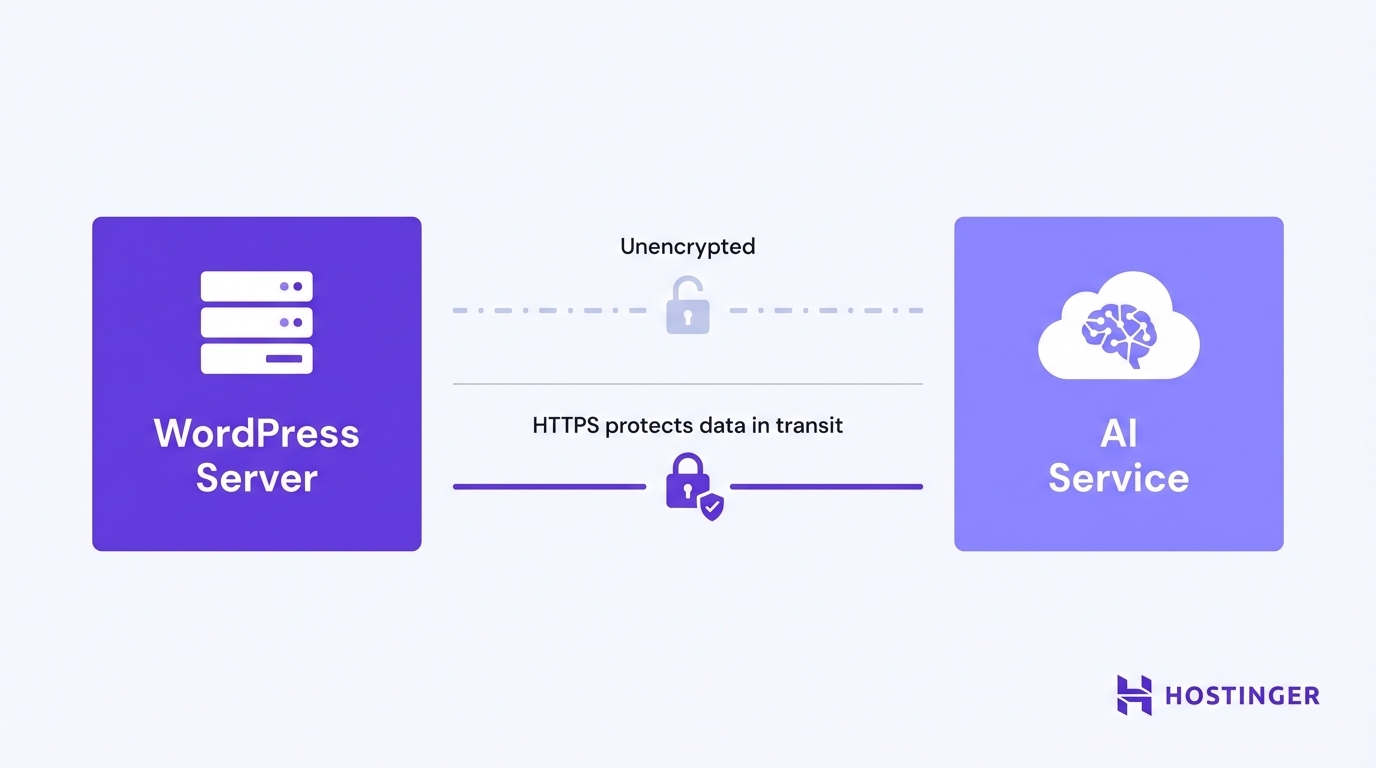
SSL/TLS encrypts the data exchanged between your WordPress site, users, and external AI services, preventing interception of credentials, tokens, and automation payloads during transmission.
When AI tools connect to your site through APIs, webhooks, or external services, data travels across networks. Without encryption, your login credentials, application passwords, API tokens, or generated content can be exposed to interception attacks. You can think of it as sending sensitive documents in an unsealed envelope.
HTTPS ensures that this traffic remains encrypted as it moves between systems.
Sitewide SSL is especially important when automation workflows interact with:
- The WordPress REST API
- Login endpoints
- Webhook URLs used by tools such as n8n
- AI plugins sending or receiving external requests
To implement SSL on WordPress, start by obtaining a certificate from your hosting provider or a trusted certificate authority. Most modern hosting environments provide free certificates through services such as Let’s Encrypt.
Once installed at the server level, force HTTPS across your entire site by:
- Updating the WordPress Address and Site Address to use HTTPS
- Enabling automatic redirection from HTTP to HTTPS
- Verifying that internal links and API endpoints use secure URLs
After configuration, test your site to confirm there are no mixed-content warnings and that all automation endpoints load securely.
5. Use web application firewalls (WAF)
A web application firewall filters incoming traffic before it reaches your WordPress site, blocking malicious requests that could target AI automation features, API endpoints, or login areas. It works like a security desk, checking visitors before they enter the building.
AI-enabled sites often expose additional entry points, such as REST API routes, webhook URLs, and automation-triggered actions. These can attract automated scans, bot traffic, or exploit attempts. A WAF inspects each request and blocks patterns associated with common attacks before they interact with your application.
In practical terms, a WAF helps protect against:
- SQL injection attempts targeting database queries
- Cross-site scripting designed to inject malicious code
- Brute-force login attacks
- Automated bot traffic abusing API endpoints
- Suspicious requests to automation-related routes
Several WAF solutions are compatible with WordPress. Cloud-based services such as Cloudflare operate at the DNS level and filter traffic before it reaches your server. Hosting-level firewalls may be included in managed WordPress environments. Plugin-based options such as Wordfence or Sucuri Security run within WordPress and provide rule-based traffic filtering.
Configuration depends on the type of firewall. For cloud-based WAFs, you typically route your domain through the provider’s network and enable managed security rules.
For plugin-based WordPress firewalls, you install the plugin, activate its protection mode, and configure rules to monitor and block suspicious behavior. In AI-heavy environments, review firewall logs regularly to ensure legitimate automation traffic is not mistakenly blocked.
Important! If automation suddenly stops working after enabling a firewall, check whether your WAF is blocking legitimate API requests. Review firewall logs before assuming your AI workflow is broken.
6. Monitor AI automation logs and activity closely
AI automation can run in the background without visible signs, which makes logging essential for detecting unauthorized actions, failed workflows, or unusual system behavior.
When tools such as n8n, OpenClaw integrations, or AI plugins interact with WordPress, they generate activity through API requests, content updates, login sessions, and scheduled tasks.
Without logs, you may not notice suspicious activity until content is altered, data is exposed, or automation stops working.
Start by enabling logging for:
- User logins and role changes
- REST API requests
- Webhook triggers
- Plugin and theme modifications
- Scheduled task execution
Activity logs allow you to trace who performed an action, from which IP address, and at what time. This is especially important when AI agents operate using dedicated user accounts or application passwords.
Review logs regularly instead of waiting for an incident. Look for patterns such as repeated failed login attempts, unexpected API calls, unfamiliar IP addresses, or sudden content changes. Errors in automation workflows, such as failed API responses or incomplete tasks, should also be investigated promptly to prevent cascading issues.
Several tools can help monitor WordPress activity. Plugins such as WP Activity Log or Simple History track user actions and configuration changes inside WordPress. Server-level logs, available through your hosting control panel, provide insight into traffic patterns and request details. Security plugins like Wordfence also include monitoring and alert features for suspicious behavior.

7. Limit plugin and AI script sources to trusted providers
AI plugins and external scripts can introduce security risks if they come from unverified sources. Installing automation tools from reputable providers reduces the chance of exposing your WordPress site to malware, hidden backdoors, or poorly secured code.
AI-related extensions often request elevated permissions, access to the REST API, or integration with external services. If a plugin is poorly maintained or intentionally malicious, it may misuse those permissions to access sensitive data or alter automated workflows.
Before installing any AI plugin or script, make sure to:
- Download it from trusted marketplaces such as the official WordPress Plugin Directory or well-known commercial providers
- Check the number of active installations and the recent update history
- Review ratings and user feedback for unresolved security issues
- Verify that the developer maintains documentation and responds to support requests
Pay attention to how frequently the plugin is updated. Tools that are not maintained may become incompatible with newer WordPress versions or expose unpatched vulnerabilities, especially when connected to automation workflows.
Be cautious with standalone AI scripts or integrations downloaded from forums or unknown repositories. These may lack proper code review, security testing, or long-term support. In AI-enabled environments where plugins interact with content publishing, APIs, and user data, a single insecure extension can compromise the entire system.
8. Back up WordPress regularly with automation considerations
AI tools may publish posts, update metadata, trigger API calls, or store generated content. If a configuration error, compromised plugin, or failed workflow alters your database, the impact can spread quickly. A recent backup lets you restore the WordPress site to a known, safe state without rebuilding everything manually.
Back up not only your core WordPress files, but also:
- The database, including posts, users, and automation-related data
- AI plugin settings and configuration files
- Custom scripts or webhook configurations
- Media files generated or modified by automation tools
Frequency matters. Sites running active automation should use scheduled backups rather than manual ones. Daily backups are often appropriate, and more frequent backups may be necessary if automation runs continuously.
Automation can also support your backup strategy. Many hosting environments provide automated server-level backups. WordPress backup plugins can schedule backups and send copies to off-site storage such as cloud drives or object storage services. Off-site storage is important because it protects backups if the main server is compromised.
➡️ If you need step-by-step instructions, follow our detailed WordPress backup guide to configure automated and off-site backups properly.
How to optimize WordPress performance for AI automation
To optimize WordPress speed and performance in AI-driven environments, you need to reduce unnecessary server load and ensure that automation processes do not compete with normal user traffic.
To optimize WordPress speed while running AI automation, take the following steps:
- Configure caching properly: Enable page caching to reduce dynamic requests and free server resources. Add object caching to store frequent database queries in memory, and exclude REST API routes or webhook endpoints that require real-time processing.
- Optimize the database regularly: Delete unnecessary post revisions, expired transients, and unused tables. Monitor slow queries and add indexing to frequently accessed columns so automation tasks do not slow down the site.
- Monitor and scale server resources: Check CPU, memory, and I/O usage during peak automation activity. Upgrade your hosting plan or move heavy AI processing to external services if background tasks compete with user traffic.
- Protect performance settings with security in mind: Test caching and optimization plugins to ensure they do not expose API responses, bypass authentication checks, or interfere with firewall rules.
All of the tutorial content on this website is subject to Hostinger's rigorous editorial standards and values.

Ksenija is a digital marketing enthusiast with extensive expertise in content creation and website optimization. Specializing in WordPress, she enjoys writing about the platform’s nuances, from design to functionality, and sharing her insights with others. When she’s not perfecting her trade, you’ll find her on the local basketball court or at home enjoying a crime story. Follow her on LinkedIn.

Comments
0 responses