Hostinger AI Assistant for WordPress is a free AI content generator plugin available with Web Business and Cloud hosting plans. Install the plugin while creating a new WordPress website or add it to an existing one. Then generate posts and pages from Hostinger → AI Content Creator in your WordPress admin panel. The plugin also adds Hostinger Agent to your WordPress admin panel, where you can get help with your site and other Hostinger services after logging in as described in How to use Hostinger Agent in WordPress.
Hostinger Agent in WordPress also proactively reaches out with helpful nudges when action is needed, such as prompting you to connect a domain if your site is still running on a temporary one, reminding you before an existing domain is due to expire, or suggesting you connect your site to Google Search Console if it isn’t connected yet, rather than waiting for you to ask. These nudges appear as messages from Hostinger Agent in the chat panel, with a button to complete the suggested action directly.
Get a full introduction to Hostinger’s WordPress AI tools in action:
Install AI Assistant while creating a new WordPress Website
You can find this feature by adding a new WordPress website to your hosting plan. During the onboarding process, you’ll land on the step Create website with AI – here’s where you begin.
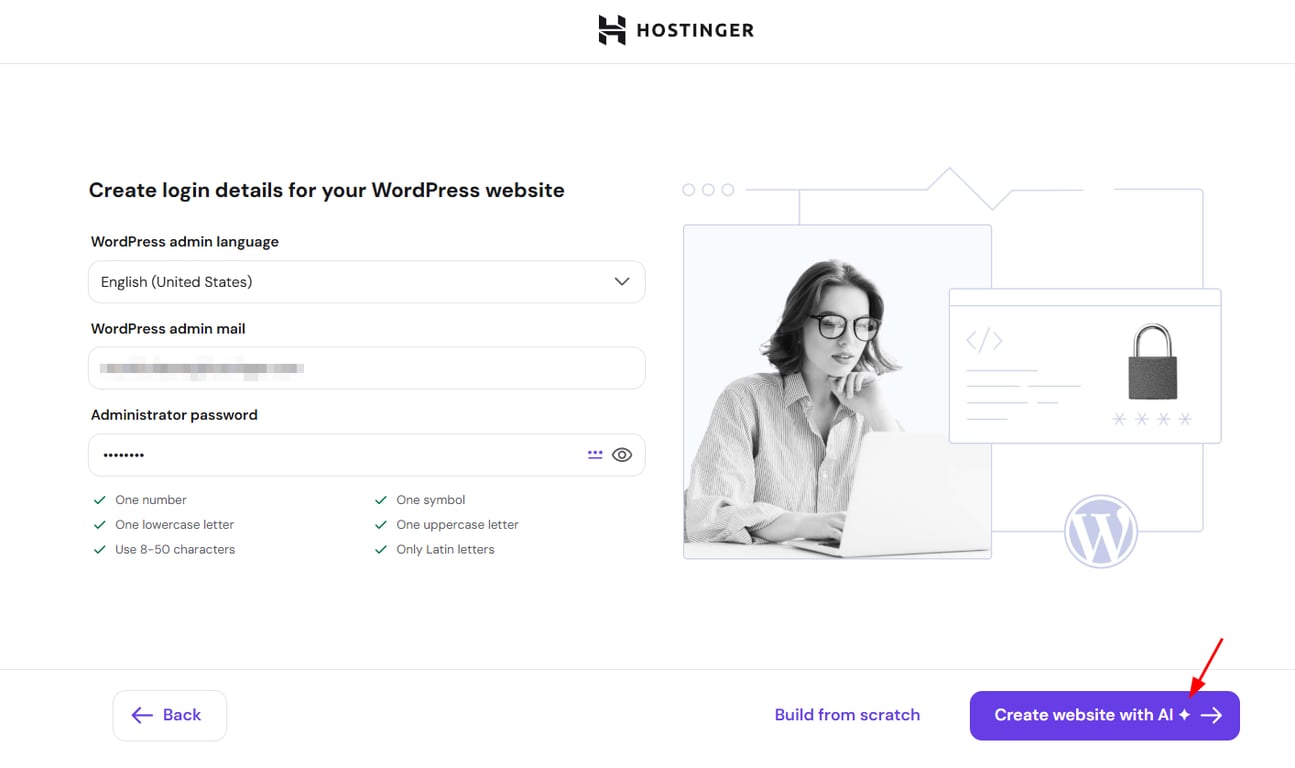
Insert your brand name, describe what you do, and click the arrow to continue:
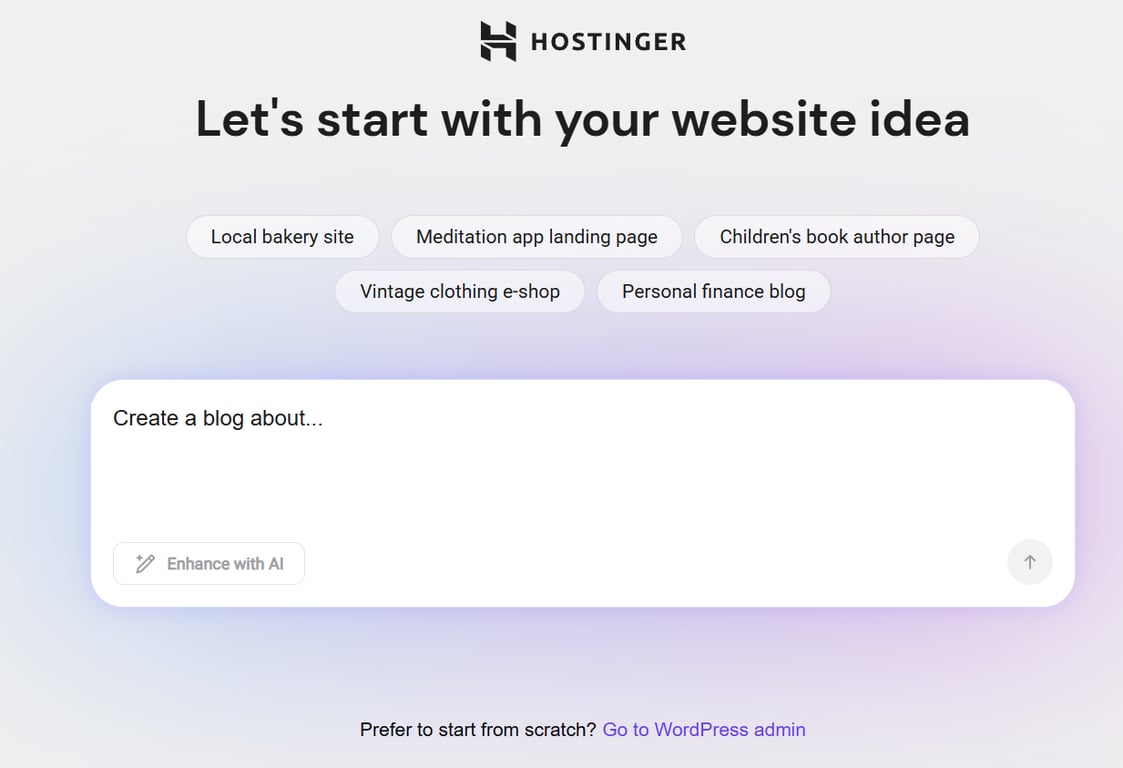
Then, proceed with setting up your website. Once it’s set up, you’ll also find AI Assistant in your WordPress Admin Panel.
Install AI Assistant for an existing WordPress website
Alternatively, if you’ve already set up your WordPress website and want to use AI Assistant, follow these steps:
-
Navigate to the Websites section
-
Hover over the WordPress website in question and click Manage site
-
Find the Tips to improve section on the main dashboard page, and click on Try now:
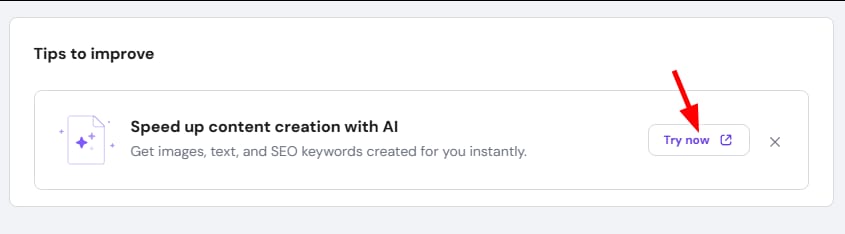
If you don’t see this option, it means AI Assistant is already installed on your WordPress
AI Assistant in the WordPress admin panel
To generate content with AI Assistant, log in to your WordPress dashboard, click on Hostinger in the top-left, and open the AI Content Creator tab:
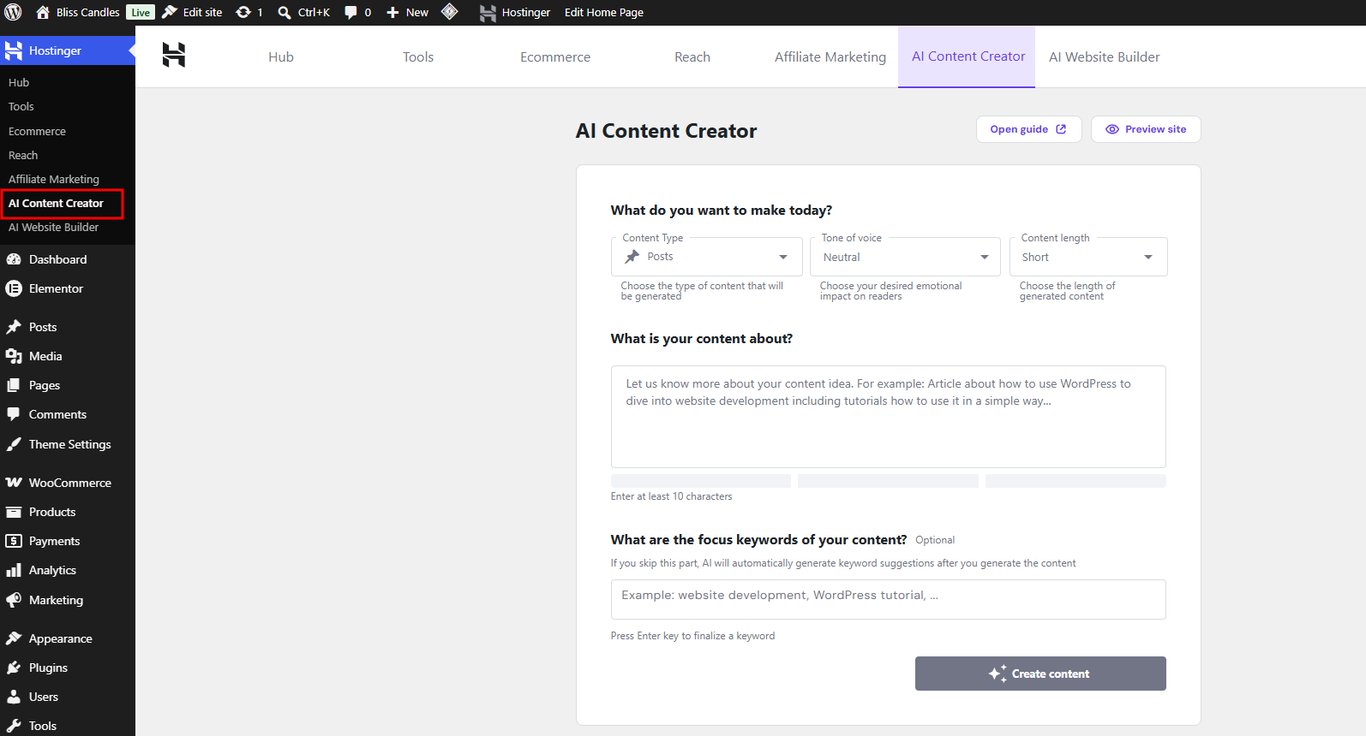
Select the preferred options for the following:
-
Content type: e.g., posts or pages
-
Tone of voice: e.g., neutral, formal, friendly, etc.
-
Content length: e.g., short or long
Then, describe the topic you want AI to generate content about, click on Generate content, and give it some time.
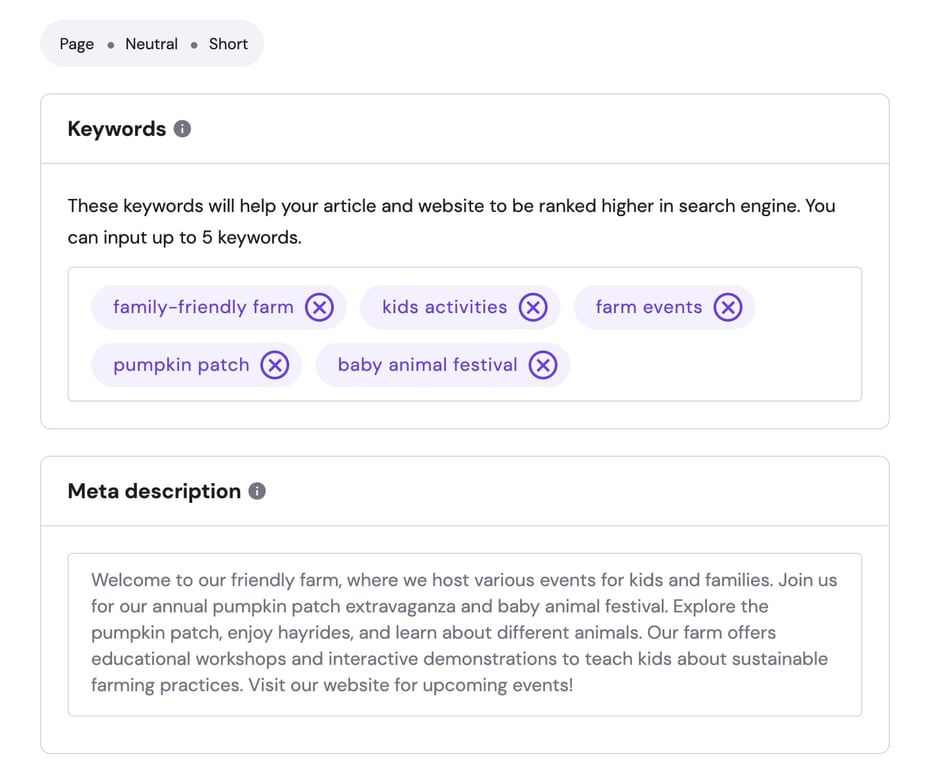
Once you get the result, you can customize keywords and the meta description:
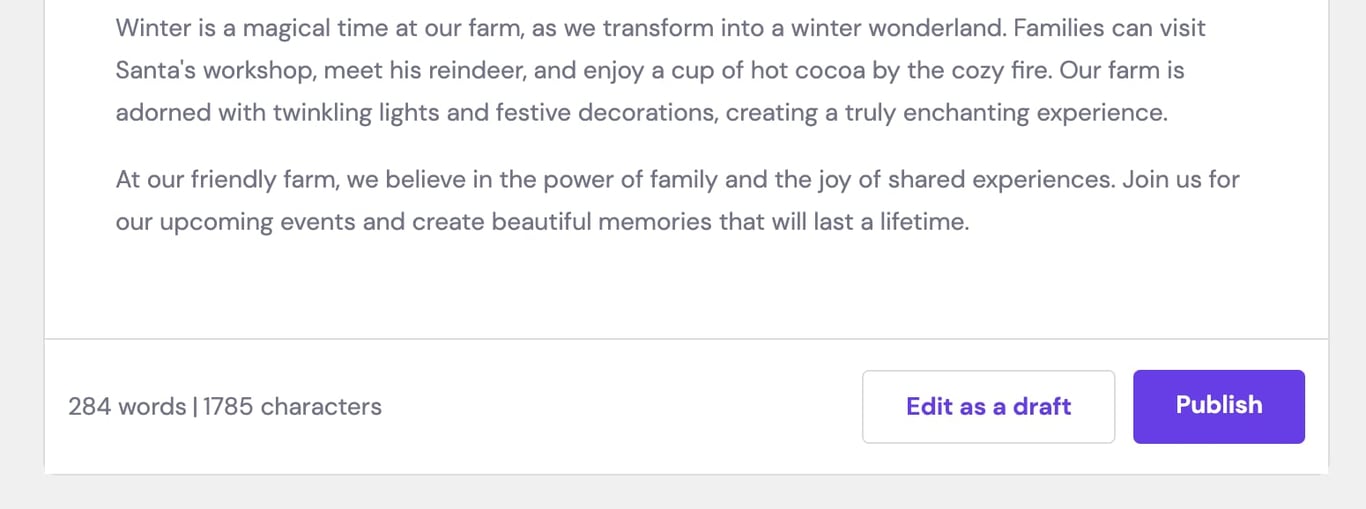
Finally, at the bottom of the page, you’ll see word and character count. If you’re happy with the result, click on Publish and publicize your post or page right away. Otherwise, click on Edit as a draft to review and proofread the text:
Make any preferred edits, and once you’re satisfied with the result, click on Publish in the top-right.
Use Hostinger Agent in the WordPress admin panel
Hostinger AI Assistant also adds Hostinger Agent to your WordPress admin panel. After you log in with your Hostinger account, Hostinger Agent in WordPress helps with your site and all your Hostinger services. It can also hand your request to a human support specialist. Follow the steps in How to use Hostinger Agent in WordPress to log in.
With Hostinger AI Assistant installed, you can generate content and get help from Hostinger Agent without leaving your WordPress admin panel.
Additional resource