How to find WordPress post ID and page ID
May 26, 2025
/
Yoga K.
/
8 min Read
Every WordPress post or page has a unique number called an ID. It functions as an identifier for each piece of website content. Since the WordPress content management system (CMS) doesn’t have a built-in feature to show post and page IDs, finding them can be tricky.
WordPress developers mainly use post and page IDs for website customization. If you’re a beginner, you may wonder why you should know about WordPress post or page IDs and how to use them.
This article is an all-in-one guide for WordPress post and page IDs. We’ll explain the basics and why they are important.
What are WordPress post IDs and page IDs?
A post ID is a unique number assigned to each post on a WordPress website. Each page also contains an identifying number, called a page ID.
WordPress uses IDs to keep track of every piece of content within the WordPress database. Other than posts and pages, there are IDs for media attachments, categories, and tags. These unique IDs remain unchanged even if you rename or edit your posts and pages.
Why would you need to find post IDs or page IDs?
You may need a post or page ID in several instances. For example, building a custom shortcode requires a unique ID number as the parameter. When adding widgets to a WordPress theme, you may also need to identify the post ID.
Here are some other cases where you can use a page ID or post ID:
- Creating custom post or page orders without interrupting other WordPress site content
- Including or excluding specific posts from a custom list
- Specifying a post or page in a custom template file
How to find WordPress post and page IDs manually
There are three simple ways to find WordPress page and post IDs:
- Via the site URL within the WordPress admin area
- Via the URL with the plain permalink
- Using the WordPress text editor
Let’s go over the steps for each of these methods.
1. Via the URL in the WordPress dashboard
Here’s how to locate post, page, and category IDs within URLs from the WordPress admin dashboard.
Post ID
- From the WordPress dashboard, navigate to Posts -> All Posts.
- Hover over one of your post titles. For example, we’ll hover over a post entitled “What Is HTML? Hypertext Markup Language Basics Explained.”
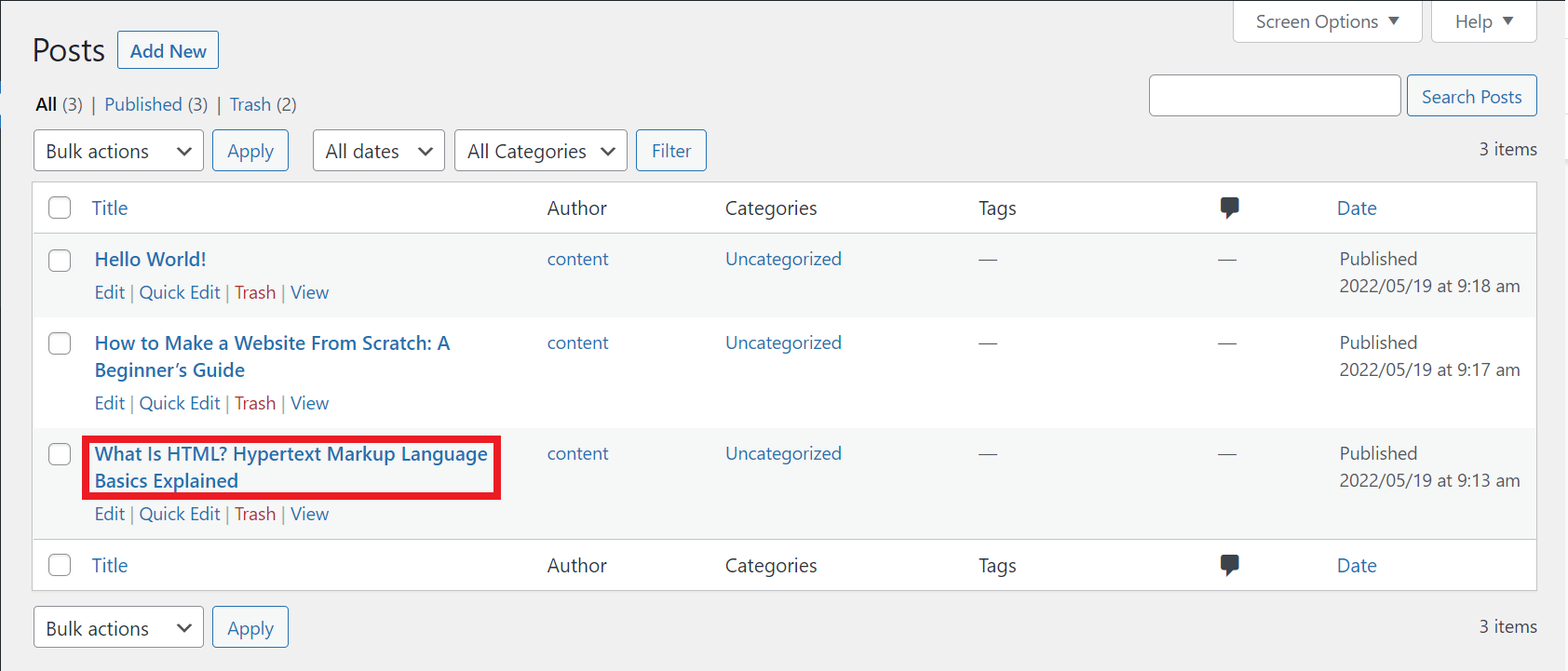
- At the bottom left corner, a URL will appear. The post ID is the number between the “post=” and “&” parameters.
Page ID
- Go to Pages -> All Pages.
- Hover over a WordPress page title. For example, we’ll choose the Home page.
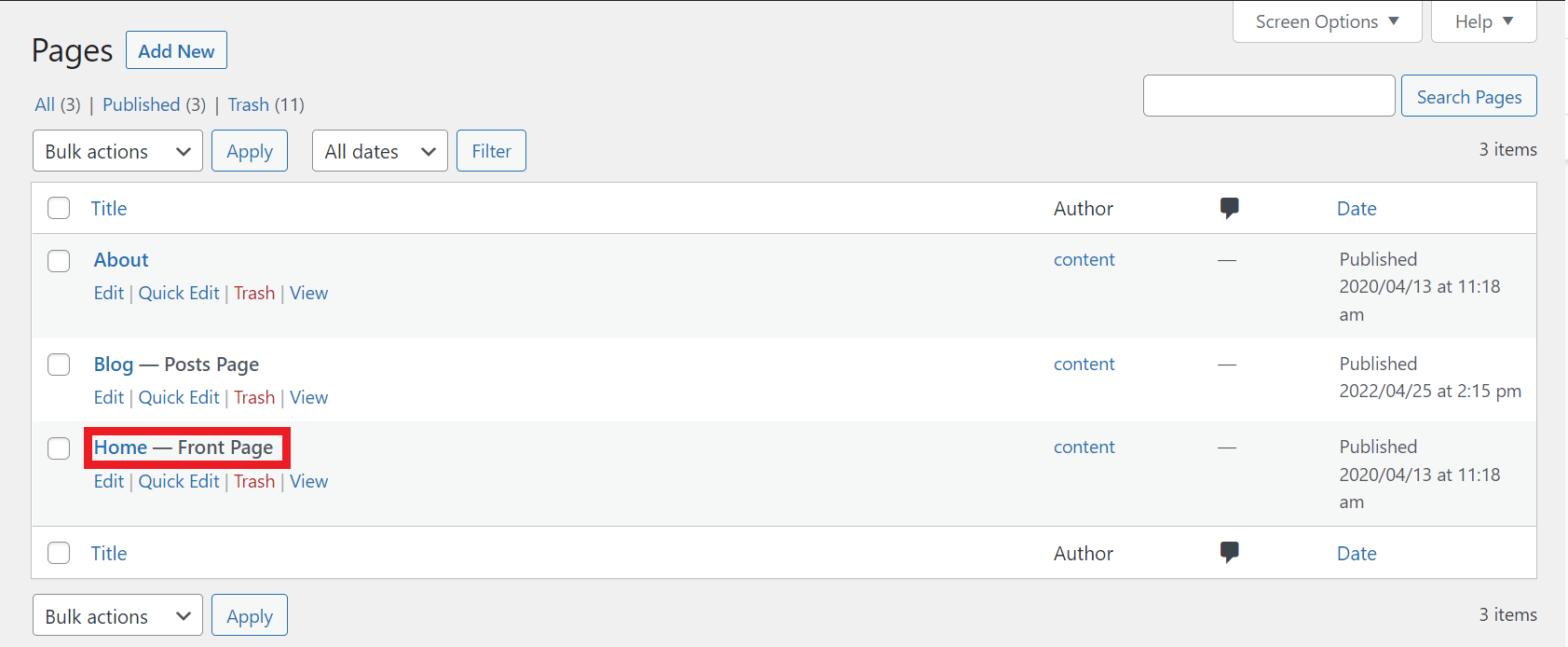
- At the bottom left corner, a URL will appear. The WordPress page ID is the number between the “post=” and “&” parameters.
Category ID
- Navigate to Posts -> Categories.
- Hover over a category.
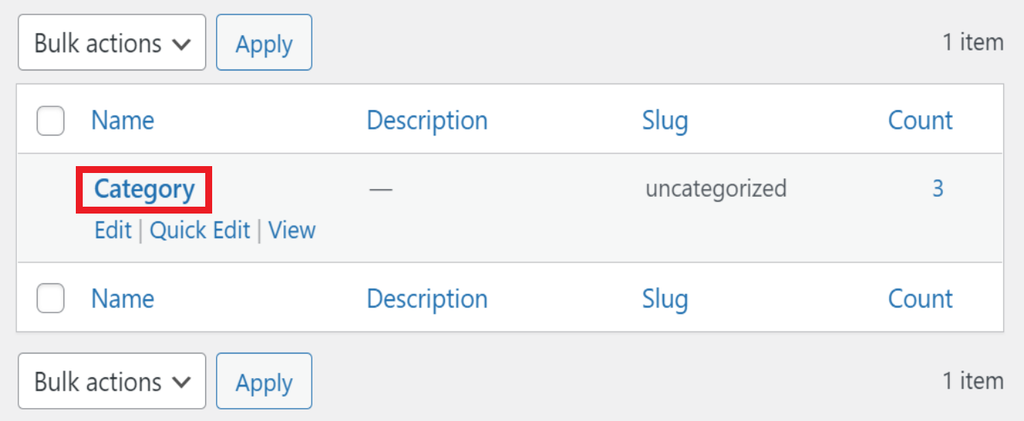
- At the bottom left corner, a URL will appear. The category ID is the number between the “category&tag_ID=” and “&” parameters.
2. Via a URL with a plain permalink structure
If you set the permalink structure to a default or plain permalink, the “post=” parameter in the URL will change to “p=”. Meanwhile, the “category&tag_ID=” parameter changes to “cat=” for the category ID and “tag=” for the tag ID.
Here’s how to find a post ID in WordPress with the URL set to the plain permalink structure.
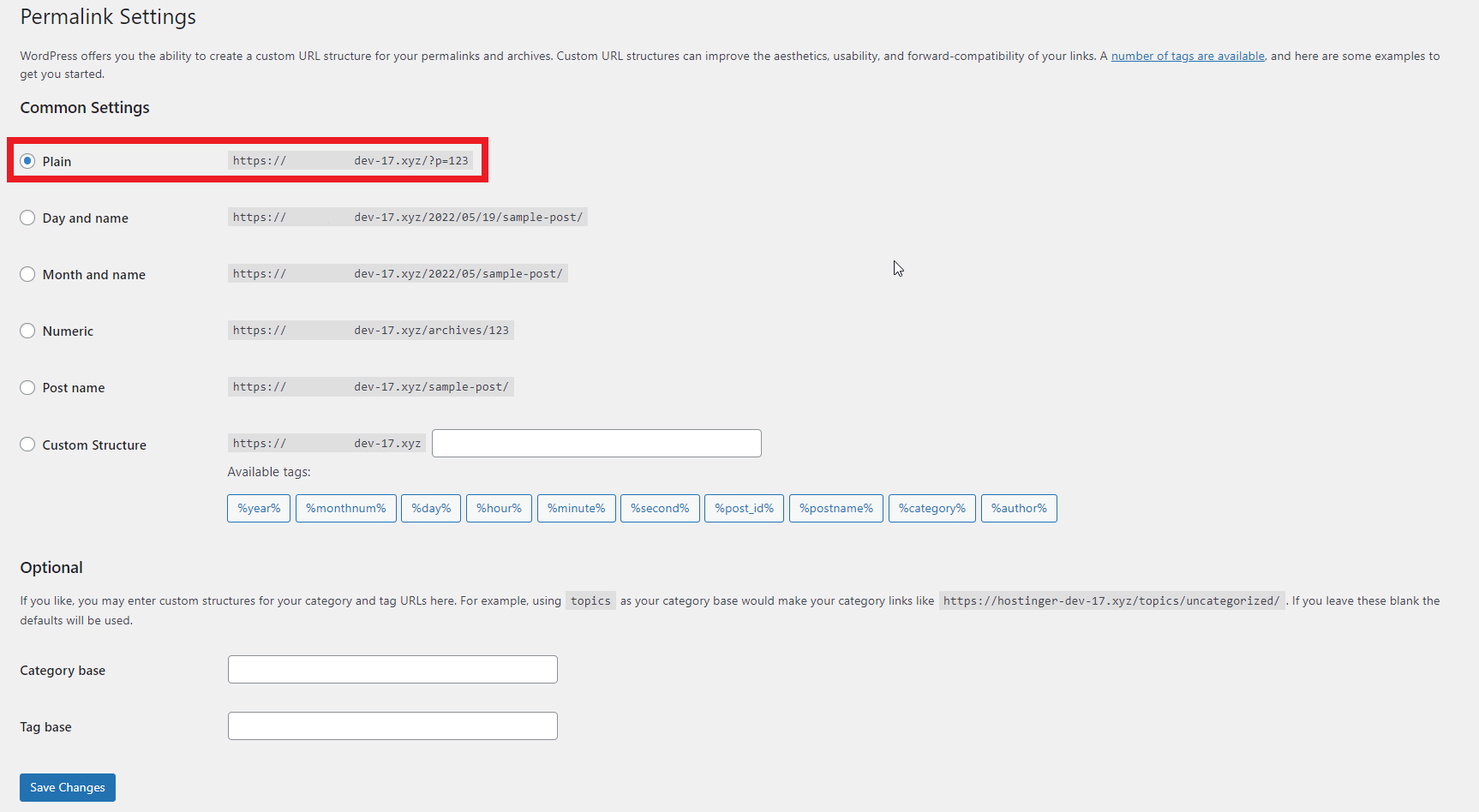
- From the WordPress admin dashboard, navigate to Settings -> Permalinks.
- If you haven’t set the permalink to plain, change it to Plain and click Save Changes.
- Go to Posts -> All Posts. Choose a post and click View.
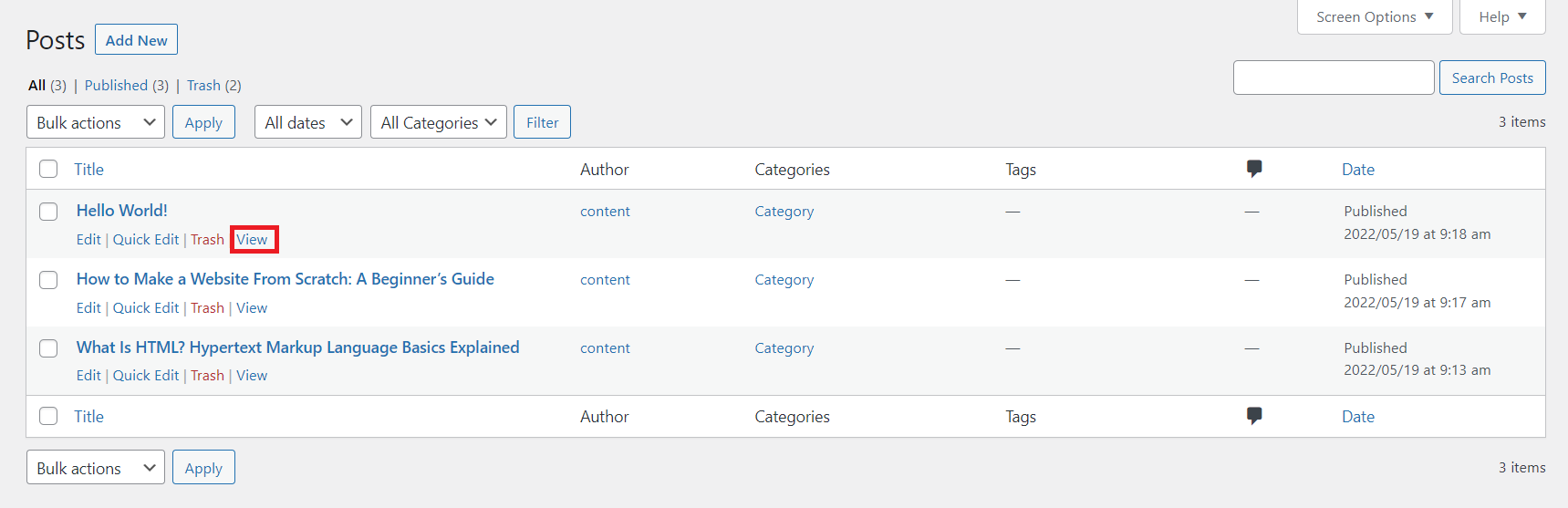
- You will be taken to the website preview page. The post ID is the number following the “p=” parameter in the URL.

3. Using the WordPress Text Editor
You can also find WordPress post IDs using the WordPress text editor.
- Navigate to Posts -> All Posts. To identify a WordPress page ID, navigate to Pages -> All Pages instead.
- Choose a post or page and click Edit to open the WordPress text editor.
- For example, we used a post entitled “How to Make a Website From Scratch: A Beginner’s Guide.”
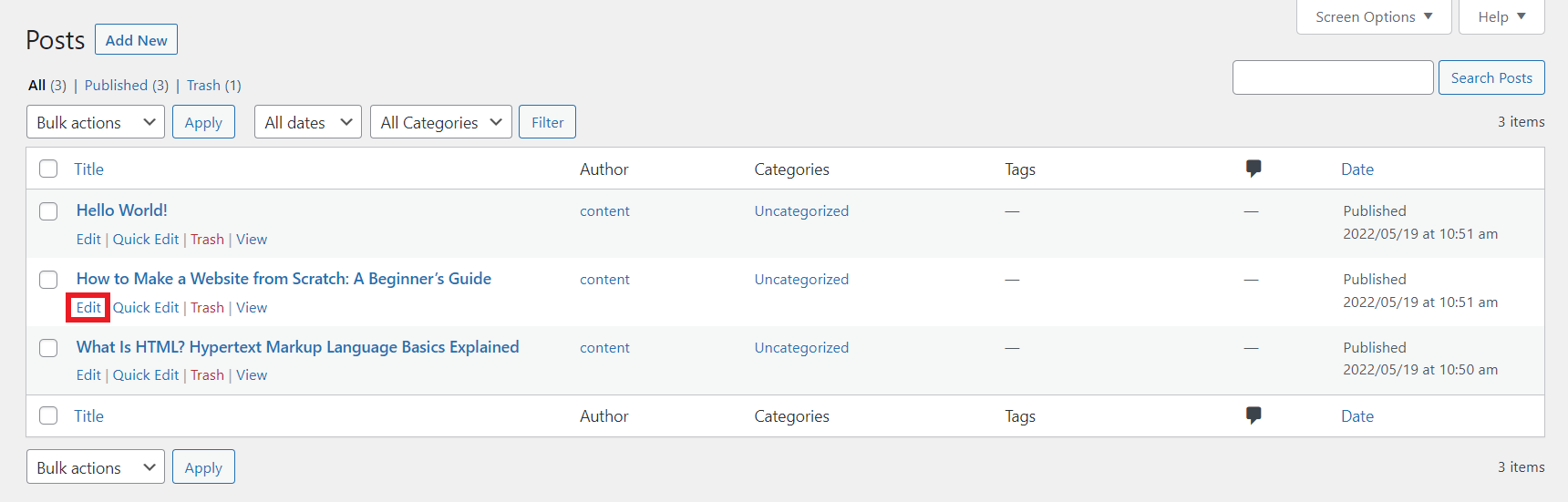
- Locate the post ID number in the address bar. It’s in the URL, located between the “post=” and “&” parameters.
How to find a WordPress post ID or page ID with a plugin
You can use a WordPress plugin to find post and page IDs. Since there are many WordPress plugins to choose from, we recommend Reveal IDs.
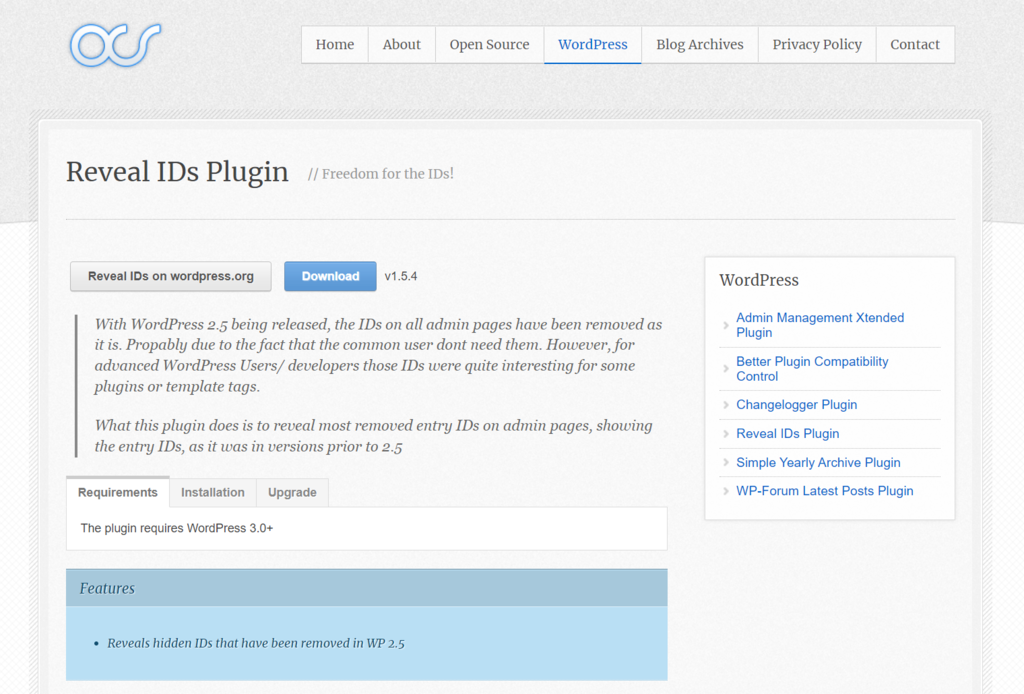
Reveal IDs Stats:
- Downloads: 60,000+
- Rating: 5/5
- Notable features: sortable columns, lightweight, and multilingual support
- Best suited for: advanced WordPress users or developers
- Price: free
Reveal IDs is a WordPress plugin that lets you see WordPress IDs for posts, pages, categories, and tags within the admin page. This free plugin is lightweight, multilingual, and regularly updated.
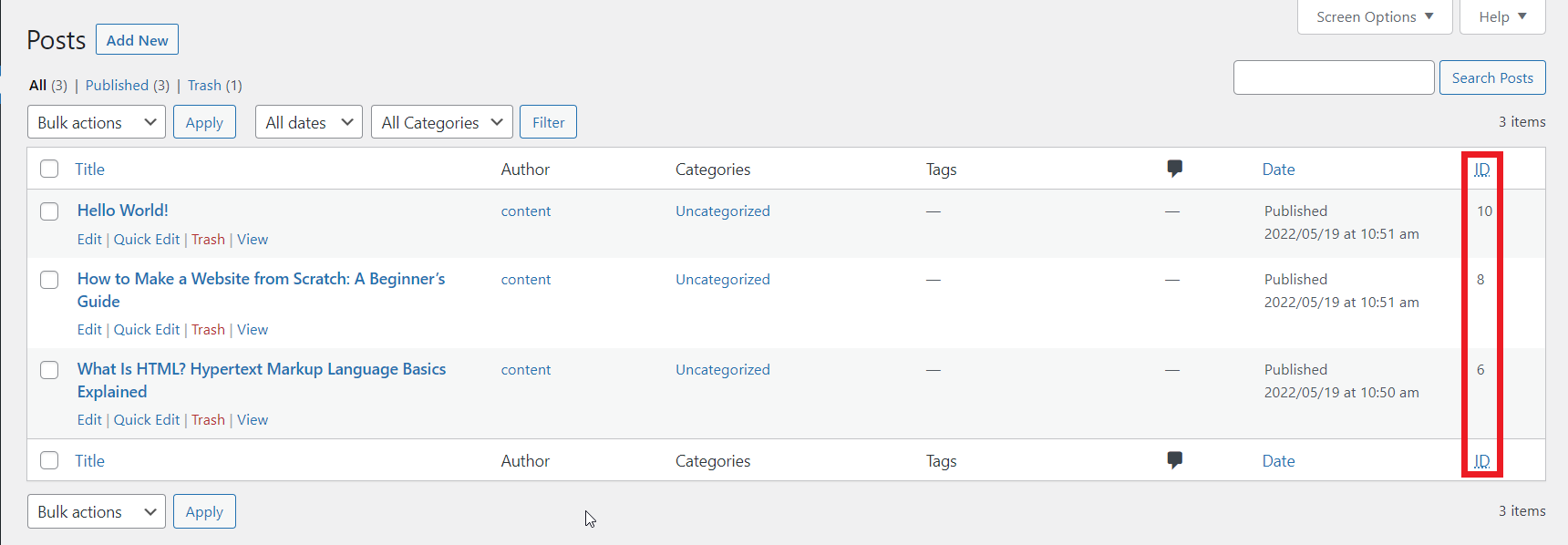
After installing the WordPress plugin, navigate to Posts -> All Posts or Pages -> All Pages from your WordPress dashboard. You will see a new column of post or page IDs.
How to find WordPress post IDs and page IDs: Advanced methods
Check out the following methods for more technical ways to retrieve post and page IDs.
1. Using WordPress functions
There are four ways of getting post IDs using WordPress functions.
Get Post ID Using the get_the_ID() and the_ID() Functions
The get_the_ID() and the_ID() functions display the current post’s ID. The main difference between the two functions is that get_the_ID() returns the post ID without displaying it, while the_ID() always prints the post ID.
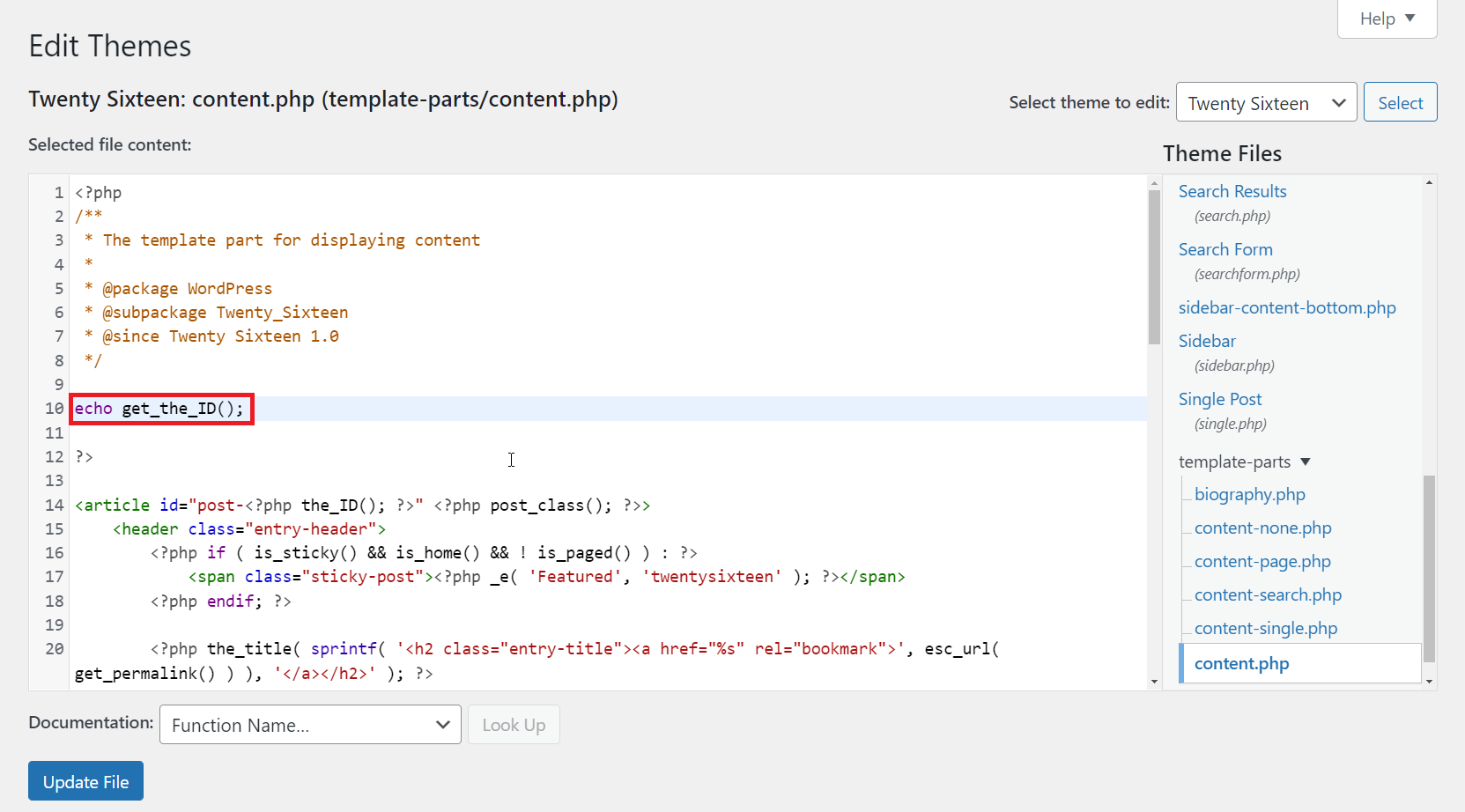
If you use the get_the_ID() function, make sure to add the echo function to display post IDs:
echo get_the_id();
Meanwhile, the_ID() doesn’t need the echo function to view post IDs:
the_ID();
Get post ID by title
The get_page_by_title() function works for WordPress pages and custom post types. This function can be applied to the theme or plugin files.
Here is how the get_page_by_title() function looks like:
$mypost = get_page_by_title( 'post title here', '', 'post' );
echo $mypost->ID;
Make sure to change the ‘post title here‘ parameter with your post title.
Get post ID by URL
You can also fetch post IDs from WordPress URLs using the url_to_postid() function. This function examines a URL and determines its post ID.
To use the url_to_postid() function, enter the post URL into the function like this:
url_to_postid( 'post’s URL here');
Change the ‘post’s URL here‘ parameter with the post’s URL.
Get post ID by slug
Another way to retrieve WordPress post IDs is by using the get_page_by_path() function. This function is similar to the get_page_by_title() function. However, instead of using the post title, you need to enter the post’s slug or path:
$mypost = get_page_by_path('slug here', '', 'post');
echo $mypost->ID;
Remember to replace ‘slug here‘ with your own post slug.
We recommend backing up your WordPress site before testing these functions. We will show you how to use the get_the_ID() function:
- From the WordPress dashboard, navigate to Appearance -> Theme File Editor.
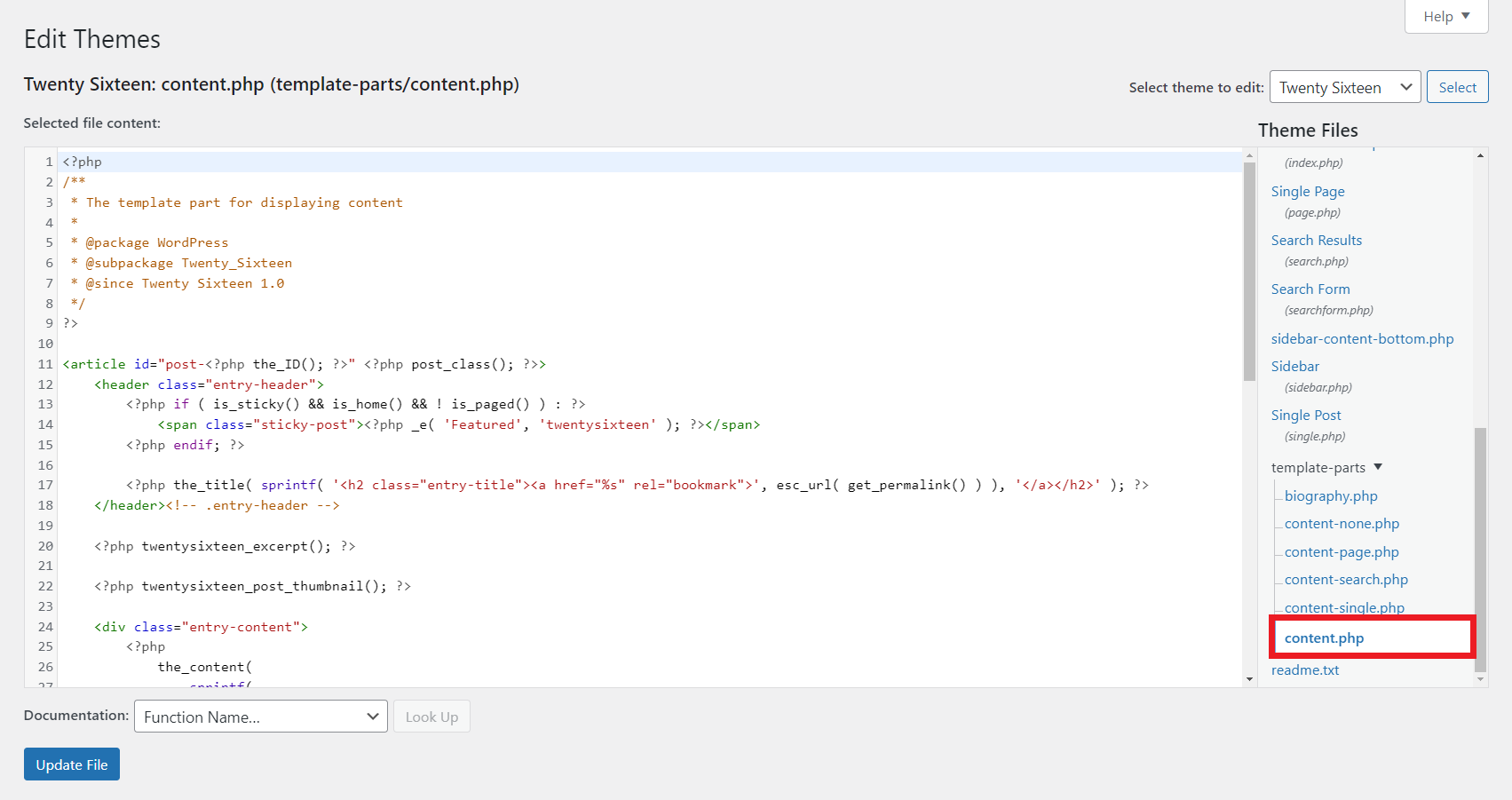
- Go to the Theme Files tab -> template-parts -> content.php.
- Enter the get_the_ID() function under the comment tag.
- Click Update File to save the changes.
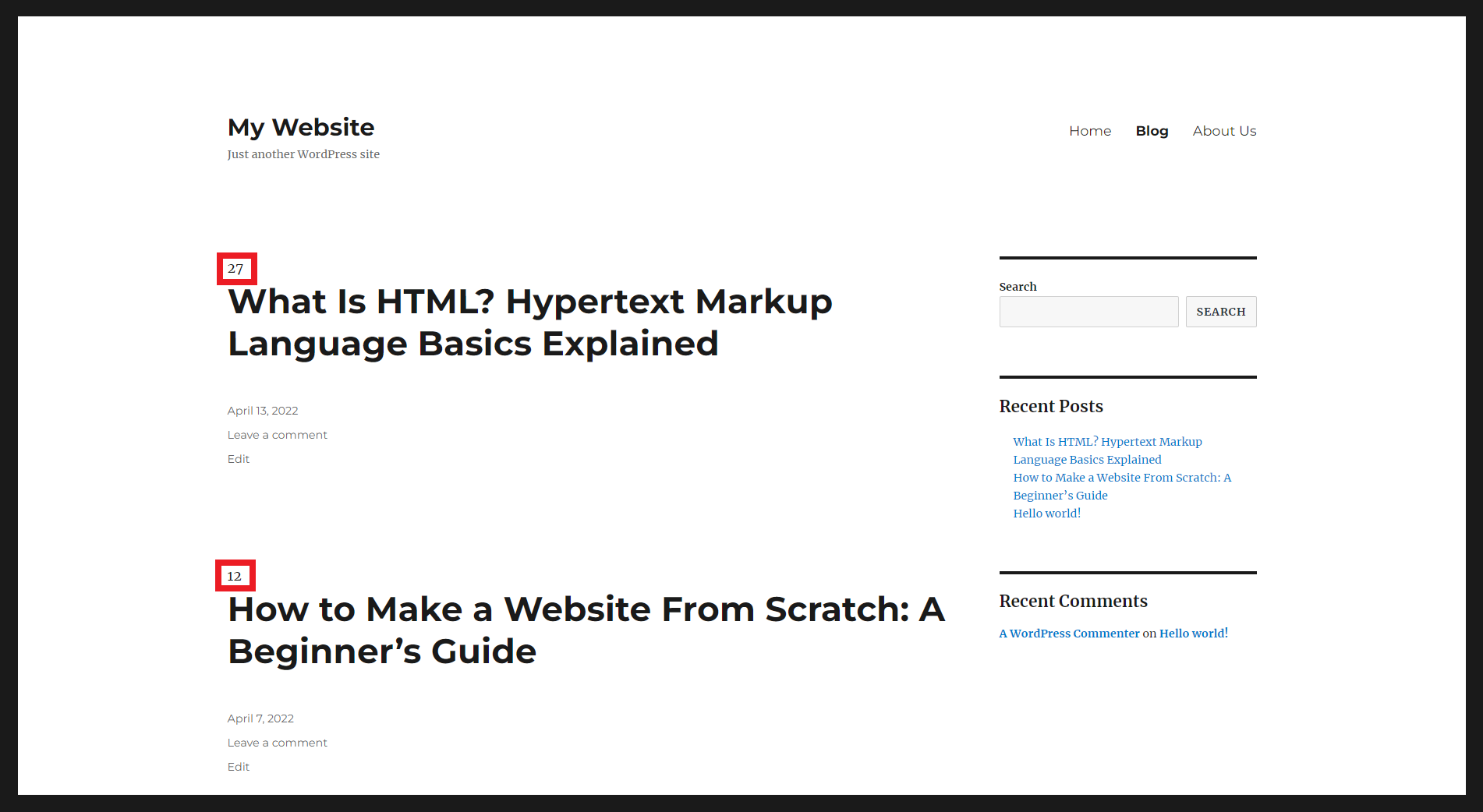
- Click the Visit Site button in the top left corner of the screen. You will see the post ID at the top of each post’s title.
2. Using the WordPress posts table with custom code
You can add a post ID column in the WordPress posts table using a custom code. This is an excellent method if you regularly use post IDs:
- Open File Manager from your hosting control panel. Alternatively, use a file manager plugin or a theme editor to access website files within the WordPress dashboard.
- In File Manager, navigate to public_html -> wp-content -> themes.
- Open your active WordPress theme directory. For instance, the active theme is Twenty Sixteen. Consider creating a child theme to minimize the risk of breaking the original theme’s functionality.
- Open your theme’s functions.php file with a text editor.
- Copy and paste the following code snippet at the bottom line of the functions.php file:
function add_column( $columns ){
	$columns['post_id_clmn'] = 'ID'; // $columns['Column ID'] = 'Column Title';
	return $columns;
}
add_filter('manage_posts_columns', 'add_column', 5);

function column_content( $column, $id ){
	if( $column === 'post_id_clmn')
		echo $id;
}
add_action('manage_posts_custom_column', 'column_content', 5, 2);
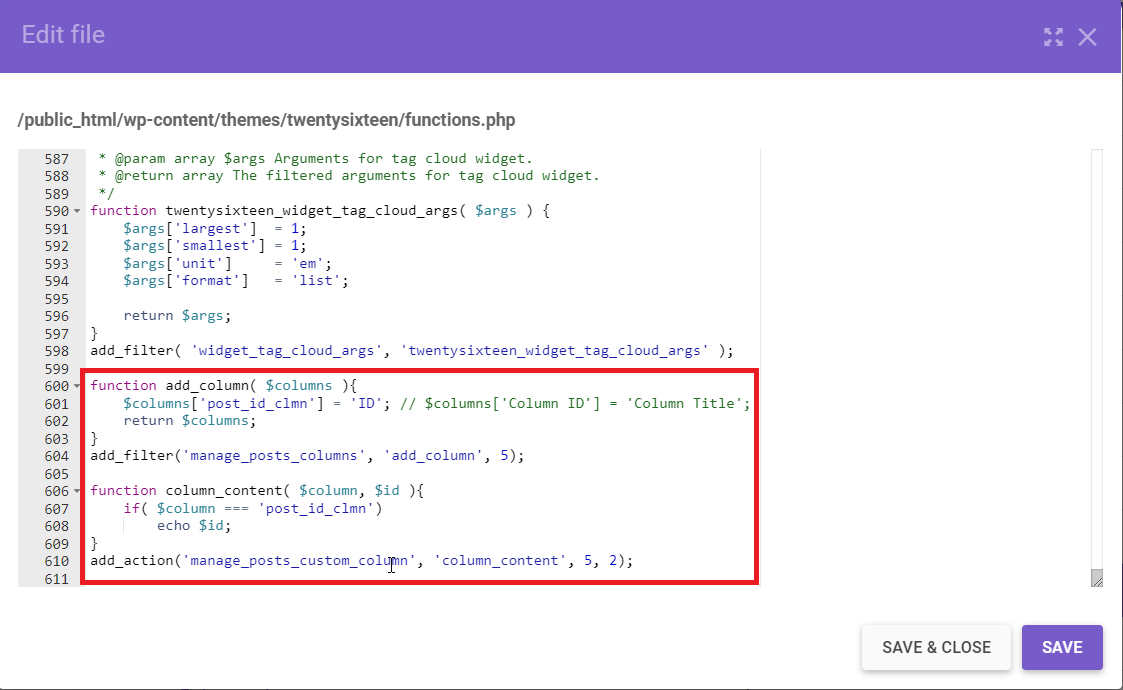
- Click Save & Close.
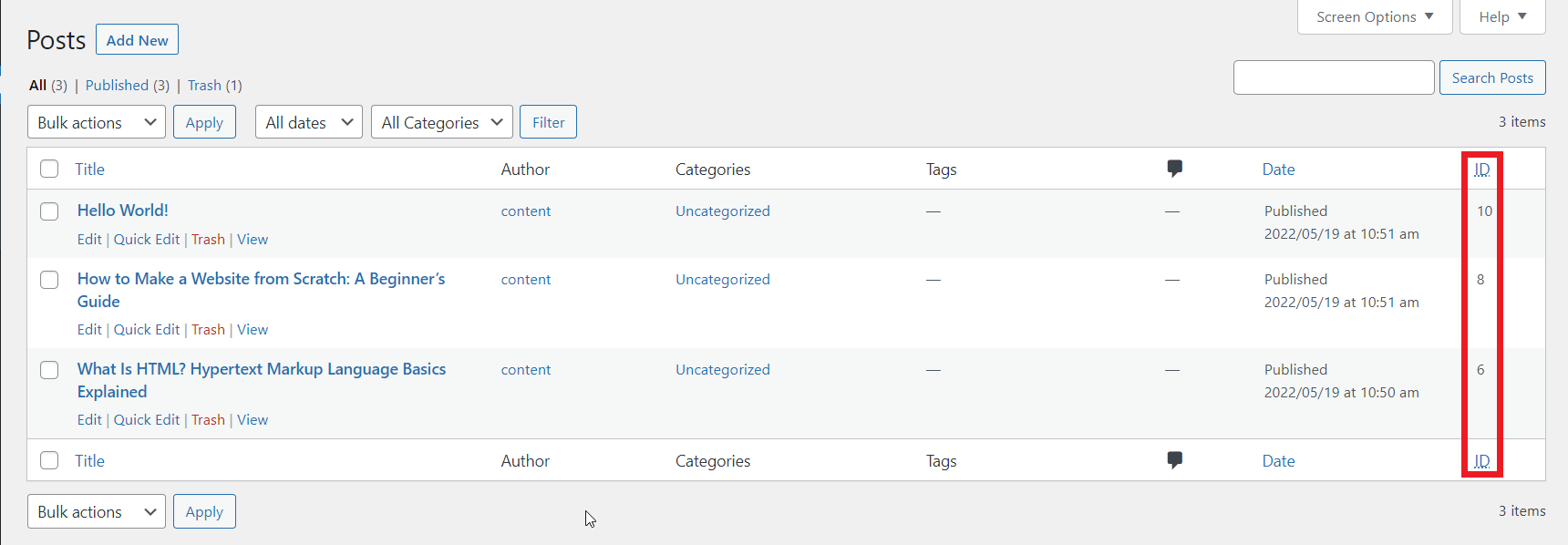
- Access your WordPress dashboard and navigate to Posts -> All Post. You will see a new column containing the posts’ ID numbers.
3. Via the WordPress database
The database stores all necessary WordPress website data, including the IDs of posts, pages, categories, tags, and comments.
To find post IDs within the site’s database, follow these steps:
- From your hosting control panel, navigate to Databases -> phpMyAdmin.
- Choose a database from the list of current databases and click Enter phpMyAdmin.
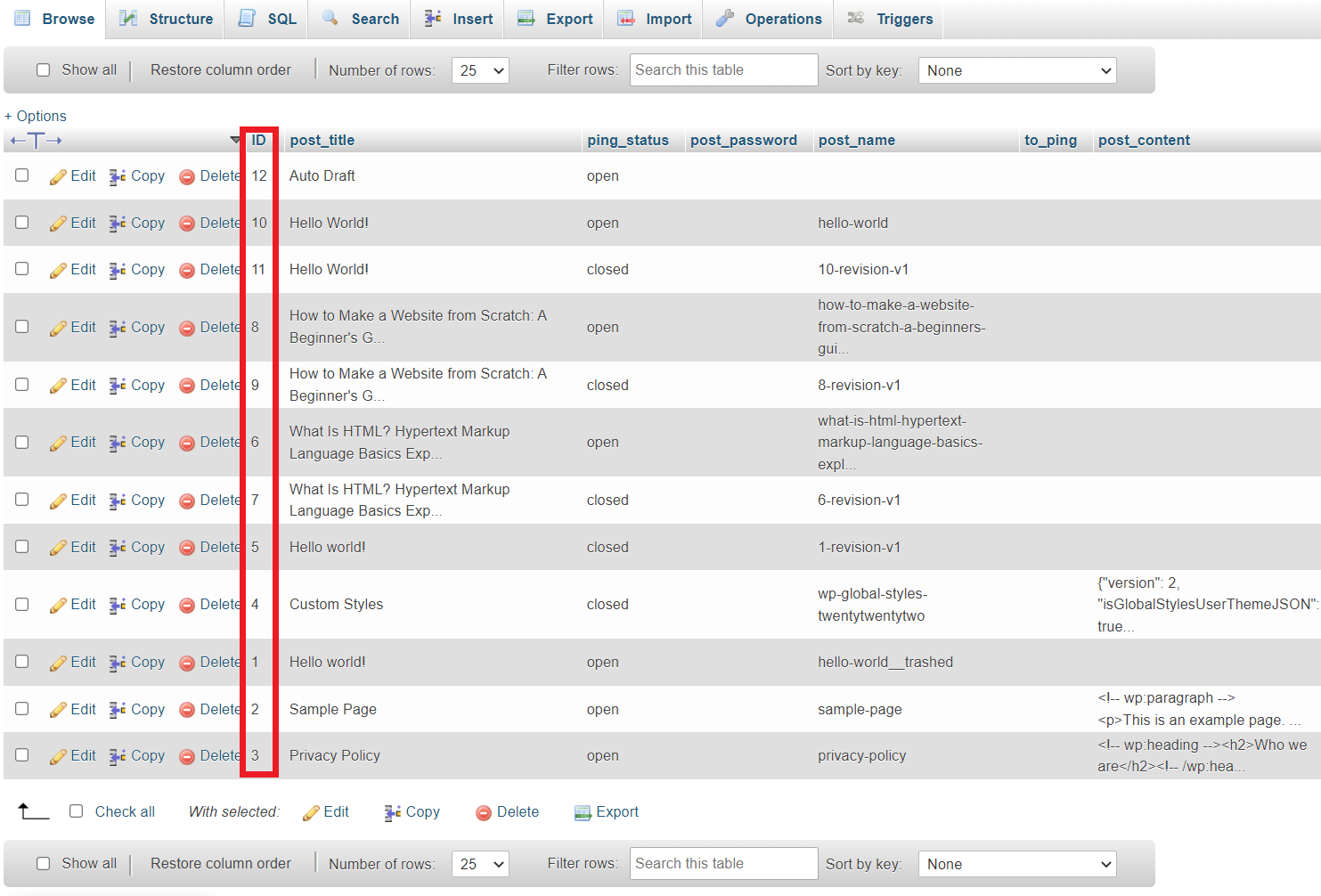
- In phpMyAdmin, go to wp_posts. Then, locate the ID column on the wp_posts table to see the post IDs.
4. Using the WP_Query loop
WP_Query is a PHP class in WordPress that lets you load content from the WordPress database. Developers use it to build custom content lists – for example, to display specific posts or pages on the site’s front-end.
To display post IDs using the WP_Query loop, use the following code:
$id_query = new WP_Query( ‘posts_per_page=6’ );

while( $id_query-have_posts() ) : $id_query->the_post();
	$id_query->post->ID;
endwhile;
5. Using the global $post variable
Getting post IDs using the global $post variable is similar to using the get_the_ID() function. The difference is that the global $post variable is used inside a PHP function. Take a look at the following code:
global $post;
echo $post->ID;
Follow these steps to view the post IDs of all the posts:
- Access the WordPress dashboard and navigate to Appearance -> Theme File Editor.
- Go to the Theme Files tab -> single.php.
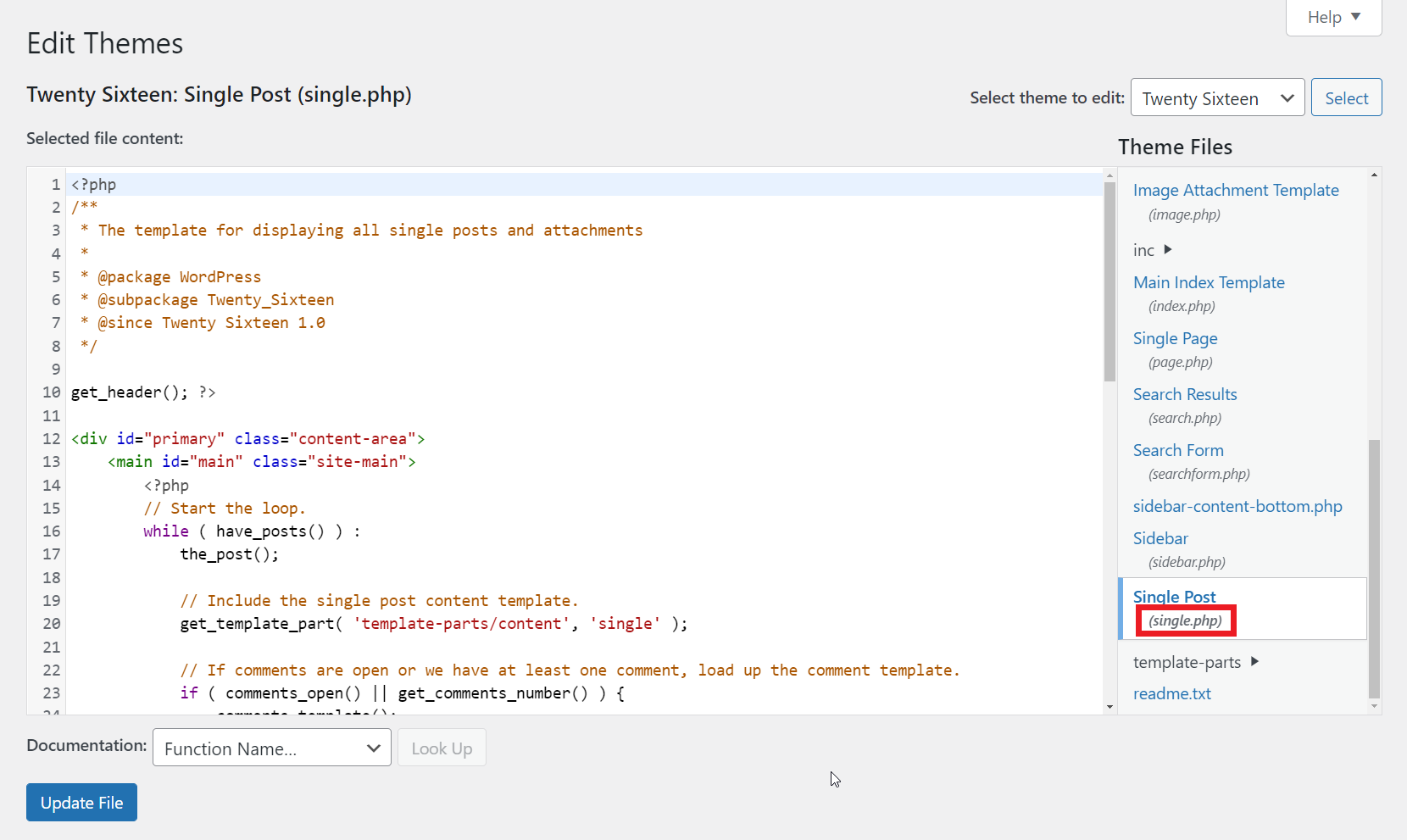
- Enter the global $post variable inside the single.php file. The variable is located under the get_template_part() function.
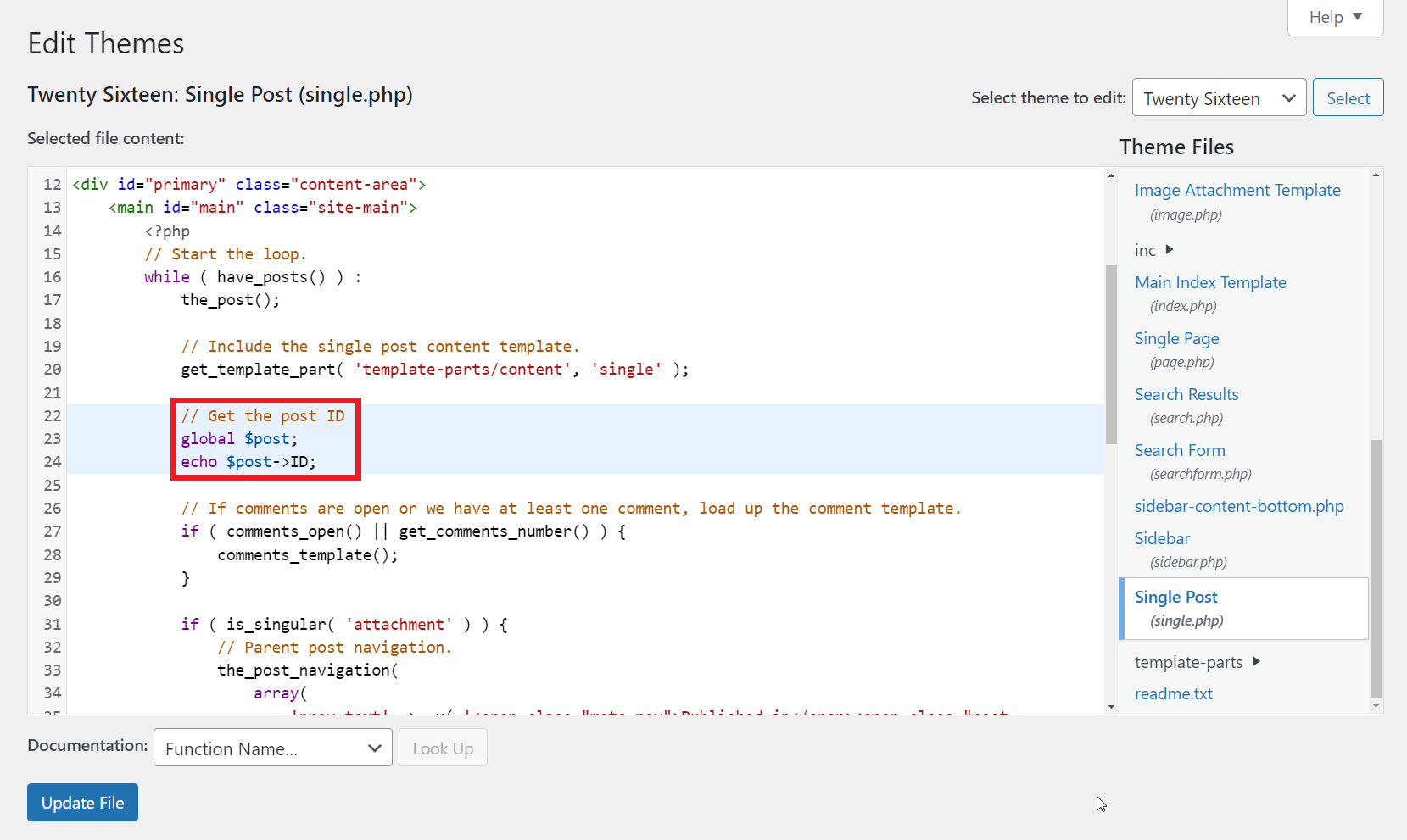
- Click Update File to save the changes.
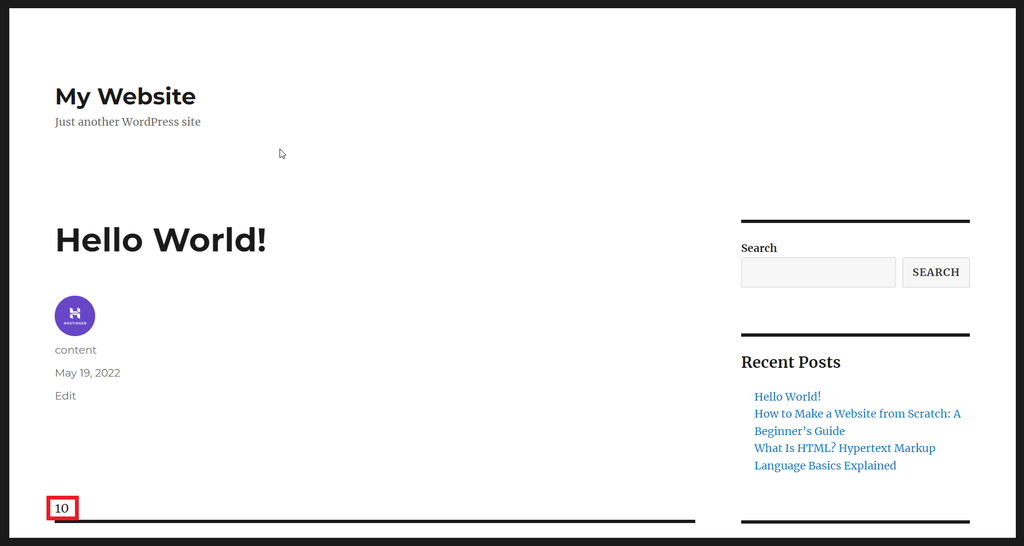
- Go to Posts -> All Posts. In the Posts screen, select a post and click View. You will see the current post ID at the bottom of the page.
6. Through the global $wpdb variable
You can use the global $wpdb variable in a function to get post IDs. In this section, we will cover three ways of using this variable.
Retrieve post IDs by meta key
The global $wpdb variable can fetch a post ID by its meta key. You need to use either an SQL query or a WP_Query query to achieve this.
Take a look at the following code:
/*
 * Returns matched post IDs for a meta key from the database
 *
 * @param string $meta_key
 *
 * @return array Array of post IDs - if more than one post matched has this meta key
 * @return int Post ID - if just one post found
 */
function post_id_by_meta_key( $meta_key ){
	global $wpdb;

	$ids = $wpdb->get_col( $wpdb->prepare( "SELECT post_id FROM $wpdb->postmeta WHERE meta_key = %s", $meta_key ) );
 	echo $post->post_id;

	if( count( $ids ) > 1 )
		return $ids; // return array
	else
		return $ids[0]; // return int
}
Retrieve post IDs by meta key and value
Similar to the previous meta key function, but you can also specify a meta value. Here’s what the meta key and value function looks like:
/*
 * Returns matched post IDs for a pair of meta key and meta value from the database
 *
 * @param string $meta_key
 * @param mixed $meta_value
 *
 * @return array|int Post ID(s)
 */
function post_id_by_meta_key_and_value( $meta_key, $meta_value ){
	global $wpdb;
	$ids = $wpdb->get_col( $wpdb->prepare( "SELECT post_id FROM $wpdb->postmeta WHERE meta_key = %s AND meta_value = %s", $meta_key, $meta_value ) );
	echo $post->post_id;

	if( count( $ids ) > 1 )
		return $ids; // return array
	else
		return $ids[0]; // return int
}
Retrieve post IDs by term ID
You can also use the global $wpdb variable to find a category or tag ID. The following is an example of the term ID function:
/*
 * Returns post IDs in a term with a given ID
 *
 * @param int $term_id
 *
 * @return array|int Post ID(s)
 */
function post_id_by_term_id( $term_id ){
	global $wpdb;
$ids = $wpdb->get_col( $wpdb->prepare( "SELECT object_id FROM $wpdb->term_relationships WHERE term_taxonomy_id = %d", $term_id ) );

if( count( $ids ) > 1 )
		return $ids; // return array
	else
		return $ids[0]; // return int
}
Conclusion
WordPress post and page IDs can help you perform advanced website customizations, such as excluding or including specific posts, creating custom code, or editing a theme.
There are several ways of finding post IDs and page IDs. Here’s a recap of beginner-friendly ways to get post IDs:
- Via the URL within the WordPress dashboard
- Via the URL with the plain permalink structure
- Using the WordPress editor
- Using a WordPress plugin
As for the more advanced methods, here’s a recap:
- Using WordPress functions
- Using the WordPress posts table with custom code
- Via the WordPress database
- Using the WP_Query loop
- Using the global $post variable
- Using the global $wpdb variable
Keep in mind that editing WordPress files requires a solid understanding of the PHP scripting language. We also recommend backing up your WordPress website before performing any of the more advanced methods.
We hope this article has helped you understand how to find post IDs and page IDs in WordPress. If you have any questions or tips of your own related to the topic, feel free to leave a comment.
All of the tutorial content on this website is subject to Hostinger's rigorous editorial standards and values.

Information Technology and web development are Yoga's passions. He loves nothing more than sharing his experience with readers, and helping them to understand the world of IT. In his spare time, Yoga likes to make music and learn to code. He is always looking for new challenges, and enjoys pushing himself to learn new things.