How to fix “missing a temporary folder” Error in WordPress
Dec 22, 2025
/
Domantas G.
/
2 min Read
WordPress Missing a Temporary Folder error prevents you from updating themes and plugins, uploading files and images, and even bringing up to date the WordPress core. Here, we will help you solve this issue easily. By the end of this article, your WordPress will be up and running again in no time!
Download all-in-one WordPress cheat sheet
What is “Missing a Temporary Folder” Error in WordPress?
The “Missing a Temporary Folder” error is the result of incorrect PHP settings on your WordPress hosting environment. One of those settings dictates that WordPress stores uploaded files in a temporary folder before saving them to the desired location. Without access to that temporary folder, WordPress won’t be able to process your uploaded files and software updates.
Whether or not you deleted the temporary folder by accident, this error occurs when WordPress cannot locate or access that folder.
Now that we’ve covered the culprit behind the “Missing a Temporary Folder” error, let’s see how to debug this WordPress issue in no time.
Fixing the “Missing Temporary Folder” Error in WordPress
Important! Be sure to backup the wp-config.php file before making any changes to prevent data loss.
You can easily fix this WordPress error by modifying your site’s wp-config.php file.
- Establish a connection with your account using an FTP client or File Manager in your hosting control panel. We’ll be using the hPanel for this tutorial.

- Access the wp-config.php file from the WordPress root installation folder. In most cases, you can find the file in the public_html directory.
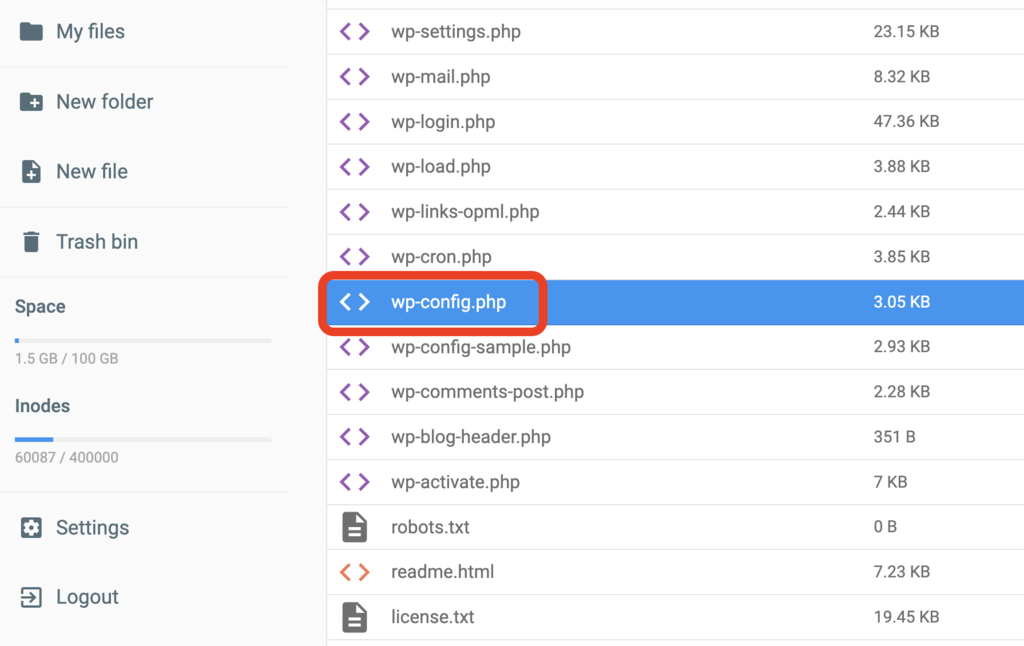
- Add the following code snippet before the line “That’s all, stop editing! Happy publishing”.
define(‘WP_TEMP_DIR’,dirname(_FILE_). ‘/wp-content/temp/’);
- Save the changes, then re-upload the updated wp-config.php file to your website.
- Moving back to the File Manager, locate the /wp-content folder and add a new folder under the name of temp inside it.
- That’s it! After re-logging into your WordPress site, you should be able to upload images again.

Conclusion
We hope that this guide helped you to fix the WordPress “Missing a Temporary Folder” error on your WordPress website.
If you have any other questions regarding WordPress, feel free to read our WordPress guide or reach out to us through the comments section below.
Learn How to Solve Other WordPress Errors
How to Fix "Briefly Unavailable for Scheduled Maintenance" Error
How to Fix Missed Schedule Error in WordPress
How to Fix Mixed Content on WordPress
How to Fix Broken Links on WordPress
How to Solve 404 WordPress Error
How to Fix White Screen of Death on WordPress
How to Solve WordPress Not Sending Emails
All of the tutorial content on this website is subject to Hostinger's rigorous editorial standards and values.

Domantas leads the content and SEO teams forward with fresh ideas and out of the box approaches. Armed with extensive SEO and marketing knowledge, he aims to spread the word of Hostinger to every corner of the world. During his free time, Domantas likes to hone his web development skills and travel to exotic places.