Best OS for Docker: Which operating system should you use?
Mar 20, 2026
/
Alma F.
/
9 min Read
Docker changed how apps are built and deployed. Instead of setting up a full server for every project, you package your app into a container – a small unit that holds your code, tools, and settings in one place. You can move containers between servers, and they’ll run the same way every time.
But containers don’t run on their own. They need an operating system (OS) underneath to manage things like memory, security, and how your apps connect to the hardware. That makes your OS choice a key part of how well Docker actually performs.
The best OS for Docker depends on what matters most to you. Some operating systems focus on stability and long-term support. Others keep things lightweight so your containers get more of your server’s power. Update handling, compatibility, and ease of use all shape how much work your setup needs over time.
Ubuntu is a common starting point because of its balance of usability and support. Debian leans toward stability, while Rocky Linux offers an enterprise-grade environment at no cost. If you want an OS that uses as few resources as possible, Alpine Linux and Fedora CoreOS strip out everything non-essential, so more of your server goes toward running containers.
Each option handles performance, updates, and security differently. Understanding those differences is what helps you pick the best OS for your Docker setup.
1. Ubuntu
Ubuntu is one of the most popular Linux distributions for Docker. It has the largest community, the most tutorials, and built-in full Docker support. If this is your first time running containers, Ubuntu gets you up and running the fastest.
That speed comes partly from its software library – one of the biggest in Linux. You’ll rarely get stuck when installing tools alongside Docker. Ubuntu also follows a steady release schedule. Long-Term Support (LTS) versions are released every two years and receive security fixes for five years. The latest, Ubuntu 24.04, works as a Docker host right out of the box.
Where Ubuntu really shines is in documentation. Almost every Docker guide online assumes you’re using it – Stack Overflow answers, blog posts, official docs. The whole process of installing Docker on Ubuntu takes under 10 minutes, even if you’ve never touched a terminal before.
The one thing to know is that Ubuntu ships with more software than you strictly need for containers. It’s not bloated, but it’s not minimal either. For most setups, that extra overhead won’t matter. But if you’re running lots of lightweight containers on a small VPS, a leaner OS might serve you better.
2. CentOS Stream / Rocky Linux
CentOS Stream and Rocky Linux both come from the Red Hat Enterprise Linux (RHEL) family, but they serve different purposes.
CentOS Stream 9 is the current active version of CentOS. It works as a rolling preview of RHEL – meaning it gets updates before RHEL does. That’s useful if you’re developing against future RHEL releases, but it makes CentOS Stream less predictable as a stable Docker host.
Rocky Linux takes a different approach. It’s a free, community-built distribution that mirrors RHEL’s stable releases rather than previewing them. It’s compatible with RHEL, offers 10-year support cycles, and includes SELinux – a built-in security tool that adds extra protection around your containers.
Docker fully supports Rocky Linux 8, 9, and 10, and most VPS providers offer it as a ready-made server image.
Setting up Docker on Rocky Linux is straightforward. It uses the same repository and commands you’d use when installing Docker on CentOS, so the process feels familiar if you’ve worked with RHEL-based systems before. Rocky has less community content than Ubuntu simply because it’s newer. But if you’re familiar with RHEL-based systems, the switch is smooth.
For most Docker setups, Rocky Linux is the stronger pick. Choose CentOS Stream if you specifically need early access to upcoming RHEL features.
Important! Classic CentOS Linux 7 and 8 are end of life and no longer receive security updates. If you’re still running CentOS Linux, move to Rocky Linux, AlmaLinux, or another supported distribution before setting up new Docker workloads.
3. Debian
Debian is the foundation Ubuntu was built on, and it’s earned a reputation as one of the most stable Linux distributions around. If your goal is a production server that runs quietly for months with little attention, Debian is hard to beat.
Every package undergoes extensive testing before it reaches your server. That means fewer surprises when your system updates and less chance of breaking a working Docker setup. Debian also runs leaner than Ubuntu because it ships with fewer pre-installed tools. On a virtual private server (VPS) with limited RAM, that means your containers get more of the server’s resources.
Getting Docker running on Debian is just as easy as on Ubuntu. Docker officially supports it, and the setup steps are nearly the same. Installing Docker on Debian uses the same official Docker repository and follows the same process. Many Ubuntu guides work on Debian with little to no changes, which gives you a wider pool of help resources.
The one tradeoff is software freshness. Debian’s careful release cycle means you sometimes have to wait longer for newer system tools. For Docker itself, this doesn’t matter – you install it from Docker’s own repository. But if you need the latest system software alongside your containers, the delay can be noticeable.
4. Fedora
Fedora is where new Linux features land first. It’s a full, general-purpose operating system – separate from Fedora CoreOS, which is a container-only system.
Backed by Red Hat, it serves as a testing ground for what eventually goes into RHEL. It ships with both Docker and Podman – a container tool that runs without a background process – so you can pick whichever fits your workflow. It also includes the latest cgroups v2 support, which gives your system better control over how containers share memory, CPU, and other resources.
That access to the newest features comes with a cost, though. Each Fedora release gets roughly 13 months of updates – far less than Ubuntu LTS or Rocky Linux. You’ll need to upgrade your OS more often to stay on a supported version. For a development machine, that’s easy to manage. For a production server you want to leave alone, it adds extra work.
That’s why Fedora makes the most sense as a place to test and experiment. Once you’ve locked in your setup, you can deploy to a longer-lived OS for production.
5. Alpine Linux
Alpine Linux is built around one idea: use as little as possible. The base image is around 5 MB, making it one of the smallest mainstream Docker distributions. That tiny size is why millions of containers use Alpine as their starting point.
Smaller images lead to real, everyday benefits. Builds finish faster. Downloads take less time. Storage costs stay low. When you’re pulling images across a network or running dozens of containers on one server, those savings add up quickly.
Under the hood, Alpine uses a different core library (musl libc) than most Linux distributions (which use glibc). Its package manager (apk) is fast and simple. And fewer installed parts means fewer potential weak spots for attackers to target.
One thing to watch out for is that the musl libc difference can cause issues with software that expects glibc. Some libraries won’t compile, or a binary might not run as expected. Fixing these takes more effort than on Ubuntu or Debian. For that reason, Alpine works best as a base image for your containers rather than as the host OS running Docker.
6. Windows Server

Windows Server is the practical choice for native Windows containers and full Windows-specific stacks. It supports Docker for running Windows containers, and can also run Linux containers through Hyper-V isolation or WSL. If your applications depend on the .NET Framework, IIS, or other Windows-only tools, this is the environment built for them.
In practice, most teams use it for one thing: containerizing .NET Framework apps that can’t move to the cross-platform .NET version. Companies with existing Windows setups often take this route to modernize older apps without rewriting them from scratch.
For production, Windows Server Core provides a smaller base image (about 3.6 GB) that strips out the full desktop experience. Microsoft provides regular updates and enterprise support, which are important in industries with strict compliance requirements.
However, Windows containers are bigger than Linux ones and use more resources. Most Docker images, guides, and tools assume Linux, too. If your workloads run on Linux, go with Linux – you’ll get smaller images, better speed, and a much larger community to lean on.
7. CoreOS / Fedora CoreOS
Fedora CoreOS is a minimal OS built from the ground up for running containers at scale. Despite the shared name, it’s not just a version of Fedora. Regular Fedora is a full operating system you set up and manage yourself. Fedora CoreOS removes that hands-on layer – you define everything in a config file before the system boots, and the OS handles the rest.
It replaced CoreOS Container Linux, which reached end of life in May 2020 after Red Hat bought CoreOS in 2018.
What sets Fedora CoreOS apart from other operating systems is its immutable design. Instead of updating individual packages, it updates as one complete image. Your system either fully updates or rolls back – no in-between state that could leave your Docker host broken. These updates happen in the background, and the system reboots safely to apply them.
The setup process is different from what you might be used to, too. You configure everything through Ignition files at boot time, not by logging in and installing things by hand. This approach works well when you want every server to match exactly. Fedora CoreOS ships with both Podman and Docker pre-installed, and pairs well with Kubernetes for larger deployments.
The learning curve is steeper than Ubuntu or Debian because of the different workflow. But once your setup is locked in, Fedora CoreOS needs very little day-to-day care. It’s a strong fit for teams managing many container hosts with automated infrastructure. For a single VPS with a few containers, a standard distribution is a good place to start.
8. OpenSUSE
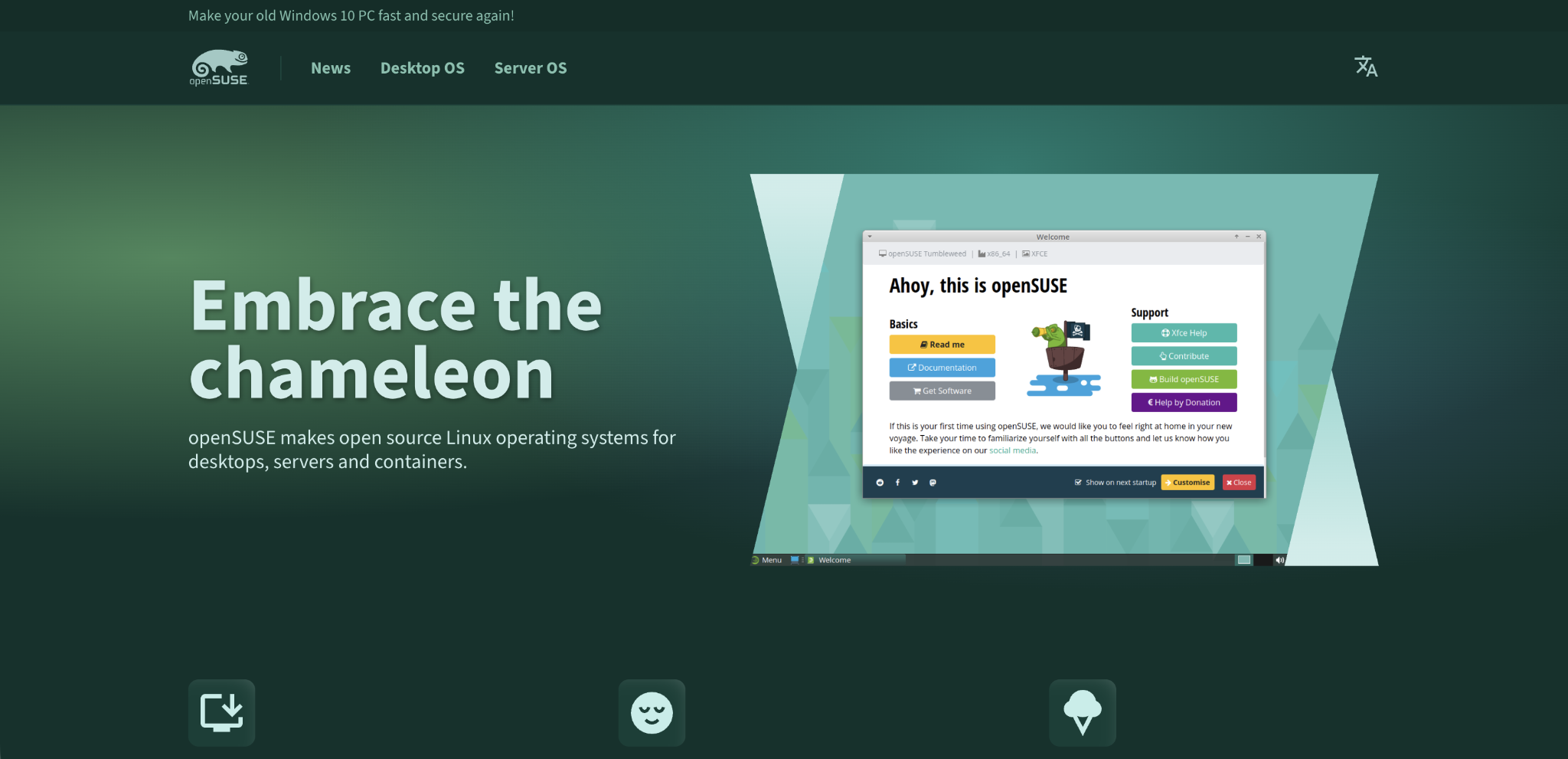
OpenSUSE lets you choose between two release models: Leap and Tumbleweed. Leap follows a traditional cycle with stable, tested packages, similar to Debian. Tumbleweed is a rolling release that delivers the latest software on an ongoing basis, closer to Fedora.
That choice is OpenSUSE’s main strength. You pick the model that best fits your needs without switching distributions. Need a stable Docker host? Use Leap. Want the latest kernel and tools? Use Tumbleweed. Core tooling and package management stay the same either way.
OpenSUSE also includes YaST, a visual tool for managing your server. It handles network setup and firewall rules through a graphical interface rather than the command line. Docker packages are well-maintained, and the distribution is backed by SUSE, an established enterprise Linux company.
The main downside is community size. Fewer people use OpenSUSE with Docker than use Ubuntu or Debian, which means fewer guides and forum threads when you run into issues. Experienced users can easily work around that. If you’re just getting started, this might slow you down.
How to choose the best OS for your Docker workloads
Your decision comes down to your experience level, your environment (development vs. production), and the workloads you’re running.
- For beginners or general-purpose Docker hosting – Start with Ubuntu. The community and docs mean you’ll spend more time building and less time troubleshooting.
- For production servers needing long-term stability – Debian and Rocky Linux are your strongest picks. Debian’s careful updates keep things steady. Rocky Linux adds RHEL compatibility for teams that need it.
- For minimal, container-native environments – Alpine Linux (as a base image) and Fedora CoreOS (as a host OS) remove overhead and give containers more room. Fedora CoreOS works especially well for automated, multi-server setups.
- For Windows-dependent applications – Windows Server is the practical choice for native Windows containers and full Windows-specific stacks. Use it when you must; run Linux everywhere else.
- For cutting-edge development – Fedora keeps you closest to the latest features. Pair it with a stable OS like Debian or Rocky Linux for production.
If you’re planning to grow beyond a single server, your OS choice also affects what orchestration tools you can use. Most Kubernetes setups run on Ubuntu, Debian, or Fedora CoreOS, so picking one of these now saves you a migration later.
What are the best practices for securing Docker containers on different operating systems?
Securing Docker containers starts at the OS level. Containers share the same core system as your server, so an outdated package or a bad setting can affect every container running on it.
Each Linux distribution handles security in its own way, from built-in access controls to how updates are delivered. Docker also introduces its own risks if left with default settings.
The best approach is to combine OS-level protections with proper container setup. Focus on these key practices:
- Keep your host OS updated. On Ubuntu and Debian, enable automatic security updates so patches apply automatically. On Rocky Linux, dnf-automatic does the same job. Fedora CoreOS handles this by itself with automatic updates and safe reboots.
- Run containers as non-root users. Docker gives containers root access by default. That means a container breach could give an attacker full control of your server. Set your containers to run as regular users instead. On Fedora and Fedora CoreOS, Podman does this by default.
- Use your OS’s built-in security tools. Ubuntu and Debian include AppArmor. Rocky Linux, Fedora, and Fedora CoreOS use SELinux. Both limit what containers can access on the host. Keep them turned on – disabling them for convenience opens real gaps.
- Remove what you don’t need. Fewer running services mean fewer ways for attackers to gain access. Fedora CoreOS and Alpine do this by design – their small footprint means less to protect from the start. The same principle applies to your server as a whole – keeping your VPS secure means reducing what’s exposed across the board, not just inside containers.
- Scan your container images. Weak spots in your base images are just as risky as holes in your host OS. Tools like Docker Scout, Trivy, and Grype check your images for known problems and flag outdated packages. Build scanning into your routine, so issues don’t reach production.
- Limit container permissions. Docker gives containers a set of system permissions by default, and most don’t need all of them. Use –cap-drop=ALL to remove the defaults, then add back only what your app actually needs with –cap-add.
Securing Docker isn’t just about preventing attacks, but also about running a system you can trust. Fewer moving parts, clear permissions, and consistent updates make issues easier to detect and fix before they escalate.
A setup built this way is not only safer, but also more stable and easier to maintain over time.
All of the tutorial content on this website is subject to Hostinger's rigorous editorial standards and values.

Alma is an AI Content Editor with 9+ years of experience helping ideas take shape across SEO, marketing, and content. She loves working with words, structure, and strategy to make content both useful and enjoyable to read. Off the clock, she can be found gaming, drawing, or diving into her latest D&D adventure.