How to set up Hermes Agent with Docker
Jun 07, 2026
/
Ariffud M.
/
8 min Read
Setting up Hermes Agent means deploying it as a Docker container on a virtual private server (VPS), running the setup wizard to choose an LLM provider, and confirming everything works with a quick chat session.
Hermes Agent is an always-on, self-improving AI agent. It learns from your interactions and builds reusable skills over time. Once it completes a task, it uses that experience to handle similar ones better next time.
You can install Hermes Agent directly on a server using the native curl installer, but Docker works better for VPS deployments. It keeps the agent isolated from your host system, and updating later is as simple as pulling a new image.
Here’s how to set up Hermes Agent on a VPS using Docker:
- Prepare your server. Get a VPS with at least 2 CPU cores and 8 GB of RAM. Use a Linux distribution like Ubuntu.
- Deploy the container. Use Hostinger’s application catalog for a one-click install, or pull the Docker image manually if you’re using another VPS provider.
- Configure your LLM provider. Run the setup wizard, select a provider, enter your API key, and choose a model.
- Test a CLI conversation. Make sure the agent responds correctly and can use tools before you add anything else.
- Add models, connect a gateway, and configure tools. Set up additional LLM providers, add Telegram, Discord, or other platforms, and enable the toolsets you need.
- Harden your deployment. Set up Tirith command scanning, configure gateway allowlists, and add firewall rules to secure your setup.
1. Prepare your VPS environment
To run Hermes Agent, you need a server with a Linux distribution (Ubuntu works best), plus root access and a stable internet connection.
Aim for a VPS plan with at least 2 CPU cores and 8 GB of RAM. This setup handles Docker isolation and the gateway process comfortably. The container itself uses around 1 GB of RAM, or 2–4 GB if you enable browser automation.
After purchasing your VPS, connect to it via SSH and update your system packages:
sudo apt update && sudo apt upgrade -y
This helps prevent dependency conflicts when installing Docker and Hermes Agent’s components.
You should also secure and prepare your VPS. Create a dedicated user, adjust permissions, and enable public key authentication for safer access.
2. Deploy Hermes Agent with Docker
Docker packages Hermes Agent and all its dependencies into a single container, so you don’t need to install Python or Node.js or manually configure environment variables.
There are a few ways to get it running, depending on your setup.
If you don’t have a VPS yet, the fastest and easiest option is to use Hostinger’s Hermes Agent template. Choose your preferred plan, complete the payment, and the system installs everything automatically.
During setup, you’ll create a username and password to access the Hermes Agent web terminal.
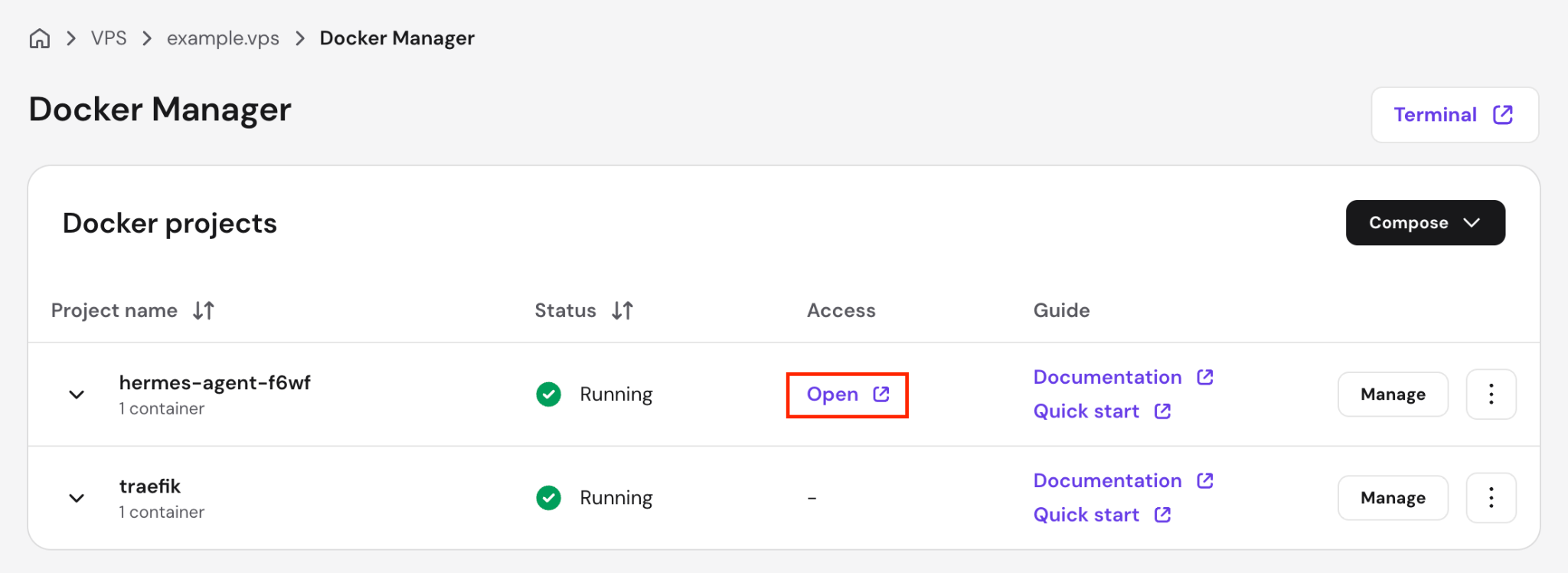
Once the installation finishes, you’ll land in the Docker Manager, where Hermes Agent appears as a Docker project. Click Open next to it, then log in using the credentials you created earlier.
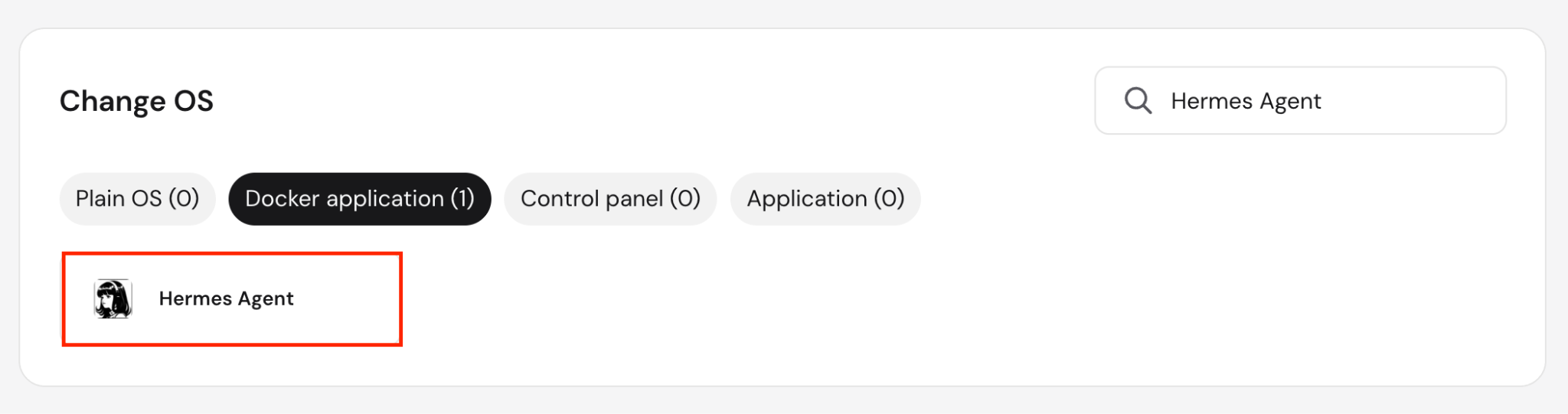
If you already own a Hostinger VPS, you can deploy Hermes Agent from hPanel. Go to VPS → OS & Panel → Operating System → Change OS, search for Hermes Agent, and select it to start the installation.
When the installation finishes, go to Docker Manager → Projects and open the Hermes Agent web terminal the same way.
If you’re using a different VPS provider, install Docker first. Once it’s ready, create a data directory for Hermes Agent and open it:
mkdir -p ~/.hermes

cd ~/.hermes
Then deploy the Hermes Agent container:
docker run -it --rm \

-v ~/.hermes:/opt/data \

nousresearch/hermes-agent setup
The -v ~/.hermes:/opt/data flag mounts a host directory to the container’s data path. Hermes Agent stores its configuration files, API keys, sessions, skills, and memory in this directory.

3. Run the setup wizard
After you access the web terminal or run the container, the Hermes Agent setup wizard launches automatically. It asks how you want to configure the agent.
It offers two paths:
- Quick setup. Covers the provider, model, and messaging. This is the best option for most users.
- Full setup. Adds terminal backend selection, agent behavior settings, tool toggles, and persona configuration.
We’ll use Quick setup here. You can configure everything else later, so nothing is locked in. The wizard walks you through these steps:
- Select an LLM provider. Choose from OpenRouter, Anthropic, OpenAI, Nous Portal, Ollama, or a custom endpoint.
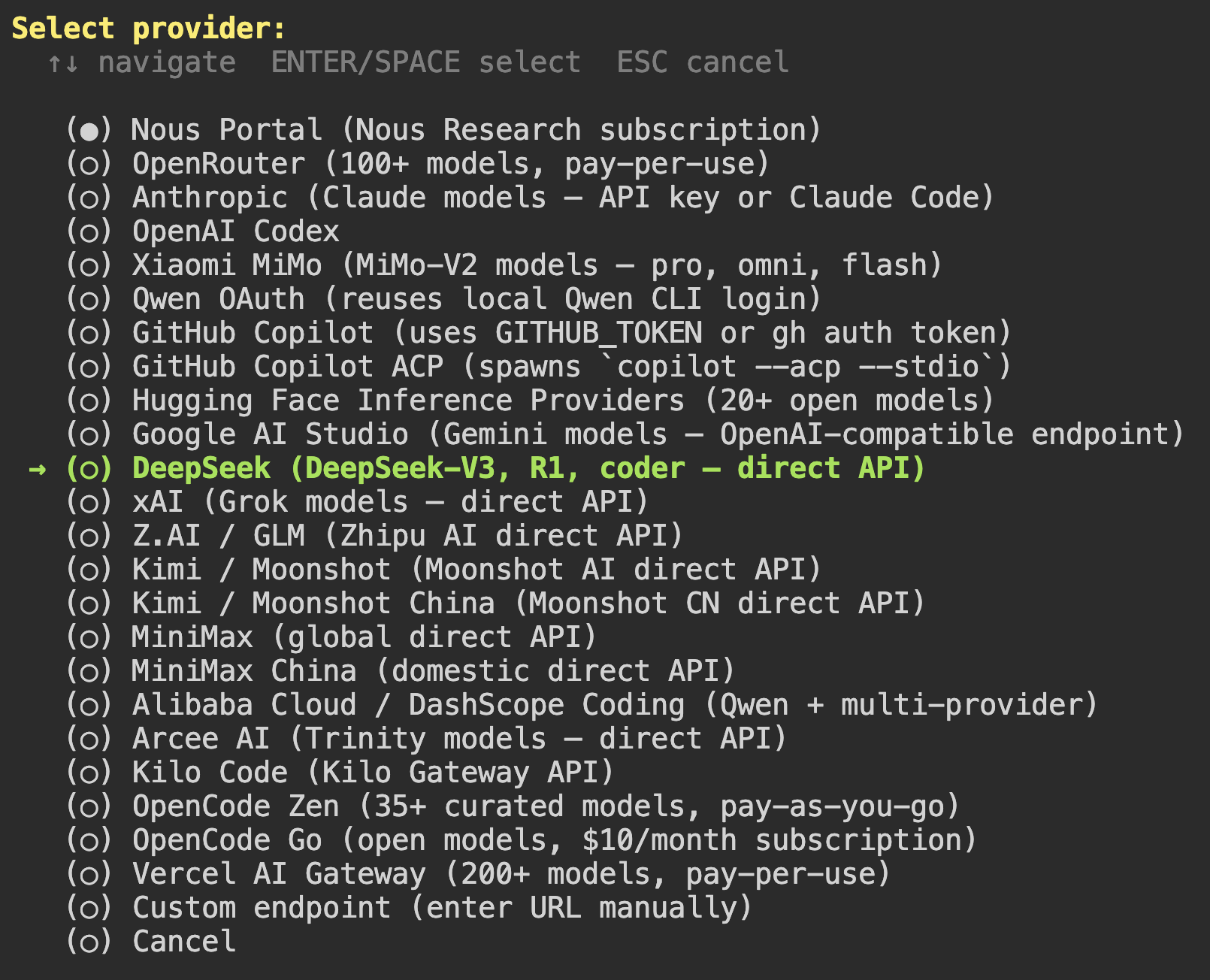
- Enter your API key. Paste the key for your chosen provider.
- Choose a model. Select one from the available models for your chosen provider.
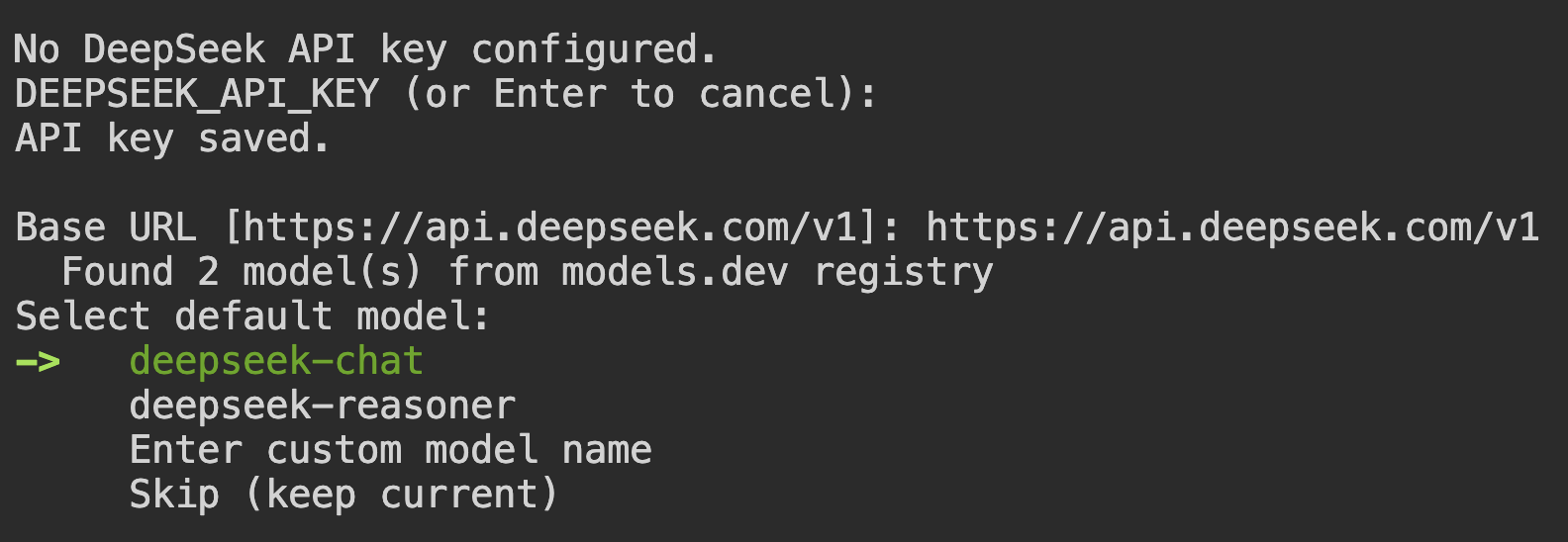
- Connect a messaging platform. Choose Telegram, Discord, Slack, WhatsApp, or another platform. You can skip this for now and test the CLI chat first.
Hermes Agent stores sensitive data, such as API keys, in ~/.hermes/.env, while non-sensitive data goes in ~/.hermes/config.yaml.
4. Verify Hermes Agent is running
To verify that Hermes Agent is running correctly after the setup wizard, start a CLI session and check if the agent can communicate with your selected model:
hermes
You should see a welcome banner with the selected model, available tools, and loaded skills.
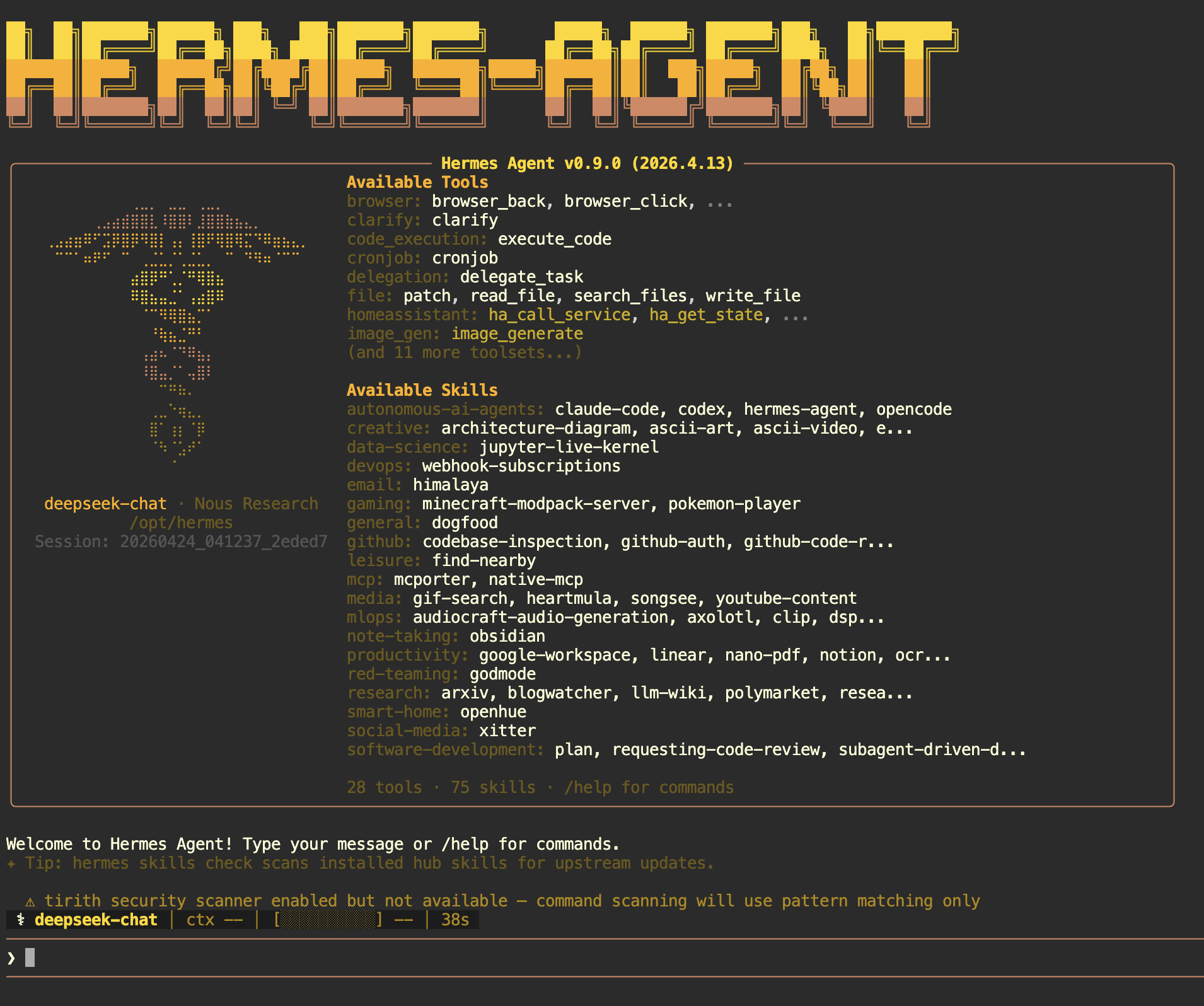
Test it with a prompt that triggers a tool, like “What’s in my current directory?” This confirms the agent can respond and execute commands.
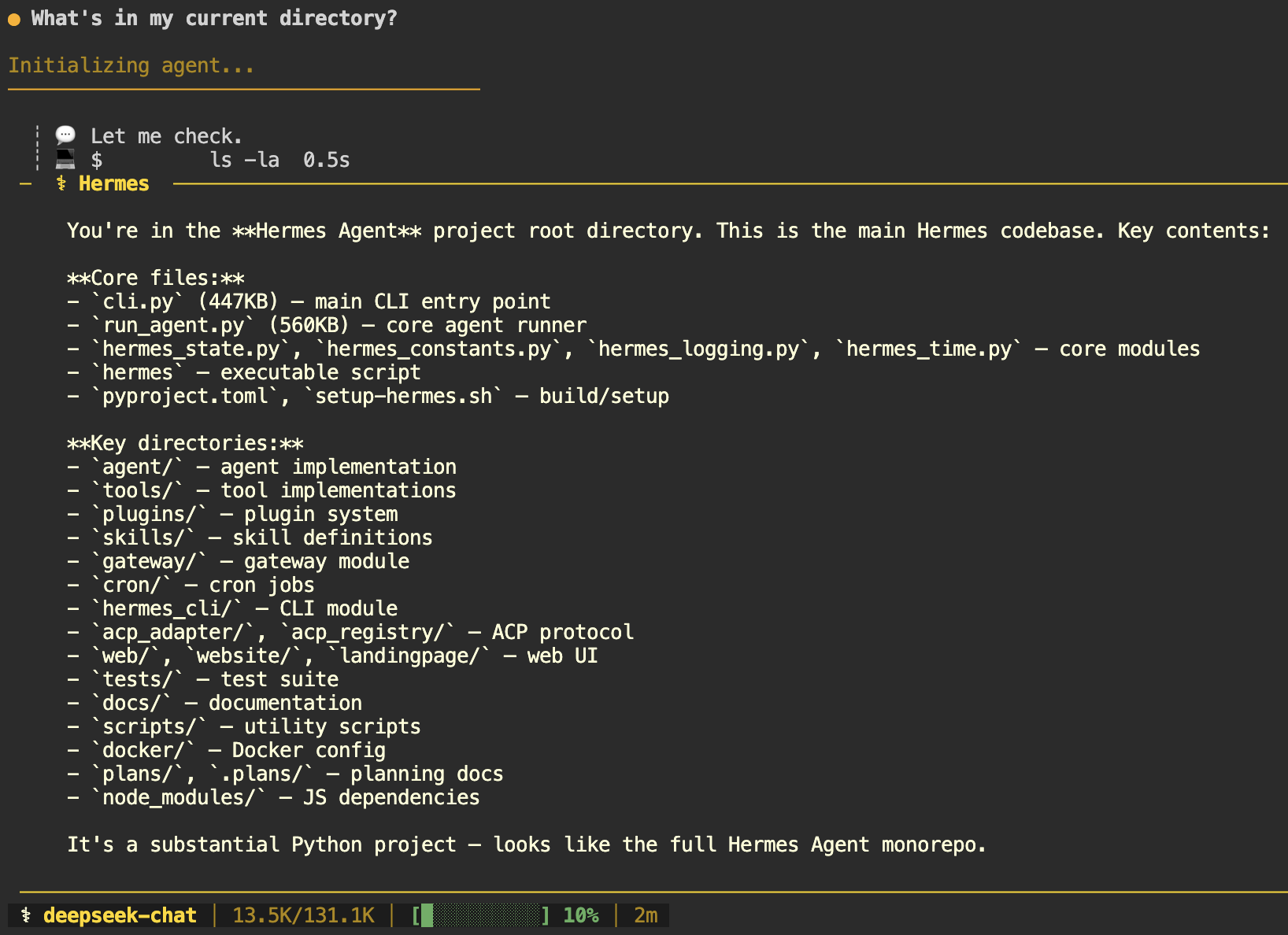
To exit the session, type /exit. Use hermes to start a new session, or resume the last one with hermes –continue.
If the agent returns empty responses or connection errors, the most common cause is an incorrect API key or a misconfigured provider.
Run hermes setup again to reconfigure your provider and API key. Alternatively, use the hermes doctor command to scan your entire setup and identify the issue.
5. Configure other models, gateway, and tools
Once the CLI chat works, you can add another model, connect a messaging platform, and configure the tools your workflow needs.
To add a new LLM provider alongside the one you set up earlier, run hermes model. It walks you through provider selection and API key entry, just as the setup wizard does.
Once you have multiple providers configured, switch between them during a session with the /model command inside the chat.
The messaging gateway lets you talk to Hermes Agent through platforms like Telegram, Discord, Slack, WhatsApp, Signal, or email instead of the CLI.
Use hermes gateway setup to connect your preferred platform, then follow the on-screen instructions.
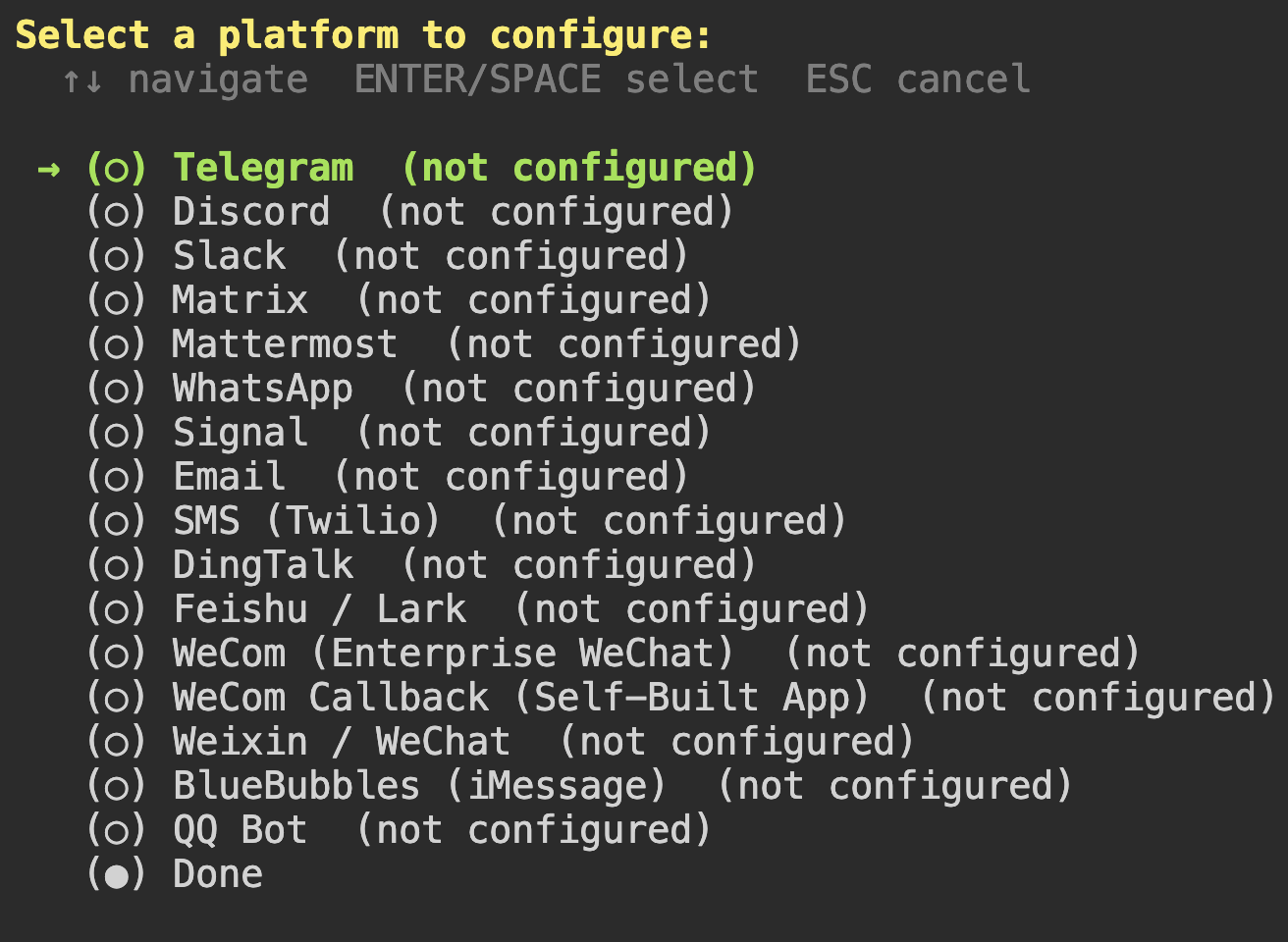
After setup, run hermes gateway run to start the bot. Otherwise, it stays configured but inactive.
Hermes Agent also includes built-in tools like terminal execution, web search, file system access, and image generation. Open the tool list with hermes tools, then toggle each tool on or off based on your needs.
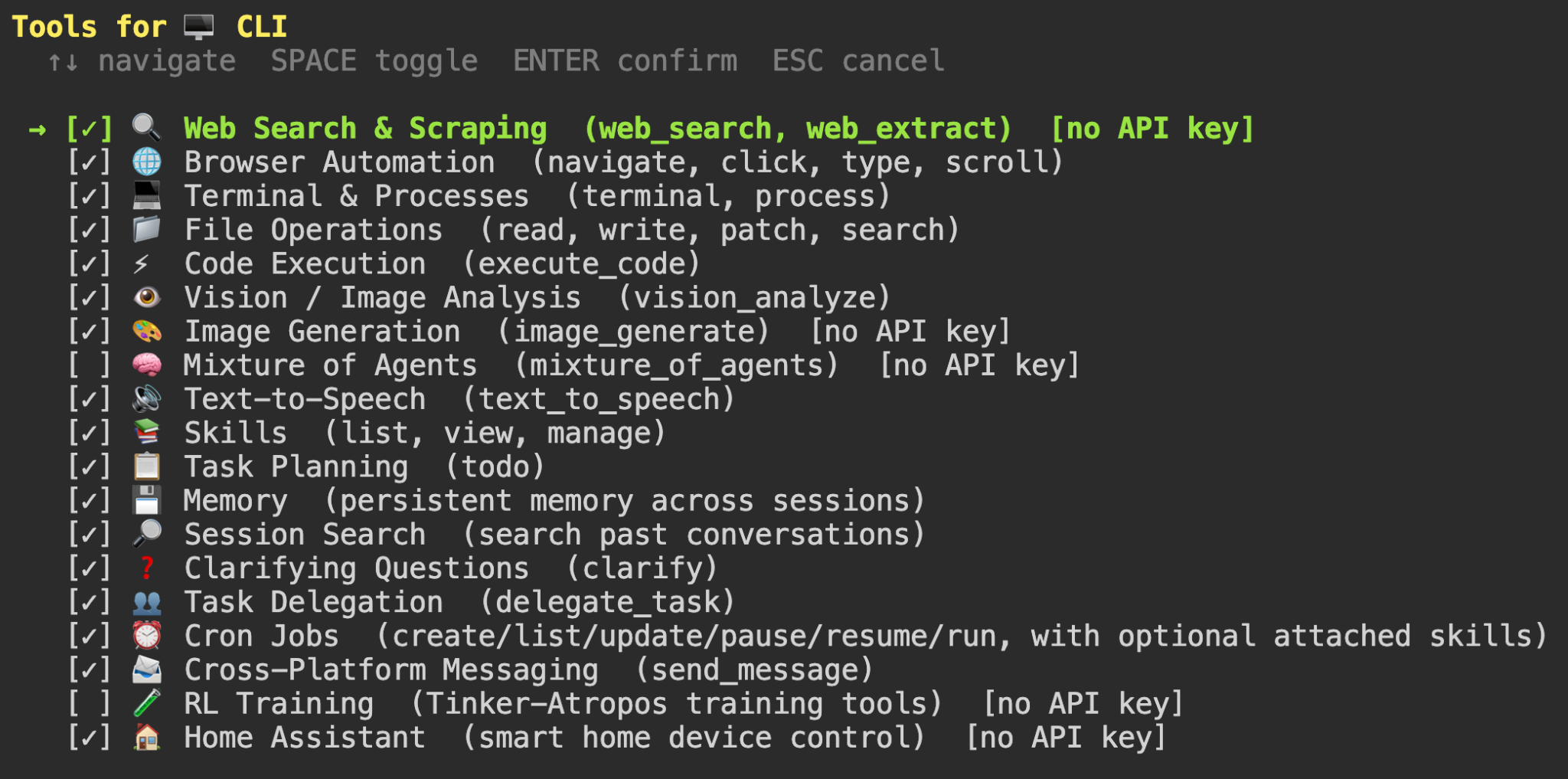
Note that some tools, like web search and image generation, require their working API keys.
6. Secure your Hermes Agent setup
Securing your Hermes Agent setup covers both the agent’s built-in protections and server-level rules that limit outside access.
Hermes Agent comes with a security scanner called Tirith. It checks every terminal command before execution. It’s enabled by default and looks for risks like prompt injection, credential exfiltration, and SSH backdoor patterns.
If Tirith flags a command, you’ll see a summary of the issue. You can approve or deny it using /approve or /deny. To control how approvals work, edit ~/.hermes/config.yaml:
approvals:

   mode: manual    # manual | smart | off

   timeout: 60 # seconds to wait for user response (default: 60)
- manual. Asks for approval before every potentially risky command.
- smart. Approves low-risk operations automatically and prompts only for dangerous ones.
- off. Disables all approval checks.
The messaging gateway needs protection, too. In the same config.yaml file, add your user ID to the allowed list for each platform so only you can send commands to the bot.
Here’s an example for Telegram:
gateway:

   telegram:

      allowed_user_ids:

         - 123456789
Replace 123456789 with your actual Telegram user ID. You can get it by messaging @userinfobot on Telegram.
For other platforms like Slack or WhatsApp, replace telegram with the platform name and use the correct user ID format for that service.
On the network side, close ports 8642 (API server) and 9119 (dashboard) if you only use Hermes Agent through chat platforms. The gateway creates outbound connections, so it doesn’t need inbound traffic:
sudo ufw deny 8642

sudo ufw deny 9119
To stay up to date, pull the latest image and replace the running container:
docker pull nousresearch/hermes-agent:latest

docker rm -f hermes

docker run -d \

   --name hermes \

   --restart unless-stopped \

   -v ~/.hermes:/opt/data \

   nousresearch/hermes-agent gateway run
All data lives in the mounted ~/.hermes volume, so nothing gets lost during updates.
For Hostinger VPS users, you can update the container directly from hPanel. In Docker Manager, find your Hermes Agent project, click the three-dot menu, and select Update.
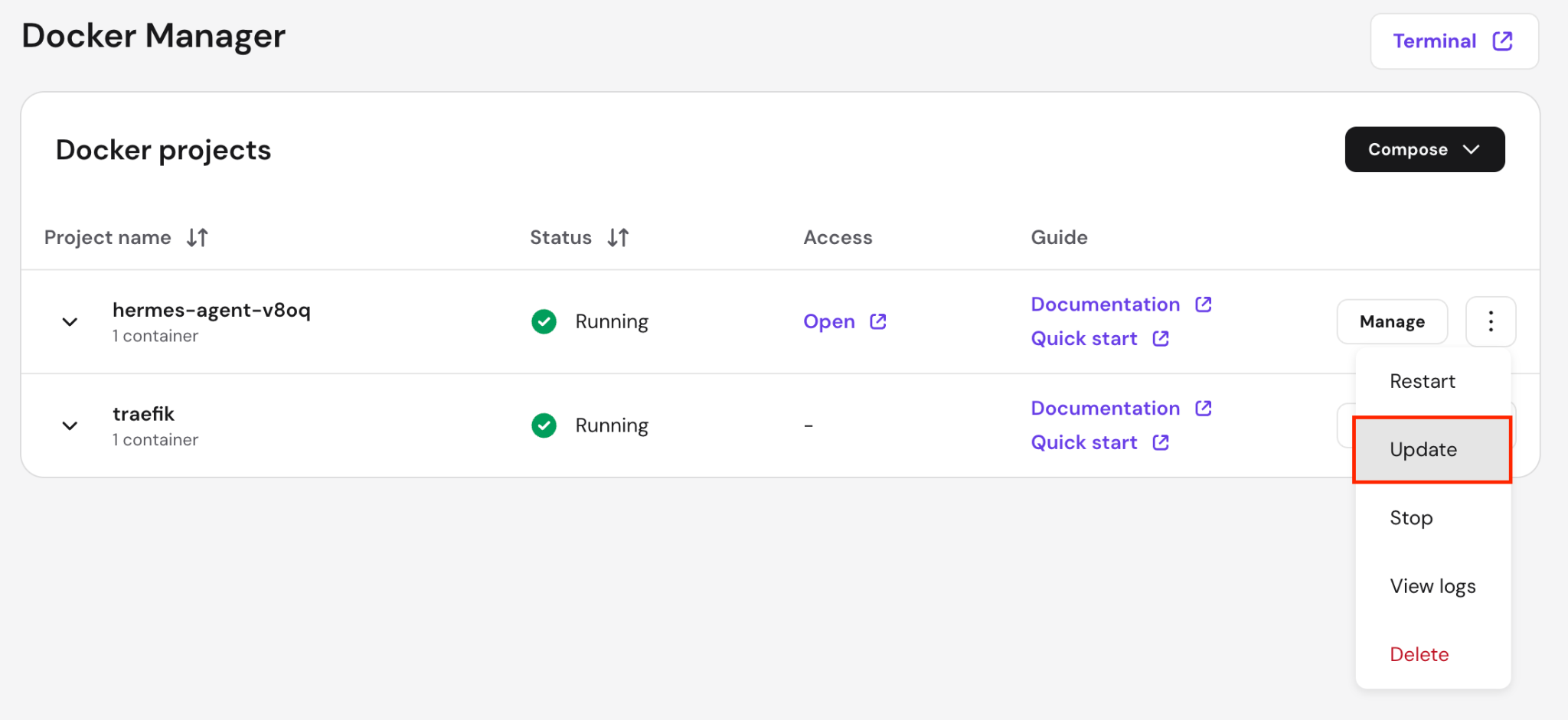
Also, secure your VPS by turning off root SSH login, configuring fail2ban to block repeated login attempts, and installing a malware scanner to detect threats.
Common mistakes when setting up Hermes Agent
Most common Hermes Agent setup issues include adding features before verifying the CLI chat, not mounting the data volume, using incorrect API credentials, skipping the gateway allowlist, and running commands directly on the host.
- Adding features before verifying the CLI chat. Connecting Telegram, enabling cron jobs, or integrating third-party services before confirming the CLI chat works makes troubleshooting harder. If something breaks, you won’t know where the problem lies. Test the agent in the CLI first, confirm it responds and can use tools, then add other features.
- Not mounting the data volume. If you run the container without -v ~/.hermes:/opt/data, all data (memory, skills, and configuration) stays inside the container. When the container restarts, everything is lost. Always include the volume flag when running the container manually.
- Using incorrect or expired API credentials. If the API key is wrong or expired, the agent can’t communicate with the model. Double-check the key in your provider’s dashboard or generate a new one. Then run hermes setup again to update it.
- Skipping the gateway allowlist. If you set up a messaging bot without adding allowed_user_ids in config.yaml, anyone who finds your bot’s username can interact with it. Add your user ID to the allowlist so only you can access it.
- Leaving the default terminal backend on a VPS. By default, the agent runs terminal commands directly on your server. On a VPS, this can affect your entire system. Switch to a sandboxed container with hermes config set terminal.backend docker so commands run in an isolated environment.
How to manage Hermes Agent after setup
Managing Hermes Agent after setup involves keeping the container and gateway healthy, scheduling recurring tasks with cron, and using the web dashboard to manage your installation.
- Monitoring logs and gateway health. Container logs are the first place to check when something feels off. Run docker logs hermes to review recent output, or docker logs -f hermes to follow logs in real time. For the gateway, use hermes gateway status to see which platforms are connected, and hermes gateway restart to reconnect any that dropped.
- Scheduling recurring tasks. The built-in cron scheduler runs jobs such as daily summaries, nightly backups, and weekly reports. It sends results to your connected messaging platforms. Set schedules with hermes cron, and the agent handles execution automatically.
- Accessing the web dashboard. The web dashboard is a browser-based interface for managing your Hermes Agent installation. Instead of editing YAML files or running commands via the CLI, you can configure settings, manage API keys, monitor sessions, and schedule cron jobs from a visual interface. Start it with the command below, then open http://your-server-ip:9119 in your browser:
docker run -d \

   --name hermes-dashboard \

   --restart unless-stopped \

   -v ~/.hermes:/opt/data \

   -p 9119:9119 \

   nousresearch/hermes-agent dashboard
What can you do with Hermes Agent?
With Hermes Agent running on your VPS, you get an always-on AI assistant you can access through your preferred communication channels at any time.
What you do with it depends on your needs – whether you’re a developer, a sysadmin, or someone who wants a personal assistant running on your own server.
For development tasks, you can ask the agent to clone a repository, spin up a staging environment, and run tests, all from a Telegram message while you’re away from your desk.
Sysadmins can set up cron jobs using natural language. For example, you can schedule a weekly disk usage report to be delivered to Slack every Monday morning, or have the agent monitor a service and send an alert when it goes down.
For personal use, you can have the agent send a morning briefing with your calendar, top news, and GitHub notifications before your day starts.
If you want more advanced examples, including content production pipelines, deployment automation, and research or data processing workflows, check out the most popular Hermes Agent use cases.
All of the tutorial content on this website is subject to Hostinger's rigorous editorial standards and values.

Ariffud is a Technical Content Writer with an educational background in Informatics. He has extensive expertise in Linux and VPS, authoring over 200 articles on server management and web development. Follow him on LinkedIn.