Error 520: troubleshooting and fixing the Cloudflare issue
Mar 10, 2026
/
Rizma B.
/
6 min Read

As a website owner, you need to ensure that your site runs properly at all times. However, as visitors try to access its content, they may come across the message that reads “Error 520: Web Server Is Returning an Unknown Error.”
It’s a catch-all response issued by Cloudflare to indicate your website did something unexpected, resulting in an empty response. It may occur due to several factors ‒ from web server configuration to an invalid HTTP response.
This article will discuss several possible reasons behind this Cloudflare error variation. In addition, you will learn seven ways to troubleshoot the issue.

What Causes the Cloudflare Error 520?
The 520 error occurs when the origin web server initiates a connection but fails to finalize the request. This often happens if a program, cron job, or resource excessively consumes server resources, preventing it from adequately responding to all incoming requests.
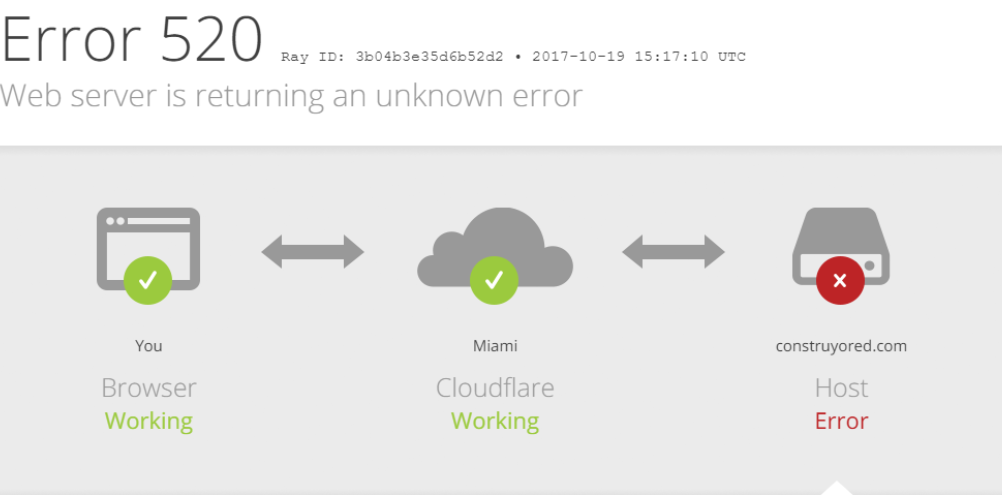
The following are several common reasons why this error occurred:
- Crash at the origin web server. It may occur either because the origin server is running a resource-intensive script or didn’t interpret requests properly. Consequently, the server is unable to complete these requests.
- The origin server doesn’t allow connections with any Cloudflare IP addresses. Your firewall settings may be blocking non-whitelisted IP addresses. Check whether Cloudflare’s IP address is not one of them.
- Short idle timeouts. The TCP (Transmission Control Protocol) establishes a connection between client and server, allowing them to exchange data. By default, the web server idle timeout value is 300 seconds. Therefore, a TCP timeout value of less than 300 seconds can cause the 520 error.
- Cloudflare-incompatible response headers. HTTP headers allow a web server and a client to communicate. They contain details such as the client browser, the page requested, and cookies. Too many cookies, for example, will result in larger header size. If it exceeds Cloudflare’s request header size limit of 16 KB, it will lead to invalid or missing response headers.
| Error code | Error 520 |
| Error type | Cloudflare – Server |
| Error message | 520 Web Server Is Returning an Unknown Error |
| Error causes | A crash at the origin web server The origin server blocks Cloudflare IP addresses An invalid HTTP response or empty response Short idle timeouts Cloudflare-incompatible response headers Connection resets |

7 Ways to Troubleshoot Cloudflare Error 520: Web Server Is Returning an Unknown Error
Now that you have learned the potential causes of the Cloudflare 520 Error, let’s look at ways to fix them.
Important! Check if your site is down for everyone using the Uptrends Website Uptime Test and ensure that Cloudflare’s system status is working properly.
1. Ensure Cloudflare DNS Records Are Correct
DNS records play an integral role in the effective functioning of a website, providing information such as what IP corresponds to a certain domain name.
Incorrect DNS records can lead to an empty or unexpected response from the origin web server. Access your domain’s DNS zone editor to find your domain’s IP address. Then, log in to your Cloudflare dashboard to recheck if your DNS records are set up correctly.
2. Check Headers and Cookies
The overall limit of Cloudflare’s request headers is 32 KB, with an individual header size limit of 16 KB. If the headers exceed the limit, the 520 error response may occur. Access your server’s HAR (HTTP Archive) to review the site’s headers and cookies.
HAR files essentially record all web browser requests, including request and response headers, body content, and page load time. Generating HAR files can help you narrow down the error cause and find a solution.
Here’s how to create a HAR file using Google Chrome:
- Right click the web page where the error 520 is displayed and click on Inspect to open the developer tools.
- Click on the Network tab.
- Click on the small round button if it’s gray.

- Check the Preserve log box.
Refresh the page and reopen the network tab.
- Right click anywhere on the developer tools window.
- Select Save all as HAR with Content.
- To examine the file, use an online tool such as Google’s HAR Analyzer.
Important! HAR files contain sensitive information. Use a text editor to remove details such as your passwords, cookies, and other personal data before sharing the file with others.
If you find that the excessive use of cookies or cookies that are too large are causing the error 520, consider using a cookie-free domain.
3. Disable .htaccess
The .htaccess (hypertext access) file is a configuration resource for Apache-hosted sites. Disabling .htaccess can help confirm if the file was corrupted or caused bad redirects.
Suggested Reading
Check our tutorial on how to create and locate the .htaccess file.
Open the Apache configuration file and change the AllowOverride directive to None.
Doing so will disable all .htaccess files. If you need to modify your Apache configuration, remember to save the file and restart Apache.
4. Investigate Error Logs
Error messages typically offer little information about how to resolve them. Therefore, error logs exist to help identify their source and quickly troubleshoot them. Finding the error log varies depending on where your site is hosted.
If you use Hostinger, enable PHP error logging via hPanel:
- Navigate to the Advanced tab and select PHP Configuration.
- In the PHP options tab, tick the logErrors checkbox.
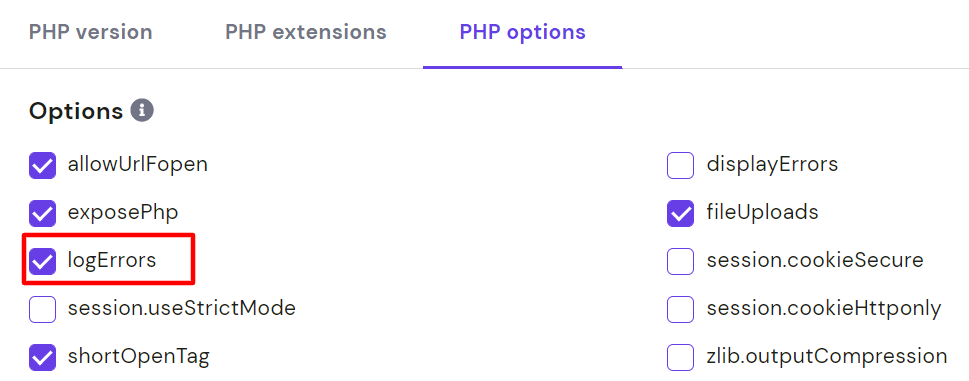
- Scroll down to the end of the page and click Save.
Your error_log file will be located in the home/[username]/.logs directory, accessible via the File Manager.
The error_log file presents information such as the date and type of error that occurred. It also details which files and lines require fixes.
If your website is hosted somewhere else, check our comprehensive tutorial on how to check error logs.
5. Use a cURL Command
A client URL or cURL command is used for sending HTTP/HTTPS requests but can also help troubleshoot HTTP error responses.
Suggested Reading
Check our complete guide on how to use curl commands on Linux.
For example, use the following cURL command to obtain information about HTTP response and request headers.
curl -svo /dev/null http://www.example.com/
Windows 7 and 8 users need to download the cURL executable wizard to use it. If you use Windows 10, it lets you execute cURL directly from the command prompt.
6. Disable Cloudflare
Disable Cloudflare by accessing your Cloudflare dashboard and clicking on the DNS tab. Choose a domain, then toggle the Proxy status button.

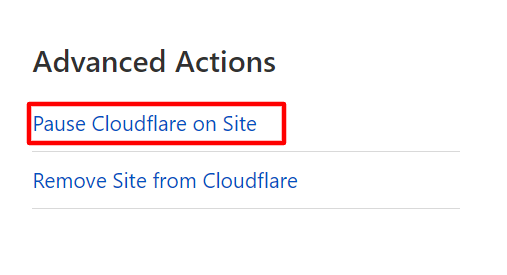
Alternatively, temporarily pause Cloudflare. Pausing your account blocks traffic from going through Cloudflare’s network, revealing the IP address of your origin server.
- Log into your Cloudflare account and go to the dashboard’s Overview tab.
- Scroll down until you see Advanced Actions.
- Click Pause Cloudflare on Site and confirm the request.
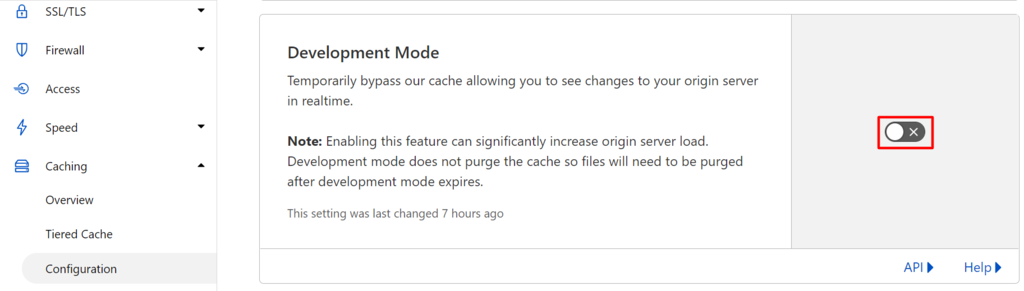
Keep in mind that pausing Cloudflare disables its security and protection features. Thus, Cloudflare recommends going into the Development Mode to bypass caching. It allows you to see changes to your origin server in real-time.
Go to the Caching tab in your Cloudflare dashboard. Choose Configuration and scroll down the page until you reach the toggle icon to turn on the Development Mode.
7. Contact Cloudflare Support
If you need further assistance, reach out to the Cloudflare support team by filing a support ticket. Typically, you will need to send the URL information, the Cloudflare Ray ID, and HAR files of when Cloudflare was enabled and temporarily disabled.
Troubleshooting Other Cloudflare Errors
In many cases, HTTP error code variations commonly signal a server issue, which can be either a proxy server or the origin host. Website owners are likely to encounter 5xx server errors at some point. Thus, it is important to be aware of such errors and learn how to fix them right away.
Here are some immediate fix ideas for common 5xx error responses:
- Verify that Cloudflare IPs are not blocked in .htaccess, iptables, or your firewall.
- Ask your host provider whether they restrict or block Cloudflare IPs requests. If they do, request for the IP addresses to be whitelisted.
- Check if your origin web server is up and running normally. If it is not, review the error logs to pinpoint the issue. Contact your hosting provider if you are unsure how to complete these steps.
- Ask your hosting provider or site administrator to confirm whether the infrastructure is experiencing any load issues.
Conclusion
The error 520: web server is returning an unknown error may not only affect user experience but also prevent you from logging in to your site’s dashboard.
Therefore, you need to find out ways to fix it right away. In this article, we listed seven methods to fix an error 520:
- Ensure Cloudflare DNS records are correct.
- Check headers and cookies.
- Disable .htaccess.
- Investigate error logs.
- Use a cURL command.
- Disable Cloudflare.
- Contact Cloudflare support.
We hope this guide helps you resolve the Cloudflare 520 error response. If you have further questions, feel free to leave them in the comment section below.
Error 520 FAQs
Here are some frequently asked questions for error 520.
How Do I Prevent Error 520?
Error 520 is a server-side error caused by a connection issue between the web server and the origin server. Try refreshing the page, clearing your browser cache and cookies, contacting your hosting provider or website administrator, and checking your server’s logs for any issues to prevent this error.
What Are Other Common Errors for Cloudflare Users?
Some common errors for Cloudflare users include error 502, caused by a bad gateway, and error 522, which is due to a connection timeout. Other common issues are error 524, a connection timeout between Cloudflare and the origin server issue, and error 504, which is caused by a gateway timeout.
Is Error 520 a Permanent Error?
No, error 520 is not a permanent error. It is a temporary server-side error caused by a connection issue between the web server and the origin server. Refreshing the page, clearing your browser cache and cookies, or contacting your hosting provider or website administrator can often resolve the issue.
All of the tutorial content on this website is subject to Hostinger's rigorous editorial standards and values.

Rizma uses writing as a way to share what she has discovered with others. As an expert in web hosting, she enjoys using her knowledge to help others. In her free time, she loves watching her favorite films or curating playlists for her loved ones.


