To change your PHP version, select a new version in your hosting control panel’s PHP settings, install and enable it on your server, or switch it in your local development environment, depending on where your website or application runs.
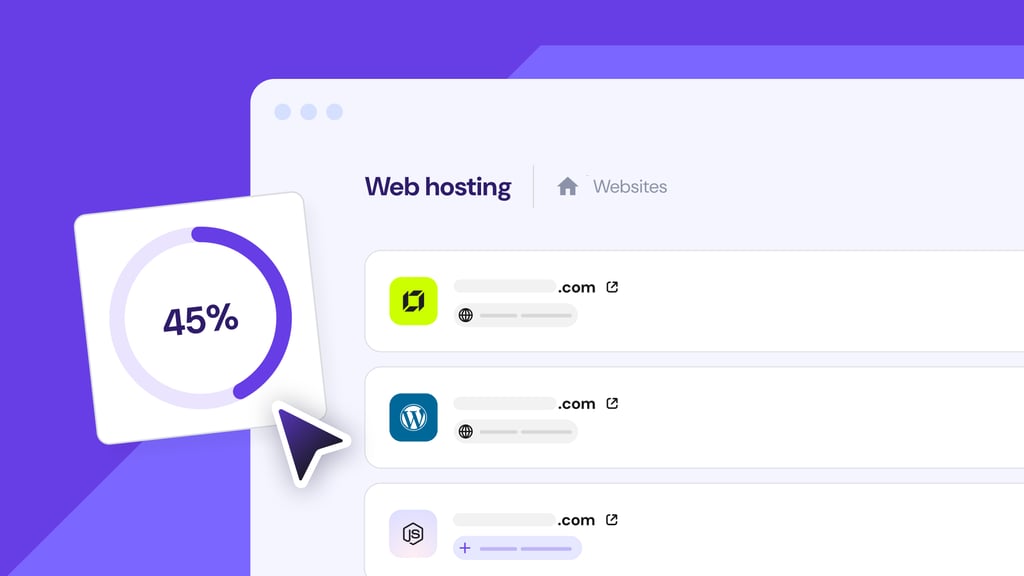
On managed hosting, open your website’s PHP settings in your hosting dashboard or cPanel and select the version you want to use.
On a self-managed VPS without a control panel, install the required PHP version and configure the server to use it.
For local development, change PHP through your development environment and match the version you plan to use in production.
When a folder or subdomain needs a different version from the rest of the website, configure that location separately, where your hosting environment supports it.
Before switching, confirm that your content management system (CMS), plugins, themes, frameworks, dependencies, and custom code support the target PHP version.
After the change, verify the active version and test the website for compatibility problems.
How to change the PHP version in a hosting control panel
Change the PHP version using the PHP version selector in your website’s hosting settings. Most managed hosting providers include this option, although the menu and setting names vary by platform.
The general process is:
- Select the website you want to update. Make sure you’re changing the PHP version for the correct website, especially when your hosting account contains multiple sites.
- Open the PHP settings. Look for the section where you can configure PHP, usually named PHP Configuration, PHP Manager, PHP Settings, or something similar.
- Choose a supported PHP version. Select the newest supported PHP version that your website is compatible with, such as PHP 8.4 or 8.5.
- Apply the change. Save or confirm the new version so the hosting platform configures the website to use it.
- Verify the website. Open the site and test its main pages and functionality to ensure the PHP version change hasn’t caused any compatibility errors.
Hostinger users can change their PHP version in the Hostinger dashboard through the website’s PHP Configuration settings.
Open Websites and select Dashboard for the website you want to manage. From the sidebar, go to Advanced → PHP Configuration.
On Hostinger, changing the PHP version through PHP Configuration affects all websites on the same hosting plan, except those created with Hostinger AI Builder. Make sure all affected websites support the selected PHP version before applying the change.
Under PHP version, select the version you want to use and click Update.
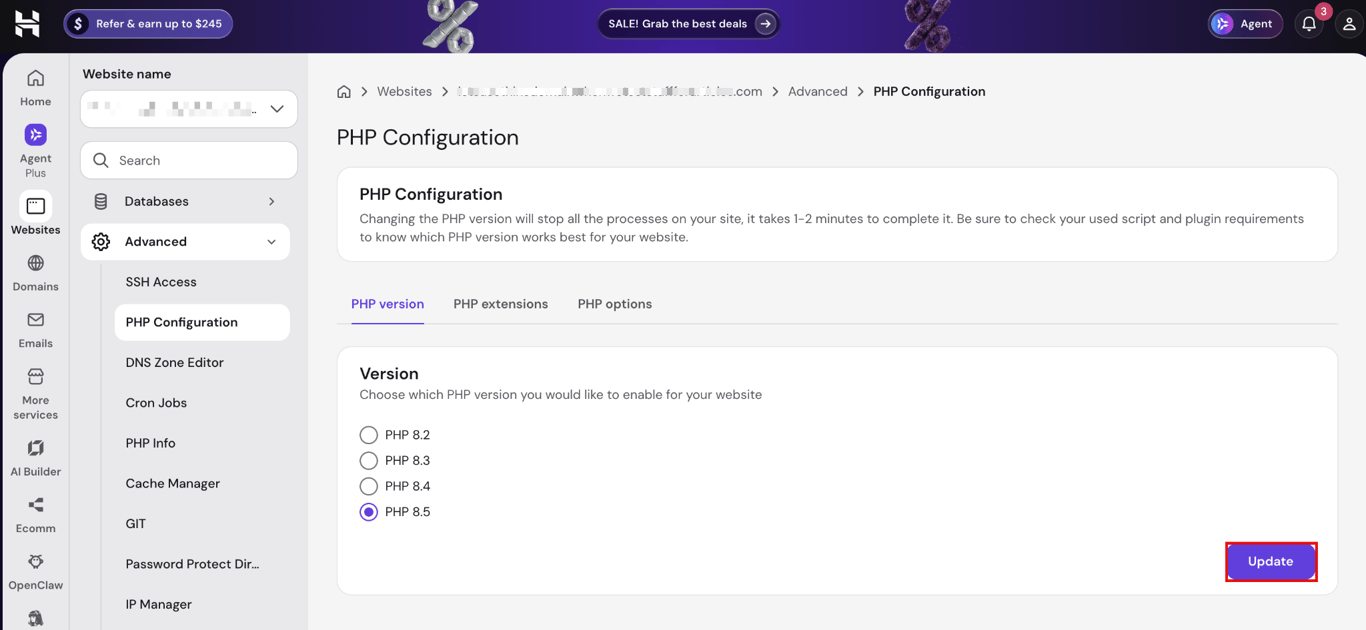
Review the confirmation message and click Confirm. Note that changing the PHP version resets PHP extension values to their defaults, so check any custom extension settings afterward.
Hostinger displays a confirmation once the change is complete. Then open your website and check that pages load and key features work as before.
Want to see what the process looks like before making the change? The video below walks through checking your current PHP version, updating it in the Hostinger dashboard, and confirming that the new version is active.
Existing Hostinger customers with a legacy cPanel hosting plan can change the PHP version in cPanel through Select PHP Version:
- In cPanel, go to Software → Select PHP Version.
- Choose the PHP version you want to use from the dropdown menu.
- Click Set as current to apply the change.
On other cPanel servers, the PHP version tool may be called MultiPHP Manager instead. In that case, go to Software → MultiPHP Manager, select the domain, choose the PHP version from the dropdown menu, and click Apply.
How to change the PHP version on a VPS
Change the PHP version on a VPS through its control panel or by configuring PHP on the server through Secure Shell (SSH). Use the control panel’s PHP selector when one is available. On a self-managed VPS without a control panel, install the target PHP version and configure the web server or PHP-FPM to use it.
The exact commands depend on the Linux distribution, web server, PHP handler, and PHP versions already installed.
We tested the process on a Hostinger VPS running Ubuntu 26.04 without a control panel. After connecting to the server through SSH, we first checked the installed PHP version:
php -v
Our fresh VPS didn’t have PHP installed, so we refreshed the available packages and installed PHP 8.5 CLI:
apt update
apt install php8.5-cli
After installation, running php -v returned PHP 8.5.4.

Ubuntu adds security fixes to its PHP packages without changing the PHP version number, so 8.5.4 here can still include the PHP2Shell fix. To check the full package version, run apt policy php8.5-cli.
The command-line interface (CLI) version isn’t necessarily the PHP version serving your website. php -v reports the version used for PHP commands in the terminal. A web server such as Nginx may process website requests through FastCGI Process Manager (PHP-FPM), which is configured separately.
For our Nginx and PHP-FPM setup, we installed PHP 8.5-FPM with:
apt install php8.5-fpm
Configure the web server to send PHP requests to the PHP-FPM service or socket for the target version.
This configuration varies between web servers and PHP setups, so there isn’t a single command that applies to every VPS.
Don't remove or disable the previous PHP-FPM version until you've confirmed that no other sites or applications on the VPS still use it. Sites configured to use the previous PHP-FPM service can stop working if that service is removed.
After changing the active version, verify both parts of the setup. Run php -v to confirm the CLI version. When the website uses PHP-FPM, check that version separately. For PHP 8.5, we used:
php-fpm8.5 -v
Our test returned PHP 8.5.4 for both CLI and PHP-FPM. You should also open the website after the change and test its main pages and functionality to confirm that web requests are being processed correctly.
Running php-fpm8.5 -v confirms the installed PHP-FPM version, but it doesn’t prove that your website uses it. For Nginx, check that the site’s fastcgi_pass directive points to the intended PHP-FPM socket. Then verify the PHP version through a temporary phpinfo() file served by the website, and delete the file after checking.
How to change the PHP version in a local development environment
Set your local environment to the PHP version you need using its version selector, bundled PHP package, or container configuration. The method depends on how your development tool manages PHP.
XAMPP bundles PHP with each XAMPP release, so changing PHP means installing a XAMPP release that includes the required version. The XAMPP Control Panel doesn’t provide a PHP version selector.
MAMP takes a different approach. Its PHP version setting switches between the PHP versions included with your installation. MAMP PRO also supports installing additional PHP versions and assigning a specific version to individual sites.
Docker defines PHP as part of the project’s container configuration. To change it, specify the required PHP image version and rebuild the container. A Dockerfile for PHP 8.5 CLI, for example, can start with:
FROM php:8.5-cli
Regardless of the tool, use the same PHP version locally that you intend to run in production when testing compatibility.
Matching the environments helps expose version-specific problems with your code and dependencies before deployment.
Once you’ve made the change, verify the PHP version from within that environment. Where PHP is available from the command line, run:
php -v
Check the environment itself, not only your computer’s system-wide PHP installation. A local web server or Docker container can run a different PHP version from the one returned by your system CLI.
How to change the PHP version for a specific folder or subdomain
Set a different PHP version for a folder or subdomain by configuring that location separately from the rest of the website.
This is useful when, for example, your main website supports PHP 8.5 but an application in a subfolder still requires PHP 8.3.
The configuration method depends on your hosting environment. Hostinger users can use a different PHP version for a subdomain or folder by editing the .htaccess file for that location.
In Hostinger dashboard, go to Websites → Dashboard → File Manager and open the directory where you want to change PHP. For a subdomain, open its corresponding directory. For a specific folder, open that folder.
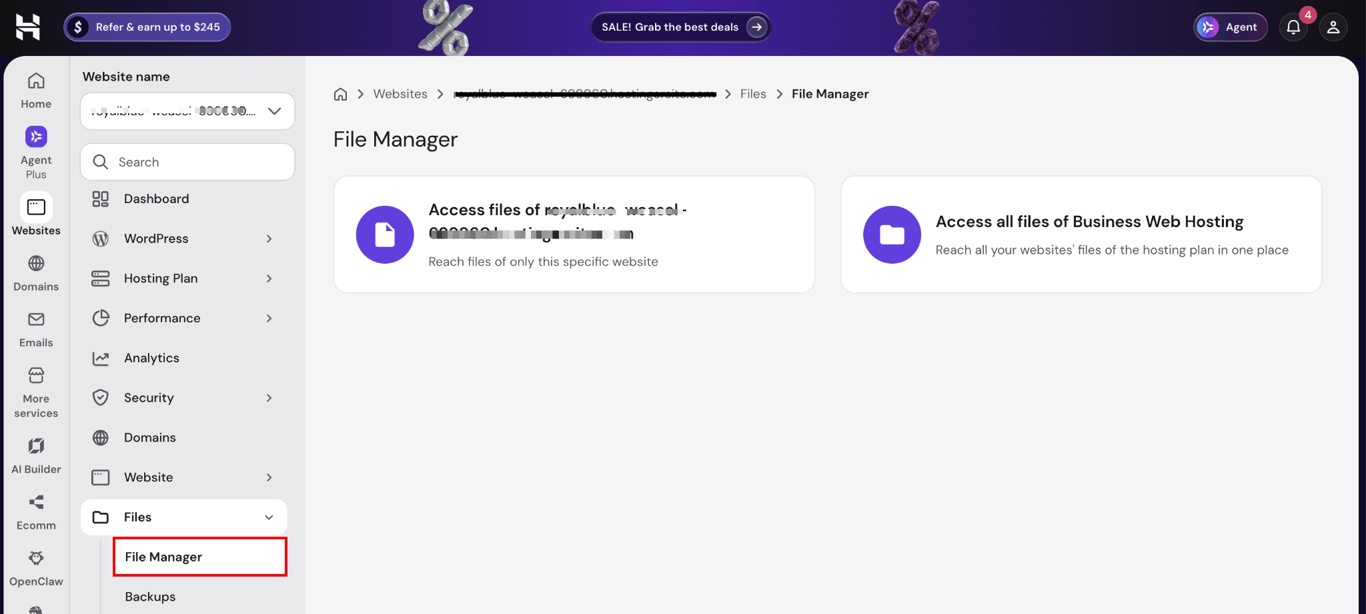
Open the .htaccess file inside the directory, or create one if it doesn’t exist. Add the following SetHandler rule at the beginning of the file to use PHP 8.5:
<FilesMatch ".(php4|php5|php3|php2|php|phtml)$">
SetHandler application/x-lsphp85
</FilesMatch>
Change the handler to match another supported PHP version when needed, such as application/x-lsphp84 for PHP 8.4 or application/x-lsphp83 for PHP 8.3.
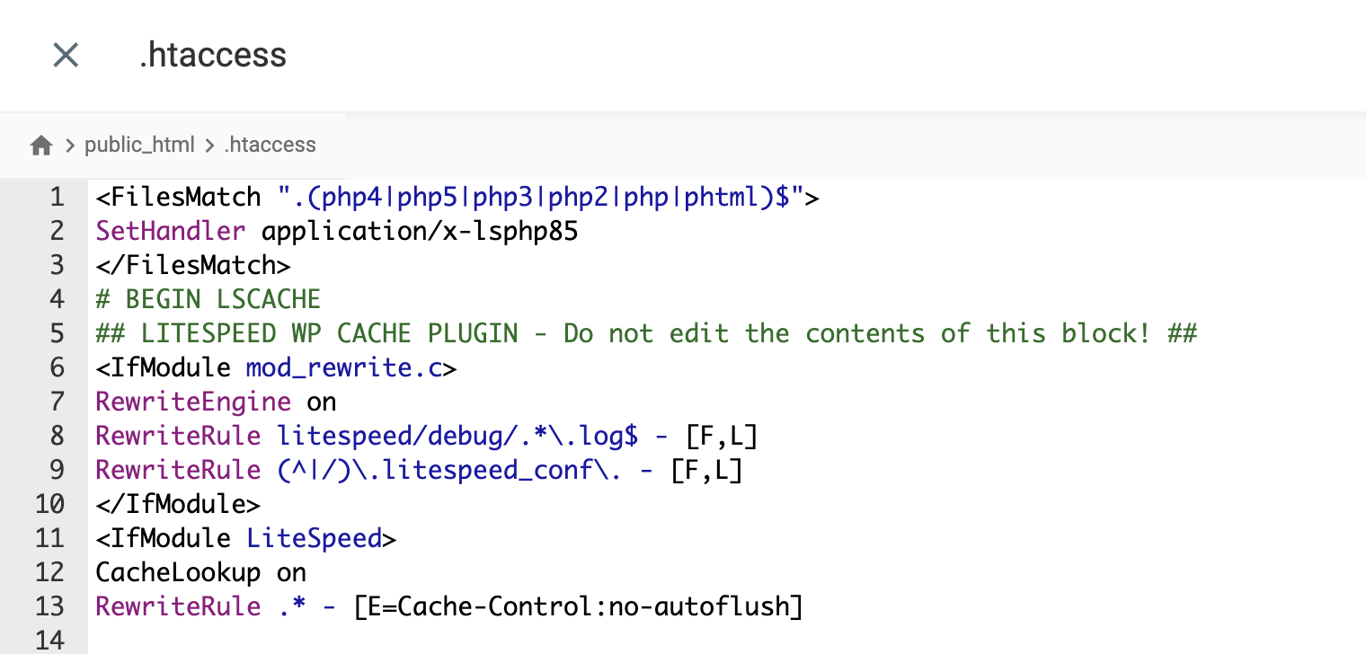
Back up the existing .htaccess file before you edit it, and keep any rules already in it, such as WordPress permalink rules. A syntax error or a deleted rule can cause a 500 Internal Server Error for the whole directory, so keep a copy you can restore from File Manager.
Save the .htaccess file and check that the application works correctly. To verify the PHP version on Hostinger, create a phpinfo.php file in the same directory and open it in your browser.
Once you’ve confirmed the PHP version, delete the phpinfo.php file. The page can expose detailed information about your PHP and server configuration, so it shouldn’t remain publicly accessible after you’ve finished checking the version.
Running php -v over SSH won’t verify the PHP version set for this location. The command reports the PHP version used by the command-line environment, while the SetHandler rule in .htaccess determines which PHP version handles web requests to that location.
This configuration changes the PHP version for the selected location, but it doesn’t apply separate PHP extensions or PHP options.
Which PHP version should you use?
Use the latest supported PHP version compatible with your website or application.
Before choosing a version, identify everything that depends on PHP:
- CMS. Find the PHP requirements in the CMS’s official documentation and compare them with the version of the CMS you have installed. Look for both the minimum supported PHP version and any stated support for the PHP version you plan to use.
- Themes and plugins. Review the developer’s documentation, release notes, or compatibility information for every theme and plugin your site relies on. Look specifically for support for your target PHP version and warnings about known incompatibilities.
- Frameworks and dependencies. Use the framework’s official requirements to find its supported PHP range. For Composer projects, inspect the
phpconstraint in composer.json, such as"php": "^8.2", and runcomposer check-platform-reqsto identify installed packages whose PHP requirements aren’t satisfied by the current environment. - Custom code. Test the code on the target PHP version and review the resulting PHP errors and warnings. Use the PHP migration documentation for the versions you’re moving between to identify removed functions, changed behavior, and deprecated features that require code changes.
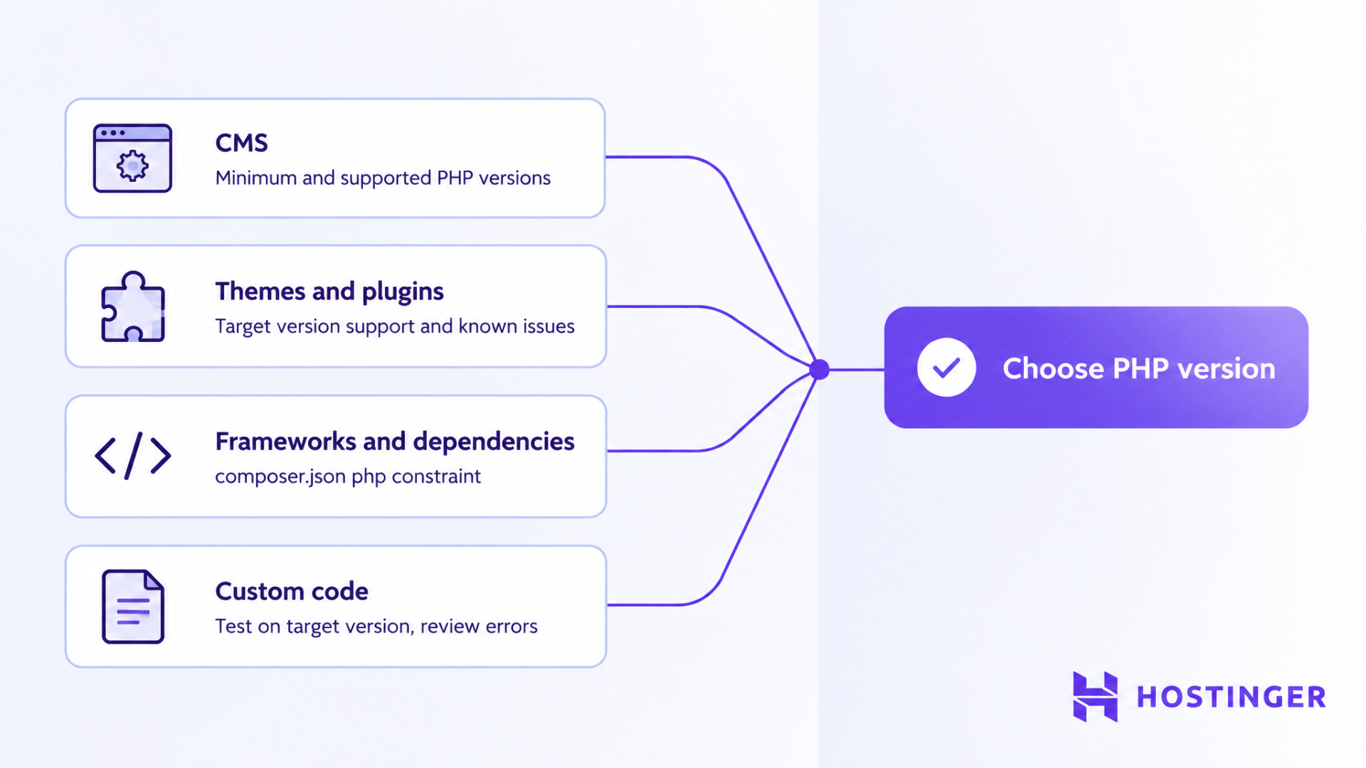
Use the highest supported PHP branch that meets all of those requirements. When WordPress, the active theme, required plugins, and custom PHP code all support PHP 8.5, test the site on PHP 8.5 before switching production to that version.
A required plugin that supports only PHP 8.4 means you should remain on PHP 8.4 until you update or replace the incompatible plugin.
Don’t solve a compatibility problem by moving production to an end-of-life PHP release. Each PHP branch gets bug and security fixes during active support, then critical security fixes only, and no fixes at all once it reaches end of life.
Once you’ve identified a compatible supported version, test it on a staging or local copy before changing production.
Check the site’s main pages, forms, login and administration areas, ecommerce or other critical functions, and PHP error logs. Move production to the target version after those checks pass.
As of October 2026, the status of recent PHP branches is:
PHP version | Status as of Oct. 26, 2026 | What happens next |
8.5 | Active support | Active support through 2027, then security fixes through 2029 |
8.4 | Active support | Active support through 2026, then security fixes through 2028 |
8.3 | Security fixes only | Security fixes until December 31, 2027 |
8.2 | Security fixes only | Support ends at the end of 2026 |
8.1 | End of life | No longer supported |
8.0 | End of life | No longer supported |
What to check before changing the PHP version
Before changing PHP, confirm your current version, update your website software, and verify compatibility with the target version. Once those requirements are clear, resolve existing PHP errors, create a backup, and test the new version on a separate site where possible.
Work through these checks before making the switch:
- Confirm your current PHP version. Check which PHP version your site uses and note it before making changes. Knowing the starting version helps you identify which PHP changes your application needs to support and gives you a version to temporarily revert to if troubleshooting is necessary.
- Update your website software. Install available updates for your CMS, themes, plugins, frameworks, dependencies, and application code. Older releases are more likely to contain code that doesn’t support newer PHP versions.
- Verify support for the target PHP version. Review the PHP requirements and compatibility information for the software your site depends on. Pay particular attention to required plugins, themes, frameworks, and custom code that could prevent the application from running on the target version.
- Resolve existing PHP errors and warnings. Review your PHP or website error logs before changing versions. Fix existing problems first so you can distinguish them from errors introduced by the PHP change.
- Create a current backup. Back up the website files and database before switching PHP. Make sure the backup is recent enough to restore the site to its pre-change state if necessary.
- Test the target version outside production. Where possible, switch a staging or local copy to the target PHP version first. Test the site’s main pages and critical functions, such as forms, logins, checkout flows, administration tools, and any custom functionality. Review the error logs again after testing for problems that aren’t visible in the browser.
Once the staging or local version works correctly and its logs don’t show new PHP compatibility errors, you have a much safer basis for changing the production site’s PHP version.
Why should you keep PHP up to date?
Keeping PHP up to date provides current security and bug fixes, performance improvements, and compatibility with actively maintained CMSs, frameworks, and other software.
Staying on a supported version also reduces maintenance problems as the software your website depends on adopts newer PHP requirements.
Once a PHP branch reaches end of life, the PHP project stops releasing security fixes for it. Vulnerabilities discovered afterward can therefore remain unpatched.
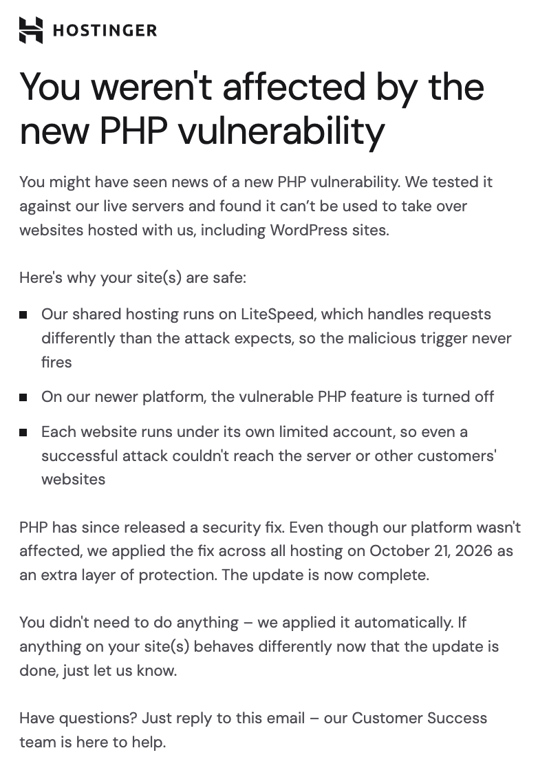
On October 21, 2026, the PHP project released fixes for the PHP2Shell vulnerability, which comprised two critical vulnerabilities, CVE-2026-109618 and CVE-2026-109619. The flaws enabled unauthenticated remote code execution, and updating PHP was the only complete fix. Patches were released in PHP 8.5.12, 8.4.27, 8.3.36, and 8.2.35.
Hostinger automatically deployed the PHP2Shell fixes across its managed hosting platform, so customers on Web, Cloud, Agency, and cPanel hosting didn’t need to take action for this incident.
We also notified affected customers by email and displayed a notice in the Hostinger dashboard confirming that the security fix had been applied.
VPS users who manage PHP themselves need to install a patched PHP release and restart PHP.
What to do if changing PHP breaks your website
Revert to the previous working PHP version if your hosting environment allows it. Treat this as a temporary troubleshooting step that restores the site while you identify what isn’t compatible with the new version.
Next, review what changed when you switched PHP versions:
- Look for PHP errors. Check your website error log for entries generated immediately after the PHP version change. Messages that name a plugin, theme, PHP file, function, or extension can point you to the component causing the failure.
- Update the affected software. Install a compatible release of the plugin, theme, framework, library, or application code identified in the error. Replace software that is no longer maintained and doesn’t support your target PHP version.
- Review PHP extensions. Make sure the extensions your application requires are available and enabled for the new PHP version. Available extensions can differ between PHP versions, and Hostinger resets configurable PHP extension values to their defaults when you change versions. Reapply any custom settings your application requires.
- Test the target PHP version again. Switch back to the newer version after resolving the compatibility problem, then test the affected feature and review the error logs for new PHP errors.
When the PHP-specific checks don’t resolve the problem, troubleshoot common website issues such as DNS problems, server errors, database connection failures, or incorrect file permissions.
This article is a localized version of How to change your PHP version, originally published in English.

Ksenija is a digital marketing enthusiast with extensive expertise in content creation and website optimization. Specializing in WordPress, she enjoys writing about the platform’s nuances, from design to functionality, and sharing her insights with others. When she’s not perfecting her trade, you’ll find her on the local basketball court or at home enjoying a crime story. Follow her on LinkedIn.

Aris is a Content Writer specializing in Linux and WordPress development. He has a passion for networking, front-end web development, and server administration. By combining his IT and writing experience, Aris creates content that helps people easily understand complex technical topics to start their online journey. Follow him on LinkedIn.