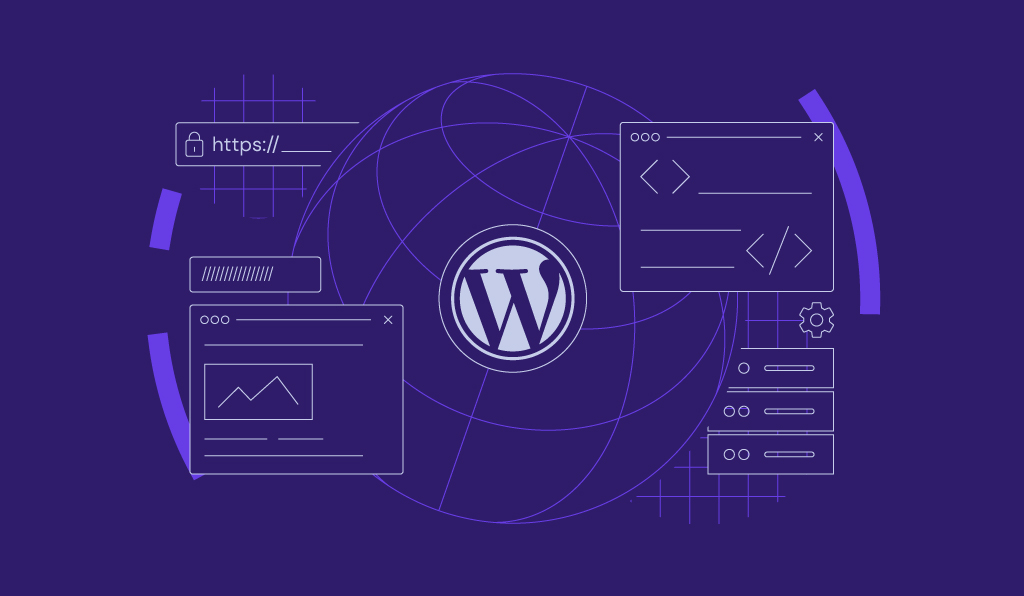
WAMP is a software stack for Windows that bundles the Apache web server, the MySQL database, and the PHP programming language so you can run dynamic websites on your own computer. Developers use WAMP as a local server to build and test sites, including WordPress, before publishing them with a web host.
Below, you’ll learn what each part of WAMP does, what the stack is used for, and how it compares with LAMP, MAMP, and XAMPP. You’ll also find its main advantages and limitations and the first steps to install WampServer, a free WAMP package for Windows.
What does WAMP stand for?
WAMP stands for Windows, Apache, MySQL, and PHP: one operating system plus three open-source programs that together turn a Windows computer into a web server running on localhost. Installing a WAMP package sets up all three programs at once, so you don’t have to install and connect them separately.
- W is for Windows. Windows is the operating system the stack runs on, and WAMP packages are built for Windows only.
- A is for Apache. Apache is the web server software. When you open a page in your browser, Apache receives the HTTP request and sends the page back.
- M is for MySQL. MySQL is the database management system that stores your site’s data, such as posts, pages, and user accounts. Some WAMP packages, including WampServer, also offer MariaDB, a MySQL-compatible database.
- P is for PHP. PHP is the server-side scripting language that generates dynamic pages. It runs through Apache and reads from and writes to the MySQL database, and because WordPress is written mainly in PHP, WAMP can run WordPress sites.
What is WAMP used for?
WAMP is mainly used to build and test websites and web applications on your own computer before publishing them. Because the whole stack runs locally, you can install WordPress, try themes and plugins, or debug PHP code without touching a live site.
Common uses for WAMP include:
- Developing and testing WordPress sites, themes, and plugins offline.
- Learning PHP and MySQL without paying for a server.
- Testing updates, such as a new PHP version, before applying them to a live site.
- Working on a project without an internet connection or waiting for file uploads.
A WAMP site is reachable only from your own computer. To make it public, you move its files and database to a server that stays connected to the internet, so understanding how web hosting works helps you plan that move.
WAMP vs. LAMP, MAMP, and XAMPP: what’s the difference?
WAMP, LAMP, MAMP, and XAMPP all bundle a web server, a database, and a scripting language; the main difference is the operating system they run on. LAMP is the original stack for Linux, and WAMP and MAMP adapt the same idea for Windows and macOS.
| Stack | Operating system | Main components | Typical use |
|---|---|---|---|
| WAMP | Windows | Apache, MySQL or MariaDB, PHP | Local development on a Windows computer |
| LAMP | Linux | Apache, MySQL or MariaDB, PHP (or Perl or Python) | Live web servers and Linux development machines |
| MAMP | macOS | Apache, MySQL, PHP | Local development on a Mac |
| XAMPP | Windows, Linux, macOS | Apache, MariaDB, PHP, Perl | Cross-platform local development |
Verdict: Choose WAMP if you develop only on Windows and want a Windows-native tool. Pick MAMP on a Mac, and XAMPP if your team uses different operating systems and needs the same setup everywhere. LAMP is the stack to learn if you plan to manage your own Linux server.
What are the advantages and limitations of WAMP?
WAMP’s main advantage is a free, private test environment on your own Windows computer. Its main limitation is that it isn’t built to host live websites.
Advantages of WAMP
- Free to use: WAMP packages such as WampServer cost nothing to download and install.
- Safe testing: changes, updates, and errors affect only your computer, not a live site.
- Faster development: you edit files directly on your computer instead of uploading them after every change.
- Simple setup and management: one installer sets up the whole stack, and WampServer adds a menu for starting services and switching PHP versions.
Limitations of WAMP
- Local only: by default, only your computer can open WAMP sites, so you still need a web host to publish one.
- Windows only: macOS and Linux users need MAMP, LAMP, or XAMPP instead.
- Differences from live servers: many web servers run Linux, which treats file names such as Image.jpg and image.jpg as different files while Windows doesn’t, so code that works locally can break after upload.
- Maintenance: you’re responsible for updating PHP, Apache, and MySQL on your computer, including security releases.
How to get started with WampServer
The easiest way to set up WAMP is to install WampServer, a free Windows package that installs the whole stack in one step. WAMP is the general name for the Windows, Apache, MySQL, and PHP combination, while WampServer is one specific product that bundles Apache 2.4, PHP, MySQL, and MariaDB, plus phpMyAdmin and Adminer for database management.
Instead of a traditional control panel, WampServer uses the Tray Menu Manager, an icon in the Windows taskbar. Its left-click and right-click menus let you start and stop services, switch PHP versions, and change server settings without editing configuration files.
Before installing WampServer, check these requirements:
- A 64-bit edition of Windows. WampServer no longer supports 32-bit systems, and its maintainers ended Windows 10 support in October 2025.
- A drive formatted with NTFS. WampServer doesn’t support FAT32 or exFAT.
- Up-to-date Microsoft Visual C++ Redistributable packages. On 64-bit Windows, install both the x86 and x64 versions.
- No other software using port 80, such as Microsoft IIS.
Then follow these steps:
- Download the latest WampServer installer from the WampServer files and add-ons site.
- Right-click the installer and select Run as administrator.
- Choose an installation folder at the root of a drive with no spaces in the path, such as C:wamp.
- Complete the installer and launch WampServer.
- Wait for the WampServer icon in the notification area to turn green, which means all services are running.
- Open http://localhost in your browser. If the WampServer homepage loads, your local server is working.
Never install WampServer over an existing version. The installation won’t work, and you risk losing your existing databases, so back up your databases and remove the old version first.
Next steps after installing WAMP
Start by adding a test PHP file or project folder to WampServer’s www folder and opening it at http://localhost to confirm everything works. WordPress is a common first project: you can install WordPress locally on WAMP and build your site offline.
When your site is ready for visitors, move it to a web hosting service that keeps it online around the clock. You’ll also need a domain name, so search for a domain name that fits your project before you launch.

This article is a localized version of What is WAMP? A beginner’s guide to the Windows web stack, originally published in English.

Emma is an advocate for organized chaos. She loves longboarding, yoga, and cyber security. On a normal day, her content strategy is surfing the waves of content platforms, flexing the forms of social media and blog, and unlocking the paths of untouched SEO techniques.