To set up OpenClaw with Ollama on a VPS, install Ollama, connect it to OpenClaw as an AI model provider, choose a model to run, and test the connection before securing the setup.
Pairing OpenClaw with Ollama lets you create private, autonomous AI agents that run on your own server instead of a commercial AI provider’s infrastructure.
Many people start using OpenClaw with commercial large language models (LLMs), such as OpenAI’s GPT or Anthropic’s Claude models. However, these providers charge per token. Every prompt your agent sends and every response it generates adds to your usage costs.
An OpenClaw Ollama setup offers a different approach. Ollama lets you run open-source AI models on your own infrastructure. When you run models locally, you avoid per-token model API fees, but still pay infrastructure costs, such as hosting a virtual private server (VPS).
Follow these steps to run OpenClaw with Ollama:
- Check and prepare the system prerequisites.
- Install Ollama on the same server as OpenClaw or on a separate server.
- Configure Ollama as an AI model provider in OpenClaw.
- Choose an Ollama model to run locally or access through a remote Ollama server.
- Confirm that the connection between OpenClaw and Ollama works.
- Secure OpenClaw and Ollama on your VPS.
How do OpenClaw and Ollama work together?
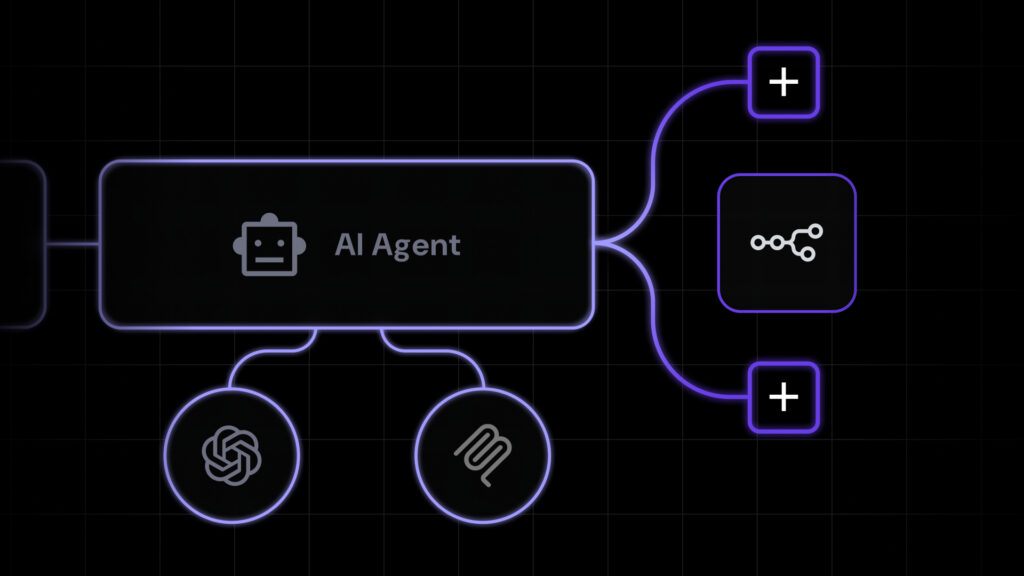
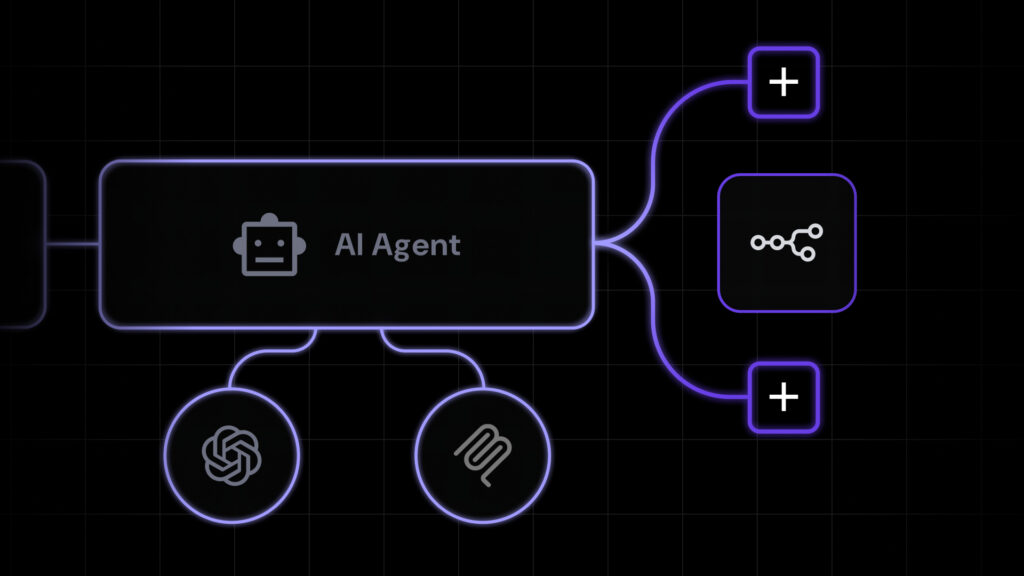
OpenClaw and Ollama work together by pairing an AI agent gateway (OpenClaw) with a local AI model runner (Ollama). This connection lets OpenClaw use Ollama to process prompts and run private AI workflows without commercial API fees.
When you send a message through Telegram, Slack, or another messaging channel connected to OpenClaw, the OpenClaw Gateway (a background process that manages messaging channels, agent sessions, tools, and model connections) forwards your request to Ollama.
Ollama then processes the request with your selected AI model and sends the response back through the Gateway to the messaging app.
This workflow lets you interact with the AI agent directly from your preferred messaging platform without opening the OpenClaw or Ollama interface.
This setup offers three main advantages:
- Greater privacy. Ollama can process prompts and responses on your own infrastructure instead of sending them to a commercial AI provider.
- More predictable costs. You don’t pay per-token API fees, although you still need to cover server, electricity, and maintenance costs.
- More control. You can choose which supported model to run and manage where OpenClaw stores and processes your data.
How to configure OpenClaw with Ollama on a VPS
To configure OpenClaw with Ollama on a VPS, check the system requirements, install Ollama on the VPS, configure Ollama in OpenClaw, and choose an AI model. Then, test the connection and secure your setup if needed.
1. Check the prerequisites
Before setting up Ollama with OpenClaw, make sure you have a working OpenClaw installation. The resources you need depend on where Ollama runs and whether you use a local or cloud model.
- Same VPS. Allow enough RAM, CPU, and storage for OpenClaw, Ollama, and your chosen local model.
- Separate servers. Size the OpenClaw VPS for OpenClaw and the Ollama server for the local model. The OpenClaw VPS doesn’t need to load the model itself.
- Cloud models: Ollama runs the model remotely, so your VPS doesn’t need enough RAM or storage to load the full model.
For local Ollama models, check the download size to plan storage. Note that RAM requirements also depend on the context window and other running services.
If you don’t have a VPS to set up OpenClaw and Ollama, you can purchase one from a reliable provider such as Hostinger.
Hostinger offers a preconfigured OpenClaw template, so you don’t need to install OpenClaw manually through the command-line interface (CLI).
Simply choose a VPS plan based on the resource requirements of the model you want to run. For reference, Hostinger’s KVM 4 plan includes 16 GB of RAM. Check your model’s memory use before selecting a plan, especially if OpenClaw and Ollama will share the same VPS.
After you complete the purchase, Hostinger will deploy the preconfigured OpenClaw environment for you.

2. Install Ollama on your VPS
You can install Ollama on the same VPS as OpenClaw, or on a separate one to isolate resource usage and give Ollama access to more powerful hardware.
The installation process is nearly identical for both setups. First, update the package index and install curl:
sudo apt update && sudo apt install curl -y
Then, run Ollama’s official installation script:
curl -fsSL https://ollama.com/install.sh | sh
Run the following command to confirm that Ollama was installed successfully:
ollama --version
The installation script configures Ollama as a system service. Check its status with:
systemctl status ollama
If the service isn’t running, start it with:
sudo systemctl start ollama
You can also configure Ollama to start automatically when the server boots:
sudo systemctl enable ollama
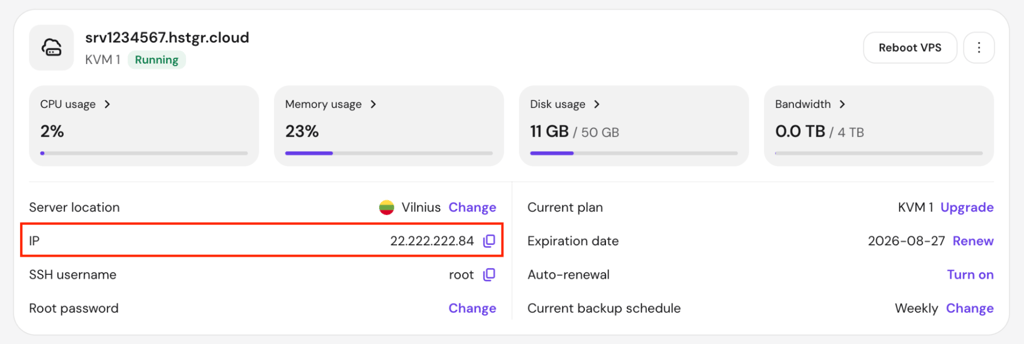
If you installed Ollama on a separate VPS, note its IP address. You’ll need it later when configuring Ollama as the AI model provider in OpenClaw. Hostinger VPS customers can find the IP address in Hostinger dashboard by going to VPS → Manage → Overview → IP.
By default, Ollama listens on 127.0.0.1:11434, so only applications on the same server can access it. If OpenClaw runs on a separate VPS, first restrict access to the Ollama API with Uncomplicated Firewall (UFW). Then, configure Ollama to accept connections from the OpenClaw server.
Check whether UFW is installed and review its status and existing rules:
sudo ufw status verbose
If UFW isn’t installed, install it with sudo apt install ufw.
Allow SSH access before enabling the firewall:
sudo ufw allow OpenSSH
This rule allows the default SSH port, 22. If your server uses a custom SSH port, allow that port instead. Also allow any other services you need before enabling UFW.
Next, allow the OpenClaw VPS to connect to Ollama. Replace openclaw-vps-ip with the IP address your OpenClaw VPS uses to reach the Ollama server:
sudo ufw allow from openclaw-vps-ip to any port 11434 proto tcp
If UFW is inactive, enable it:
sudo ufw enable
Check the firewall configuration again:
sudo ufw status verbose
Confirm that the status is active, the default incoming policy is deny, and the rule for port 11434 allows your OpenClaw VPS IP. Check for any broader rule that allows other IPs to access port 11434 and remove it before continuing.
Configure Ollama to accept network connections. Open its systemd configuration editor:
sudo systemctl edit ollama
Add the following configuration:
[Service]
Environment="OLLAMA_HOST=0.0.0.0:11434"
Save the file, then reload systemd and restart Ollama:
sudo systemctl daemon-reload
sudo systemctl restart ollama
The firewall limits which IP address can reach the API, but it doesn’t encrypt traffic between the servers. Use a private network or VPN if the connection would otherwise pass over the public internet.
3. Configure the Ollama provider in OpenClaw
After installing Ollama, connect it to OpenClaw as the AI model provider.
Important! If you set up OpenClaw and Ollama on separate VPSs, run all commands in this step on your OpenClaw server, not on the Ollama server.
On the OpenClaw VPS, list the running Docker containers:
docker ps
Find the OpenClaw container and copy its name from the NAMES column. Replace your-openclaw-container with that name to open a shell inside it:
docker exec -it your-openclaw-container bash
Once you’re inside the container, start the onboarding tool:
openclaw onboard
The onboarding tool guides you through the configuration. When prompted, select Ollama as the model provider.
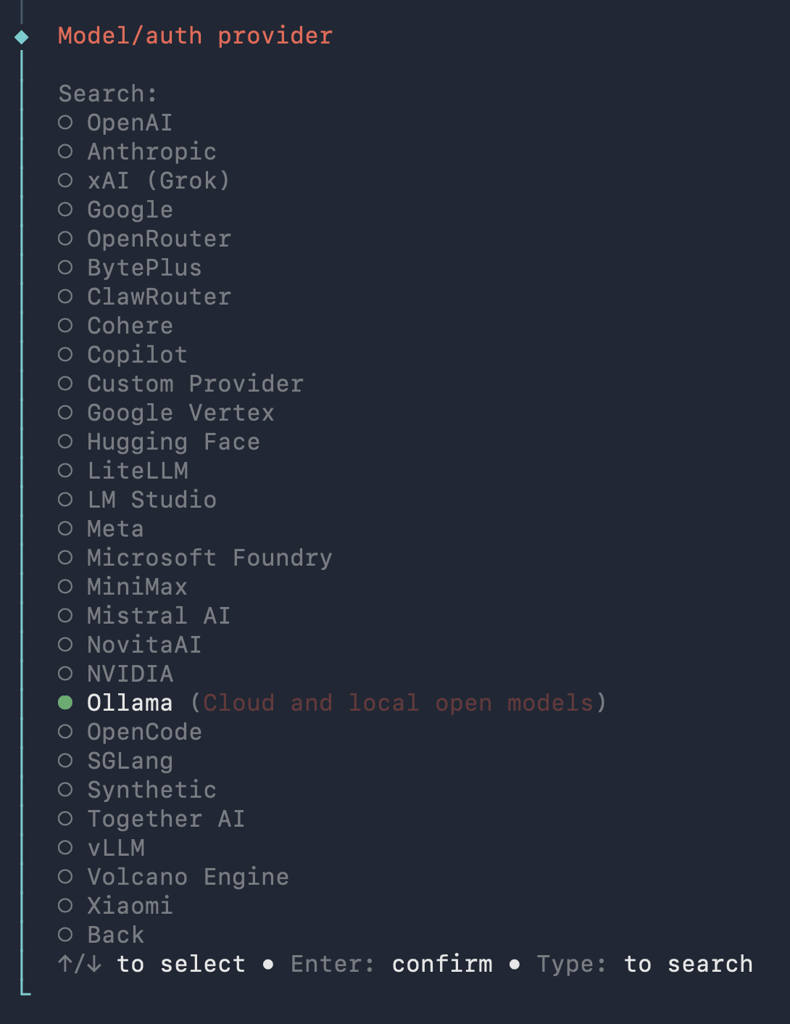
Then, choose one of these deployment modes:
- Ollama. Use both local and cloud models, with cloud models available as a fallback for more demanding tasks.
- Ollama Cloud. Use Ollama Cloud models without installing locally.
The tool then asks for the Ollama host address. Enter the address that matches your setup:
- http://host.docker.internal:11434. Use this address if Ollama runs on the same VPS. It lets the OpenClaw container connect to Ollama on the host machine.
- http://your-ollama-vps-ip:11434. Use this address if Ollama runs on a separate server. Replace your-ollama-vps-ip with the IP address you noted during installation.
Skip this prompt if you chose Ollama Cloud, because OpenClaw connects directly to ollama.com.
If the onboarding command doesn’t work or you need to customize specific settings, configure the connection manually. First, find the active configuration file by running this command inside the OpenClaw container.
openclaw config file
OpenClaw prints the configuration file path. Open that file with the nano text editor, replacing path-to-config-file with the path from the output:
nano path-to-config-file
The default path is ~/.openclaw/openclaw.json, but your setup may use a different location.
Add the following Ollama provider settings to the existing configuration. Preserve any settings already in the file, and merge the models and providers objects if they already exist:
{
   "models": {
      "providers": {
         "ollama": {
            "baseUrl": "http://host.docker.internal:11434",
            "apiKey": "ollama-local",
            "api": "ollama",
            "models": [
               {
                  "id": "gemma4",
                  "name": "gemma4",
                  "input": ["text"],
                  "params": {
                     "num_ctx": 65536
                  }
               }
            ]
         }
      }
   }
}
Adjust these settings based on your setup:
- baseUrl. Use http://host.docker.internal:11434 if Ollama runs on the same VPS. If it runs on a separate server, use http://your-ollama-vps-ip:11434 instead.
- Model name and API key. Replace gemma4 with the model you want to use. For cloud models, replace ollama-local with your Ollama API key and change the model name to a cloud model, such as kimi-k3:cloud.
- params.num_ctx. Set this value to at least 65536 for local models. OpenClaw agents need at least 64,000 tokens of context to handle multi-step tasks without losing track of earlier steps. Cloud models manage context automatically, so you can remove this setting if you only use cloud models.
Save the file by pressing Ctrl + X → Y → Enter. Then, restart the OpenClaw Gateway to apply the changes:
openclaw gateway restart
Warning! Don’t append /v1 to the Ollama base URL. The /v1 path activates OpenAI-compatible mode, which breaks tool calling and can cause the agent to output raw JSON as plain text instead of producing functional responses.
4. Choose an Ollama model for OpenClaw
Choose a specific Ollama model for your agent. Your pick affects how well the agent reasons, how quickly it responds, and how much RAM it uses.
If OpenClaw and Ollama run on the same VPS, you can run these commands on that server. If they run on separate VPSs, pay close attention to where you run each command.
For local models, start by downloading the model. Run this command on the server where Ollama is installed:
ollama pull gemma4
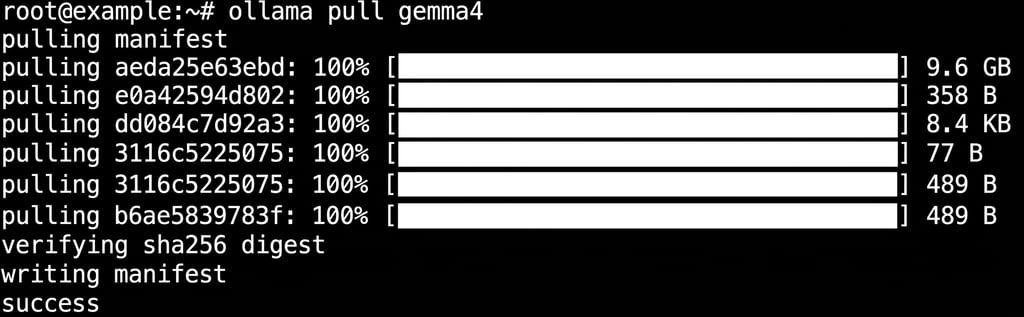
Then, switch to your OpenClaw VPS. If you’re not already inside the container, enter it first, then set the model:
docker exec -it your-openclaw-container bash
openclaw models set ollama/gemma4
For cloud models, run these commands instead on your OpenClaw server:
docker exec -it your-openclaw-container bash
openclaw models set ollama/kimi-k3:cloud
If you chose a local model, test it before checking the OpenClaw connection. Run the model directly on the server where Ollama is installed:
ollama run gemma4
Start with a basic conversational prompt. Then, ask the model to complete a structured task, such as formatting data into a specific layout or following a multi-step instruction.
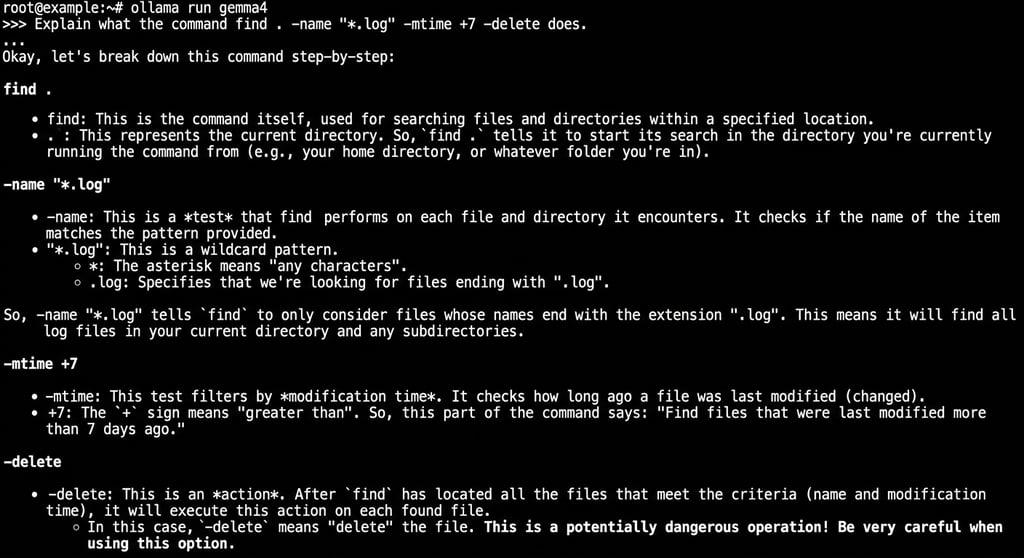
While the model runs, monitor your VPS memory usage and response speed.
If the system becomes unstable or too slow to use, the model is too large for your server. Switch to a smaller local model or a cloud model before continuing.
5. Test the OpenClaw and Ollama connection
Verify that OpenClaw can reach Ollama, send prompts, and receive responses. Run all these commands inside the OpenClaw container except the last one.
First, check that OpenClaw can reach Ollama over the network. Send a test request directly to the Ollama API:
curl http://host.docker.internal:11434/api/chat -d '{"model":"gemma4","messages":[{"role":"user","content":"Reply with: pong"}]}'Replace host.docker.internal with your Ollama server’s IP address if Ollama runs on a separate VPS. Also, replace gemma4 with the model you selected.
A JSON response containing “pong” confirms the network connection works. If the request fails, make sure the Ollama service is running, the firewall allows access, and the server address is correct.

Next, verify that OpenClaw is configured correctly. Run a test prompt through OpenClaw that bypasses the agent’s tools:
openclaw infer model run --model ollama/gemma4 --prompt "Reply with exactly: pong"
Replace gemma4 with the model you selected before.
If this command fails, check the baseUrl, api, and model name settings in the OpenClaw configuration file you located before.
Then, confirm that the model can handle tool calls. Enable a low-risk tool, such as file reading, then ask the agent to complete a task that requires it. For example, ask the agent to list the files in a directory.
If the agent completes the task correctly, your setup is working. If it makes up the result instead of calling the tool, the model doesn’t reliably support OpenClaw’s tool-calling format. Pull a different model and set it as the active model.
After all three checks pass, verify the context window configuration on your Ollama VPS:
ollama ps
Check the CONTEXT column against the context window you configured for the model. If it shows a lower value than expected, review the params.num_ctx setting in the OpenClaw configuration file you located previously.
6. Secure the Ollama API on your VPS
If you installed Ollama on a separate server, confirm that its firewall allows API connections only from your OpenClaw VPS. Use a private network or VPN to protect traffic between the servers.
If both tools run on the same server, keep Ollama bound to 127.0.0.1 when your OpenClaw setup can reach it there. Check the container’s network configuration if the connection fails.
The remaining concern is how secure OpenClaw is. When you enable tools, the agent can read files, run commands, and send messages on your behalf.
A misunderstood instruction or malicious prompt can cause real damage if the agent has unrestricted access.
Take these steps to secure OpenClaw:
- Run the OpenClaw container under a dedicated user with limited file system access instead of running it as root.
- Disable tools that your workflow doesn’t need, such as shell access, browser access, and file writing. Start with the minimum permissions required, then expand them only after testing the workflow safely.
- Enable approval prompts for any action that modifies files, sends messages, or runs commands. Review the tool arguments in the approval prompt, not just the tool name, because the agent can call the correct tool with unsafe parameters.
- Review OpenClaw logs regularly for unexpected tool calls, especially after tasks that produced unusual or incorrect results.
What are the best Ollama models for OpenClaw?
The best Ollama models for OpenClaw on a VPS include cloud models such as kimi-k3:cloud and glm-5.3:cloud for complex agent tasks, and local models such as gemma4 and qwen3.5 for processing prompts on your own server.
The right choice depends on how much RAM your VPS has, whether you need your data to stay on the server, and how reliably the model handles OpenClaw’s tool calls.
Here are some recommended Ollama cloud models:
| Model | Context window | Best for |
| kimi-k3:cloud | 1 million tokens | Research, multimodal tasks, and long agent workflows |
| kimi-k2.7-code:cloud | 256K tokens | Coding and multi-step tool use |
| glm-5.3:cloud | 1 million tokens | Coding and long-running agent workflows |
| gemma4:cloud | 256K tokens | General reasoning, coding, and multimodal tasks |
Cloud models are a practical starting point for most VPS users because Ollama runs the model remotely instead of using your server’s RAM and CPU.
Some recommended Ollama local models include:
| Model | Download size | Maximum context | Best for |
| gemma4:e4b | Approximately 6.6–9.5 GB, depending on the format | 128K tokens | General reasoning, coding, and agent workflows |
| qwen3.5:9b | Approximately 6.6–7.6 GB, depending on the format | 256K tokens | Coding, vision, and document processing |
| qwen3-coder:30b | Approximately 19 GB | 256K tokens (natively), 1M tokens (extrapolation) | Coding-focused agent tasks |
Local models run entirely on your VPS. Since most VPS plans don’t include a dedicated GPU, they may respond more slowly than cloud models, especially during multi-step tasks. However, your prompts and responses stay on your server.
Download size refers to storage space, not total RAM requirements. On a CPU-only server, Ollama uses system RAM to run the model, with additional memory needed for the context window and other processes.
The maximum context column shows the model’s supported limit. Your server may need a smaller context window to fit within its available memory. These requirements apply to the server running Ollama, whether it shares a VPS with OpenClaw or runs separately.
Best practices for running OpenClaw with Ollama
Some of the best practices for running OpenClaw with Ollama include preloading local models, using specific model tags, backing up OpenClaw regularly, and testing other models as your workflows become more complex.
- Preload local models before important tasks. Ollama unloads models after five minutes of inactivity by default. The next request may take longer while the model reloads. Run
ollama run gemma4 ""on your Ollama server before starting a time-sensitive task. You can also use Ollama’s keep_alive setting to keep the model loaded longer. - Use a specific model tag. When you configure OpenClaw or run ollama pull, specify the exact model tag you tested instead of relying on the floating latest tag. This keeps your agent on the same model version until you intentionally update it.
- Back up OpenClaw regularly. Run openclaw backup create on a schedule to back up your configuration, credentials, agent state, and workspace data. Store the backup in a secure location because it may contain sensitive information. You can also verify a backup with openclaw backup verify.
- Switch models when tasks become more complex. A model that handles simple prompts may struggle with long conversations or workflows that require several tool calls. Consider switching to a stronger model when your current one loses context or produces unreliable tool calls. Test the candidates with your actual OpenClaw tasks instead of relying only on model size or benchmark scores.
How to troubleshoot common OpenClaw and Ollama errors
To troubleshoot common OpenClaw and Ollama errors, verify that OpenClaw can reach the Ollama server, confirm that both tools use the same model name and provider URL, check the context window, and review the Ollama logs for memory or timeout issues.
- OpenClaw can’t reach Ollama. Run the curl connection test inside the OpenClaw container. If it returns “Connection refused,” switch to the Ollama VPS and run systemctl status ollama to confirm that the service is running. If Ollama runs on a separate VPS, make sure OLLAMA_HOST is set to 0.0.0.0:11434 and the firewall allows connections from the OpenClaw VPS IP address to port 11434. After changing OLLAMA_HOST, restart Ollama with sudo systemctl restart ollama.
- OpenClaw can’t find the model. On the Ollama VPS, run ollama list to confirm that you downloaded the model. Then, run
openclaw models list --provider ollamainside the OpenClaw container to check which Ollama models OpenClaw recognizes. Make sure the model name and tag match exactly. For example, gemma4 uses the default latest tag, while gemma4:12b selects a specific variant. After correcting the name, set the model again with openclaw models set ollama/model-name. - The agent outputs raw JSON instead of calling tools. Inside the OpenClaw container, check whether the Ollama baseUrl ends with /v1. OpenClaw’s native Ollama provider requires the base URL without this suffix, such as http://host.docker.internal:11434 or http://your-ollama-ip:11434. Remove /v1, save the configuration, and restart the Gateway with openclaw gateway restart.
- The agent runs out of context during multi-step tasks. On the Ollama VPS, run ollama ps and check the CONTEXT column. If the value is too low for your workflow, run openclaw config file inside the OpenClaw container to locate the active configuration file. Increase params.num_ctx, save the file, and restart the Gateway with openclaw gateway restart. Note that larger context windows use more memory, so choose a value your server can handle.
- Ollama returns incomplete responses or stops unexpectedly. On the Ollama VPS, run
journalctl -u ollama --no-pager --follow --pager-endto view the service logs. If the logs indicate memory pressure, reduce the context window or switch to a smaller model. If slow inference causes requests to time out, increase the Ollama provider’s timeoutSeconds value in the OpenClaw configuration file. Then, restart the Gateway from the OpenClaw container.
How does running Ollama compare to using external AI APIs?
Running Ollama locally means hosting open-source AI models on your own infrastructure, while Ollama Cloud and external AI APIs run models on infrastructure managed by third-party providers.
The main tradeoff is greater control and data privacy versus easier scaling, faster setup, and less infrastructure maintenance.
| Factor | Self-hosted Ollama | Ollama Cloud | External API, such as OpenAI or Anthropic |
| Model usage cost | No per-token model fees | Free and paid plans with usage limits | Usually charged by input and output token usage |
| Infrastructure cost | VPS hosting and computing resources | VPS hosting for OpenClaw | VPS hosting for OpenClaw |
| Data handling | Prompts and responses stay on your server | Ollama processes prompts and responses temporarily in the cloud | The API provider processes prompts and responses according to its data policies |
| Model maintenance | You manage Ollama, model files, updates, and server resources | Ollama manages the model infrastructure | The API provider manages the model infrastructure |
| Performance | Depends on your VPS hardware and Ollama’s model size | Optimized by Ollama’s cloud infrastructure | Depends on the provider’s cloud infrastructure |
| Scaling | Upgrade your VPS or add more servers | Managed by Ollama within your plan limits | Managed by the provider within your account limits |
Self-hosted Ollama removes per-token model fees, but you’re responsible for installing and updating Ollama, managing model files, and providing enough RAM, storage, and processing power on your VPS.
Ollama doesn’t receive your prompts or responses when you run models locally.
With Ollama Cloud, the models run on remote infrastructure, so they don’t use your VPS RAM or GPU. Ollama offers free and paid plans with different cloud usage limits.
According to Ollama’s privacy policy, it processes cloud prompts and responses temporarily to provide the service. Ollama says it doesn’t log this content, use it for training, or retain it after processing.
External APIs such as OpenAI and Anthropic also manage the model infrastructure. They generally charge different rates for input and output tokens, although pricing varies by model and may include separate charges for tools or other features.
Ultimately, your choice affects the total cost of running your existing OpenClaw setup. Self-hosted Ollama shifts more of the cost to VPS resources and maintenance, while cloud models and external APIs add subscription or usage-based costs.
How to expand the OpenClaw and Ollama setup
You can expand your OpenClaw and Ollama setup by adding models, connecting messaging channels, enabling web search, installing skills, and documenting your configuration as a safety net.
- Add or switch models. Run ollama pull model-name on your Ollama server to download another local model. Then, run openclaw models set ollama/model-name inside the OpenClaw container to make it the default model. To use an Ollama Cloud model, sign in to Ollama and set the model with openclaw models set ollama/cloud-model-name.
- Connect a messaging channel. Run openclaw channels add inside the OpenClaw container. Then, select a channel and enter the required credentials. Add one channel at a time, and test incoming and outgoing messages before connecting another. Hostinger customers can follow our guide on connecting OpenClaw to Telegram and WhatsApp.
- Enable web search. Run ollama signin on your Ollama server, then run
openclaw config --section webinside the OpenClaw container. Follow the prompts to select and configure a search provider. - Add skills for specific workflows. Run
openclaw skills search "keyword"inside the OpenClaw container to find a skill on ClawHub. Install it with openclaw skills install @owner/skill-name, then test it with a low-risk task before giving it access to sensitive files, accounts, or commands. - Document your setup. Record the model name and tag, Ollama host address, connected channels, enabled skills, firewall rules, and backup location. Store this information outside the VPS so you can access it if you migrate the server or a faulty update makes the current installation unusable.
This article is a localized version of How to set up OpenClaw with Ollama on a VPS, originally published in English.

Arif is a Technical Content Writer with an educational background in Informatics. He has extensive expertise in Linux and VPS, authoring over 200 articles on server management and web development. Follow him on LinkedIn.