To update WordPress, go to Dashboard → Updates in your WordPress admin area and click Update Now if a new version is available. This is the easiest method for most websites and doesn’t require coding or manual file changes.
Keeping WordPress updated helps protect your website against known security vulnerabilities, fix bugs, and maintain compatibility with themes and plugins. Before updating, create a full backup so you can restore your website if something goes wrong.
If you can’t update WordPress through the dashboard, you can use FTP or WP-CLI instead. You can also configure automatic updates to keep WordPress up to date without installing every new release manually.
This guide covers each method, the precautions to take beforehand, and how to update WordPress themes and plugins.
Reasons to update a site to the latest WordPress version
Like any other software, an update will ensure that WordPress users can improve their sites with the new features, upgrades, and bug fixes.
If you don’t update your WordPress, the site will perform less efficiently as it is outdated, and visitors will be less likely to explore it. As a result, the website will have lower traffic, which isn’t ideal in the long run.
In addition, there are other perks of updating WordPress:
- Better security. Previous versions of WordPress are more prone to security vulnerabilities. Implement security updates to prevent hackers from stealing confidential data.
- Speed. Installing a new version of WordPress can speed up the site. As a result, it will be more responsive on different browsers and devices, encouraging visitors to stay longer and potentially return in the near future.
- Compatibility. The new WordPress release will make your site compatible with plugins and themes. As such, you’ll have no problems installing other features to extend your site’s functionality.
- Functionality. WordPress updates come with implementations of new or improved quality-of-life features. There’ll be more options and tools for scaling up your site.
Before updating WordPress
Before updating to the latest version of WordPress, it’s essential to prepare for any possible missteps.
Warning! Remember that these updates will impact your site files and their database.
Here’s a quick checklist before updating a WordPress site:
- Read and understand the update notice. Find out what the latest update carries through the WordPress changelog. It can either be new features or security patches.
- Check the support forums. See what others say about the latest version of WordPress and whether it contains errors or bugs. Decide if it’s necessary to update now or wait longer. As a rule of thumb, prioritize security updates.
- Create a full WordPress backup. Backups prevent permanent data loss and act as a fallback plan if an error occurs while you’re modifying or updating your website. Make sure you can restore your site.
- Turn off caching. Caching plugins may not recognize if a WordPress installation is taking place, which can impede the process. Clear your WordPress cache and turn off caching plugins first.
- Deactivate other plugins. Some WordPress updates aren’t compatible with certain plugins. This can result in an inaccessible website. Deactivate any add-ons and extensions to install the update.
- Upgrade PHP version. If you find that your current PHP version is not compatible with the update, make sure to update PHP version of your website.
How to update WordPress
Updating WordPress through the admin dashboard is the easiest option for most users. However, if you can’t access the dashboard or prefer managing your website through the command line, FTP and WP-CLI offer alternative ways to install updates.
Choose the method that best fits your situation:
| Method | Best for | Requirements |
|---|---|---|
| WordPress dashboard | Beginners and routine core updates | Access to WordPress admin |
| FTP | Manually updating WordPress when dashboard updates fail | FTP or file manager access |
| WP-CLI | Developers and users managing WordPress through commands | SSH access and WP-CLI |
| Automatic updates | Keeping WordPress updated without manually installing every release | Automatic update settings configured |
For most users, the WordPress dashboard is the recommended starting point. Before proceeding, back up your website and check that your plugins and themes are compatible with the new WordPress version.
1. Update WordPress via the WP admin dashboard
This is one of the easiest ways to update your site to the latest WordPress version. This manual update process is only a click away, and the installation process will only take a few minutes.
All you have to do is log in to your WordPress admin dashboard. Then, check if there is a new WordPress release at the top page of the WordPress admin dashboard.
Click Please update now to initiate the website update. The Updates page will open, where you’ll have to press the Update Now button again. For minor updates, the success message along with the plugin and theme update options will appear.
However, you will see a welcome screen with a detailed summary of what has been upgraded for major releases.
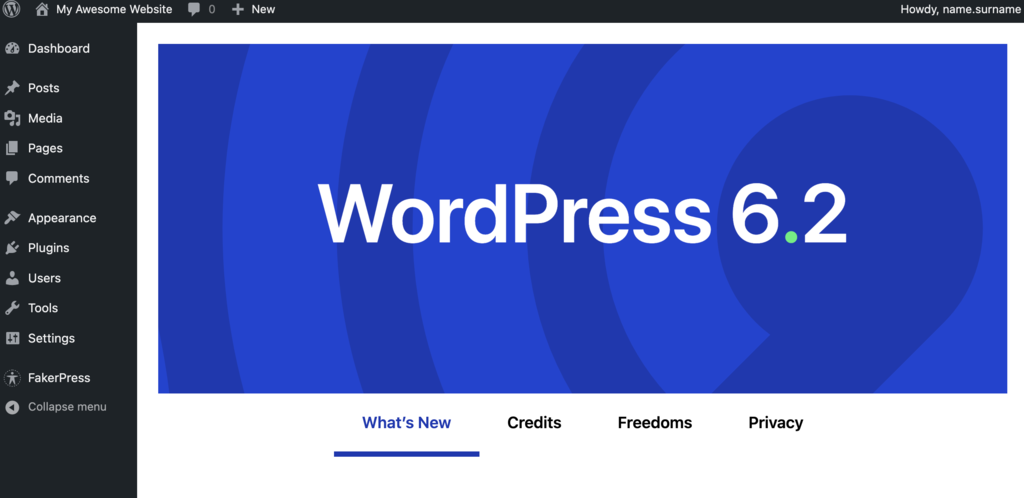
Now you can update all of your themes and plugins to make sure they are compatible with the latest version of WordPress.
Pro Tip
You can also download the latest WordPress version from Hostinger dashboard, in WordPress section.
2. Update WordPress manually via FTP
If you can’t update WordPress through the admin dashboard, you can manually replace its core files using an FTP client like FileZilla. This method is useful when automatic or dashboard updates fail, but it requires access to your website’s files.
Before starting, back up your WordPress files and database. You’ll also need your FTP credentials and access to the WordPress admin area.
Warning! Do not delete or overwrite your existing wp-content directory or wp-config.php file during the update. They contain your website's themes, plugins, uploads, and configuration settings.
Follow these steps to update WordPress using FTP:
- Download the latest WordPress version. Visit WordPress.org and download the latest WordPress ZIP file. Extract it to a folder on your computer.
- Connect to your website using FTP. Open FileZilla and enter your hosting account’s FTP credentials. If you haven’t configured the connection yet, follow our FileZilla setup instructions.
- Locate your WordPress installation. In FileZilla’s remote site panel, open the directory containing your WordPress files, usually
public_html. You should see folders such aswp-admin,wp-includes, andwp-content. - Deactivate your plugins. If you can access the WordPress dashboard, go to Plugins → Installed Plugins, select the active plugins, and use Bulk actions → Deactivate. This helps reduce potential compatibility problems during a manual update.
- Replace the WordPress core directories. In FileZilla, delete the existing
wp-adminandwp-includesdirectories from your server. Then upload the new versions of these directories from the extracted WordPress package.Important: Do not deletewp-contentorwp-config.php. These contain your themes, plugins, media files, and website configuration. - Upload the remaining WordPress core files. Copy the individual files from the root of the extracted WordPress package to your site’s WordPress installation directory. Overwrite the existing core files when prompted, but preserve your current
wp-config.phpfile. - Update the
wp-contentfiles if necessary. Copy any new or updated files from the downloaded package’swp-contentdirectory into the corresponding locations on your server. Do not delete or replace the entire existingwp-contentdirectory. - Complete the database update if prompted. Once the files have finished uploading, visit
https://yourdomain.com/wp-admin/and sign in. If WordPress requires a database update, follow the on-screen instructions. You can also access the upgrade page athttps://yourdomain.com/wp-admin/upgrade.phpwhen needed. - Reactivate plugins and verify the update. Return to Plugins → Installed Plugins and reactivate your plugins. Then go to Dashboard → Updates to confirm that WordPress is running the intended version.
Finally, clear your website cache and test important pages and features, including forms, navigation, and plugin functionality. If you encounter problems, restore your website from the backup and investigate the cause before attempting the update again.

3. Update WordPress via WP-CLI
If you’re reading this part of the tutorial, you probably already have SSH access to your WordPress root directory in the public_html folder.
When everything is configured, take the following actions to update the WordPress site safely to the latest version:
- Once you have access to your SSH account, use the cd command to switch to your WordPress root directory by using the following line:
cd public_html
To list your directory contents, type in the ls command or type cd ~ to change your directory to home.
- Enter the following command to check if the latest version of WordPress is ready to update:
wp core check-update
- If there’s a new version of WordPress available, you will see a similar message:
+---------+-------------+---------------------------------------------------------------+
| version | update_type | package_url                                                   |
+---------+-------------+---------------------------------------------------------------+
| #.#.#   | minor       | https://downloads.wordpress.org/release/wordpress-#.#.#.zip   |
| #.#.#   | major       | https://downloads.wordpress.org/release/wordpress-#.#.#.zip   |
+---------+-------------+---------------------------------------------------------------+
- If there are no updates available, you will see this message instead:
Success: WordPress is at the latest version.
- To start the update, run the following line:
wp core update
- Wait for the process to complete, and your WordPress website will be updated automatically.
Now that you know how to update the core files via WP-CLI, it’s time to upgrade your database. Run these following commands to update WordPress plugins and themes:
wp core update-db
wp theme update --all
wp plugin update --all
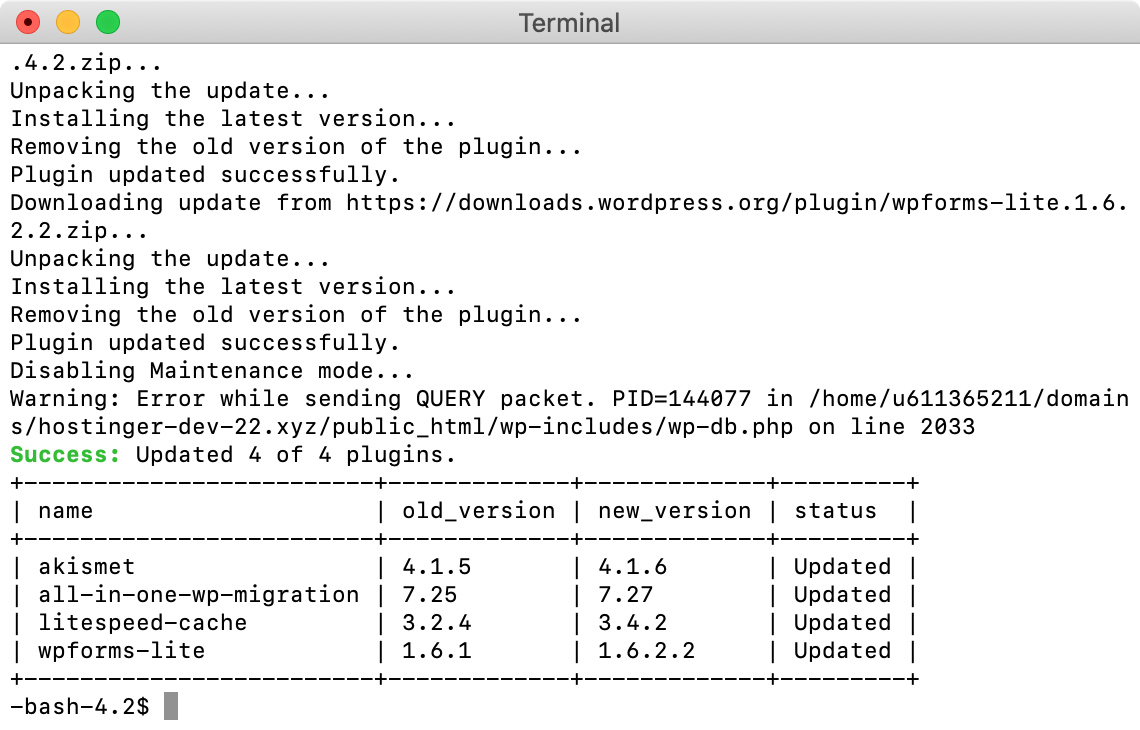
When the program finishes the update process, rerun the previous commands to confirm whether everything is updated correctly. Here’s what it should look like:
4. Configure WordPress automatic updates
WordPress can install updates automatically, reducing the need to check for new releases and update your website manually.
WordPress includes automatic background updates for maintenance and security releases by default, unless your hosting or website configuration changes this behavior. You can also configure automatic updates for major WordPress releases.
If you use Hostinger, you can manage available WordPress automatic update settings through Hostinger dashboard.
For instructions on configuring update preferences, managing automatic updates for plugins and themes, or changing update behavior through wp-config.php, see our guide to managing WordPress automatic updates.
Even with automatic updates enabled, maintain regular backups and check your website after major changes to identify potential compatibility problems.
How to update WordPress themes and plugins
After updating the core WordPress files, don’t forget to do theme and plugin updates as well. If you don’t update your WordPress database, technical and operational errors can mess up the functionality of your website.
It’s important to check all the plugins and themes regularly, so you’ll know which of them require immediate updates. Updating them late will make it more difficult to synchronize the features on your website, heightening the risk of potential crashes.
Before updating, run a test and check if the updated version won’t cause any issues to your website.
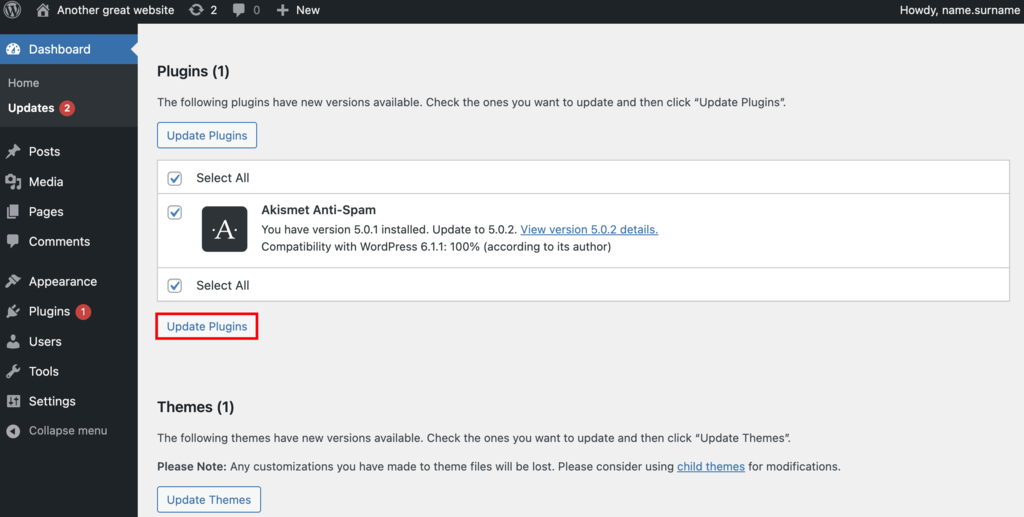
To perform plugin and theme updates, navigate to the Updates page by hovering over the Dashboard menu.
This will lead you to the updates screen. Here, you will find all the plugins and themes that have come out with the newest releases.
Tick Select all to update them all at once, or do it one by one by selecting the specific plugins and themes you want to update. However, be mindful when choosing to update all plugins at a time, as it would use a lot of your plan’s resources and might slow down your website.
Although the process involves the same steps, you’ll have to update your plugins separately from your themes. Make sure to update your caching plugin first to avoid complications.
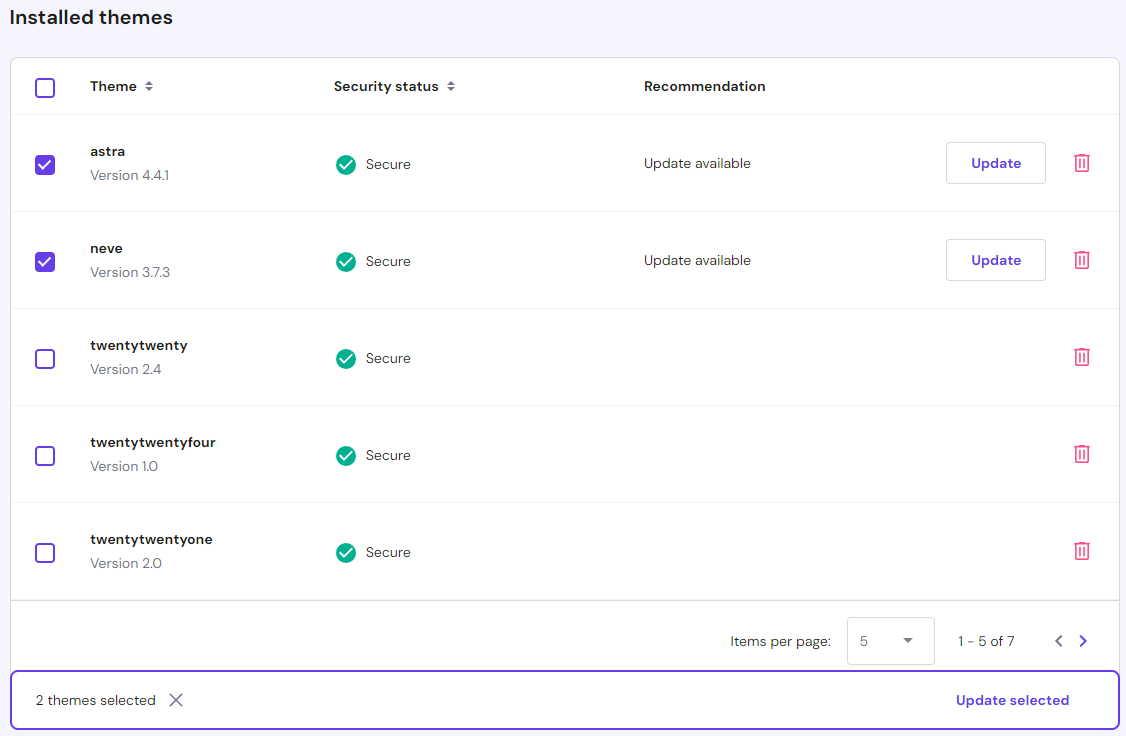
Hostinger users can update their themes and plugins via Hostinger dashboard. Navigate to WordPress → Security from the Hostinger dashboard, then scroll down to the Installed themes and Installed plugins section.
An “Update available” alert will appear next to outdated plugins and themes. Click on the Update button to install the latest version.
Alternatively, select any outdated plugins and themes, and the Update selected button will appear at the bottom to perform a bulk update.
Once you’re done, open a live preview of your site to see whether the updates are successful.
In some cases, you may not receive notifications regarding updates on the dashboard. Usually, plugin developers will send you information about the updates via email, so check your inbox once you finish updating WordPress.
If you’re not satisfied with the current WordPress update, consider eliminating or replacing the themes and plugins that break your site. However, don’t revert a plugin to its older version as it can pose more harm to your website, such as the SEO and traffic downgrade.
Pro Tip
Updating your WordPress theme will get rid of all the customizations you’ve made to the theme. Avoid losing them by using a child theme, instead of editing the parent theme directly.
Conclusion
In this tutorial, you’ve learned how to safely update WordPress through manual and automatic methods without breaking your site – it’s a must-have skill for a website owner.
Updating your site helps improve security and fix bugs. A well-functioning site will attract more visitors and increase your conversion rates.
For updating, you’ll need to check if there are any upcoming WordPress releases, perform a backup, clear the website cache, and perform PHP upgrade. Make sure to also deactivate plugins before updating to the new WordPress version to prevent file errors.
Before you sign off, here’s a quick recap of four ways to update your site to the latest WordPress version:
- Updating through WordPress Admin Dashboard. Click on an automatic update message on the WP admin panel to proceed with WordPress installation.
- Updating manually via an FTP client. Overwrite the old core files with new ones downloaded from the official WordPress repository.
- Updating via SSH and WP-CLI. Run commands on WordPress core files, database, themes, and plugins via an SSH terminal.
- Enabling WordPress automatic updates. Edit wp-config.php via the File Manager of your hosting control panel.
In addition, do not skip upgrading WordPress themes and plugins so that your website can perform its functions. Go to the Updates page in your WordPress admin area and choose whether you want to update each database separately or all at once.
Now that you’ve successfully updated WordPress to the latest version, don’t hesitate to leave a comment below.
Learn What Else You Can Do With WordPress
How to Login to WordPress
How to Install WordPress
How to Undo Changes in WordPress
How to Schedule Posts in WordPress
How to Manage User Roles and Permissions in WordPress
How to Reinstall WordPress
How to Add Facebook Like Button to WordPress
How to Install WordPress on a Subdomain
Guide to WordPress Favicons
This article is a localized version of How to update WordPress: four quick and simple ways, originally published in English.

Domantas leads the content and SEO teams forward with fresh ideas and out of the box approaches. Armed with extensive SEO and marketing knowledge, he aims to spread the word of Hostinger to every corner of the world. During his free time, Domantas likes to hone his web development skills and travel to exotic places.