What is a WordPress activity log, and why should you track changes on WordPress?
Apr 23, 2025
/
Jordana A.
/
7 min Read

Every website owner should keep track of all the activities on their site. Knowing what’s happening on your WordPress website makes handling security issues easier. Unfortunately, this isn’t an easy task, especially if you’re running a multi-user website or a multisite network.
Download all-in-one WordPress cheat sheet
What Is a WordPress Activity Log?
The WordPress activity log is a feature that records all the user activities on the website. Also known as an audit log, it keeps track of potentially problematic changes on various website elements, such as content, user profiles, website settings, and system modifications. WordPress website administrators usually leverage this feature for troubleshooting and managing workflow.
An activity log mitigates this problem by helping the administrator monitor all significant activities on their website. With this in mind, we will explore the use and benefits of a WordPress activity log.
First, let’s discuss why exactly website administrators should keep a security audit log.
Why It’s Important to Use a WordPress Activity Log
Here are some benefits of having a comprehensive activity log to monitor your WordPress website:
- Improves security. With a detailed log of everything that happened on your WordPress site, you can quickly detect suspicious activities and address them. It also helps measure your users’ knowledge of website security and educate them in case of a security breach.
- Maintains consistent workflow. Knowing each user’s activities makes it easier to hold them accountable for their work. Project collaboration also becomes more manageable as every change made to the website’s content can be traced back and amended for quality control.
- Helps with debugging. With multiple WordPress users having access to your site, someone might make an incorrect change that creates a security vulnerability. Knowing who did it and when the incident happened allows you to revert the change and fix the issue quickly.
What Should You Look For in WordPress Activity Logs
You should use the WordPress activity log for tracking only the events that matter. Monitor the following essential log events using the activity log feature.
Content Changes
Content is the most dynamic part of your WordPress site, particularly when you allow multiple users to upload, edit, and delete it. Monitoring all the content-related tweaks helps to improve the website’s quality and on-page search engine optimization (SEO) efforts.
The activity log events you should pay attention to include:
- New content publications, such as blog posts, pages, comments, and other custom post types.
- All kinds of modifications to the existing content.
- Deletions of the published content.
- Changes on content metadata, such as categories and tags, date, URL, and custom fields.
- Status changes from published to draft.
Failed Login Attempts
Brute-force attacks are still one of the most common cyber attacks today. In fact, brute-force attacks caused over 80% of all data breaches in 2020.
Being the first layer of your WordPress website’s security makes your login screen the primary target of this type of hack. Hackers might try to brute force their way into your WordPress dashboard using different login credentials. Fortunately, these failed attempts will show on the security audit log.
Pay attention to these signs of a brute-force attack, so you wouldn’t confuse it with a regular failed login attempt:
- Multiple failed login attempts from a specific IP address using different usernames and passwords.
- Login events for a single user account from different IP addresses.
- Numerous failed login events from the same IP address in a short period.
- Login events using credentials in a sequential alphabetical or numerical order.
It’s best to block suspicious IP addresses temporarily until you can verify them. Hostinger users can set rules to block specific IP addresses using the IP Manager. Alternatively, add the rules to the .htaccess file to target a range of IP addresses.
WordPress Core, Add-Ons, and Settings Modifications
The ability to modify WordPress core, themes, plugins, and other website settings must be restricted to website administrators. Any incorrect changes made to one of them can cause various technical problems, such as incompatibility issues with add-ons and negative SEO.
Here are some admin-level events you should monitor:
- WordPress core updates, including automated ones.
- Theme and plugin installations, updates, deactivations, and uninstallations.
- Theme and plugin settings modifications.
- Permalinks changes.
- Enabled and disabled comments.
- Changes in security settings.
- If your web activity logging system catches suspicious admin activity, it’s best to block that user and check their account’s creation date and user role. It’s common for hackers to create a new admin account or steal an existing one to make ill-intentioned modifications on a hacked website.
We recommend limiting the number of user accounts with access to the WordPress admin panel. This way, it’s easier to track rogue admin accounts before they cause any damage to the backend.
Suggested Reading
Check out our article on WordPress user roles to customize the existing user roles and create new ones if needed.
User Account Changes
New and deleted users are common telltale signs of hacking attempts. If your website offers open registrations, keep track of all the registered users to prevent hacking early.
Other than new and removed users, it’s also a great security practice to monitor existing user profiles. While it’s common for users to change their email addresses and passwords, multiple user profile tweaks made in a short period should be seen as a red flag.
Hackers usually alter user accounts’ login credentials and user roles, so pay close attention to those variables.
Website Modifications on a Multisite Network
When running multiple WordPress websites, super administrators must know every admin-level event that happened inside the network. If one of the WordPress sites is breached, super admins should be able to track and block rogue user accounts, including those granted an admin role.
The following are activities that a super admin should pay attention to:
- Website creations and deletions.
- User account creations and deletions, especially those with an admin role.
- Network settings modifications.
- Changes on individual websites that only admins can make.
- Changes on DNS settings.
- Email notifications about WordPress updates.
A super admin account has access to all WordPress admin pages within the network and the ability to override admin accounts. Therefore, you should only grant this user role to your most trusted users.
Hosting Account
As a website can’t run without a server, you should monitor your WordPress hosting account as well.

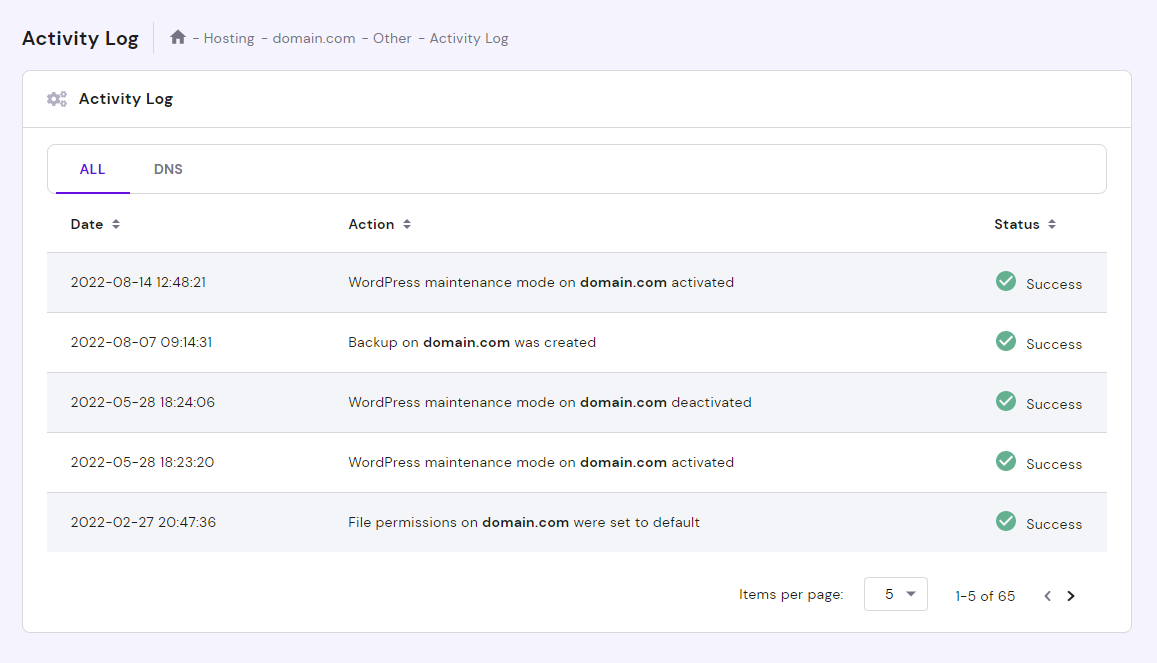
Hostinger users can keep track of their hosting account’s activities by navigating to Others -> Activity Log from the hPanel dashboard. You can choose to see all activity logs or DNS-specific logs ‒ both sections display the date, time, and status of each activity.
Top 3 WordPress User Activity Log Plugins
While the activity log isn’t part of the core WordPress platform, plenty of activity log plugins can enable this feature on your WordPress site. Check out our top three plugins for tracking user activities based on their functionality, price, rating, and popularity.
1. WP Activity Log
Plugin Stats:
- Download: 100,000+
- Rating: 4.8/5
- Best suited for: all kinds of large-sized websites with a large user base
- Price: freemium (premium version starts at $99/year)
WP Security Activity Log is a popular WordPress plugin for monitoring activity logs of WordPress websites and multisite networks in real time. It also tracks changes on third-party plugins like Yoast SEO and Advanced Custom Fields, website files, and user profiles based on your custom configuration.
Upgrading to the premium version for $99-$199/year gives you access to advanced features, such as instant email and SMS notifications, text-based search and filters, and automated scheduled reports.
The free version is robust enough to keep track of all the essential logs. However, if you want the ability to store the log file in an external database and better control over user session time-out, consider opting for the premium version.
[DOWNLOAD]
2. Simple History
Plugin Stats:
- Download: 200,000+
- Rating: 4.6/5
- Best suited for: small to medium-sized blogs looking for a simple user activity tracking solution
- Price: free
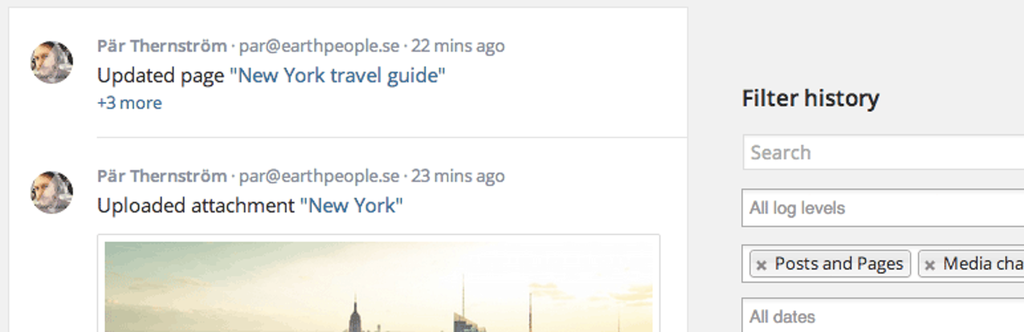
Simple History is a versatile WordPress activity log plugin that does its job well and for free. Open your site dashboard or a separate page to monitor user activity, including menu changes, failed logins, and data export requests.
The free plugin is compatible with popular plugins like Jetpack Beaver Builder. It also supports WordPress REST APIs and multisite in case you want to add your own custom events. Visit the plugin page to see how to add custom events to the audit log using the built-in function.
While Simple History doesn’t offer as many features as WP Security Activity Log, its completely free features are more than capable of tracking your website’s user activity.
3. Activity Log
Plugin Stats:
- Download: 100,000+
- Rating: 4.7/5
- Best suited for: small to medium-sized eCommerce websites and blogs that need a comprehensive user activity tracking tool
- Price: free
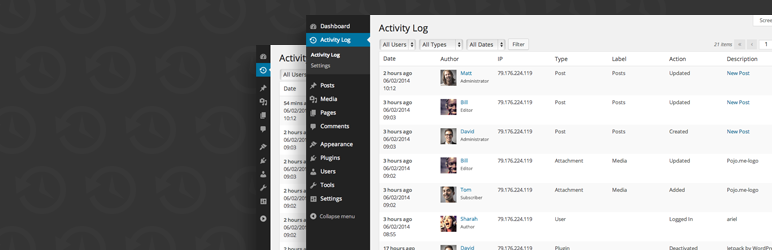
Activity Log is another excellent free plugin for tracking user activity in WordPress. It records changes on all the essential WordPress elements, from core updates to comments.
WooCommerce and bbPress users can use Activity Log to monitor store and forum settings. The plugin also lets you export filtered results to CSV based on your chosen parameters for safekeeping. Moreover, it has been translated into 13 languages and is GDPR-compliant.
Activity Log should fit your needs if you’re looking for a free and easy-to-use tool to track user activity.
Conclusion
Whether running a small blog or a multisite network, knowing everything happening on your WordPress installation is vital. Having activity logs helps to improve your site’s security, user management, and overall workflow.
Here’s a recap of log events you should pay attention to:
- Content changes.
- Failed user logins.
- Alterations on WordPress core, themes, plugins, and settings.
- Changes to user accounts.
- Website modifications on a multisite network.
- Activities on your WordPress hosting account.
We hope this article helped to refine your website management. Should you have any more questions, don’t hesitate to leave us a comment below.
Learn What Else You Can Do With WordPress
How to Move My WordPress to a New Domain
How to Undo Changes in WordPress
WordPress Post Formats
WordPress Menu Icon
WordPress Activity Log FAQs
Take a look at the following answers on the WordPress activity log.
How Often Should I Update My WordPress Activity Log?
Updating the log for your WordPress site should be done frequently, depending on the size and complexity of your site and the level of security you require. Weekly or monthly reviews are generally sufficient.
How Do I Find My Activity Log on WordPress?
Use a plugin like WP Security Activity Log or Simple History to view the log of all user activity, such as login attempts, post updates, and plugin installations.
How Do I Back Up My WordPress Activity Log?
Most WordPress activity log plugins offer the option to export the log as a CSV or PDF file. If you want to do it manually, copy the data from the plugin’s dashboard or settings.
All of the tutorial content on this website is subject to Hostinger's rigorous editorial standards and values.

Jordana is a Senior Content Writer with a background in Information Systems. She has over five years of experience in WordPress and is casually dabbling with PHP and MySQL. Her passion for writing and technology drives her to create tutorials for anyone wanting to build their online presence. Follow her on LinkedIn.