WooCommerce shortcodes: complete guide and list
Dec 22, 2024
/
Jordana A.
/
11 min Read
If you’re running a WooCommerce site, knowing how to use shortcodes can help you get the most out of the plugin. They’re small pieces of code you can place in your WordPress pages or posts to add specific WooCommerce features without having to code.
This article will explore all the WooCommerce shortcodes and their functions. We’ll also discuss their limitations and offer alternatives for customizing your WooCommerce store.
Let’s start by going over the basics of shortcodes and how to use them.
How does WooCommerce shortcode work
WooCommerce shortcodes allow you to customize your online store’s functionality and content without needing to write custom code yourself. Each shortcode consists of two key parts ‒ the body and parameters.
The body is the main part of the shortcode, enclosed in square brackets. It tells WooCommerce what kind of feature or content to display.
Parameters are optional settings you can add to customize the output. They take place after the body within the same square brackets. Each parameter has an attribute and a value, separated by an equal sign.
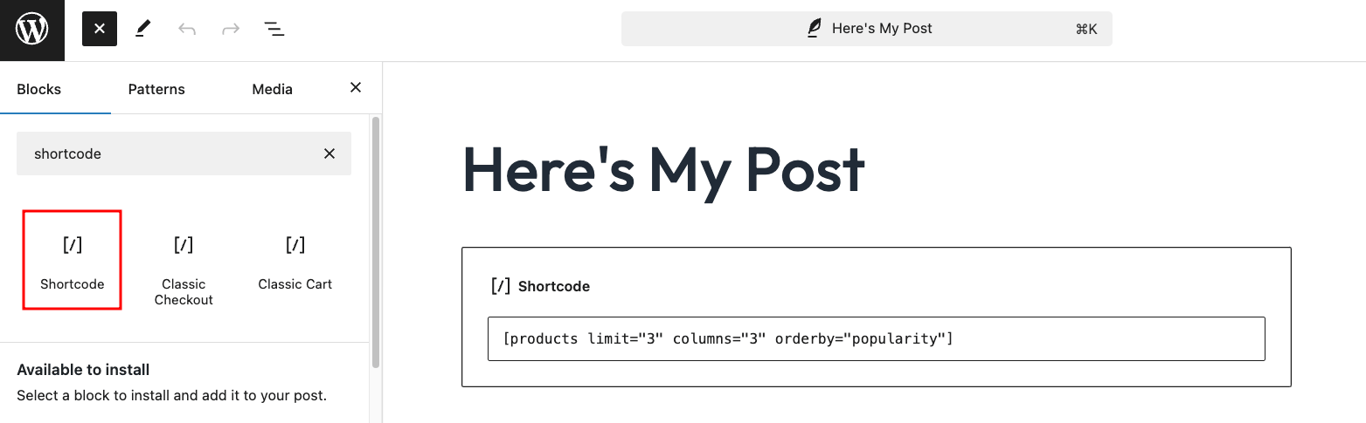
For example, if you want to display the three best-selling products in three columns, the shortcode would look as follows:
[products limit="3" columns="3" orderby="popularity"]
The body, products, refers to the main feature to be executed. The three shortcode parameters that follow control the number of products displayed, their arrangement, and the sorting method.
To use a shortcode, simply add it to your chosen post or page in the WordPress block editor using the shortcode block. Click the + icon, then drag and drop the shortcode block into the editor.
List of common WooCommerce shortcodes
Let’s explore the available WooCommerce shortcodes and how to use them effectively. Keep in mind that these shortcodes only work on WordPress websites with WooCommerce installed.
1. Cart page
[woocommerce_cart]
This shortcode displays the shopping cart page on the chosen space within your WooCommerce store. It shows the customer’s shopping cart content and provides options to update items, apply coupon codes, and proceed to checkout.
![WooCommerce cart page displayed using the [woocommerce_cart] shortcode](https://imagedelivery.net/LqiWLm-3MGbYHtFuUbcBtA/wp-content/uploads/sites/2/2024/09/woocommerce-cart-shortcode.png/public)
Most WooCommerce themes automatically include this shortcode on the shopping cart page, but you can use it to create a custom one. Since it doesn’t have customizable attributes, you only need to paste the code as is to use it.
2. Checkout page
[woocommerce_checkout]
This shortcode embeds a checkout form in your WooCommerce checkout page. Customers can use the form to submit their billing and shipping information, choose a payment method, and review their order before placing it.
![WooCommerce checkout form displayed using the [woocommerce_checkout] shortcode](https://imagedelivery.net/LqiWLm-3MGbYHtFuUbcBtA/wp-content/uploads/sites/2/2024/09/woocommerce-shortcode-checkout.png/public)
3. User account page
[woocommerce_my_account]
This WooCommerce shortcode displays the user account area. You can use it to create a user account page where logged-in customers can manage their personal information, track orders, manage addresses, and change passwords.
For guests who aren’t logged in, this shortcode shows a sign-in form.
![WooCommerce user account section displayed using the [woocommerce_my_account] shortcode](https://imagedelivery.net/LqiWLm-3MGbYHtFuUbcBtA/wp-content/uploads/sites/2/2024/09/woocommerce-shortcode-user-account.png/public)
4. Order tracking form
[woocommerce_order_tracking]
If your eCommerce store sells physical products, this shortcode lets customers track their orders. It displays a form where they can enter their order ID and email address to check the status, allowing you to create a custom order tracking page quickly.
![WooCommerce order tracking form displayed using the [woocommerce_order_tracking] shortcode](https://lh7-qw.googleusercontent.com/docsz/AD_4nXfGEHCy51ppyzX139pGpAthX_oIaW5gSfUTKi60sWroHP-hbAoVbtdFM8Iyp_StYGr_m6-erS9AKQdwqBjmlgYuoo0Cemwv8PqnYZLMsasef2zk5LiOQ7c4Xw8K7E5Gn8O1Q0gfmj5d2cJYf7ojaQsactqq?key=WefhAQdAUHV7K9fsylQnPA)
Unlike the Order section in [woocommerce_my_account], users don’t need an account or to log in to use this feature. Enable quick order status checks with this shortcode to enhance user experience.
5. Show a specific product page
[product_page]
Use this shortcode to feature a product by its ID or Stock Keeping Unit (SKU) code anywhere on your page or post. It displays the product’s information, including the title, price, description, reviews, and an add-to-cart button.
![WooCommerce product page displayed using the [product_page] shortcode](https://imagedelivery.net/LqiWLm-3MGbYHtFuUbcBtA/wp-content/uploads/sites/2/2024/09/woocommerce-shortcode-product-page.png/public)
Here’s an example of the product page shortcode with both attributes:
[product_page id="123"]

[product_page sku="SKU123"]
You can use the [product_page] shortcode multiple times on the same page to showcase different products. Just remember to add a separate shortcode block for each one.
6. Product listings
[products]
This is one of the most versatile WooCommerce shortcodes due to its extensive selection of attributes.
While [product_page] showcases a full product page, the [products] shortcode lets you display specific product details without the full page layout. It’s ideal for featuring products in a more compact format, such as within a list or a blog post.
![WooCommerce product listings displayed using the [product] shortcode](https://imagedelivery.net/LqiWLm-3MGbYHtFuUbcBtA/wp-content/uploads/sites/2/2024/09/woocommerce-shortcode-product.png/public)
Product attributes
Here are the key attributes for customizing the output of the WooCommerce [products] shortcode:
id
This attribute displays a specific item by its product ID.
Example: [product id=”123″]
skus
This attribute shows a specific product based on their SKU. Avoid using it together with the ID attribute to prevent conflicting output.
Example: [product sku=”SKU123″]
limit
Use this attribute to control how many products appear when featuring multiple products using a single shortcode.
Example: [products limit=”4″]
columns
This attribute sets the number of columns for displaying products, which is great for saving space. It defaults to four columns unless specified otherwise.
Example: [products columns=”5″]
orderby
This attribute lets you specify the sorting order of the displayed products.
Here are the available options:
- title (default) ‒ sort by the product title.
- date ‒ sort by the product publication date.
- popularity ‒ sort by the number of purchases.
- rating ‒ sort by average product rating.
- rand ‒ display products in random order.
- id ‒ sort by product ID.
Example: [products orderby=”date”]
order
This attribute defines whether the product order is ascending (ASC) or descending (DESC). It defaults to ascending unless specified otherwise.
Example: [products order=”DESC”]
category
Use this attribute to display products from specific categories based on their slugs. Separate multiple category slugs with commas.
Example: [products category=”clothing,summer”]
tag
This attribute shows products with specific tags. Similar to the category attribute, use commas to separate multiple product tags.
Example: [products tag=”new”]
class
This attribute adds a custom CSS class to modify the output’s style. Before using it, you must create a custom CSS class in your theme’s stylesheet (style.css).
Example: [products class=”main-paragraph”]
on_sale
This attribute lets you show products that are on sale. When used, WooCommerce filters your products and shows only those with a sale price. Set it to true to enable this filter or false to show all products.
Avoid using on_sale with best_selling and top_rated attributes to prevent conflicting outputs, as combining them can create confusion over which criteria should be prioritized.
Example: [products on_sale=”true”]
best_selling
Use this attribute with a true value to showcase best-selling products only. Don’t use it together with the on_sale and top_rated attributes to avoid conflicting prioritization.
Example: [products best_selling=”true”]
top_rated
This attribute showcases top-rated products based on user ratings, accepting true and false as its options. Avoid using it together with the on_sale and best_selling attributes to prevent conflicting filters.
Example: [products top_rated=”true”]
paginate
Set this attribute to true to enable pagination for the retrieved products. Combine it with the limit attribute to control the number of products displayed per page.
Example: [products paginate=”true”]
visibility
This attribute filters products by their visibility status, such as:
- visible (default) ‒ products visible in the shop and search results.
- catalog ‒ products visible in the shop only, not in search results.
- search ‒ products visible in search results only, not in the shop.
- hidden ‒ products hidden from both the shop and search results.
- featured ‒ products marked as featured.
Example: [products visibility=”catalog”]
7. Show all available product categories
[product_categories]
This shortcode allows users to browse product categories on your WordPress site more easily. It shows all the product categories by default, but you can customize the output using the following attributes:
- number ‒ set the number of categories displayed. It works similarly to the limit attribute in the [products] shortcode.
- columns ‒ define the number of columns to display the retrieved categories.
- include ‒ determine which categories to show by their IDs.
- orderby ‒ specify the sorting order of the displayed product categories. Here are the available options:
- name ‒ sort by product category name.
- id ‒ sort by category ID.
- slug ‒ sort by category slug.
- menu_order ‒ sort by the menu order assigned in WooCommerce settings.
- count ‒ sort by the number of products in each category.
- order ‒ define whether the product category order is ascending (ASC) or descending (DESC).
- hide_empty ‒ hide categories that don’t have any products.
- parent ‒ display product categories that are children of a specific parent category.
Example: [product_categories include=”12,15,18″ orderby=”slug” order=”ASC”]
8. Display a specific product category
[product_category]
Despite having a similar name to the [product_categories] shortcode, [product_category] focuses on displaying products from the specified category. It’s ideal for featuring relevant products on their respective category landing pages or highlighting trending items from a particular category.
This shortcode requires the category attribute with your chosen product category’s slug to work. You can then pair it with the following attributes to customize the output:
- columns ‒ set the number of columns to display products. The default value is 4.
- orderby ‒ determine the sorting method. It has the same options as the orderby attribute in the [product_categories] shortcode.
- order ‒ specify the sorting order.
- per_page ‒ limit the number of products displayed per page.
- paginate ‒ enables pagination when set to true.
Example: [product_category category=”shirts” orderby=”price”]
9. Related products
[related_products]
Adding this shortcode to a product page prompts WooCommerce to show related products based on the categories and tags shared by the current product being viewed.
Since you can’t manually choose the related products, this shortcode is best used on individual product pages for cross-selling.
Pair this shortcode with the posts_per_page attribute to limit the number of related products displayed. You can also use the columns attribute to control the layout of the output.
Example: [related_products posts_per_page=”3″ columns=”3″]
10. Recently added products
[recent_products]
Use this shortcode to display the most recently added products in strategic places, such as your homepage or category landing pages. Pair it with the limit, columns, and orderby attributes to customize the output.
11. Featured products
[featured_products]
This shortcode is ideal for highlighting featured products or promotions on your site. Like the [recent_products] shortcode, it accepts limit, columns, and orderby attributes for display customization.
12. Best-selling products
[best_selling_products]
Highlight your best-selling products with this shortcode to establish social proof, showing customers that these items are popular among other buyers. This approach helps influence visitors’ buying decisions, prevent slow-moving inventory, and build trust with your target market.
Use limit, columns, and orderby attributes to customize your product display.
13. Top-rated products
[top_rated_products]
This shortcode displays a list of top-rated products based on customer reviews. Like the [best_selling_products] shortcode, it’s great for influencing buying decisions and building customer trust.
Combine this shortcode with the limit, columns, and orderby attributes to customize the output.
14. Discounted products
[sale_products]
If you want to create a dedicated sales page or section to promote discounted products, this shortcode makes the job easier. Simply add the limit, columns, and orderby attributes to customize how the section appears.
15. Add-to-cart button and URL
[add_to_cart]
The [add_to_cart] shortcode adds an add-to-cart button for a specific product on your chosen page or post. This way, customers can easily add items to their cart without visiting individual product pages, which is useful for promoting products on non-WooCommerce pages.
Use the id or sku attribute to link a product to the add-to-cart button. You can then customize the button’s appearance with additional attributes, such as:
- style ‒ customize the button’s style with inline CSS, which applies only to that particular element.
- show-price ‒ display the product price next to the add-to-cart button when set to true.
- class ‒ add a reusable custom CSS class to modify the button’s appearance.
- quantity ‒ specify the quantity added to the cart.
The following shortcode is an example of using these attributes to show the product price next to the button and center its placement:
[add_to_cart id=”49″ show_price=”true” style=”display: block; text-align: center;”]
If you prefer not to use a button for the add-to-cart function, consider using [add_to_cart_url] to create a link instead. This shortcode generates a direct URL that automatically adds a specific product to the cart when visited.
It’s convenient for encouraging sales in emails or areas of your WooCommerce site where button placement might be limited.
Since this shortcode creates a link, you only need to add the id or sku attribute for the chosen product.
Example: [add_to_cart_url id=”123″]
16. Shop notifications on non-WooCommerce pages
[shop_messages]
This shortcode lets you display WooCommerce messages or notifications anywhere on your site when customers interact with it. These messages can include alerts like “Product added to cart,” “Coupon applied successfully,” or error messages if something goes wrong during checkout.
When placed strategically, the [shop_messages] shortcode can help reduce confusion at critical points in the customer journey and enhance the overall shopping experience. It’s also useful on custom pages where important notices need to be visible to customers.
This shortcode doesn’t have any attributes, so you just need to place it in the desired location. The messages are customizable, but doing so requires using a WordPress filter or overriding the theme files in the notices directory.
![WooCommerce store notification displayed using the [shop_messages] shortcode](https://imagedelivery.net/LqiWLm-3MGbYHtFuUbcBtA/wp-content/uploads/sites/2/2024/09/woocommerce-shortcode-shop-message.png/public)
17. Live product search field with filters
[woocommerce_product_search]
WooCommerce Product Search, a premium WooCommerce extension, offers this shortcode to display live product search filter functionality on pages and posts. As customers type keywords into the search field, matching results appear in real-time, enhancing the user experience.
By default, the [woocommerce_product_search] shortcode shows product titles with their short descriptions, prices, and add-to-cart buttons. To customize the display, refer to the extension’s documentation for available attributes.
![WooCommerce product search field displayed using the [woocommerce_product_search] shortcode](https://imagedelivery.net/LqiWLm-3MGbYHtFuUbcBtA/wp-content/uploads/sites/2/2024/09/woocommerce-shortcode-product-search.png/public)
You can expand the search functionality with various filters. Use these filters with the [woocommerce_product_filter_products] shortcode to display search results dynamically:
- [woocommerce_product_filter] — displays a live Product Search filter where visitors can input keywords to refine their results.
- [woocommerce_product_filter_attribute] — shows a live Product Attribute filter, ideal for stores selling variable products.
- [woocommerce_product_filter_category] — embeds a live Product Category filter to only output specified results by category.
- [woocommerce_product_filter_price] — displays a live price filter with an input field and slider to set a desired price range.
- [woocommerce_product_filter_tag] — adds a live Product Tag filter where visitors can refine results by chosen tags.
- [woocommerce_product_filter_rating] – embeds a live Product Rating filter to display products by average customer rating.
- [woocommerce_product_filter_sale] – shows a live filter for discounted products.
- [woocommerce_product_filter_stock] – features products that are in stock or available for backorder.
- [woocommerce_product_filter_reset] – adds a button to clear all live filters.

Common issues with shortcodes in WooCommerce
Despite streamlining website customization, WooCommerce shortcodes aren’t immune to errors. Let’s explore some of the most common ways to troubleshoot WooCommerce shortcodes.
Shortcodes not displaying correctly
Here’s what you can do to fix a shortcode appearing as plain text on the page instead of rendering the intended WooCommerce content:
- Check shortcode formatting. Insert it into a page or blog post using a shortcode block in the WordPress visual editor. If you’re using a text editor, double-check for typos or extra HTML tags that might interfere with the shortcode.
- Use straight double quotes (“). Curly quotes (“ ”) are not standard in code and can cause the shortcode to break and render incorrectly.
- Update WooCommerce and WordPress. Outdated versions might not support certain shortcodes, preventing them from functioning properly.
- Check theme compatibility. If switching to a default WordPress theme resolves the issue, your current theme might be causing the problem. Contact the theme’s support team for solutions or change themes to avoid future errors.
- Check plugin compatibility. Deactivate all plugins except WooCommerce and see if the shortcode works. If it does, reactivate the plugins one by one to identify the issue. Consider contacting the conflicting plugin’s support team to report the issue and find a solution.
Shortcodes not rendering properly
This issue often happens on custom WooCommerce pages or posts. Try these methods to fix it:
- Verify shortcode placement. Make sure that the page where you’re placing the shortcode doesn’t conflict with existing WooCommerce pages, such as the Shop or Checkout pages. Additionally, check the WooCommerce shortcode documentation to confirm that the shortcode works in your chosen area.
- Refresh permalink settings. Go to Settings → Permalinks in the admin dashboard and click Save Changes to reset the permalink structure. This will clear any cached URLs and potentially resolve the issue.
Products not appearing in shortcodes
If WooCommerce products aren’t displaying correctly when using product-related shortcodes, try these solutions:
- Check product visibility. Make sure the products you want to display have the Published status and are set to Public. You can verify this in the Publish section of the WooCommerce editor.
- Verify product categories and tags. Assign the appropriate categories and tags to the products, especially if you’re filtering by these attributes in the shortcode.
- Use correct attributes. Double-check the attributes used in the shortcode to confirm they match the products you want to display.
Shortcode alternatives for WooCommerce
While shortcodes are a handy tool for customizing your WooCommerce site, there are easier, more visual alternatives you might want to try. Here are some of the most commonly used alternatives.
WordPress blocks
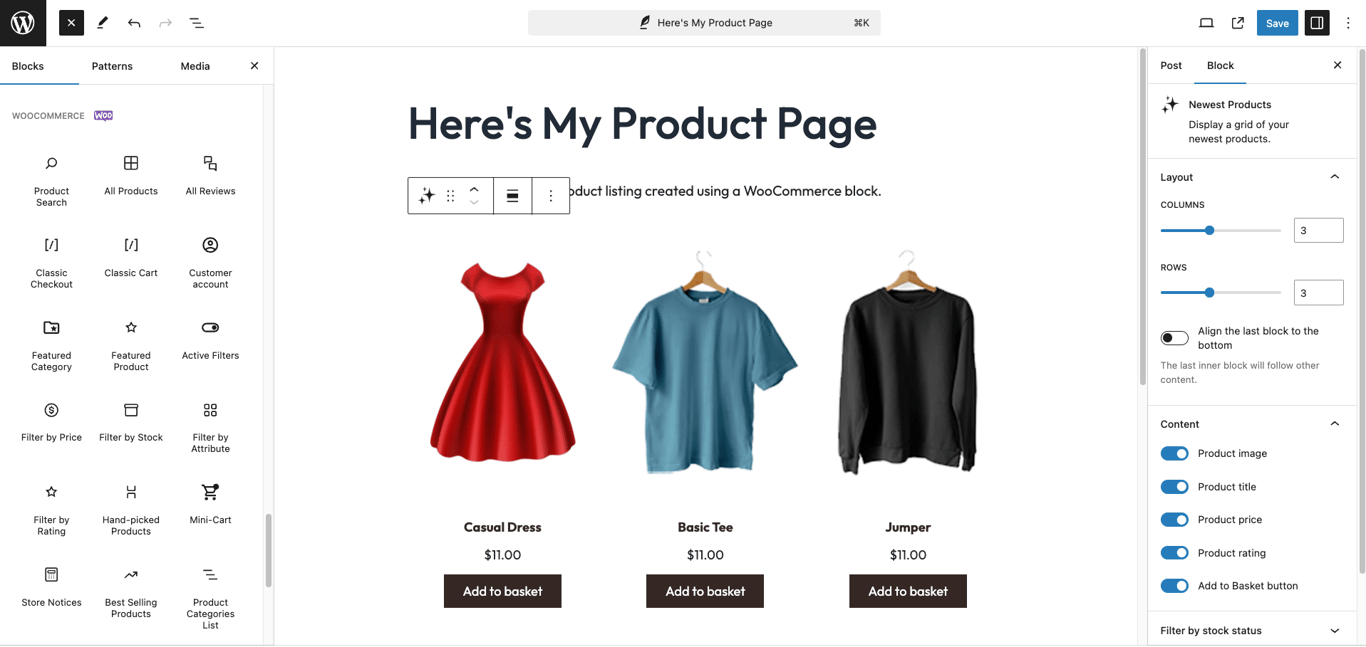
Since the Gutenberg block editor was integrated into WordPress, many plugins, including WooCommerce, now offer their features in block format. Blocks are easy to add and allow real-time previews, making them a beginner-friendly solution with a lower risk of errors than shortcodes.
To use blocks, click Toggle block inserter (+) and browse the available options. Drag and drop the blocks you need into the editor, and customize each one using the settings in the right sidebar.
WordPress page builder plugins
Many popular page builder plugins integrates with WooCommerce, enabling advanced customization on custom pages with a simple drag-and-drop interface.
They also provide different site elements for adding dynamic content without coding, expanding your customization options.
Here are some of the best page builder plugins for WooCommerce:
- Beaver Builder (premium version starts at $99/year)
- Divi (starts at $70/year or $199/one-time payment)
- Visual Composer (premium version starts at $49/year)
- SeedProd (premium version starts at $39.50/year)
WordPress site editor
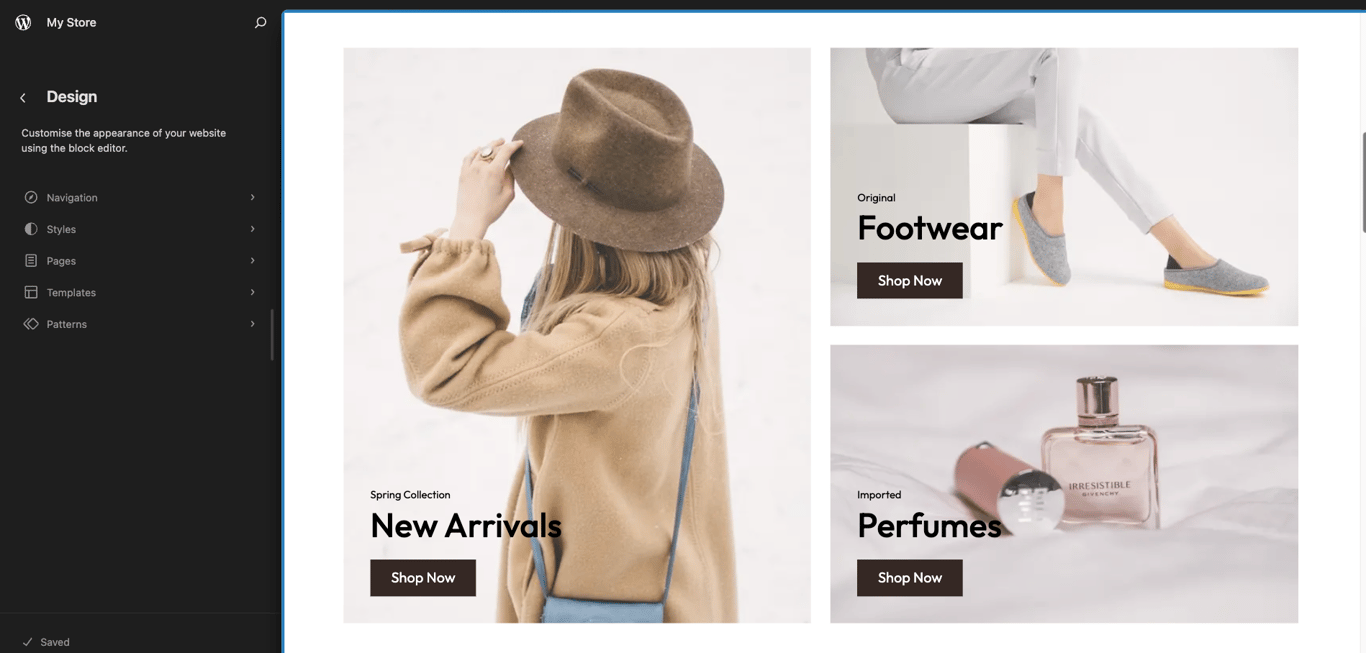
The built-in site editor is a great alternative to page builder plugins, accessible via Appearance → Editor in the WordPress dashboard. It uses a block-based editing approach, allowing you to create pages with existing templates or a collection of blocks and patterns, eliminating the need for coding.
This solution is ideal for maintaining a fast-performing WooCommerce store since it doesn’t require additional plugins.
Conclusion
WooCommerce shortcodes are a powerful tool for customizing your online store. They’re particularly helpful for business owners who want advanced features without needing to code.
When used correctly with the right attributes, they can significantly extend your store’s functionality.
We hope this article has helped you understand how to effectively use WooCommerce shortcodes and troubleshoot any issues related to their usage. If you have any questions, check out our FAQ section or leave a comment below.
FAQ
How do I create a shortcode in WooCommerce?
You can create a shortcode in WordPress by declaring the desired functionality in the theme’s functions.php file and registering it as a shortcode. However, for existing WooCommerce content and features, simply add the built-in shortcodes to your chosen page or post using the WordPress shortcode block.
How do I edit shortcodes in WooCommerce?
You can’t directly edit WooCommerce shortcodes, but you can customize their output by adding parameters. For example, [products orderby=”popularity”] displays products based on their number of purchases. Consider using custom code or a shortcode plugin to customize existing shortcodes’ functionality.
Do shortcodes affect SEO?
Shortcodes don’t directly affect SEO, but the content they generate does. For example, if a shortcode displays best-selling products, search engines will index that content just as they would if it were added manually.
All of the tutorial content on this website is subject to Hostinger's rigorous editorial standards and values.

Jordana is a Senior Content Writer with a background in Information Systems. She has over five years of experience in WordPress and is casually dabbling with PHP and MySQL. Her passion for writing and technology drives her to create tutorials for anyone wanting to build their online presence. Follow her on LinkedIn.