What is a business email? Definition, examples, and benefits
Jun 03, 2026
/
Justina B.
/
5 min Read

A business email address refers to an account set up with your company’s domain, such as jamie@yourcompany.com. It’s run centrally for your team rather than owned by a single person.
Unlike personal accounts, a company email gives one or a few admins control over every account on the team. They can create new mailboxes when someone joins, shut them down when someone leaves, and apply security rules across the board at once.
That central control is what makes a professional email the standard for company communication.
A business email address pays off in four organizational ways:
- Consistent team identity across every message your staff sends.
- Admin control over accounts, access, and permissions.
- Built-in security such as spam filters, phishing protection, and authentication checks.
- Scalability that grows with your headcount without anyone losing access to old conversations.
What does a business email address look like?
A business email address follows a structured format and uses a custom domain that matches your company name. The standard business email format is username@yourcompany.com, where the username identifies the person or function and the domain identifies the business.
Common company email address examples include:
- firstname@company.com, such as jamie@yourcompany.com.
- firstname.lastname@company.com, such as jamie.lee@yourcompany.com.
- info@company.com.
- support@company.com.
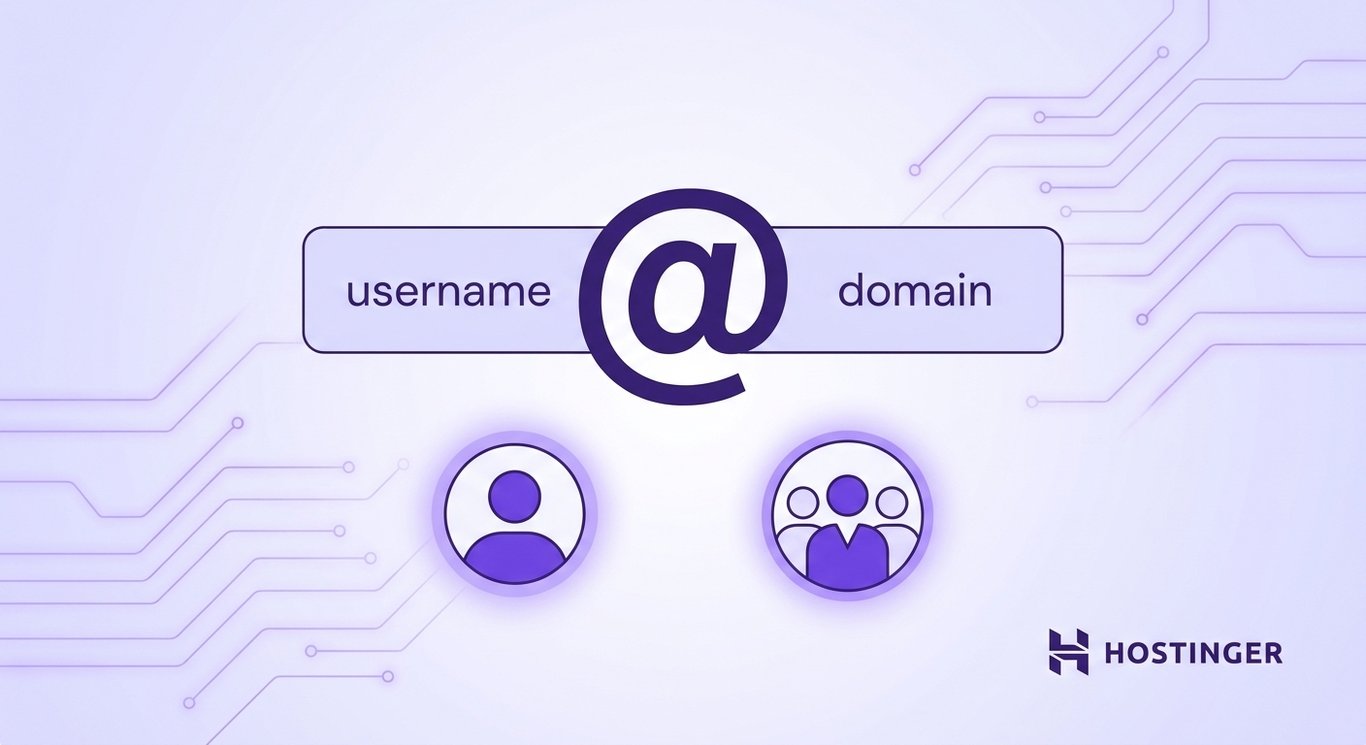
The structure always breaks down into two parts: the username before the @ symbol and the domain name after it. The username tells recipients who the message is from, and the domain confirms it came from your company.
The first two examples are individual emails assigned to a specific employee. So jamie.lee@yourcompany.com belongs only to Jamie Lee.
The last two are role-based emails tied to a function, so info@ and support@ can be read and answered by anyone on the team assigned to that inbox.
Why is a business email important?
The importance of business email comes down to centralized control over team communication, security, and identity. No collection of personal accounts can match that.
When a new hire joins, an admin sets up their account in minutes. When someone leaves, that same admin either terminates it or keeps the inbox and hands it off to a teammate, so client conversations aren’t lost.
The business email benefits stack up quickly on the organizational side:
- Team consistency. Customers can verify that the email actually comes from your company, which builds trust before they’ve even read a word.
- Clean onboarding and offboarding. Adding or removing staff takes a few clicks, not a password reset scramble.
- Centralized security policies. An admin can enforce two-factor authentication, set forwarding rules, and apply phishing protection across the whole team at once.
- Scalability. Adding fifty new mailboxes works the same way as adding a single one, so small teams keep running smoothly as they grow.
- Continuity of records. Conversations live on company-owned accounts, not on whichever Gmail account an employee made years ago.
These professional email benefits become most apparent when staffing changes occur. Picture a five-person agency where everyone uses personal Gmail. One designer leaves, and her client thread goes with her.
The same agency on a business email setup would just reassign that inbox to whoever’s covering her accounts.
What are the key features of a business email?
Business email features are built for company use, which is what sets them apart from free providers. They’re built on the assumption that a team, not a single individual, needs to manage things.
The main professional email tools include:
- Admin dashboard. One central place to create accounts, reset passwords, manage permissions, and remove access when someone leaves.
- Custom domain. Every mailbox runs on your company’s domain, keeping branding consistent.
- Advanced security. Spam filtering, phishing protection, and authentication checks like SPF and DKIM that confirm your messages really came from your domain.
- Generous storage. Most plans give each user several gigabytes, keeping attachments and old threads searchable.
- Tool integrations. Calendars, CRMs, and collaboration apps sync with the account, so scheduling and shared documents stay in one place.
- Shared inbox support. Multiple team members can read and reply from the same address without forwarding chains.
Business email security starts with getting authentication right. SPF and DKIM are checks that tell receiving servers your domain is authorized to send mail. This keeps your messages out of spam folders and stops scammers from spoofing your address.
That matters even more when your team sends transactional messages such as order confirmations or invoices, since recipients need to trust those that came from you.
Business email vs personal email
The business vs. personal email comparison comes down to scale, because the two are built for different jobs. A personal account belongs to a single user. A business email is a company-owned system managed by the team.
Here’s how they compare:
| Feature | Business email | Personal email |
| Ownership | Company-owned, admin-managed | Owned by the individual |
| Account management | Central admin creates, removes, and configures accounts | Each person manages their own |
| Team features | Shared inboxes, role-based addresses, aliases | None |
| Security policies | Enforced across the team, including 2FA and SPF/DKIM | Set by each user, if at all |
| Continuity | Mailboxes survive staff changes | Leaves with the employee |
| Scaling | Add or remove users from one dashboard | Each new account is separate |
The professional vs. personal email difference becomes clearest when someone leaves. With business email, the admin keeps the inbox, forwards it to a teammate, and the work continues.
With personal accounts, you’re often locked out the moment that employee walks, which can mean lost contracts, lost contacts, and lost client trust.
What types of business email accounts exist?
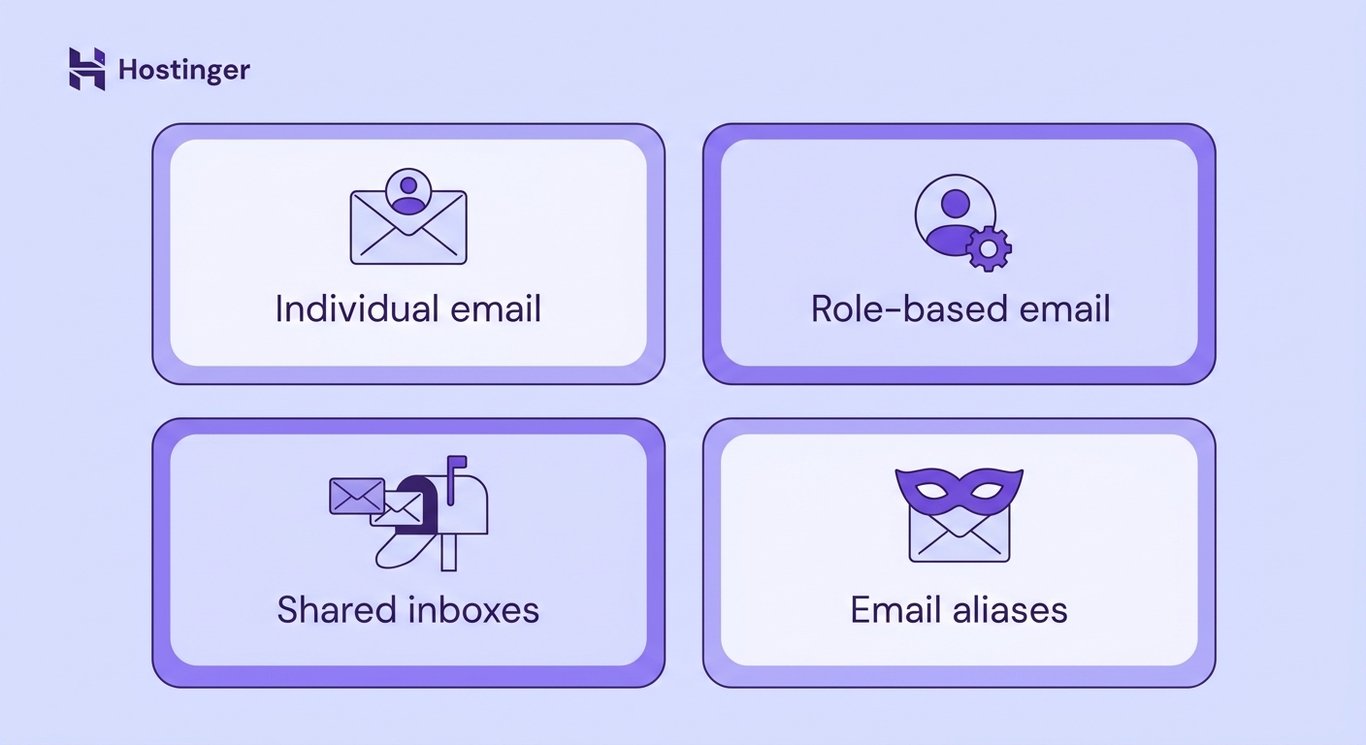
The main types of business email accounts are individual accounts, role-based accounts, shared inboxes, and email aliases. Each one solves a different communication need, and most business email account setups use a combination of all four.
A short breakdown of each:
- Individual email accounts belong to a single employee and are used to manage their direct work. For example, jamie.lee@yourcompany.com is Jamie’s personal work address for client conversations and internal messages.
- Role-based email accounts belong to a function instead of a person. A role-based email, such as support@yourcompany.com or sales@yourcompany.com, remains active even when staff changes. That way, customers always reach the right team.
- Shared inboxes let several teammates read and reply to the same address. A customer service team might share help@yourcompany.com so everyone has access to the full conversation history and no message gets answered twice.
- Email aliases are alternative addresses that forward to an existing mailbox. For instance, press@yourcompany.com can route straight to your marketing manager’s main account, giving you an extra address without paying for an extra mailbox.
Knowing these types of business email helps you build a setup that fits your team. A small business might start with individual accounts and one support@ address, then add shared inboxes and aliases as the company grows.
How to get a business email
The business email setup takes four steps, and a team of any size can have it running the same day. You don’t need a technical background to create a business email for your company.
The high-level path looks like this:
- Register a domain name. Pick a domain that matches your company name and register it through a domain provider.
- Choose a business email provider. Common options include Google Workspace, Microsoft 365, and Hostinger Business Email. Each offers different storage limits, admin features, and pricing tiers.
- Configure your DNS settings. Your provider will walk you through this step, but it’s where you point your domain to the right email servers using MX records. It sounds technical, but most providers make it straightforward.
- Create accounts for your team. Once email hosting is set up, add individual mailboxes for each employee plus any role-based addresses or aliases you need.
- Set up access on your team’s devices. Each person can log in through webmail or connect the account to apps such as Outlook, Apple Mail, or the Gmail mobile app to send and receive anywhere.
The first step matters most because that domain will appear on every message your company ever sends. Pick something short, memorable, and tied to your brand, then work through the rest of the setup at your own pace.

All of the tutorial content on this website is subject to Hostinger's rigorous editorial standards and values.

Justina is a Content Writer passionate about marketing, with a background in social media and customer success management. She also loves reading books, traveling and exploring new places as well as cooking, and trying out new recipes. Follow her on LinkedIn.