How to perform a website security audit: A step-by-step guide
Feb 20, 2026
/
By Ariffud M.
/
11 min Read

A website security audit is a methodical review of your site’s code, server configuration, and third-party integrations. It helps you detect vulnerabilities before attackers exploit them.
Running regular security audits reduces your attack surface, builds trust with visitors, and helps you comply with regulations like GDPR and PCI DSS.
Follow these eight steps to secure your website with regular audits:
- Scope your audit. Identify which environments, components, and compliance frameworks apply to your site.
- Run automated scans. Use website security scanners to check your SSL status, outdated libraries, and blacklisting.
- Review server and CMS settings. Inspect firewall rules, PHP versions, and exposed configuration files.
- Examine code and plugin dependencies. Look for outdated scripts, vulnerable libraries, and unused extensions.
- Evaluate user data handling. Verify HTTPS enforcement, input validation, and encryption standards.
- Scan for malware and injected scripts. Detect defacement, spam injection, and blacklisted domains.
- Patch and remediate findings. Prioritize fixes, rotate credentials, and test changes in a staging environment.
- Set up continuous monitoring. Install alert systems for ongoing website vulnerability checks and log analysis.
1. Define the scope of the audit
The audit scope defines which parts of your website infrastructure you’ll test, how deeply you’ll assess, and which criteria you’ll use.
If you skip this step, you’ll likely miss entire risk categories or waste time on low-priority components.
Start by creating an asset inventory. List every component connected to your website, including:
- Content management system (CMS) core files, such as WordPress, Joomla, or custom builds.
- Plugins, themes, and extensions.
- Third-party scripts, including analytics tags, chat widgets, and ad pixels.
- API endpoints and webhooks.
- Hosting environment details, such as your live server, staging server, and content delivery network (CDN).
- Databases and stored credentials.
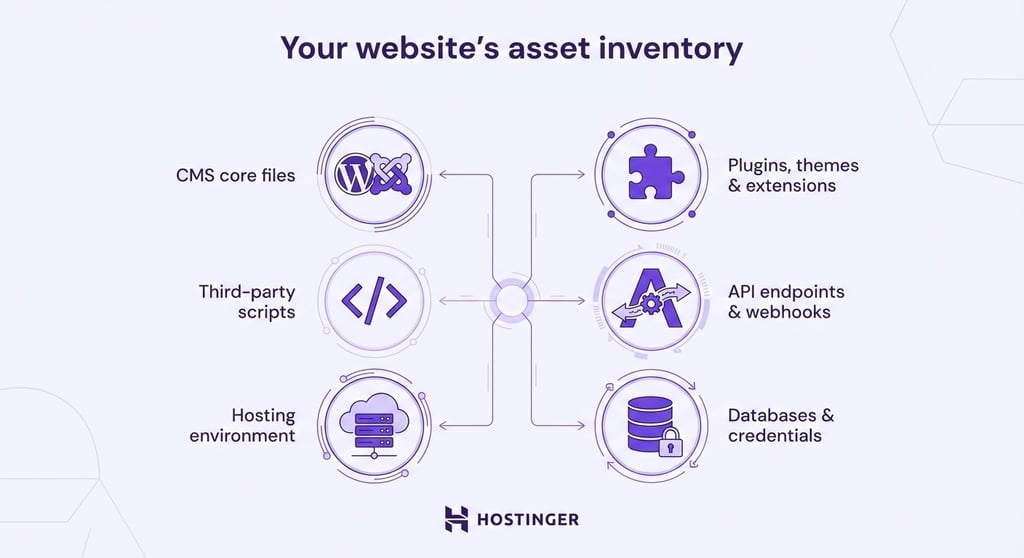
This inventory becomes your checklist for the rest of the audit. It also shows which components your team maintains and which third-party vendors manage, since each carries a different risk level.
When you map everything out, you can troubleshoot your website faster. If something breaks, you’ll know where to look first.
Many reasons for website crashes, such as outdated plugins, misconfigured servers, or overloaded scripts, tie back to the components listed in your inventory.
Next, align your scope with any applicable compliance frameworks. For example, if you collect personal data from EU residents, you need to meet the General Data Protection Regulation (GDPR) requirements.
If you process credit card payments, you must follow the Payment Card Industry Data Security Standard (PCI DSS).
Healthcare platforms in the US must comply with the Health Insurance Portability and Accountability Act (HIPAA).
Identify which compliance requirements map to specific website components. At this stage, you only need to flag the relevant frameworks. You’ll confirm implementation details during the user data handling review.
2. Scan your website using automated security tools
Automated website scanners run surface-level vulnerability checks across your site’s configuration, protocols, and software versions. They act as the first detection layer in your audit workflow.
These tools can identify missing security headers, SSL misconfigurations, outdated software, and known vulnerability patterns. Some also flag URL blacklist status and basic malware signatures.
Use a mix of free and paid tools, since they cover different areas:
- MDN HTTP Observatory (formerly Mozilla Observatory). Grades your site’s HTTP security headers, including Content Security Policy (CSP) and HTTP Strict Transport Security (HSTS). It assigns a score from A+ to F and provides specific recommendations for improvement.
- Qualys SSL Labs. Analyzes your SSL/TLS configuration, including certificate chain validity, supported protocols, and cipher strength. It assigns a grade from A+ to F.
- Pentest-Tools. Assesses the security of various website elements, providing a downloadable report with risk ratings and key findings. The free version allows up to two scans per day with selected tools.
Keep in mind that automated audits have limits. These security tools detect known vulnerability patterns, but they often miss business logic flaws, complex access control issues, and zero-day exploits.
They can also produce false positives, which are issues that aren’t actual threats. For example, a scanner might report a missing security header that your server handles through another mechanism.
It might also flag a URL parameter as an injection risk even though your code already sanitizes the input.
Verify every flagged item manually before you act on it. After confirming scan results, review configurations, user permissions, custom code, and sensitive workflows. Automated tools can’t fully assess these areas.
3. Audit your server and CMS configuration settings
Your server and CMS configuration settings directly affect your website’s exposure to attacks.
Most platforms ship with default settings that prioritize convenience over security, which leaves exploitable gaps unless you tighten them.
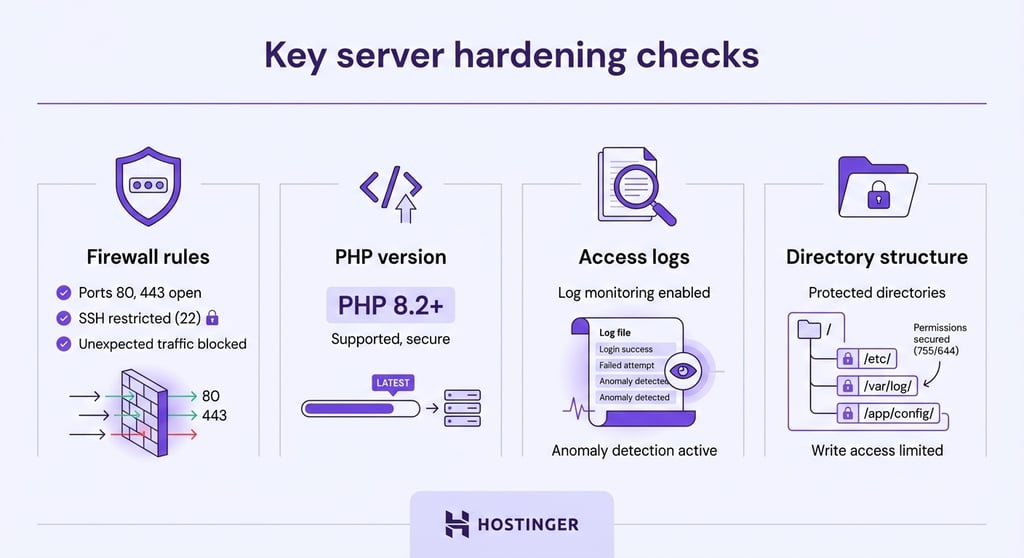
Key server hardening checks include:
- Firewall rules. Confirm that your server firewall is active and close any unused ports. Only expose essential ports, typically 80 (HTTP), 443 (HTTPS), and SSH. Review your hosting provider’s firewall settings or your iptables or UFW rules to confirm.
- PHP version. Check that you’re running a supported PHP version. Versions 8.1 and below no longer receive security patches. Upgrading to PHP 8.3 or later closes known vulnerabilities and improves performance. If you need help, see our guide on how to change your PHP version.
- Access logs. Review server access logs for unusual patterns, such as repeated login attempts, requests to non-existent admin pages, or traffic spikes from a single IP address.
- Directory structure. Disable directory listing so visitors can’t browse your file structure. Make sure search engines don’t index sensitive directories like /wp-admin or /administrator.
Next, check for exposed configuration files. Files like .env, .git, and .htaccess often contain database credentials, API keys, or server configuration. If someone can access these files through a browser, they can read sensitive data.
Test this by navigating to:
- yourdomain.tld/.env
- yourdomain.tld/.git/config
Both should return a 403 (Forbidden) or 404 (Not Found) error.
If your .git directory is accessible, attackers can reconstruct your source code, including credentials stored in earlier commits. Block access to .git in your server configuration immediately.
Also, check if your admin login URL still uses the default path. WordPress sites that rely on /wp-admin or /wp-login.php are targeted by automated brute-force bots that repeatedly attempt to log in.
Change the login URL or add IP-based access restrictions to reduce this risk.
Finally, review your website’s error logs. Look for recurring 500 errors, repeated failed login attempts, or unexpected file access requests. These patterns often point to misconfigurations or active attack attempts.
4. Check your site’s code and plugin dependencies
A single unpatched plugin, outdated JavaScript library, or vulnerable third-party dependency can give attackers access to your entire site.
Run a dependency audit with tools built for your tech stack:
- Retire.js. Scans your front-end JavaScript libraries against a database of known vulnerabilities. It flags outdated versions of jQuery, Bootstrap, Angular, and other common libraries.
- npm audit (for Node.js projects). Checks your package.json dependencies against known security advisories.
- pip audit (for Python projects). Scans installed Python packages for published vulnerabilities.
- GitHub Dependabot. Monitors your GitHub repository’s dependencies and creates pull requests when security patches become available. Enable it in your repository’s Settings → Code security and analysis tab.
If you run a WordPress site, review your plugins and themes directly:
- Deactivate and delete any plugins you’re not using. Inactive plugins still pose a risk if their files remain on the server.
- Compare your installed plugin versions with the latest releases in the WordPress Plugin Directory. If a plugin hasn’t received updates in the last three WordPress releases, treat it as a risk.
- Review your active theme for hardcoded scripts, external resource calls, or embedded iframes that could introduce vulnerabilities.
Finally, use automated code linting tools like ESLint for JavaScript or PHPStan for PHP. These tools flag risky coding patterns, such as unsanitized user input or insecure function calls.
Add them to your development workflow, so you catch issues before they reach production.
🔐 Did you know?
According to WordPress statistics, plugins are the leading source of security issues, accounting for 95% of reported vulnerabilities within the web ecosystem.
5. Inspect how your site handles user data
User data security covers how your website collects, transmits, and stores personal information. If you fail at any of these stages, you expose both your visitors and your business to data breaches and regulatory penalties.
Start by verifying HTTPS enforcement across your entire site. Every page, not just login or checkout pages, should load over HTTPS.
Force HTTPS by adding redirect rules in your server configuration or .htaccess file. This way, HTTP requests automatically redirect to HTTPS.
Check that your SSL/TLS certificate uses TLS 1.2 or higher. Older protocols like TLS 1.0 and 1.1 have known vulnerabilities, and major browsers no longer support them.
Next, audit every form that accepts user input:
- Input validation. Make sure forms reject unexpected characters, overly long input, and script injection attempts. Use both client-side and server-side validation.
- CAPTCHA or bot protection. Confirm that contact forms, registration pages, and comment sections use CAPTCHA, honeypot fields, or rate limiting to block automated submissions.
- File upload restrictions. If your site accepts file uploads, allow only approved file types. Store uploaded files outside the web root directory.
Then, review how your site stores passwords. Never store passwords in plain text or with weak hashing algorithms like MD5 or SHA-1.
Use bcrypt or Argon2 for password hashing instead. Both include built-in salting and resist brute-force attacks.
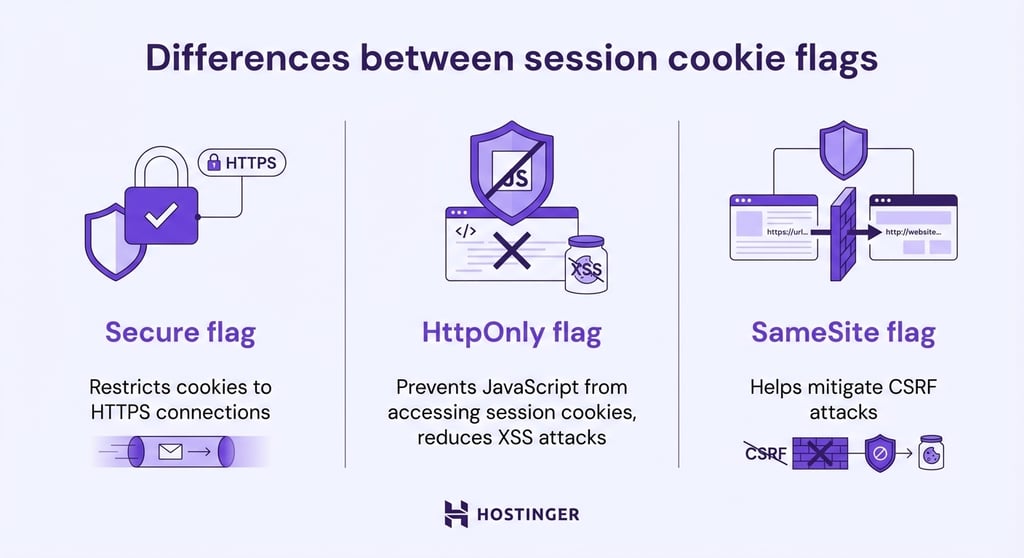
Also, check your cookie settings. Session cookies should use the Secure, HttpOnly, and SameSite flags:
- The Secure flag restricts cookies to HTTPS connections.
- The HttpOnly flag prevents JavaScript from accessing session cookies, which reduces the impact of XSS attacks.
- The SameSite flag helps mitigate cross-site request forgery (CSRF) attacks.
Since you’ve identified which compliance frameworks apply to your site and mapped them to specific components, you now need to verify that each requirement is actually implemented.
Make sure your consent banners collect explicit opt-in before setting tracking cookies. Test your data deletion workflow from start to finish. Review your privacy policy and confirm it reflects your current data collection practices.
Finally, protect pages that handle sensitive data, such as admin panels and checkout pages. Use your robots.txt file block search engine crawlers from indexing those private areas.
6. Scan for malware, injected scripts, and blacklisting
Scanning your website for malware infections, injected scripts, and blacklist status helps you catch threats that general vulnerability scanners often miss.
Use dedicated malware scanning tools to check your site:
- Sucuri SiteCheck. Scans public-facing pages for malware signatures, spam injections, and blacklist status across Google Safe Browsing, Norton, and other databases.
- Google Transparency Report. Enter your URL to see whether Google has flagged your site as dangerous. A flagged site loses search visibility and triggers browser warnings for visitors.
- VirusTotal. Checks your website for viruses and aggregates results from more than 70 antivirus engines and URL scanning services in one report. Upload files or submit URLs for analysis.
Malware appears in several forms. The most common types include:
- JavaScript redirects. Malicious scripts that redirect visitors to phishing or spam sites without their knowledge. Attackers often inject these into theme files or plugin scripts.
- Spam injection. Hidden links, keywords, or pages inserted into your site to manipulate search rankings for unrelated terms. This type of infection often appears in your site’s source code but remains invisible to visitors.
- Defacements. Visible changes to your site’s appearance, often replacing your homepage with a message from the attacker.
- Phishing pages. Fake login or payment forms hosted on your domain that aim to steal visitor credentials.
For deeper detection, compare your current files with known clean versions. If you keep version-controlled backups, run a file comparison between your production environment and the most recent verified, clean backup.
Unauthorized changes to core CMS files, theme templates, or plugin scripts often indicate a compromise.
When you understand how websites get hacked, you can better recognize which attack methods to defend against next.
If your scan reveals an active infection, see our tutorial on diagnosing a hacked website for a step-by-step recovery process.
7. Fix vulnerabilities and patch your system
After you document your findings, prioritize each vulnerability by severity before applying fixes. Use the OWASP Top 10, a widely recognized list of the most critical web application security risks, to help rank issues.
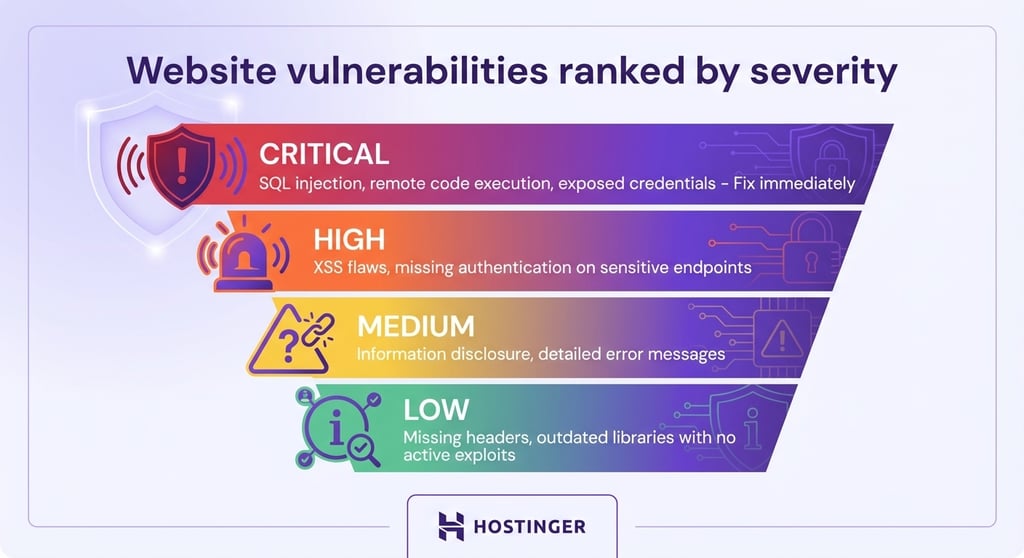
Address vulnerabilities in this order:
- Critical. Actively exploited flaws, such as SQL injection, remote code execution, or exposed admin credentials. Fix these immediately.
- High. Vulnerabilities that attackers can exploit with moderate effort, such as XSS flaws or missing authentication on sensitive endpoints.
- Medium. Issues that increase risk but require specific conditions to exploit, such as information disclosure through detailed error messages.
- Low. Minor issues, including missing non-critical security headers or outdated libraries with no known active exploits.
If attackers are actively exploiting a critical issue, act immediately. Rotate exposed credentials, disable compromised plugins, and block suspicious IP addresses as an emergency containment measure.
These containment steps don’t require a staging environment.
For all other fixes, download a backup of your website before you apply patches so you can roll back if something breaks. Then test changes in a staging environment before applying them to your live site.
A staging site mirrors your production environment. It lets you confirm that patches and configuration changes work as expected without affecting visitors.
Most hosting providers, including Hostinger, offer built-in staging tools for WordPress sites.
Once your staging environment is ready, apply fixes systematically:
- Apply the plugin and theme updates you identified earlier. Update them to the latest stable versions and remove anything you no longer use.
- Rotate all remaining credentials, including admin passwords, database passwords, FTP or SFTP credentials, and API keys. Use a password manager to generate and store strong, unique passwords for each service.
- Fix server-level issues flagged during your configuration audit, such as closing unused ports, upgrading your PHP version, or tightening directory permissions.

8. Set up continuous monitoring and alert systems
Continuous monitoring helps you detect new vulnerabilities, configuration drift, and active attacks as they happen. It keeps your site protected between scheduled audits.
Use monitoring tools that cover different aspects of ongoing security:
- Sucuri (paid plans). Extends the free SiteCheck scan you used with server-side malware scanning, file integrity monitoring, and blacklist monitoring with real-time site alerts.
- Wordfence (for WordPress sites). Includes a firewall, malware scanner, and login security features. The free version runs a full scan every 72 hours, while the premium one allows unlimited scheduled scans.
- UptimeRobot (free and paid plans). Monitors your website’s uptime at intervals as short as one minute. It sends alerts via email, SMS, or Slack when your site goes down, which can signal an attack or server failure.
Besides using tools, build a monitoring routine into your regular workflow:
- Automated backups. Schedule daily or weekly backups and store them off-site. Periodically test them to confirm they’re complete and restorable. These backups also serve as a baseline for file integrity checks and rollback protection.
- Weekly plugin audits. Check for updates every week instead of waiting for something to break. Enable auto-updates for trusted plugins if your CMS supports them.
- Scheduled error log reviews. Don’t treat log reviews as a one-time audit task. Build them into your weekly routine. Track trends over time, since a gradual increase in failed login attempts or 404 errors targeting sensitive paths can signal a developing attack before it escalates.
- Real-time alerts. Configure notifications for login attempts from unfamiliar IP addresses, file changes in core directories, and sudden traffic spikes.
You can also automate IP blocking with tools like Fail2Ban, which bans IP addresses that exceed a set number of failed login attempts. Unlike manual blocking during emergency containment, Fail2Ban runs continuously in the background.
What are the best practices for website security audits?
Website security audit best practices include re-scoping after major changes, using multiple scanning tools, standardizing how you document findings, setting patch timelines by severity, and integrating security checks into your deployment pipeline.
- Re-scope after every major change. A website security checklist you created six months ago won’t reflect the plugin you added last week or the API integration you launched last month. Re-evaluate your audit scope whenever you migrate servers, install new extensions, switch hosting providers, or add third-party integrations. Assign a specific team member to own the asset inventory to keep it current between audits.
- Layer your scanning tools. No single scanner covers every vulnerability category. Pair a header or SSL tool, such as Qualys, with a dedicated malware scanner like Sucuri and a dependency checker like Dependabot. This approach helps you cover configuration, infection, and code-level risks separately. Rotate tools periodically, since each one relies on different detection databases and may catch issues others miss.
- Document manual findings in a shared format. Automated tools generate reports, but manual inspection findings often end up in scattered notes. Use a shared document or ticketing system to log every manual finding, including severity, location, and remediation status. This creates a traceable audit trail for compliance reviews and prevents knowledge gaps when team members change.
- Set patch timelines based on severity. Without clear deadlines, lower-priority fixes pile up and eventually become critical. Define response windows for each severity level, for example: critical within 24 hours, high within one week, and medium within 30 days. Track progress against these targets to spot bottlenecks in your remediation process.
- Integrate security checks into your deployment pipeline. A DevSecOps approach runs security testing alongside code deployment instead of treating it as a separate audit event. Add automated linting, dependency scanning, and pre-commit hooks to your CI/CD pipeline so you catch vulnerabilities during development, not months later during a scheduled review. This reduces the number of issues you uncover during each formal audit by resolving problems continuously.
Beyond individual practices, consistency matters most. Schedule full audits at least twice a year, along with additional scans after CMS upgrades, new plugin installations, or server migrations.
Build this cadence into your website maintenance costs to keep security spending predictable instead of reactive.
What to focus on after your first audit
After your first website security audit, move beyond automated scans and strengthen your defenses with penetration testing, bug bounty programs, and web application firewalls.
Your first audit establishes a baseline risk level. Each audit that follows should expand in depth and coverage.
- Website penetration testing. Goes beyond automated scanning by simulating real attack scenarios against your site. Testers attempt SQL injection, XSS, privilege escalation, and session hijacking using the same techniques attackers use. Many companies offer penetration testing as a service, and tools like Burp Suite support semi-automated testing for teams with in-house security expertise. Run penetration tests annually or after major infrastructure changes.
- Bug bounty programs. Invite external security researchers to find and report vulnerabilities in exchange for monetary rewards. Platforms like HackerOne and Bugcrowd manage submissions and payouts. Bug bounties work exceptionally well for larger sites because they provide continuous testing from a diverse group of researchers with different skills and perspectives.
- Web application firewalls. A WAF adds a protective layer between your site and incoming traffic. It filters malicious requests, including SQL injection attempts, XSS payloads, and DDoS traffic, before they reach your server. Cloudflare, Sucuri, and AWS WAF are widely used options. Configure your WAF rules based on the vulnerabilities you identified during your audit.
Prepare for zero-day vulnerabilities by maintaining an incident response plan. Zero-day exploits target flaws that don’t yet have a patch.
Your response plan should outline temporary mitigation steps, such as blocking IP addresses or disabling affected features. It should also define communication protocols and rollback procedures.
Also, keep your audit logs organized and accessible. Stakeholders may need to review your security history during compliance assessments or incident investigations.
Finally, incorporate these practices into your website maintenance plan to turn security from a one-time project into a recurring process.
All of the tutorial content on this website is subject to Hostinger's rigorous editorial standards and values.

Ariffud is a Technical Content Writer with an educational background in Informatics. He has extensive expertise in Linux and VPS, authoring over 200 articles on server management and web development. Follow him on LinkedIn.