After your Hostinger OpenClaw instance is running, you can connect it to the Telegram messaging platform. This allows you to interact with your AI assistant directly through your mobile device.
Before you start
- You must have an active Hostinger 1-Click OpenClaw instance.
- You need a mobile device with Telegram installed and an active account.
Note: WhatsApp can also be connected directly during 1-Click OpenClaw onboarding in hPanel, without opening the OpenClaw dashboard. If you skipped that step during setup, follow the instructions below to connect through hPanel later on.
How to link Telegram to Hostinger 1-Click OpenClaw
- Access your Integrations dashboard inside the OpenClaw category on hPanel
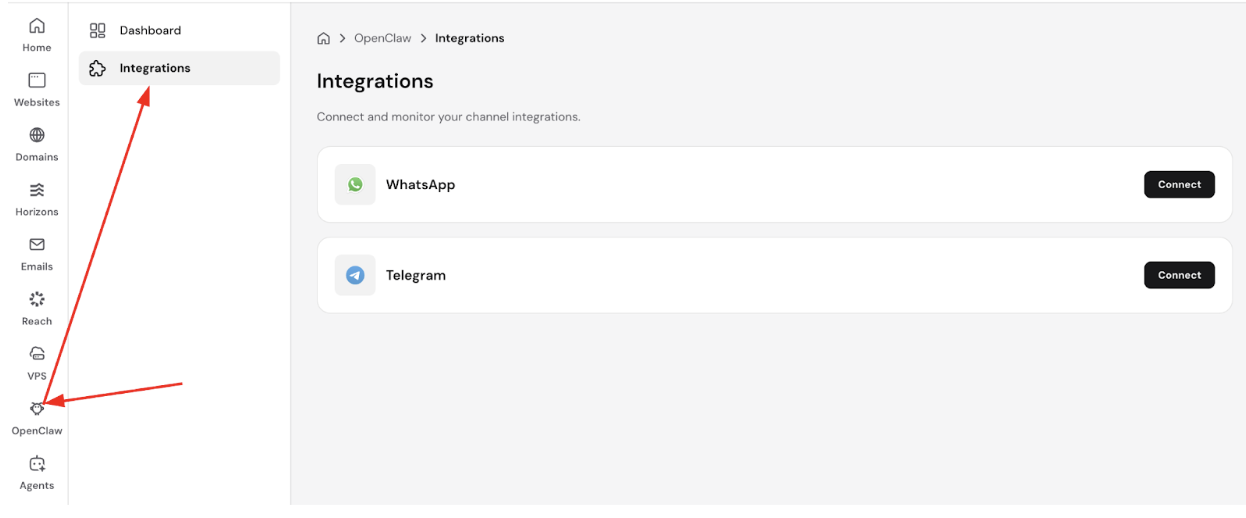
2. Click Connect on the Telegram option
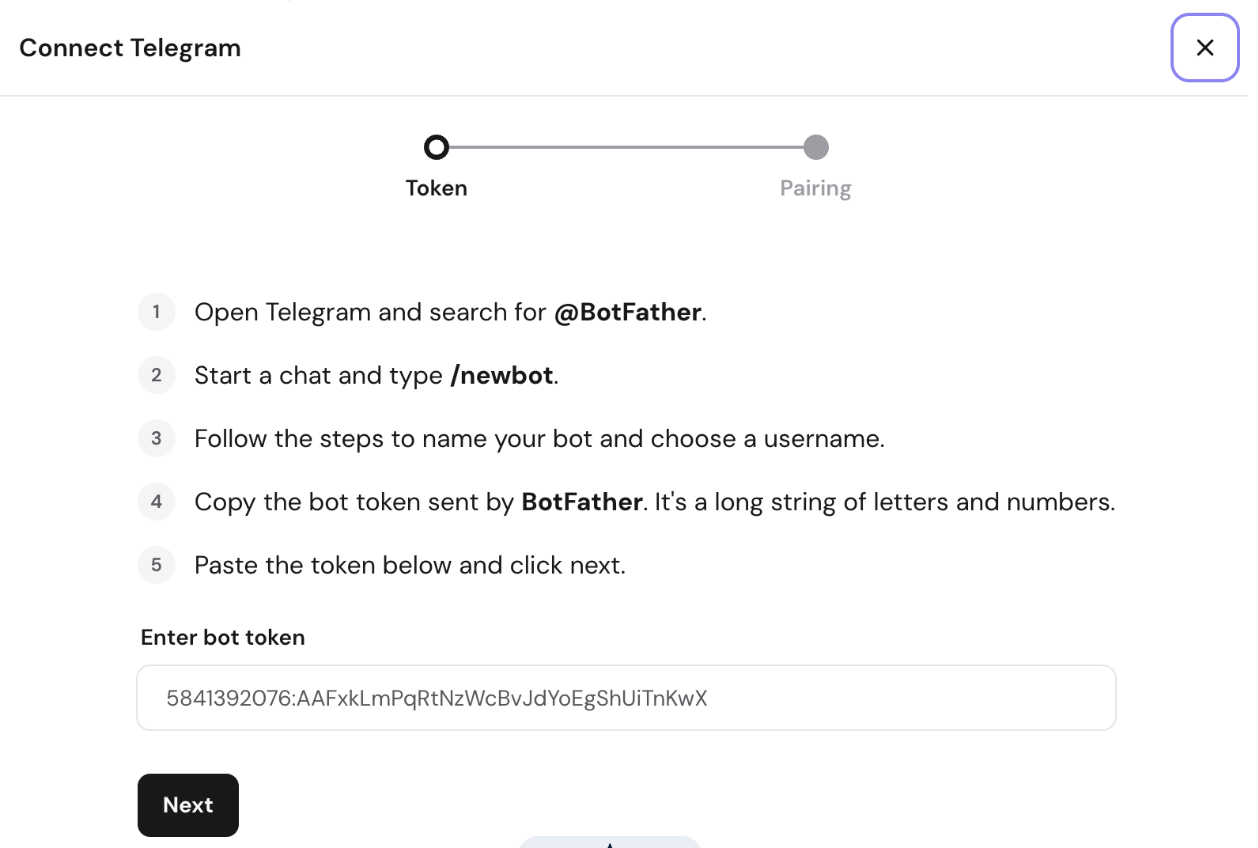
3. You will see several steps to proceed on your personal Telegram account to be able to connect it with your OpenClaw instance:
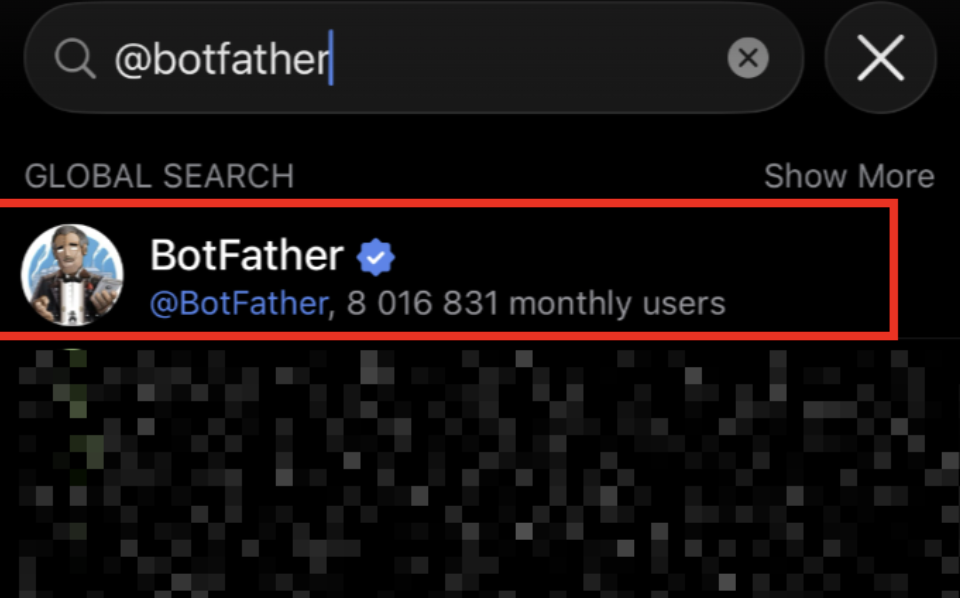
4. Click on the search and find BotFather:
5. Start a chat and type “/newbot”:
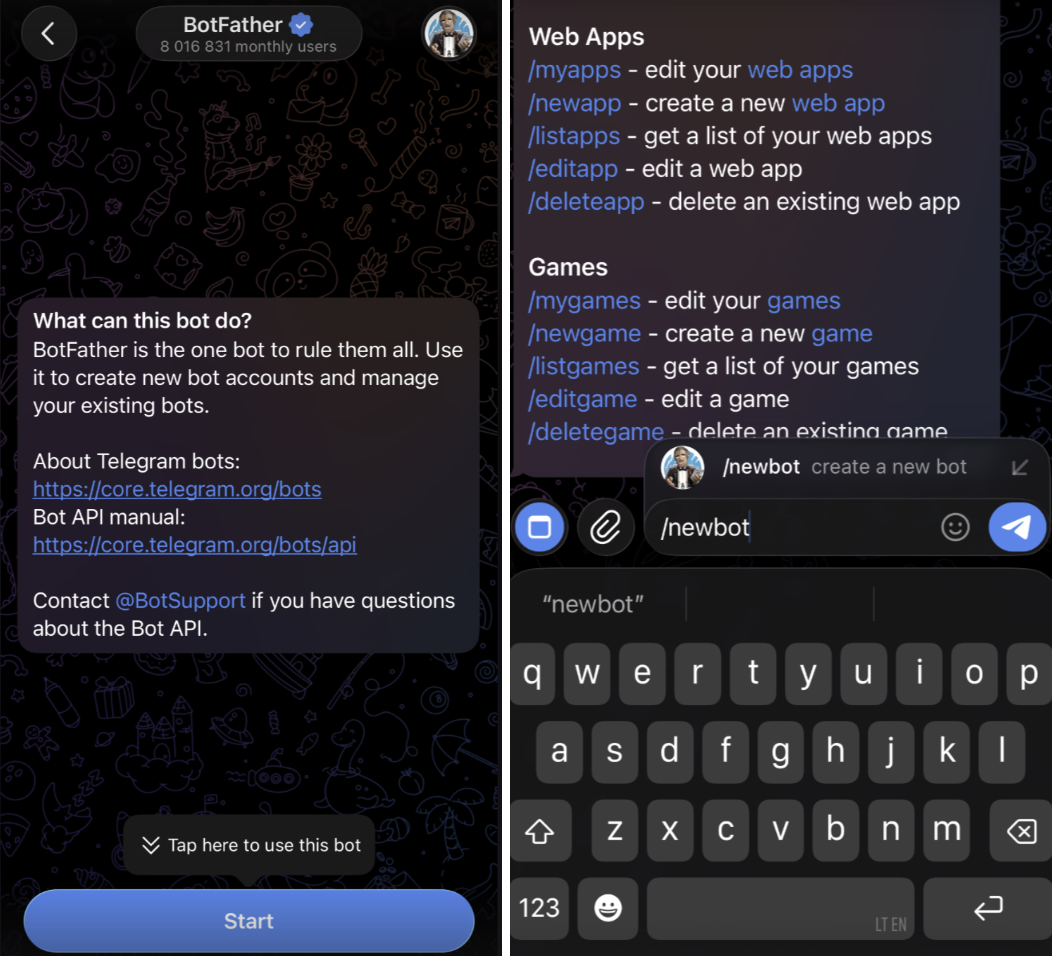
6. Follow newbot steps and select your username
7. Copy the token you received and paste it to the hPanel and click “Next”:
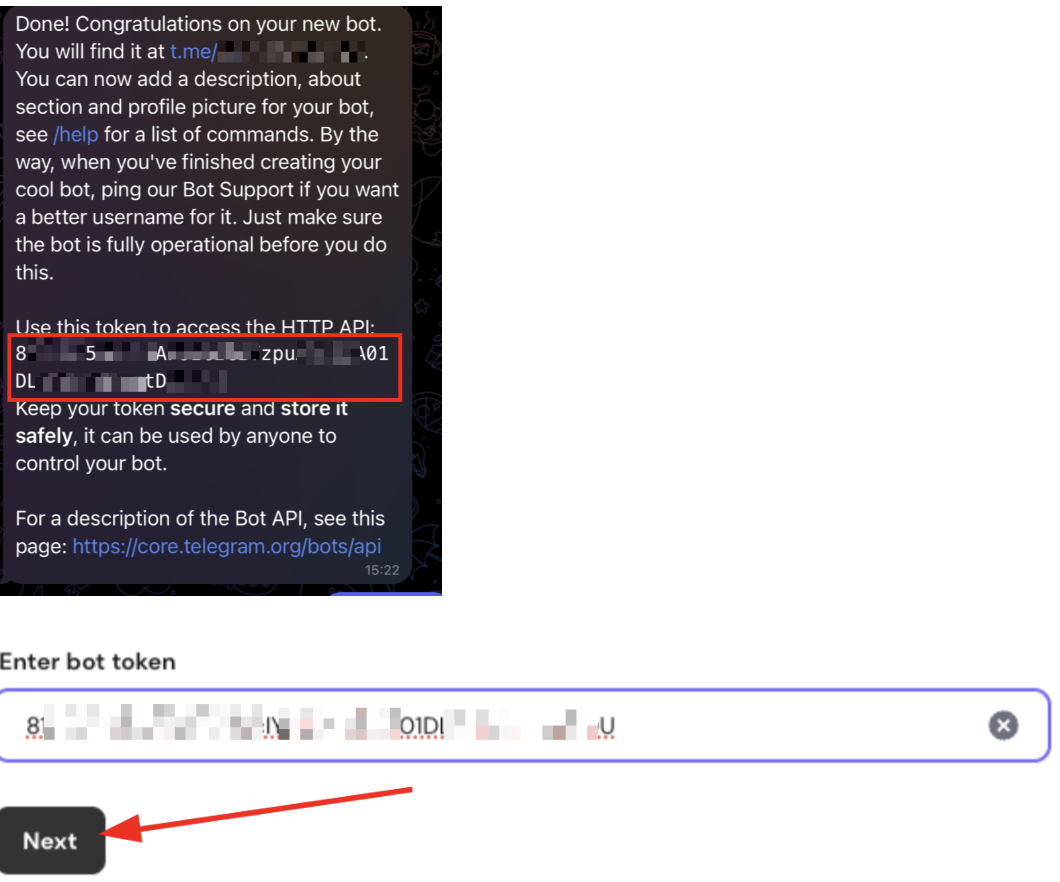
8. Find your bot link sent by the newbot:
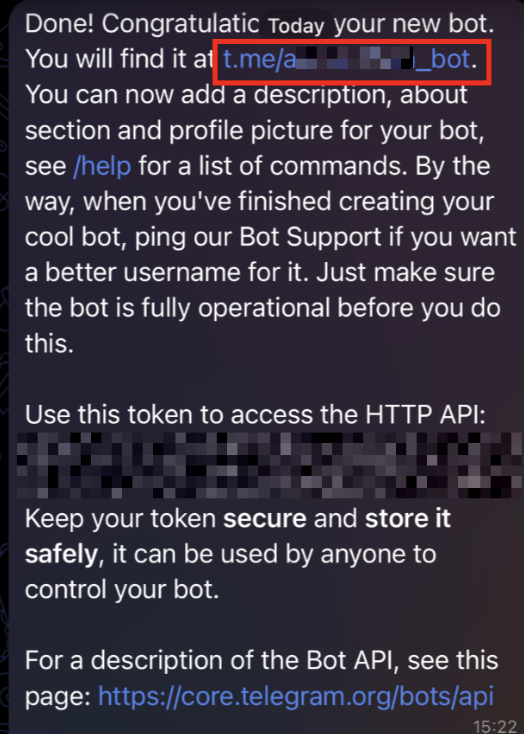
9. Click on Start:
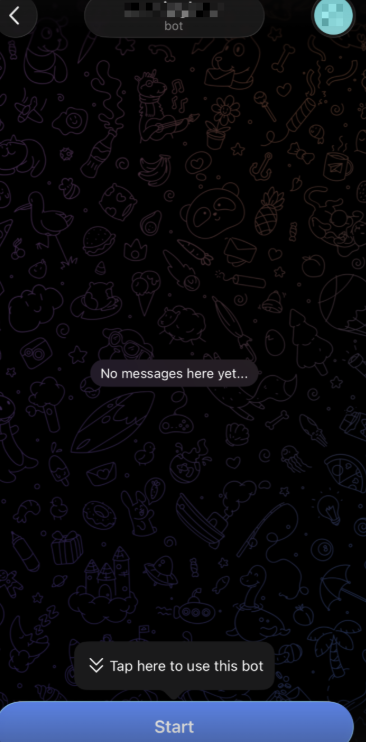
10. You will be automatically paired:
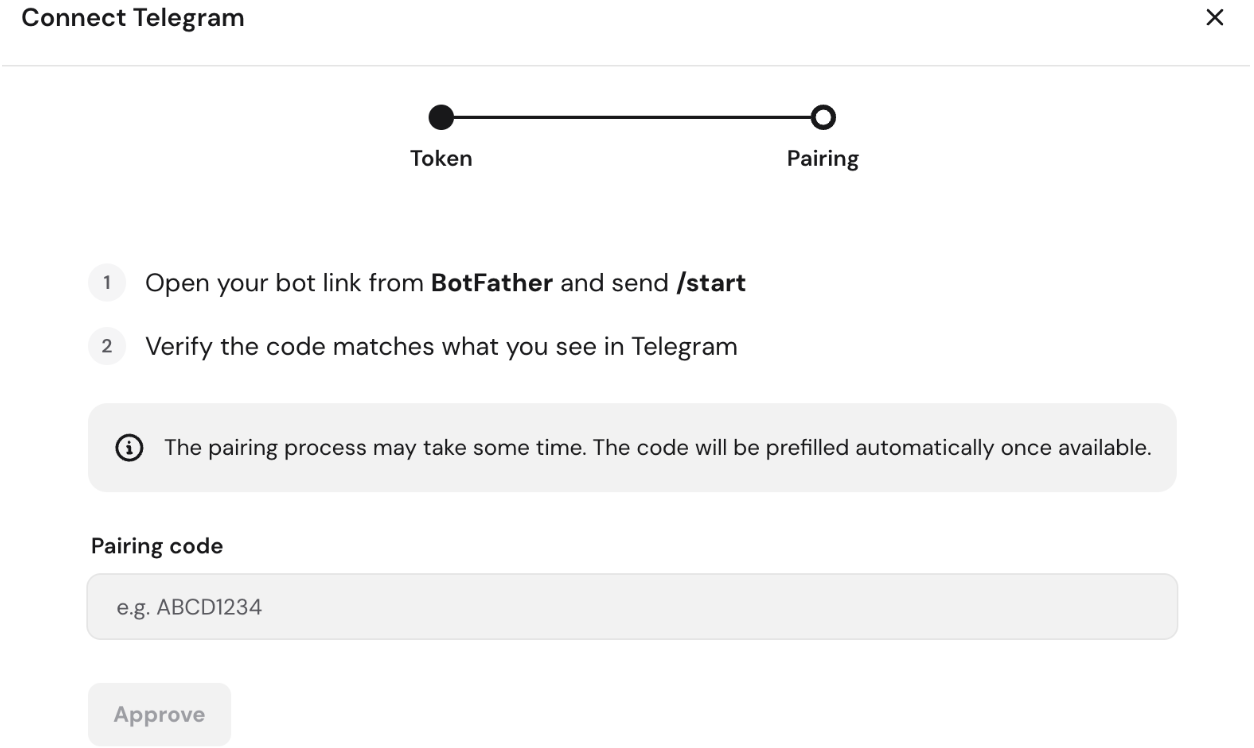
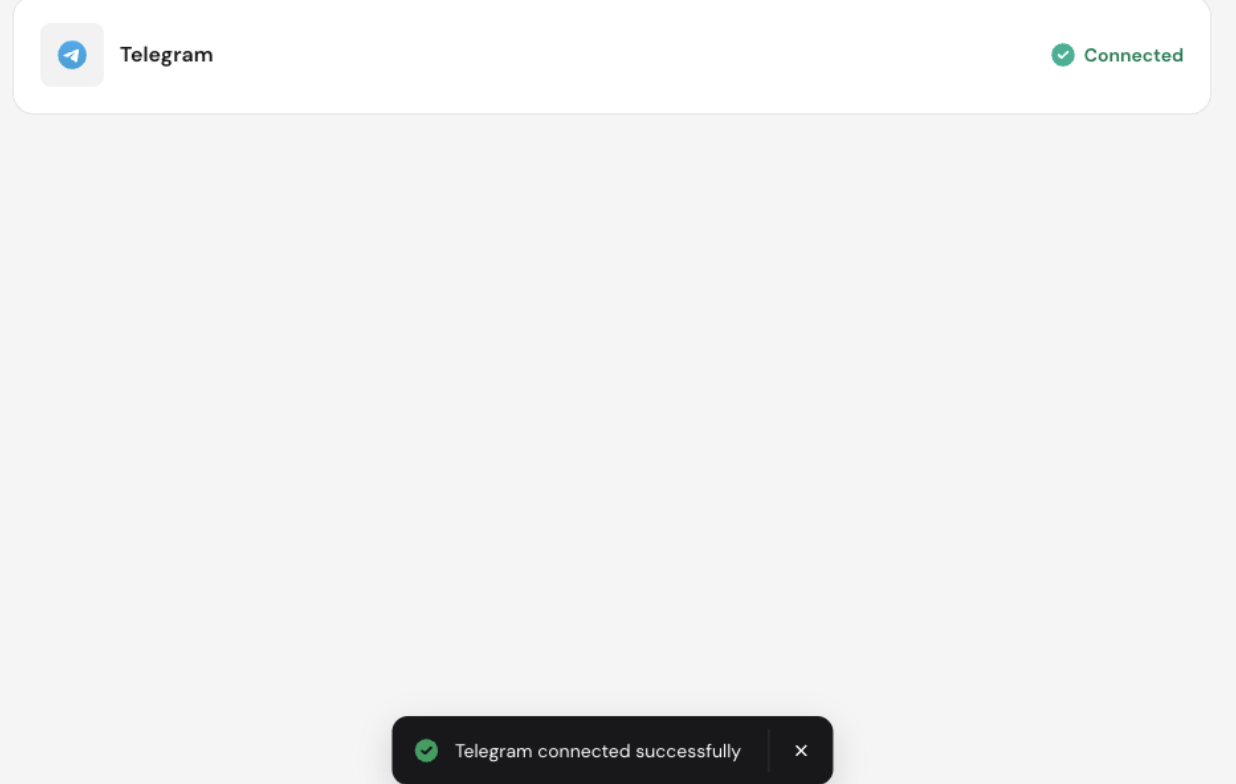
Congratulations! Your Telegram was successfully connected!
Once the connection is complete, you will communicate with your AI assistant by writing messages to yourself within the app.