Hostinger allows you to host multiple websites under the same hosting plan, depending on the plan type.
Before you start
The following plans support multiple websites:
- Web Premium
- Web Business
- All cloud hosting plans
- Agency hosting plans
If you are using web Single hosting, you need to upgrade your plan to host more websites.
For VPS hosting, website creation depends on your control panel or operating system template. Follow the documentation specific to your VPS setup.
Adding a website consists of two main steps:
- Create the website in hPanel
- Connect the domain
Step 1 – Select the hosting plan and website type
-
Open hPanel and go to Websites
-
Locate the hosting plan where you want to add the website
-
Choose one of the following options:
- Add website – for creating a new website on this hosting plan
- Migrate website – if you are moving an existing website from another provider. For website migration, follow this guide instead: Migrate a website to Hostinger
Next, select the website type.
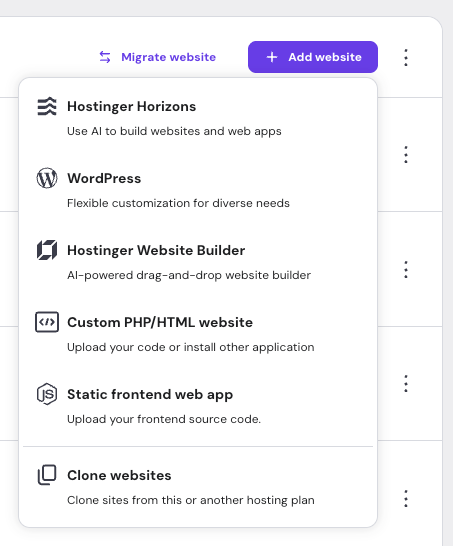
Available website types
-
Hostinger Horizons – A prompt-based AI application builder. If you do not have a Horizons plan, you can start with a free trial.
-
WordPress – Create a website using WordPress with AI-powered design and content tools.
-
Hostinger Website Builder – An AI-powered visual drag-and-drop website builder.
-
Custom PHP/HTML website – Use this option to upload custom code or install applications such as Joomla or PrestaShop.
-
Static frontend web app – Deploy Node.js-based frontend applications on managed hosting. Available on web Business, cloud, and Agency plans.
-
Clone websites – Duplicate a WordPress website from a Hostinger web or cloud plan to an Agency plan. Available only for Agency hosting.
Follow the onboarding steps shown in hPanel. These vary depending on the website type you select.
Choose a domain or subdomain
If you are prompted to choose a domain, you can enter:
-
A domain name you already own, for example
domain.tld-
If the domain belongs to a different Hostinger account, ownership verification is required.
-
-
A subdomain of a domain you own, for example
store.domain.tld -
A new domain name available for registration
You can also continue with a temporary domain and connect a custom domain later. By default, new Hostinger Horizons and Website Builder websites are created on a temporary domain, without prompting for a custom domain during setup.
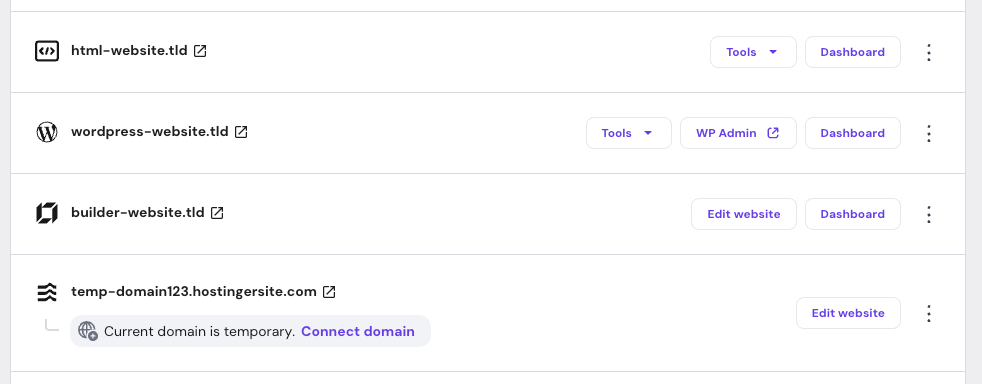
After completing this first step, the website is added to hPanel. It appears on the Home page under the Business section, and on the Websites page, where you can manage its settings and continue editing.
The indicator shown next to the website name reflects the website type.
Step 2 – Connect the domain
This step covers two related actions:
- assigning a custom domain or subdomain to the website
- pointing the domain so the website becomes accessible online
Depending on how the website was created, one or both actions may be required.
Change from temporary to custom domain
Websites created on a temporary domain are available shortly after creation.
If you want to use a custom domain or subdomain instead, you need to assign it to the website by following the guide that matches your website type:
-
WordPress or custom PHP/HTML: connect a domain or subdomain
- Static frontend web app (Node.js application): connect a domain or subdomain
This step links the domain to the website. Additional DNS changes to point the domain may still be required.
Point the custom domain
Websites using a custom domain or subdomain must point to Hostinger before they become accessible online.
-
If the domain already points to Hostinger nameservers, no further action is required and the website becomes available shortly.
-
If the domain uses external nameservers (for example, Cloudflare), DNS records must be updated at the provider managing the domain.
Follow the domain-pointing guide that matches your website type:
After the domain is assigned and DNS changes are applied, allow up to 24 hours for DNS propagation.
This also applies to domains registered during website creation.